Labels and manifest
This page shows how to print labels, and whether you still need Meesho's panel.
Who can do this: Meesho labels and manifest: Owner, Admin, Manager (the account must be logged in). Flipkart labels, manifest and dispatch: Owner, Admin, Manager, Packer.
Step 1 — Accept the Meesho order first
See Accept or cancel a Meesho order.
Step 2 — Download Meesho's labels or manifest
On the order page, click Meesho labels (shipping labels) or Meesho manifest (the courier handover list).
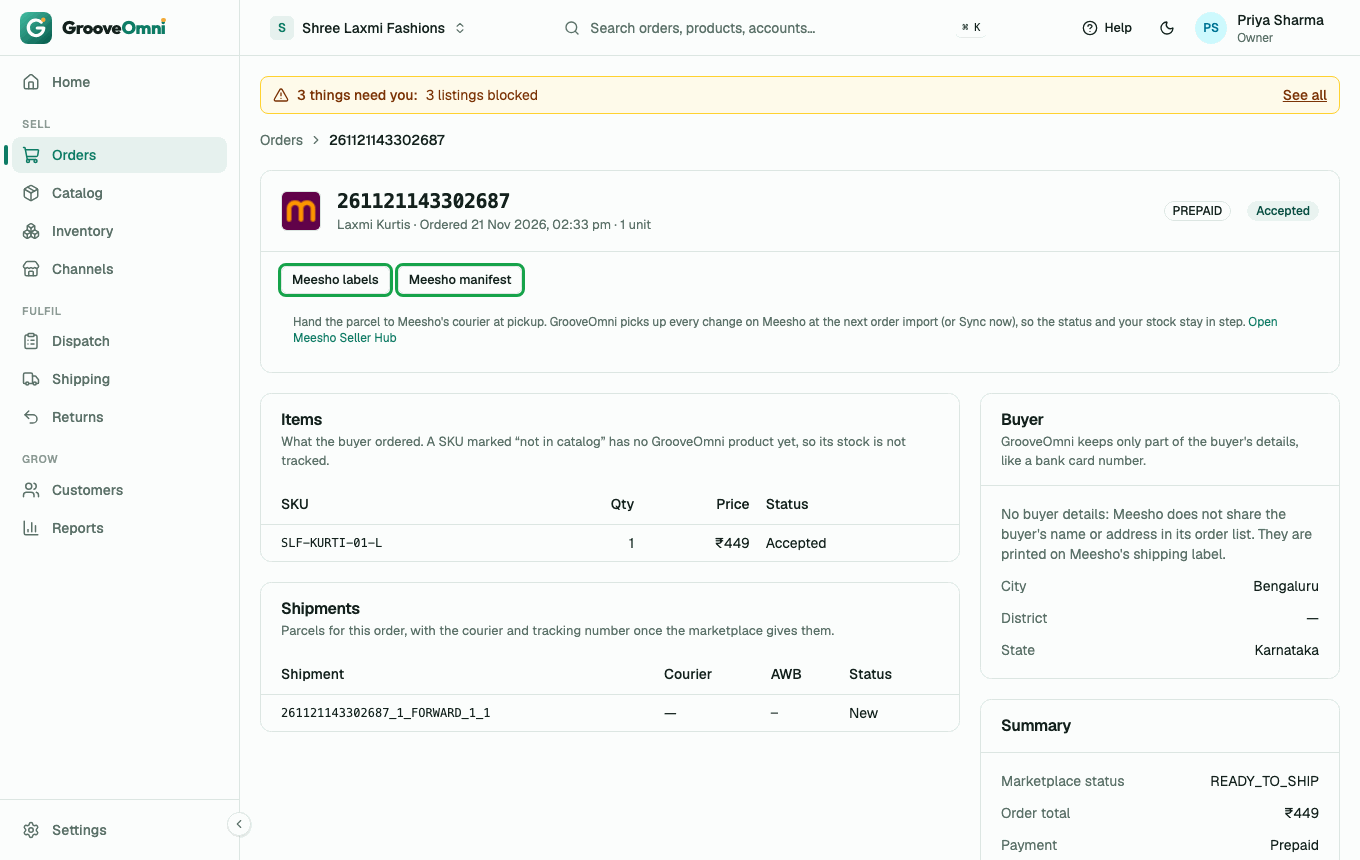 On an accepted Meesho order, click Meesho labels (shipping labels) or Meesho manifest (the courier list). Meesho’s own file opens in a new tab.
Step 3 — Print it
GrooveOmni asks Meesho for its own file and opens it in a new tab ("Meesho labels ready"). Print it from there, or save it.
GrooveOmni does not keep a copy of the file, because it carries buyer addresses.
Step 4 — Do many orders at once
Orders → To pack, tick the accepted Meesho orders, then Meesho labels or Meesho manifest in the bar that appears. (Also: Shipping → To pack.)
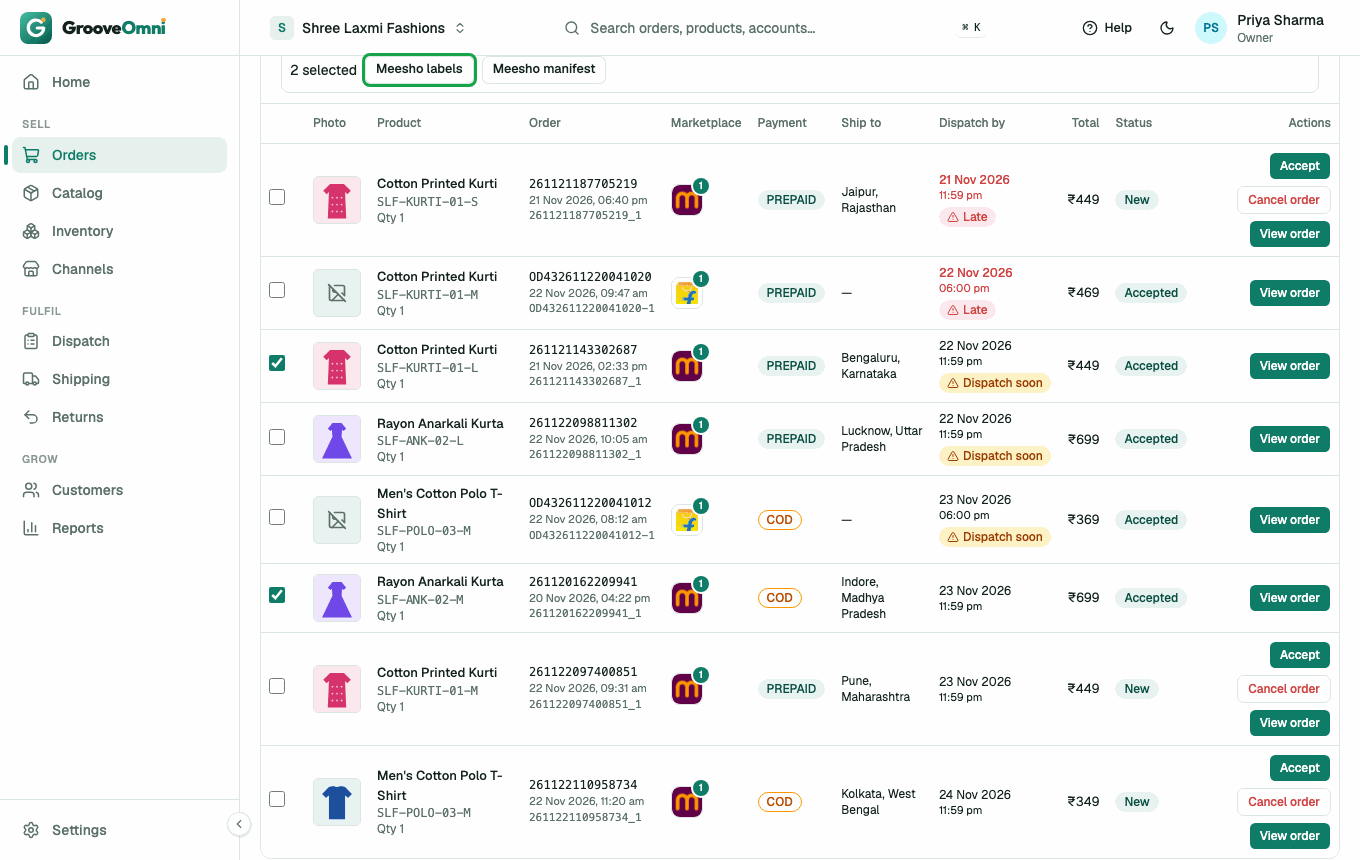 For many orders at once, tick the accepted Meesho orders in To pack: Meesho labels and Meesho manifest are in the bar that appears.
Label printing options (label sizes, several labels on one sheet). Today you get Meesho's file as it is.
Flipkart
- On a new Flipkart order, click Generate label (or tick several in To pack and click Generate labels).
- Click Print label (or Print labels).
- Pack the parcels, then click Ready to dispatch. Tick Labels are printed and the parcels are packed and click Confirm dispatch.
- On the Ready to dispatch tab, Manifest · <account> opens the Flipkart manifest.
Tick Labels are printed and the parcels are packed only when they are.
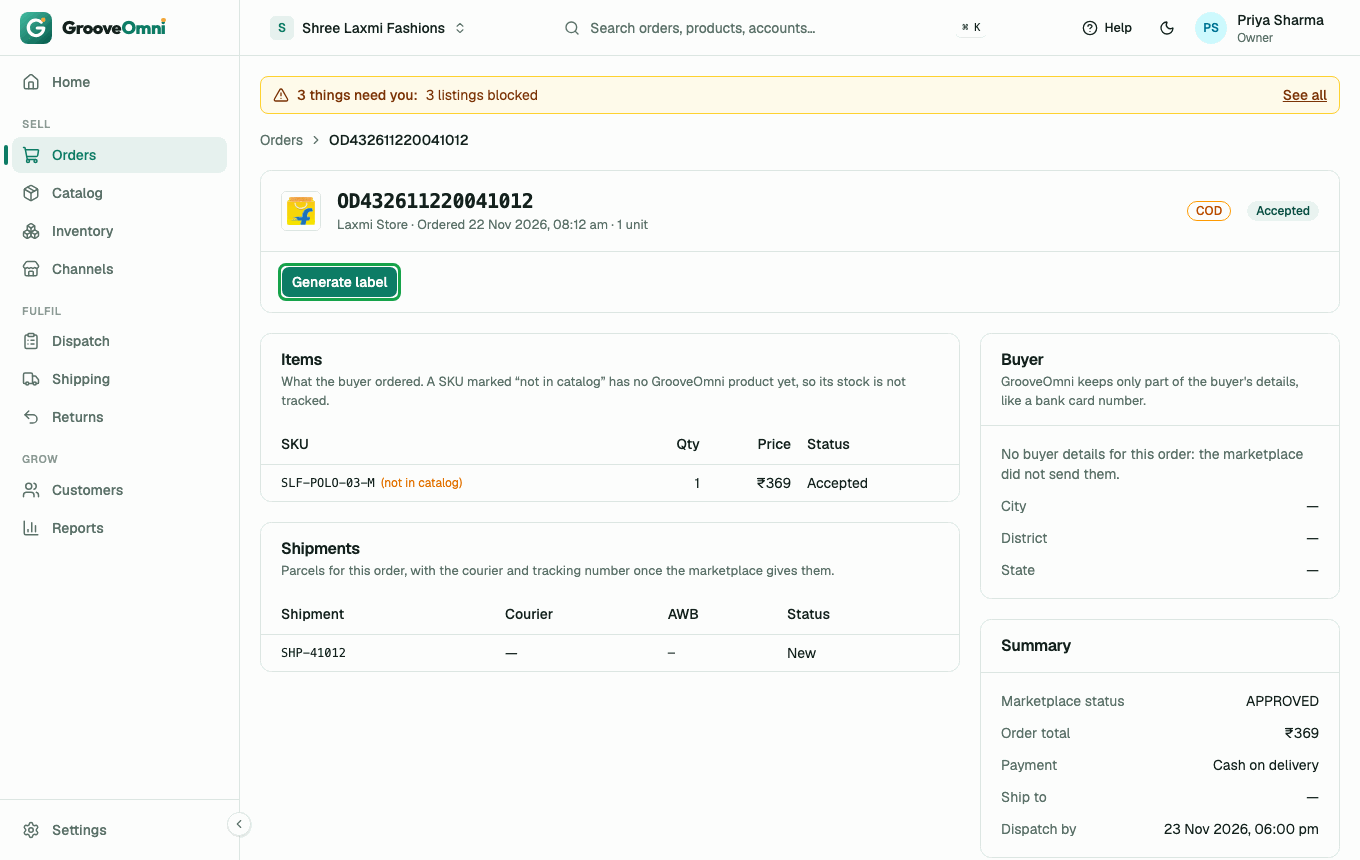 On a new Flipkart order, click Generate label.
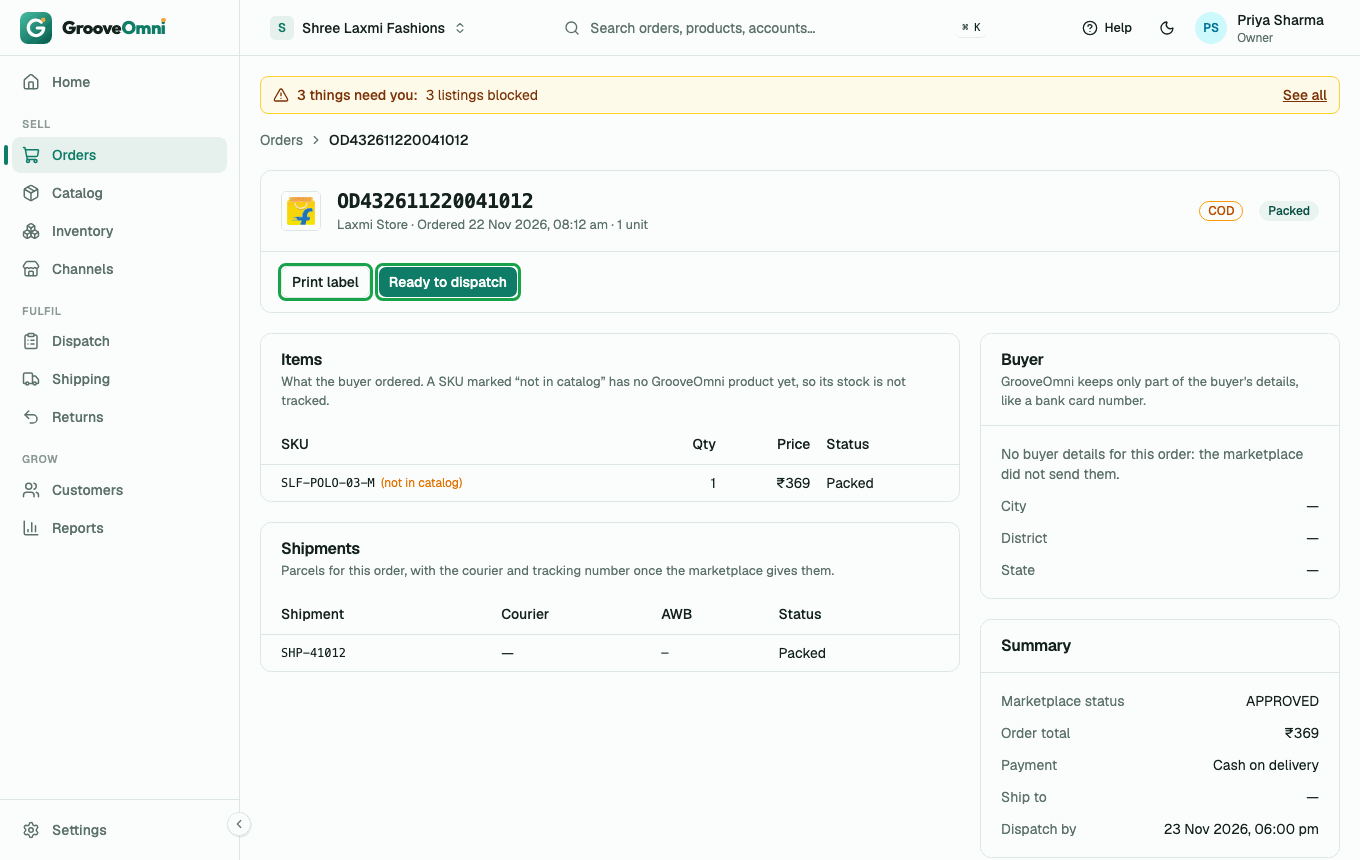 Click Print label, pack the parcel, then click Ready to dispatch.
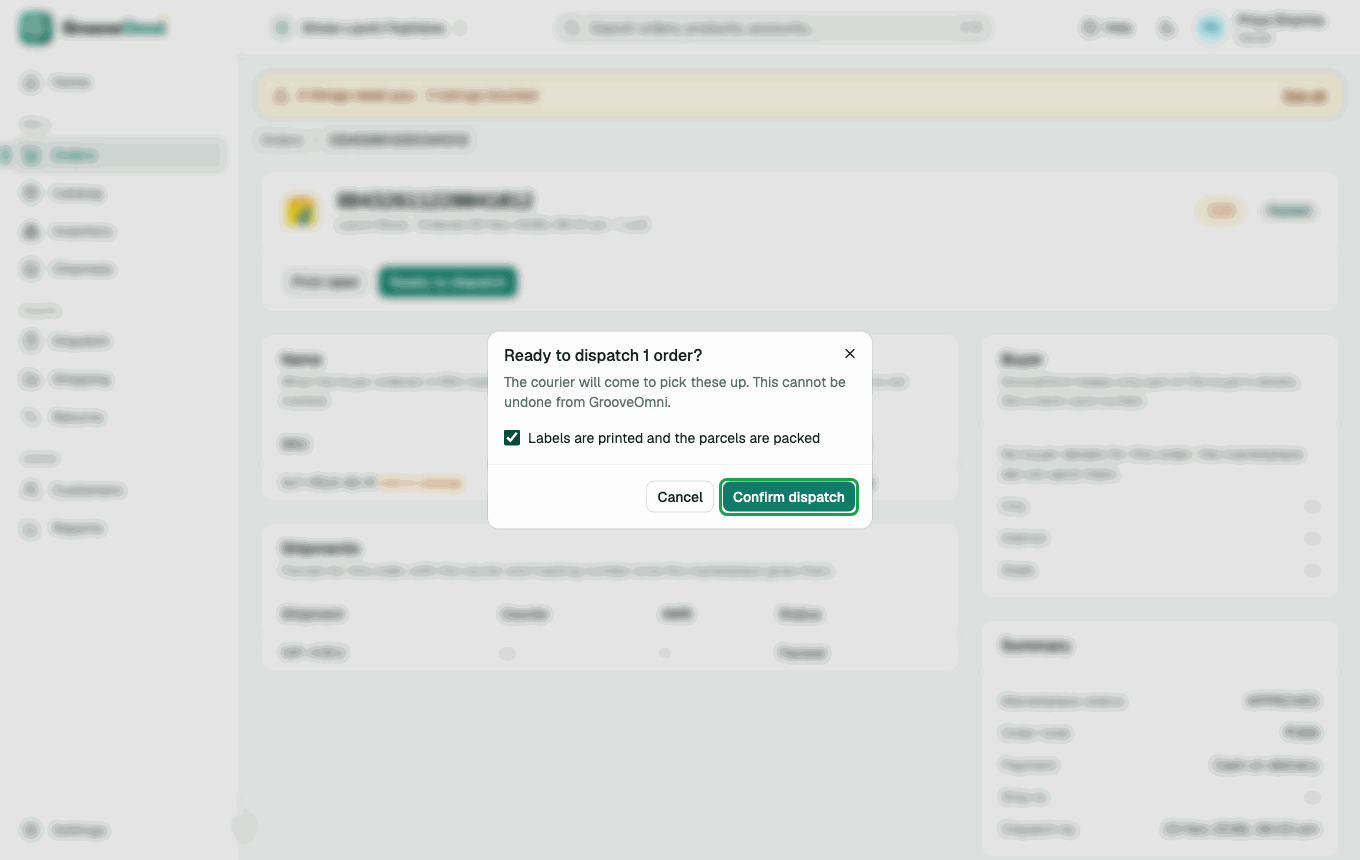 Tick Labels are printed and the parcels are packed, and click Confirm dispatch. This cannot be undone from GrooveOmni.
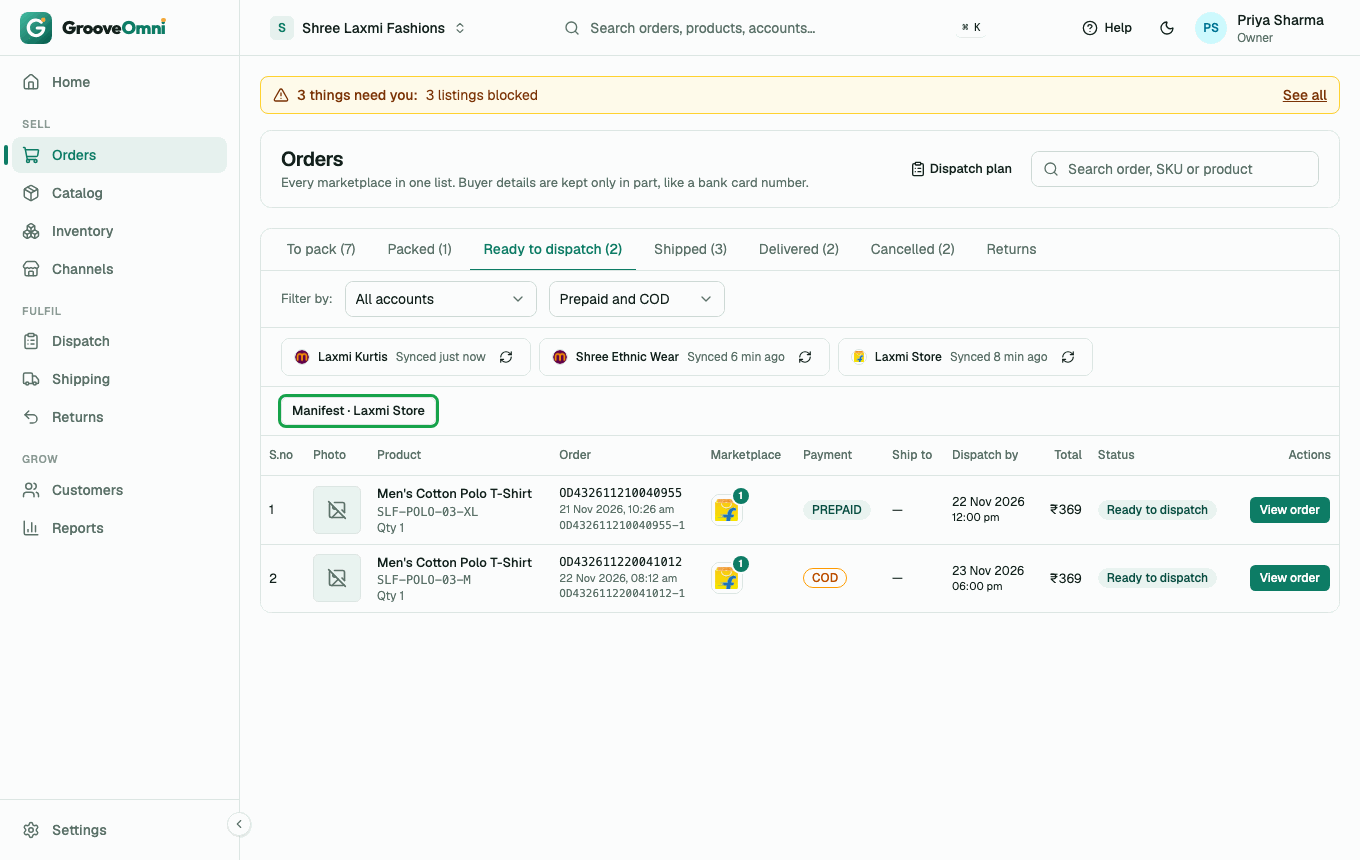 On the Ready to dispatch tab, Manifest · Laxmi Store opens the Flipkart manifest.
If something goes wrong
- "Not ready to ship on Meesho (import orders first)": the order is not in Ready to Ship on Meesho yet. Accept it, or sync the account's orders.
- "Labels cannot be made here for these parcels.": these parcels are from a marketplace whose labels GrooveOmni cannot make; print them in that marketplace's panel.
- The label file does not open: allow pop-ups for GrooveOmni in your browser and click again.
Common questions
Do I still need Meesho's panel? Not for accepting, labels and the manifest. You still need it for Meesho's returns, claims and payments, and anything Meesho changes on its side.
My packer cannot download Meesho labels. For now, Meesho labels and the manifest need a Manager, Admin or Owner.
What's next
- Shipping and tracking Where your parcels are, and which are late.
- Orders to dispatch today and tomorrow The pick list for today's parcels.
- What each role can do Who can download labels.