Add a staff member
This page shows how to give your packer or catalog person their own login.
Who can do this: only the Owner and Admins see Settings → Team. Only the Owner can make someone an Admin.
Step 1 — Open Team
Go to Settings → Team (or your name at the top right → Manage team).
Step 2 — Click Invite someone
Click Invite someone.
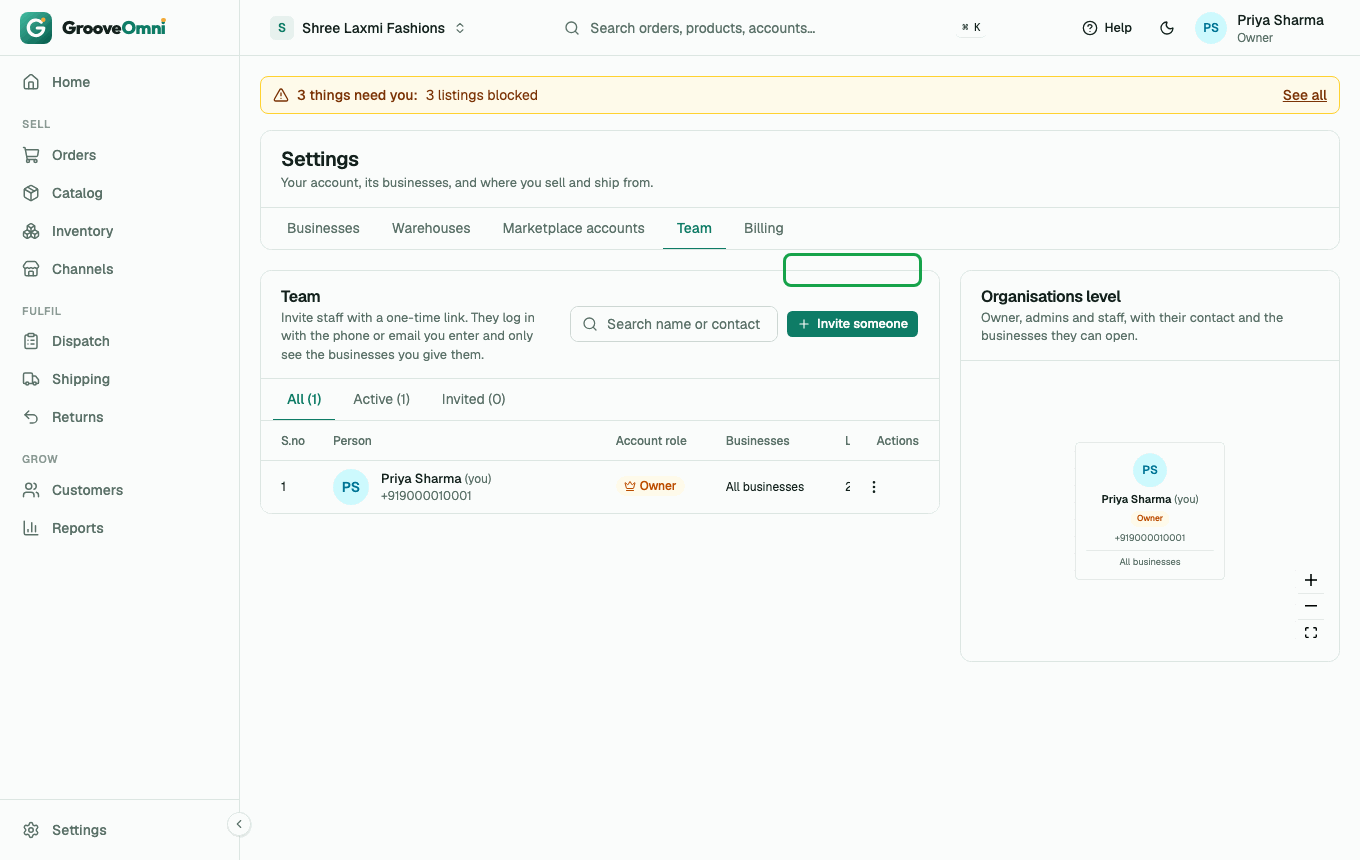 Go to Settings → Team and click Invite someone.
Step 3 — Fill in the invite
| Field | What to enter |
|---|---|
| Mobile number or email | The person must log in with exactly this number or email to accept, for example Ravi Kumar's +91 90000 10002. If your GrooveOmni login page shows only Continue with Google and Continue with Microsoft, use the email of their Google or Microsoft account. |
| Name (optional) | Shown in the team list until they set their own, for example "Ravi Kumar". |
| Account role | Staff (chosen businesses) or Admin (all businesses, team). Only the owner can choose Admin. |
| Business access (for Staff) | For each business, pick one role: Manager, Catalog editor, Packer, Viewer, or No access (the business is hidden from them). They need a role in at least one business. |
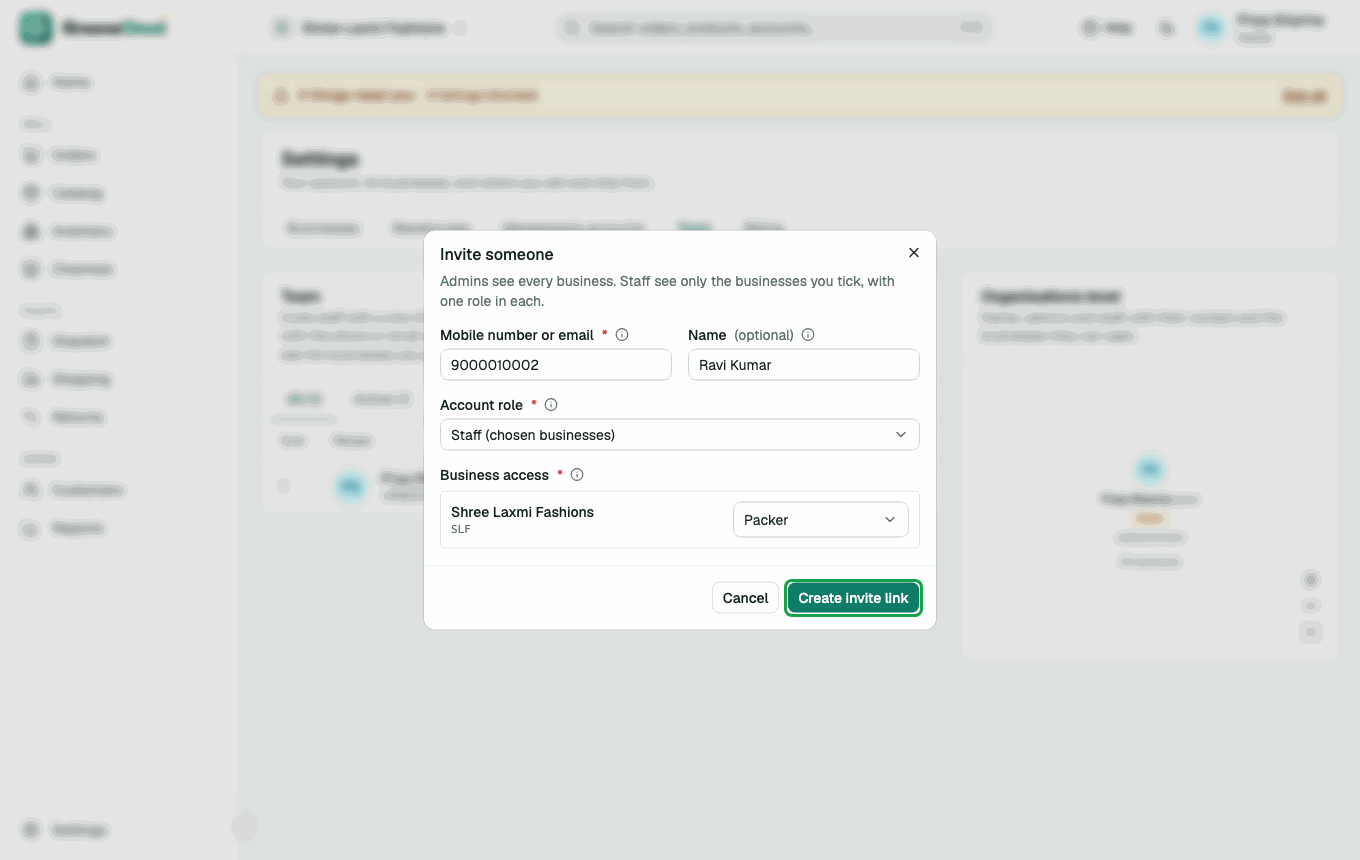 Fill in their mobile number, their name and their role in each business, then click Create invite link.
Step 4 — Create the invite link
Click Create invite link.
Step 5 — Share it on WhatsApp
The window Invite link for <name> says "Works once, until <date>. Only the invited phone or email can use it." (A link lasts 7 days.) Click Share on WhatsApp to send it, or Copy link.
The person appears in the team list with status invited.
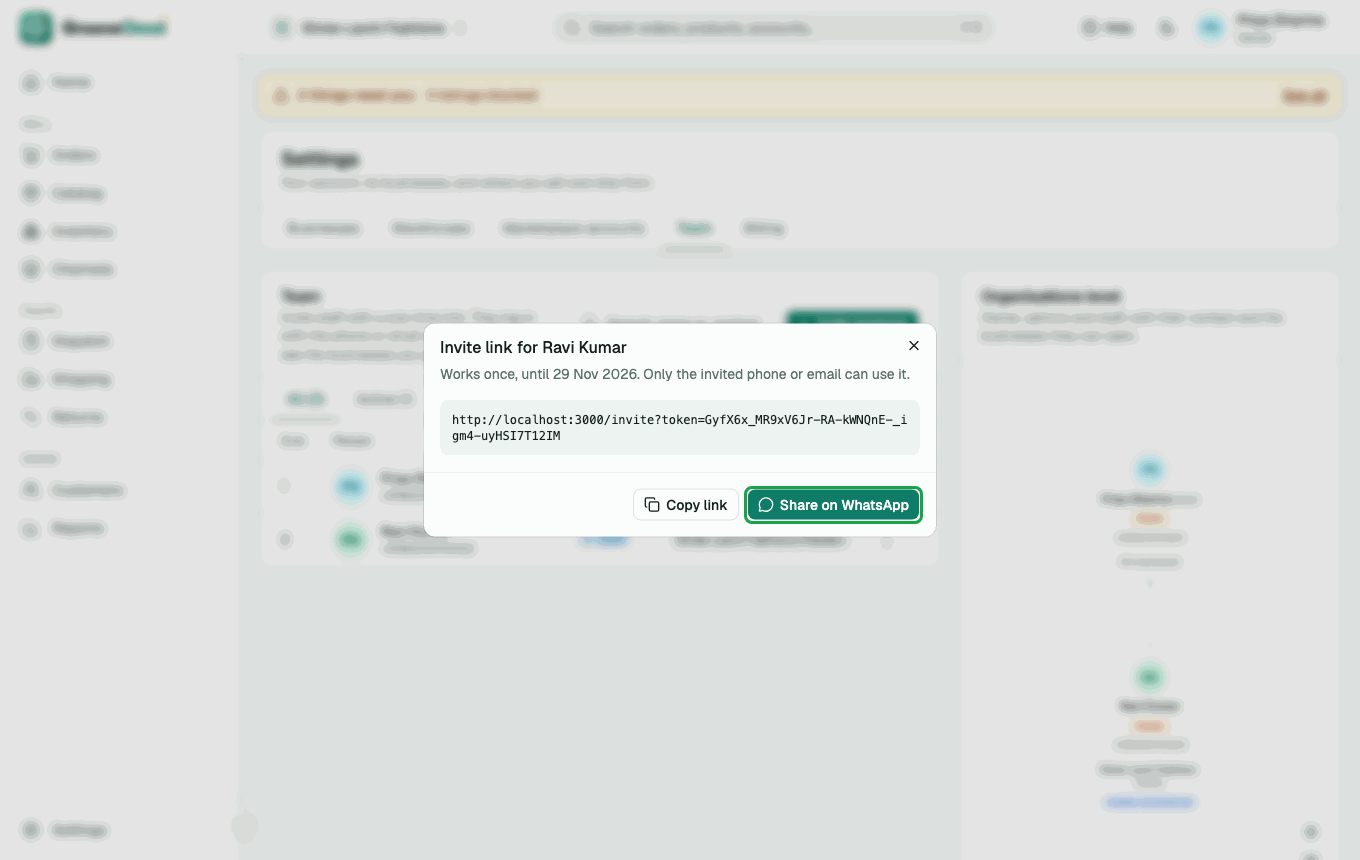 Share the link on WhatsApp or copy it. It works once, for 7 days, and only for that phone number.
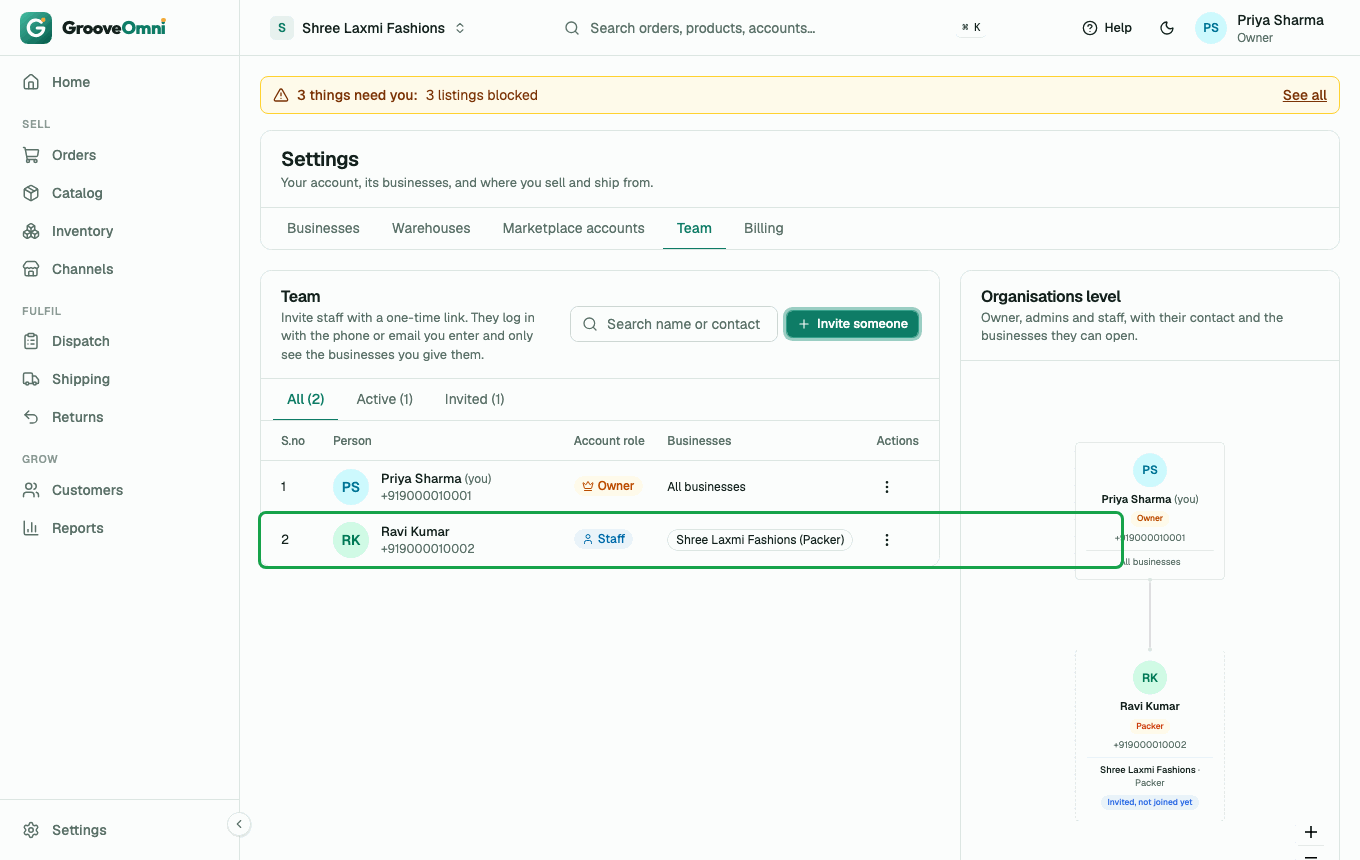 The person is in the team list as invited until they accept.
Step 6 — The staff member accepts
What the staff member does:
- Open the link from WhatsApp.
- Log in with the phone number or email the owner used (with Google or Microsoft if that is what the page shows).
- The page You're invited shows the account, who was invited, and the businesses and role.
- Click Accept invite. You see "Joined <account>" and land on Home, with only the pages your role allows.
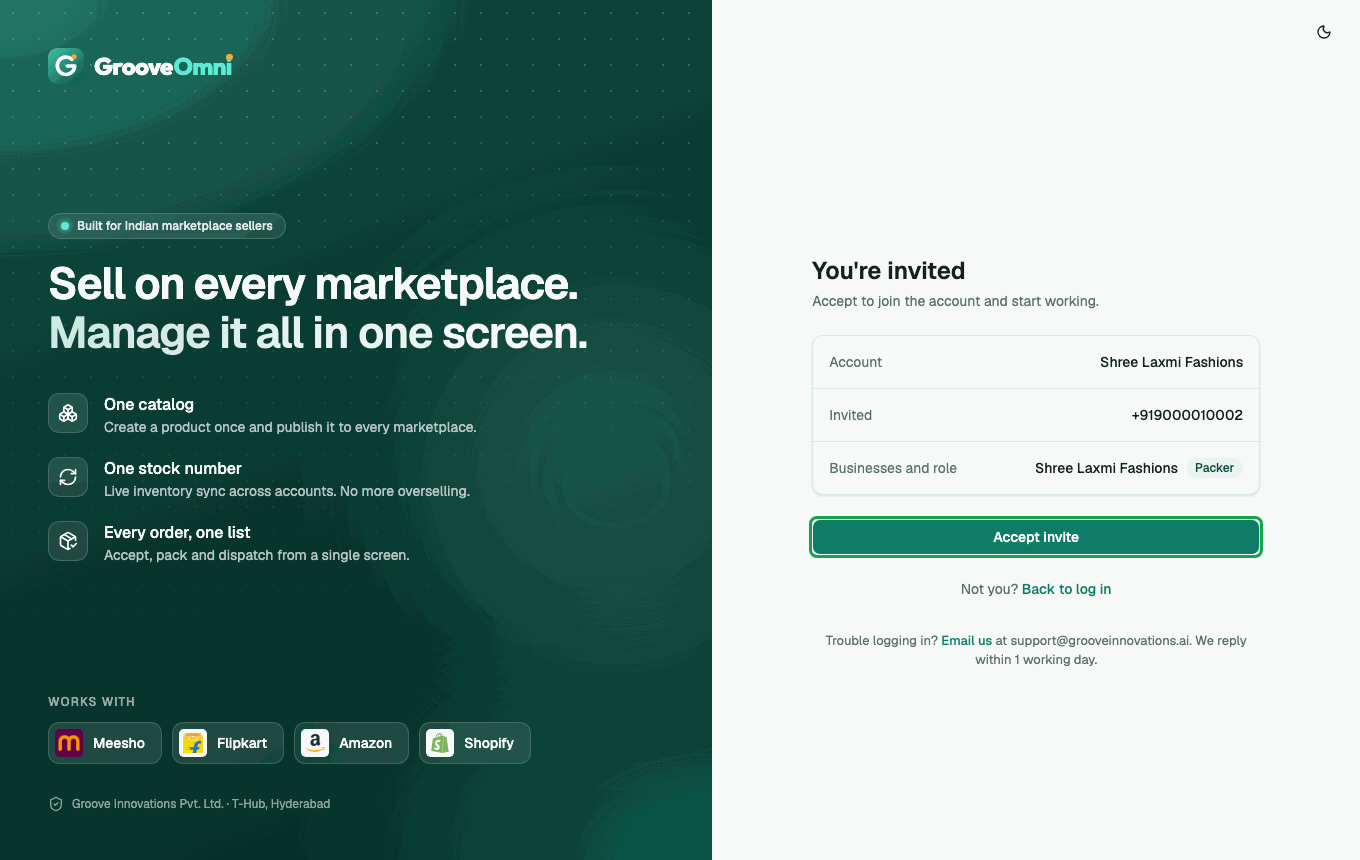 Your staff member opens the link, logs in with that number and sees You’re invited. They click Accept invite.
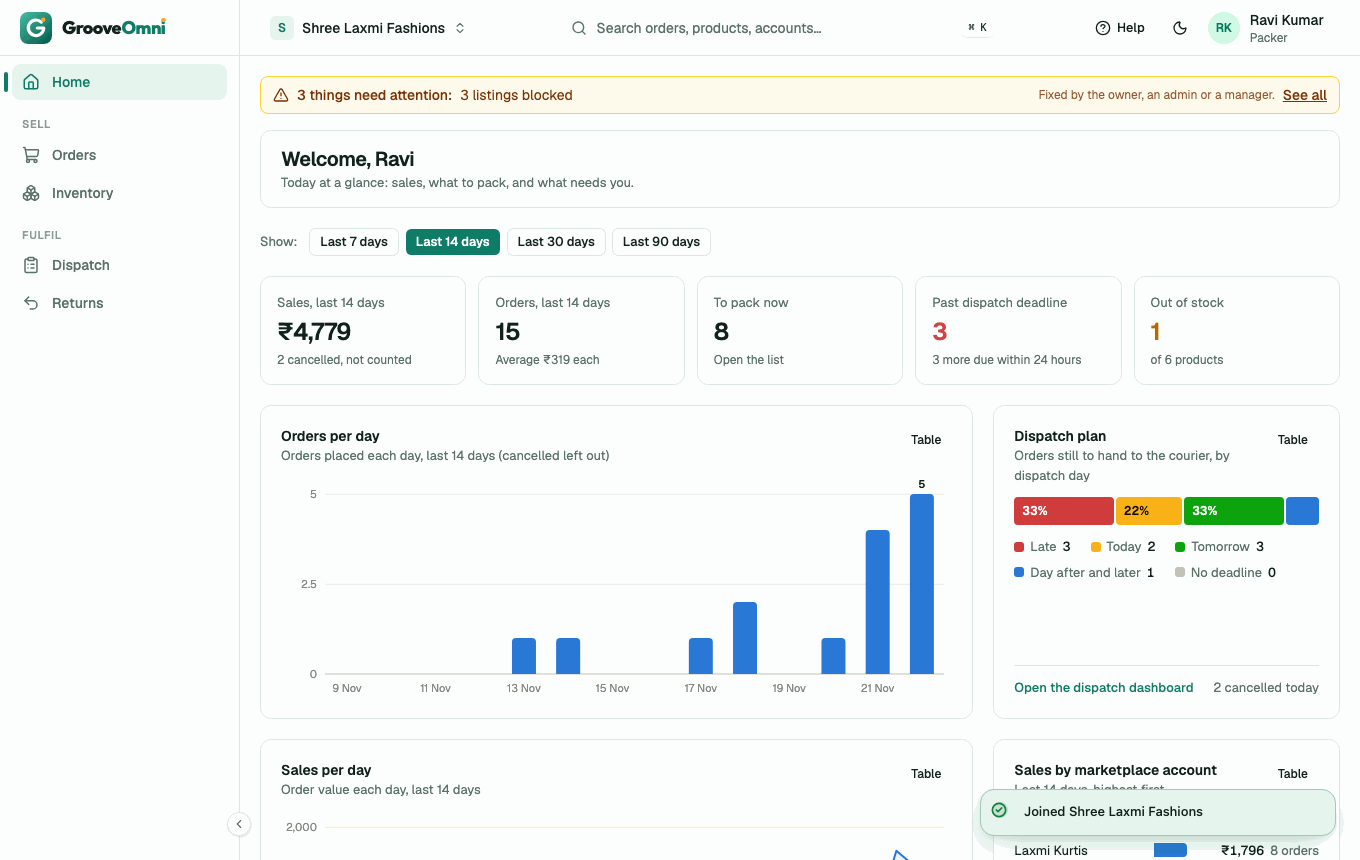 They land on Home and see only the pages their role allows.
If something goes wrong
- "This invite cannot be opened": the person logged in with a different number or email. Click Log in with another number or email, then use the invited one.
- "This invite link has expired or was cancelled. Ask for a new one.": in Team, click ⋮ → New link in their row and share the new link.
- "No account for this login yet. Create one to continue." after logging in: the person opened the login page instead of the invite link. Open the invite link again. Do not create a new account.
Common questions
Can one person work in two businesses with different roles? Yes: one role per business, for example Packer in one and Viewer in the other.
Can a staff member belong to two GrooveOmni accounts (two different sellers)? Not yet. One login belongs to one GrooveOmni account today.
What's next
- What each role can do Manager, Catalog editor, Packer and Viewer, action by action.
- Change a role or remove someone When someone changes jobs or leaves.
- Keep your accounts safe One login per person, with the smallest role they need.