Shipping and tracking
This page shows where your parcels are, and which ones are late.
Who can do this: everyone except Packers (the Shipping page is not in their menu).
Step 1 — Open Shipping
Click Shipping in the left menu: "Every parcel across your marketplaces."
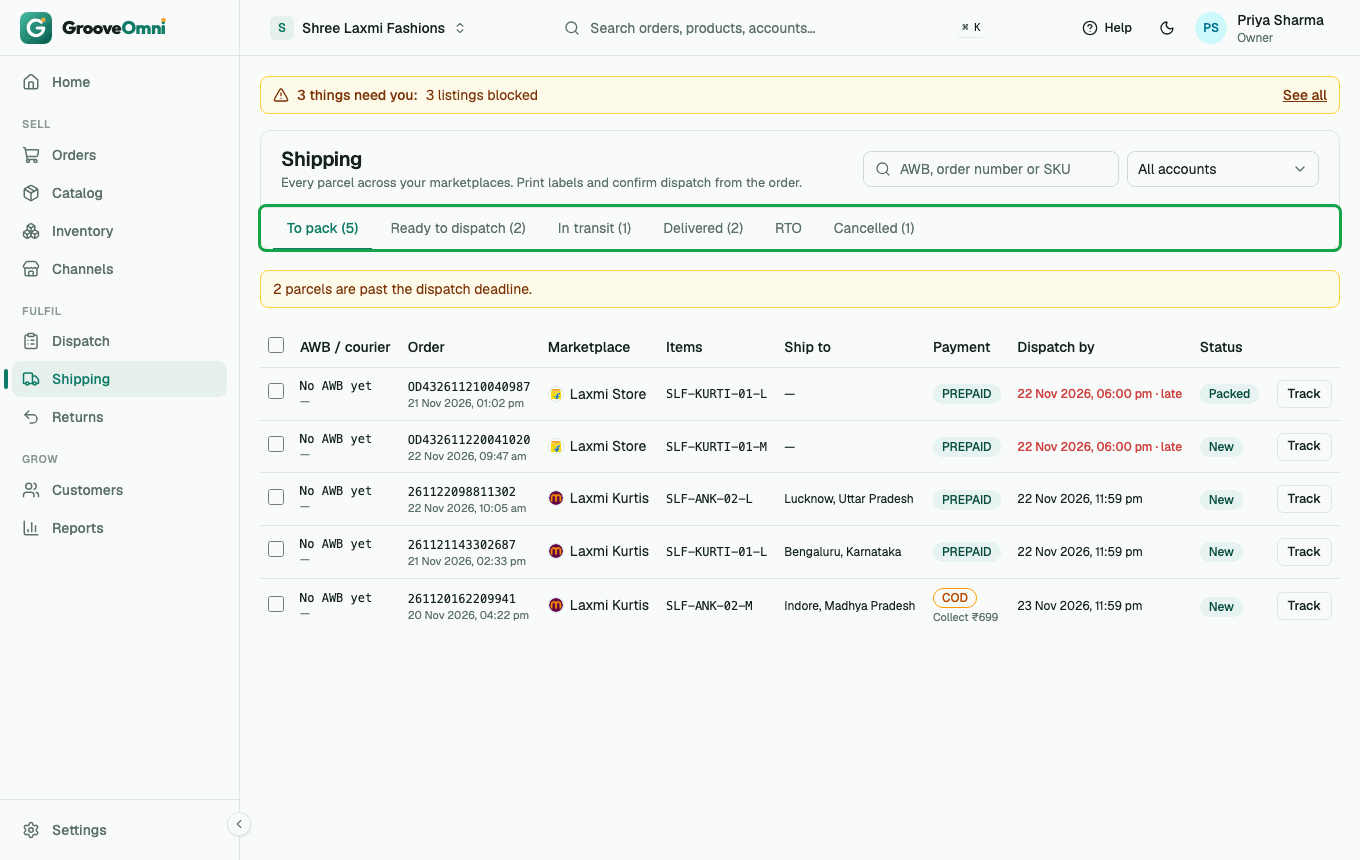 Click Shipping: every parcel across your marketplaces, by stage, with search and the account filter.
Step 2 — Pick a stage
Tabs: To pack, Ready to dispatch, In transit, Delivered, RTO, Cancelled.
Search by AWB, order number or SKU, or filter by Marketplace account.
A yellow line warns when parcels are past the dispatch deadline: "2 parcels are past the dispatch deadline."
Step 3 — Read each parcel
Each row: the AWB and courier ("No AWB yet" before the marketplace gives one), the order, the account, the items, ship-to city, payment (a COD parcel says "Collect ₹…"), the date and the status.
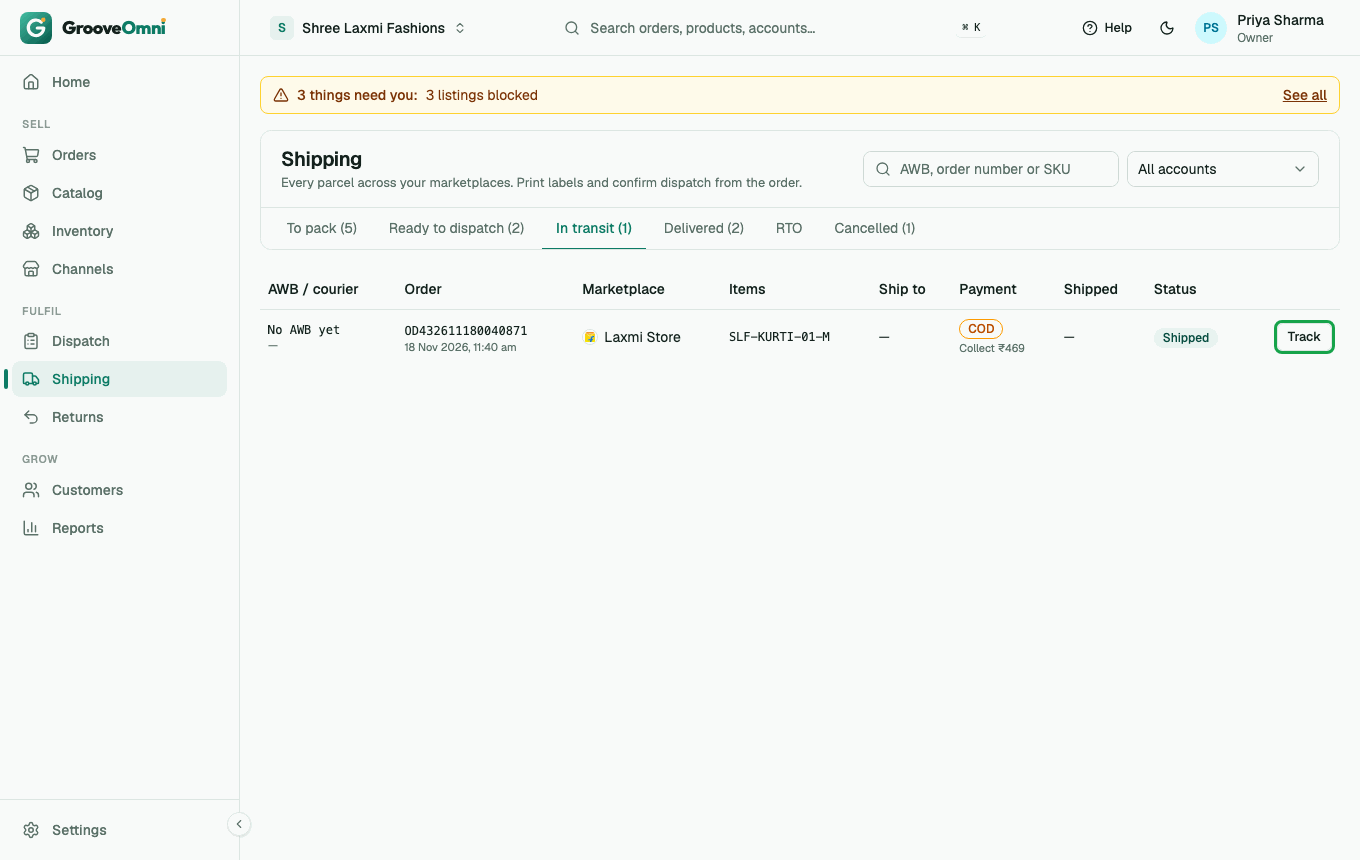 Each row: the AWB and courier, the order, the account, the items, the city, payment (“Collect ₹…” for COD) and the status.
Step 4 — Track a parcel
Click Track to see the tracking events. "No tracking updates yet. They appear as the marketplace reports them."
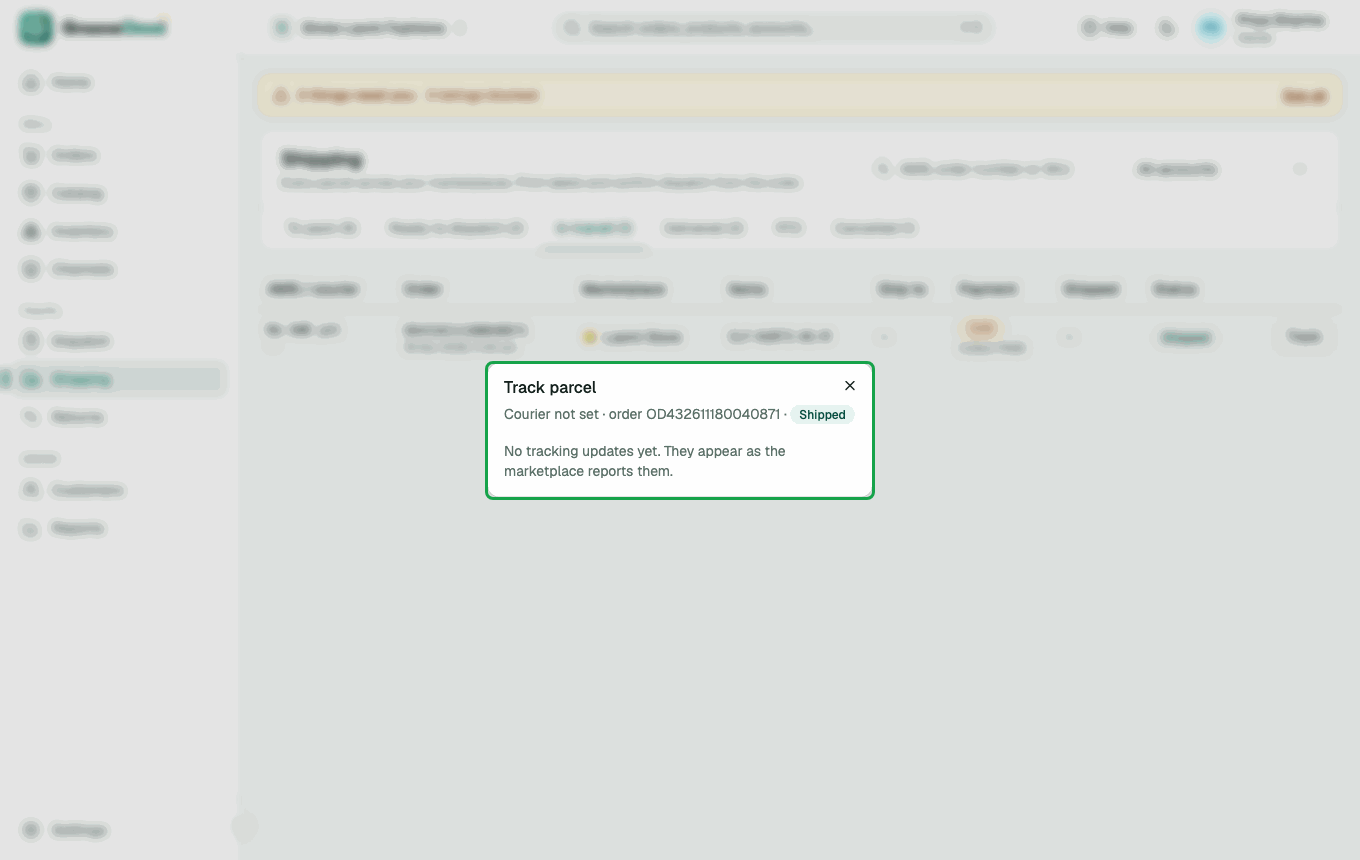 Click Track to see the tracking events as the marketplace reports them.
Common questions
My Meesho parcels show no AWB or tracking. GrooveOmni shows what Meesho's order list gives. For full tracking of a Meesho parcel, use Meesho's panel.
What is RTO? Return to origin: the courier could not deliver and is bringing the parcel back to you.
What's next
- Returns Receive RTOs and buyer returns.
- Orders to dispatch today and tomorrow What to hand to the courier today.
- Labels and manifest Print labels before the parcels go.