Connect your first Meesho account
This page shows how to connect your first Meesho account, whether it is safe, whether GrooveOmni keeps your password, and what happens after you connect.
Who can do this: Owner, Admin, Manager.
How it works, in short
Meesho has no official connection for outside software. So GrooveOmni opens Meesho's own login page inside GrooveOmni, in a secure browser that runs in GrooveOmni's cloud. You type your phone number and Meesho's OTP into that page yourself. After you log in, GrooveOmni keeps only the logged-in session (encrypted). Your Meesho password is never asked for and never stored. What you type goes into Meesho's page and is not saved.
Because the session lives in GrooveOmni's cloud, orders and stock keep syncing even when your own computer is off.
Step 1 — Open Channels
In the left menu, click Channels. You see a card for each marketplace.
Step 2 — Click Connect on the Meesho card
On the Meesho card, click Connect.
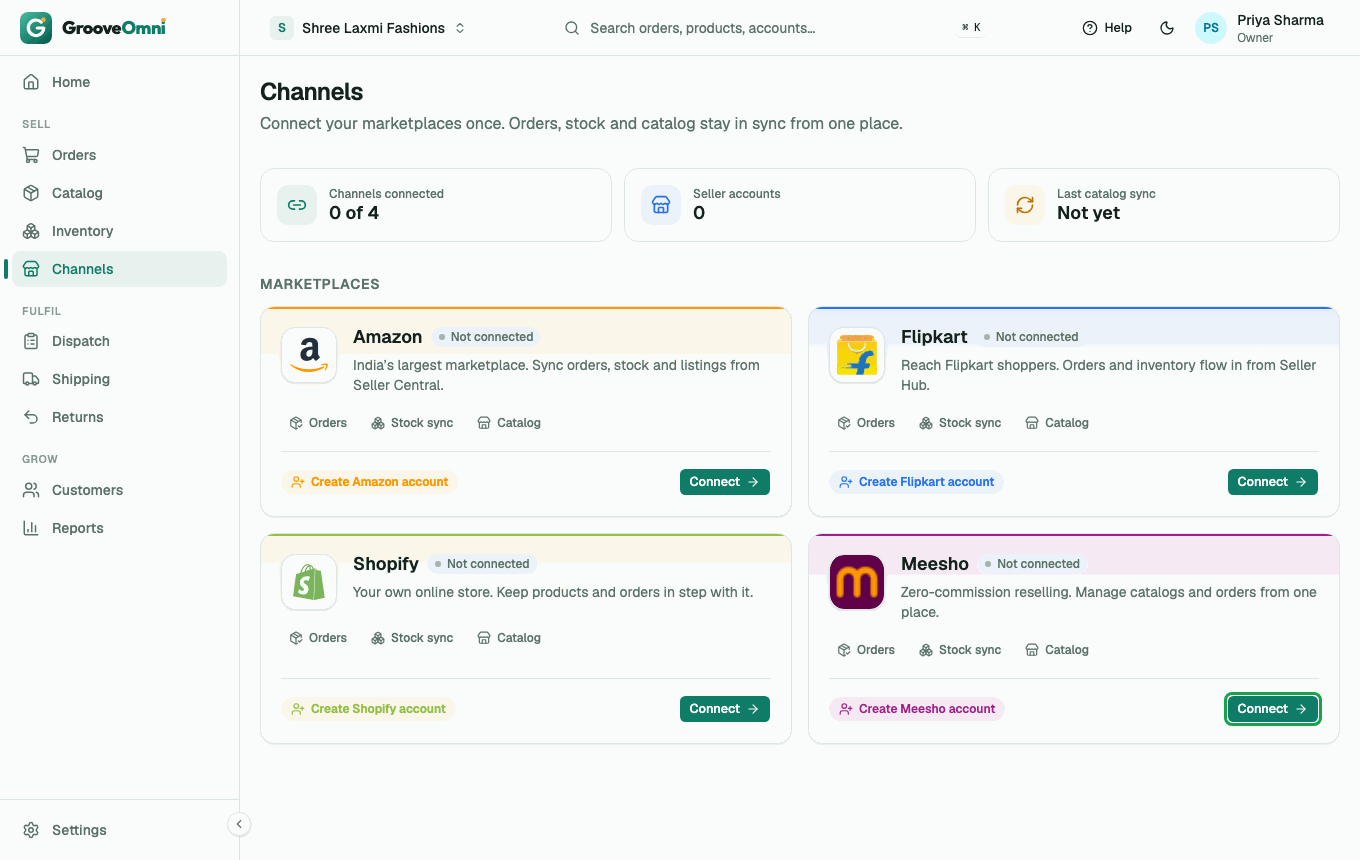 In the left menu, click Channels. On the Meesho card, click Connect.
Step 3 — Check what it costs
If this account costs money today, you first see What this account costs: the days until your billing date, the welcome credit, GST and Paid from your wallet now. Click Continue to Meesho login.
For your first account the welcome credit usually covers it, so this box is skipped and the login window simply says "This account: nothing to pay now (welcome credit), then ₹500 / month + GST on your bill from <date>."
Step 4 — Choose where the stock comes from
If you have no warehouse yet (or more than one), GrooveOmni asks Where does this account's stock come from?
-
With no warehouse: choose Add your warehouse and fill in the place where you keep your stock:
Field What to enter Warehouse name A name your team knows, for example "Main godown". City The city of the warehouse. State The state of the warehouse. Pincode Optional. -
With several warehouses: pick the one this account's stock sits in.
Click Continue to Meesho login. With exactly one warehouse, this question is skipped.
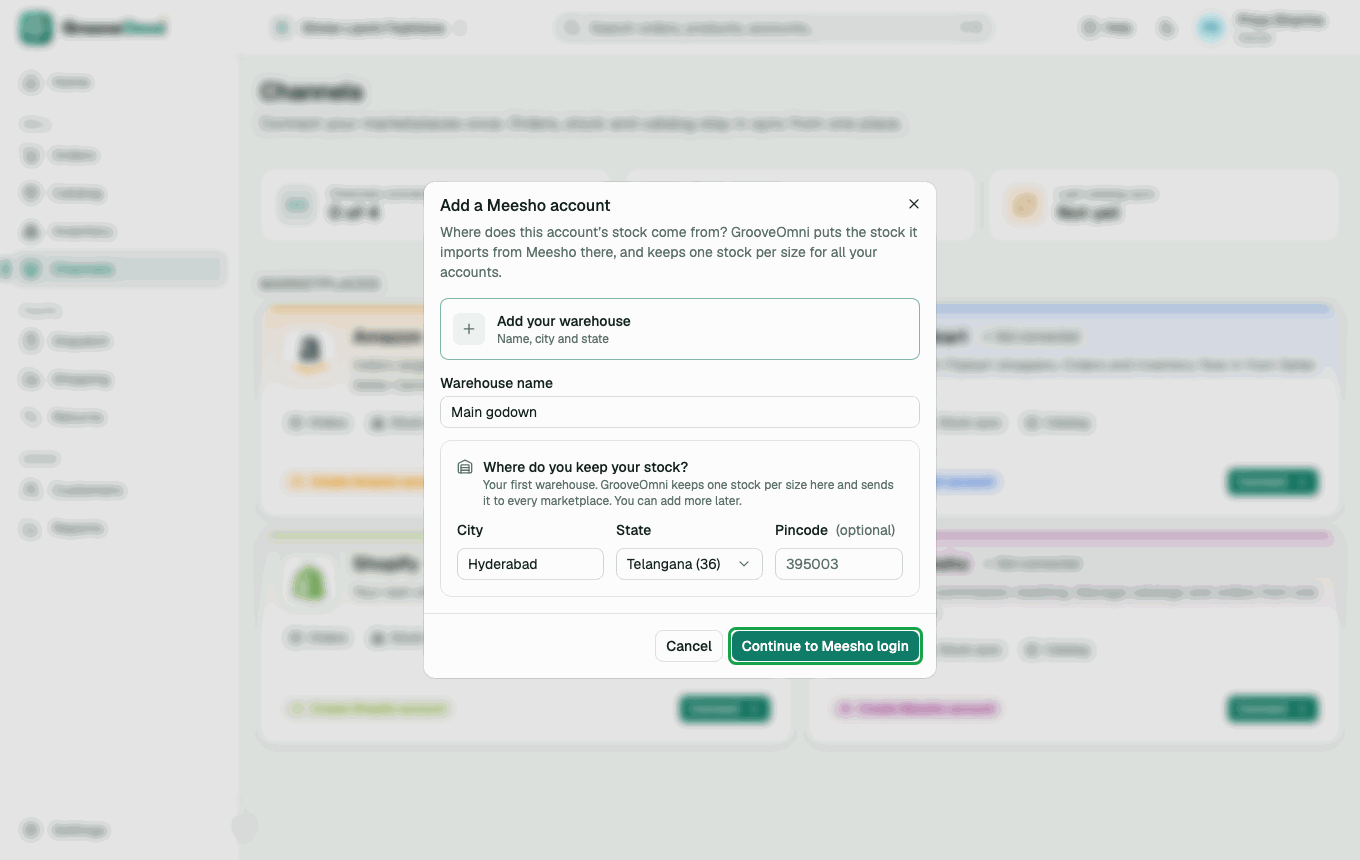 Tell GrooveOmni where this account’s stock is kept: name your warehouse and give its city and state. Click Continue to Meesho login.
Step 5 — Log in on Meesho's own page
The window Connect your Meesho account opens with Meesho's login page (supplier.meesho.com) inside it.
- Click the phone number box in the picture and type your Meesho mobile number with your keyboard. Press Enter.
- Meesho sends you an OTP. Click the OTP box, type it, press Enter.
- The steps at the top move from Enter your phone to Enter the OTP to Done.
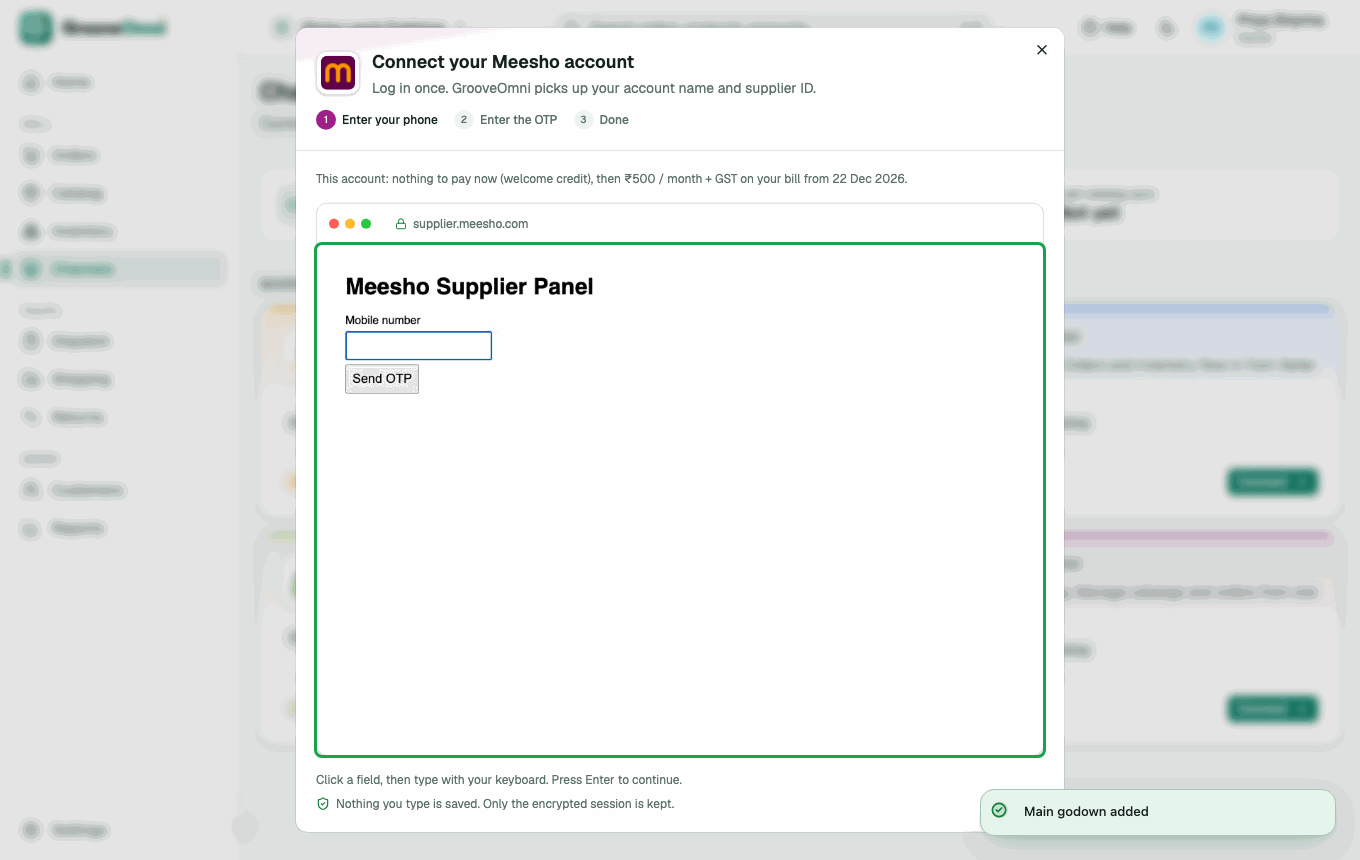 Meesho’s own login page opens inside GrooveOmni. Click the phone number box, type your Meesho mobile number and press Enter.
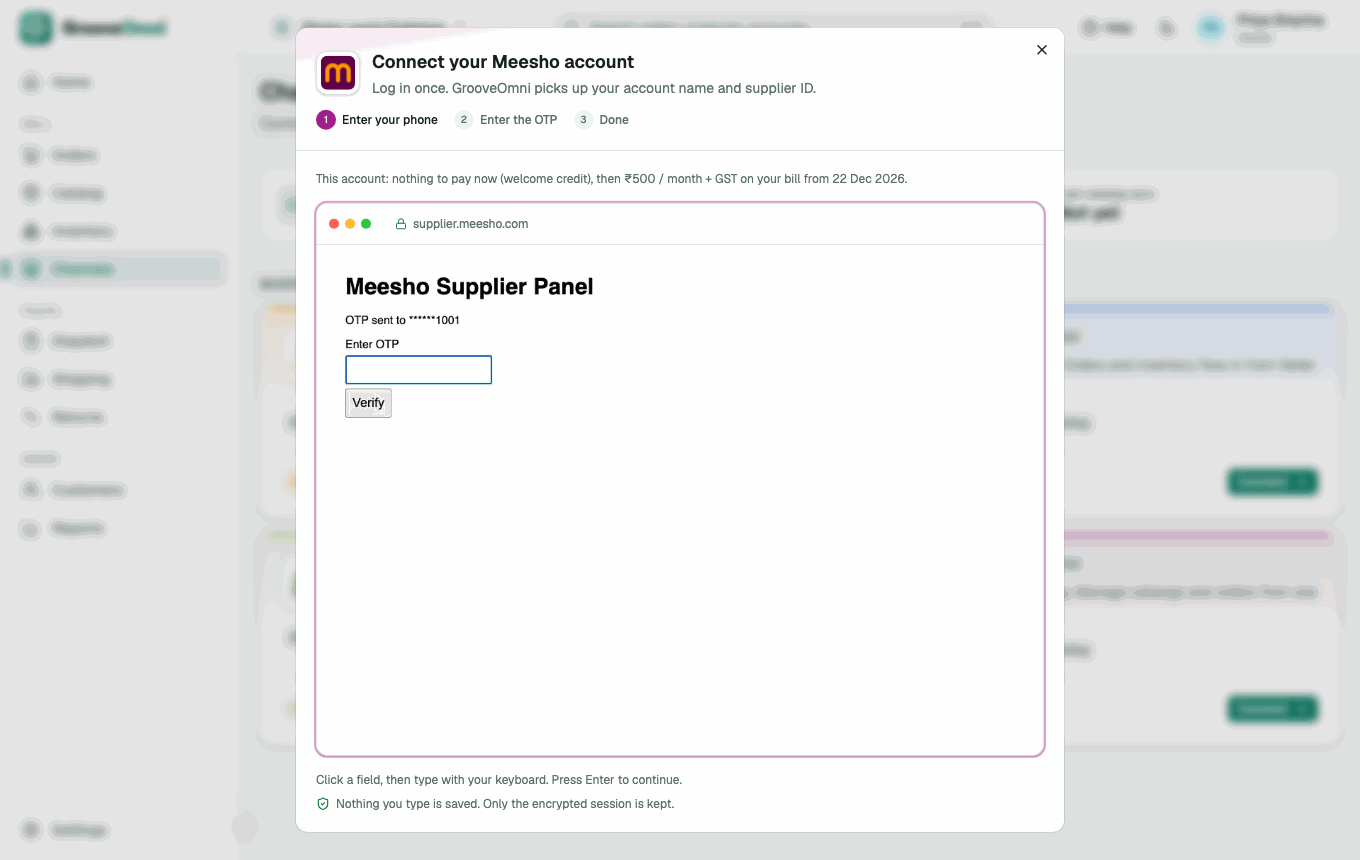 Meesho sends you an OTP. Type it the same way and press Enter. GrooveOmni never sees your password.
Step 6 — Pick the suppliers to add
If your Meesho login manages several suppliers, GrooveOmni lists them. Tick the ones you want and click Add 1 account (or Add 2 accounts, and so on). Each one is a separate marketplace account on your bill.
You see "<your account name>: connected in the GrooveOmni cloud". The window closes.
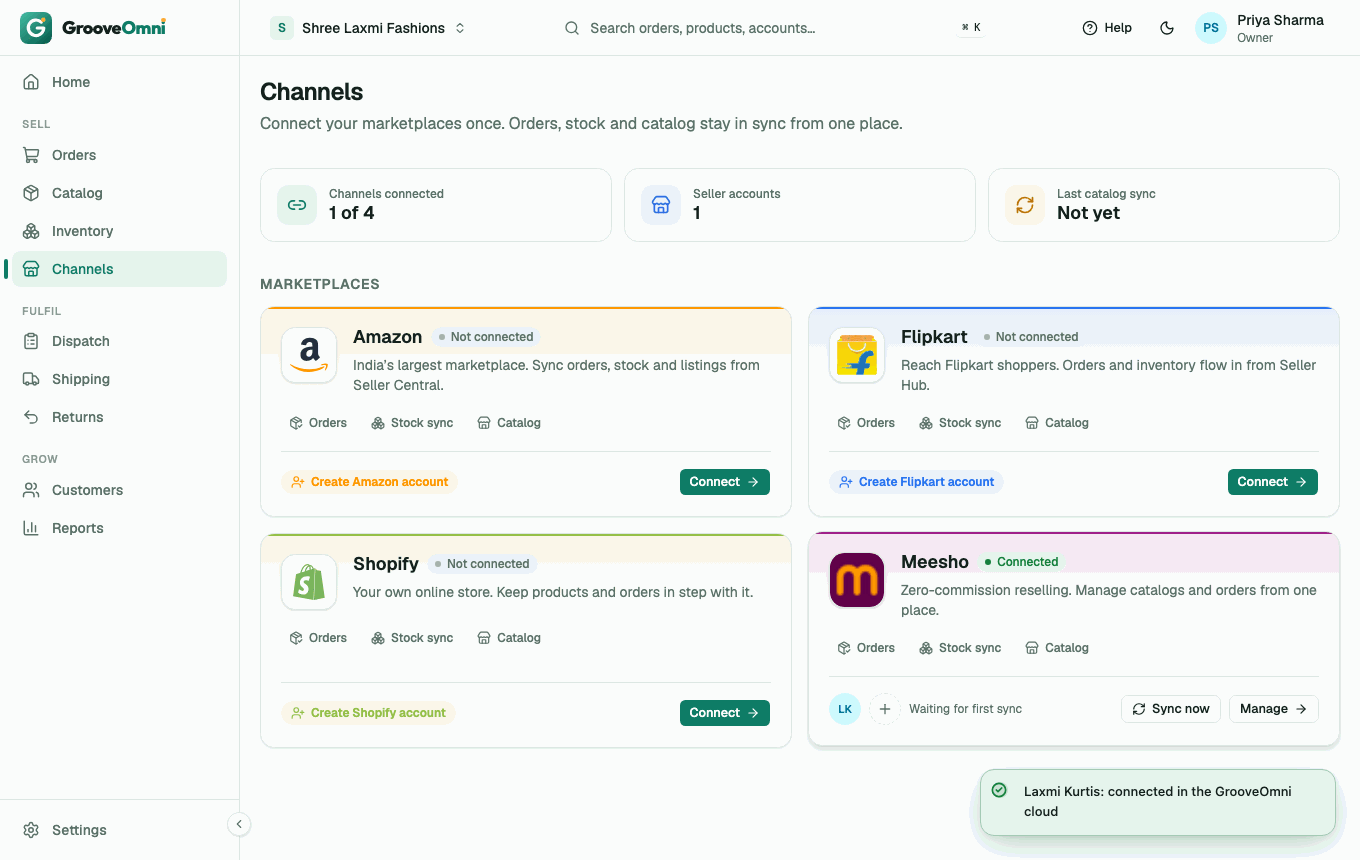 You see that the account is connected in the GrooveOmni cloud.
Step 7 — Let the import run
GrooveOmni now imports by itself, with no button to press:
- your catalog: products, sizes, photos, prices and stock;
- your orders.
This usually takes a minute or two. The opening stock of each size is the number Meesho shows, put into the warehouse you chose.
Step 8 — Check the Meesho accounts table
Open Channels → Meesho. Your account is in the Meesho accounts table with Connection: Syncing, the number of listings, and "last import … ago".
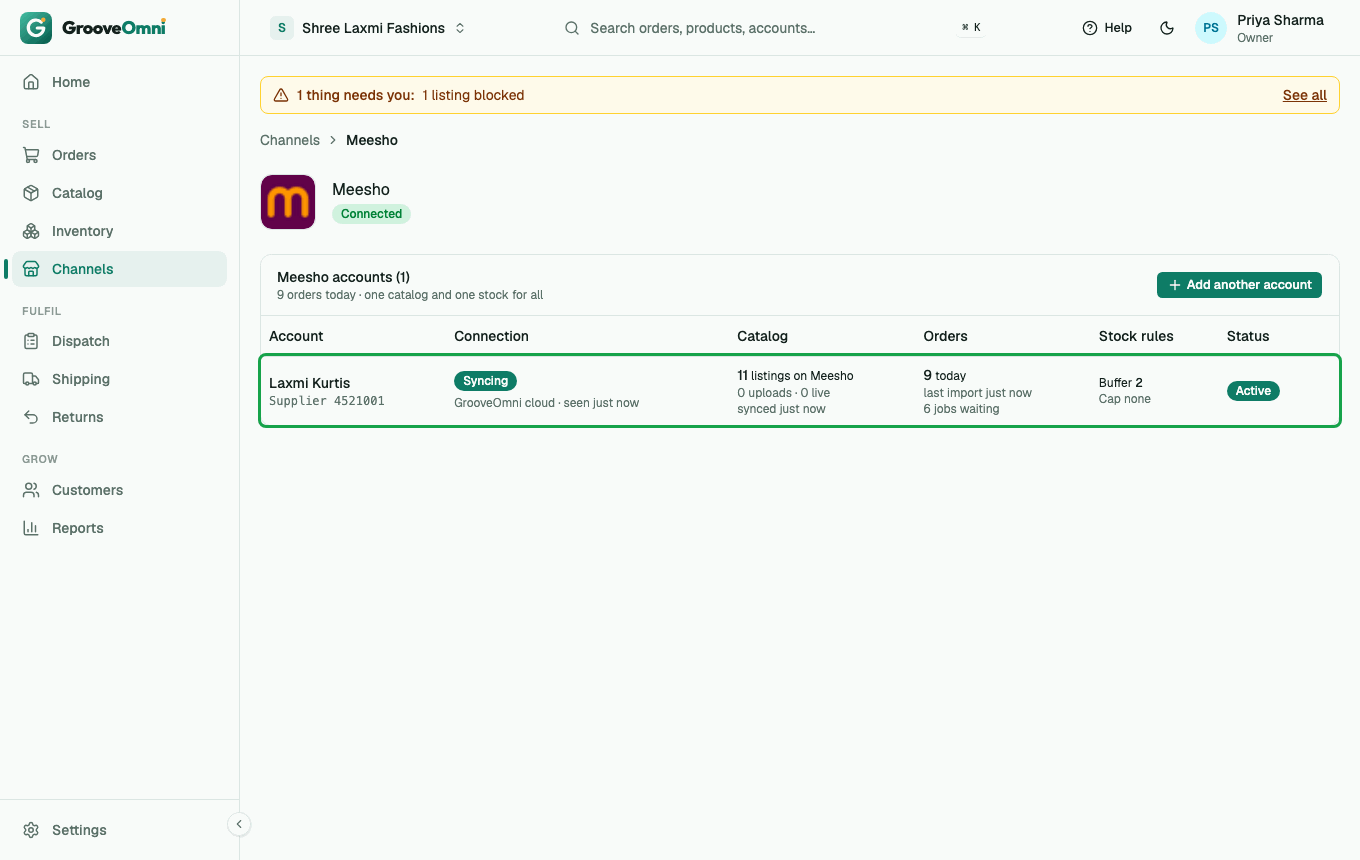 Open Channels → Meesho: the account is syncing, with its listings and its last import.
Open your Meesho Supplier Panel (supplier.meesho.com) and compare:
- Inventory: the same catalogs, sizes and stock numbers as GrooveOmni's Inventory and Catalog pages.
- Orders: the same pending orders as GrooveOmni's Orders page.
If something goes wrong
- "Something went wrong" or a red message in the login window: close the window and click Connect again. If it happens twice, use Help → Report a problem (see Getting help).
- "Recharge ₹… to connect" instead of Connect: your wallet does not cover this account. See Add another Meesho account and Recharge the wallet.
- "Upgrade to Multi": you are adding a second marketplace (for example Flipkart next to Meesho) on the Free plan. See Upgrade and downgrade.
- A different supplier is refused when you log in again to an existing account: you logged in with another supplier's phone number. Click Start again and use the number of this account.
- The catalog looks empty after 5 minutes: open the account (Channels → Meesho → the account name) and click Sync now.
- "This account is already added to another business": the same Meesho account cannot be in two businesses.
Common questions
Is it safe? GrooveOmni never stores your Meesho password. It keeps only the encrypted session, which Meesho can end at any time. You can delete it yourself with Disconnect on the account page (see Logging in and out of Meesho).
Do I have to keep GrooveOmni open? No. The session is in GrooveOmni's cloud, not on your computer.
Can I still use Meesho's own panel? Yes. Use it as before. GrooveOmni picks up changes made there at its next sync.
I have no Meesho account yet. On the Meesho card click Create Meesho account. Meesho's sign-up opens inside GrooveOmni; you sign up with your mobile number and OTP and are connected right after.
Is there another way to add an account? Yes: Settings → Marketplace accounts → Connect account, with the Meesho supplier ID (shown in Meesho's panel) and a name. You still log in to it once afterwards, from Channels → Meesho (Log in).
What's next
- Find your way around What each page is for, and what to check every day.
- Your catalog after connecting Where your imported products are, and why one product shows two accounts.
- Add another Meesho account Connect the rest of your accounts, and what each one costs.