One stock for every account
This page answers whether all your accounts get a stock change you make once, and how fast. Yes: a size has one stock in GrooveOmni, and every account that sells it is told the same number (after its own buffer and cap, see Stock buffer and stock cap). GrooveOmni sends it within seconds of the change.
Who can do this: changing stock: Owner, Admin, Manager, Catalog editor and Packer. Viewers can only look.
Four numbers to know
| Number | Meaning |
|---|---|
| On hand | Pieces physically in your warehouse. This is what Current Stock shows and what you type. |
| Reserved | Pieces held for orders that are not dispatched yet. |
| Available | On hand minus reserved: what can still be sold. This is what the marketplaces are told (less any buffer). |
| Damaged | Pieces you marked damaged. They are kept, but not sold. |
Step 1 — Open Inventory
Click Inventory in the left menu. The tabs are the same as Meesho's: Active (with All Stock, Out of Stock, Low Stock), Activation Pending, Blocked, Paused, plus GrooveOmni's own Out of sync.
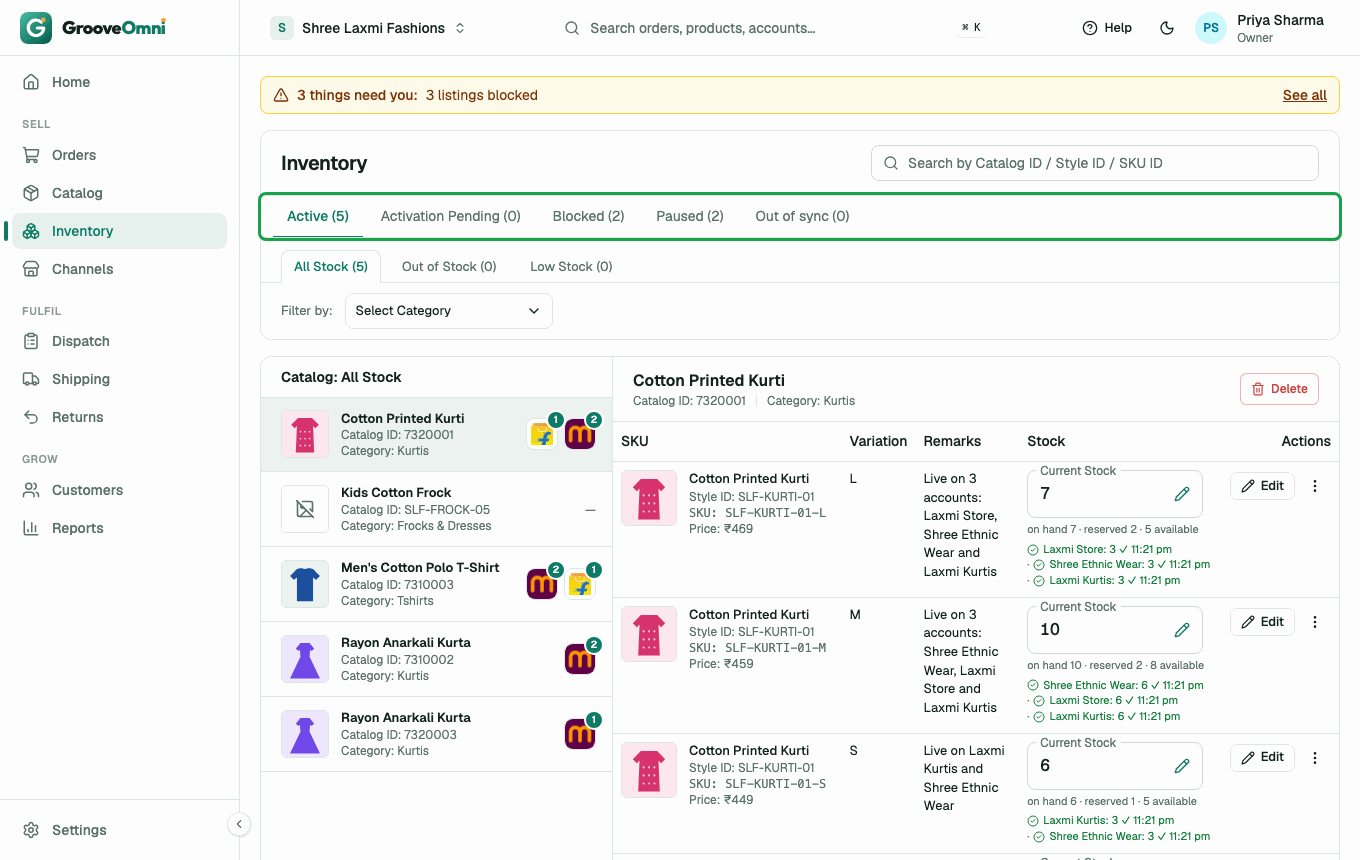 Click Inventory. The tabs are Meesho’s own: Active, Activation Pending, Blocked and Paused, plus Out of sync.
Step 2 — Pick the catalog
On the left, click the catalog (product). Use Search by Catalog ID / Style ID / SKU ID to find it quickly.
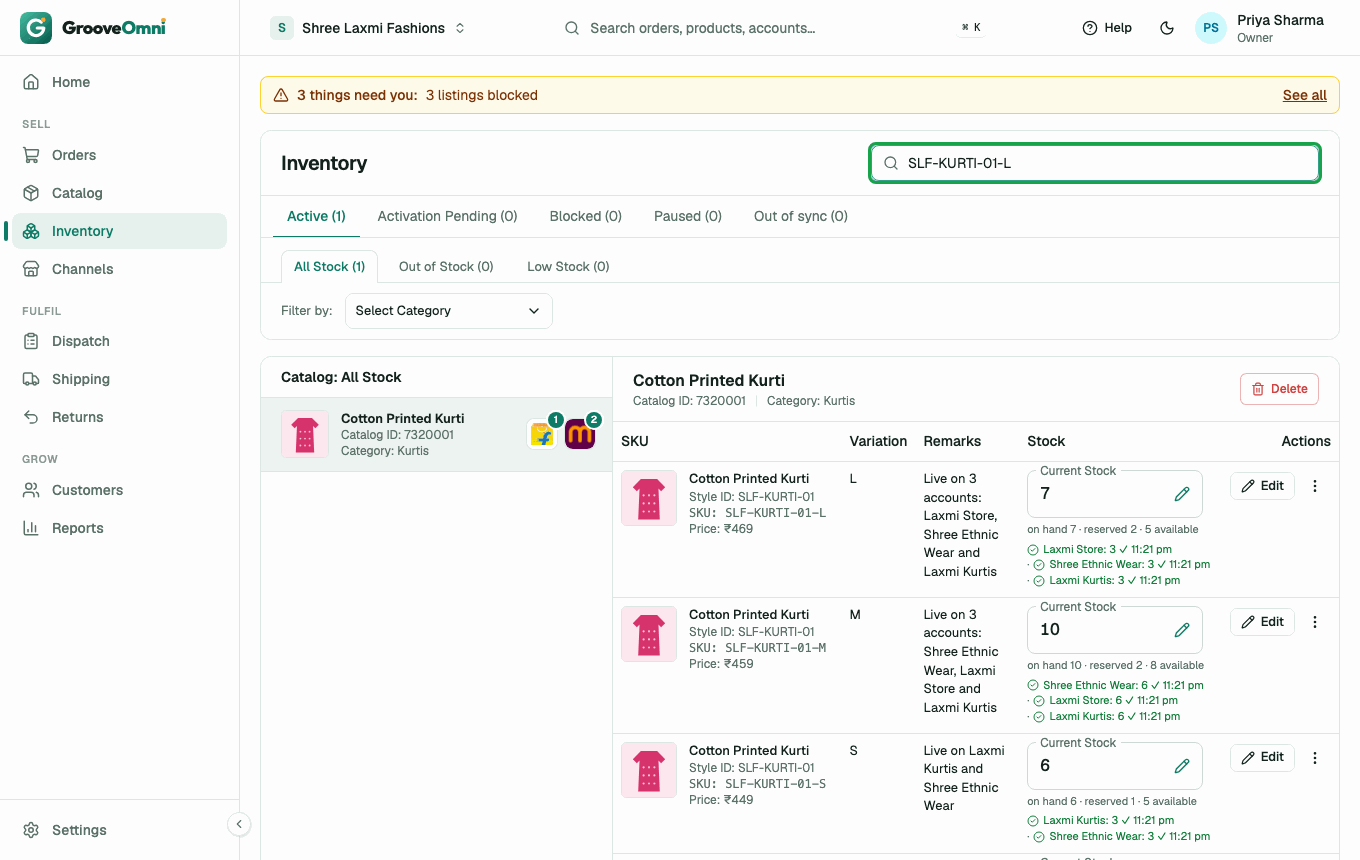 Click a catalog on the left, or search by catalog ID, style ID or SKU ID. Its sizes are on the right.
Step 3 — Type the new stock
On the right, each size has a Current Stock box. Click the pencil, type the new number (for example 9) and press Enter (or click the arrow).
You can also change stock on the product page (Catalog → View catalog), in the same Current Stock box.
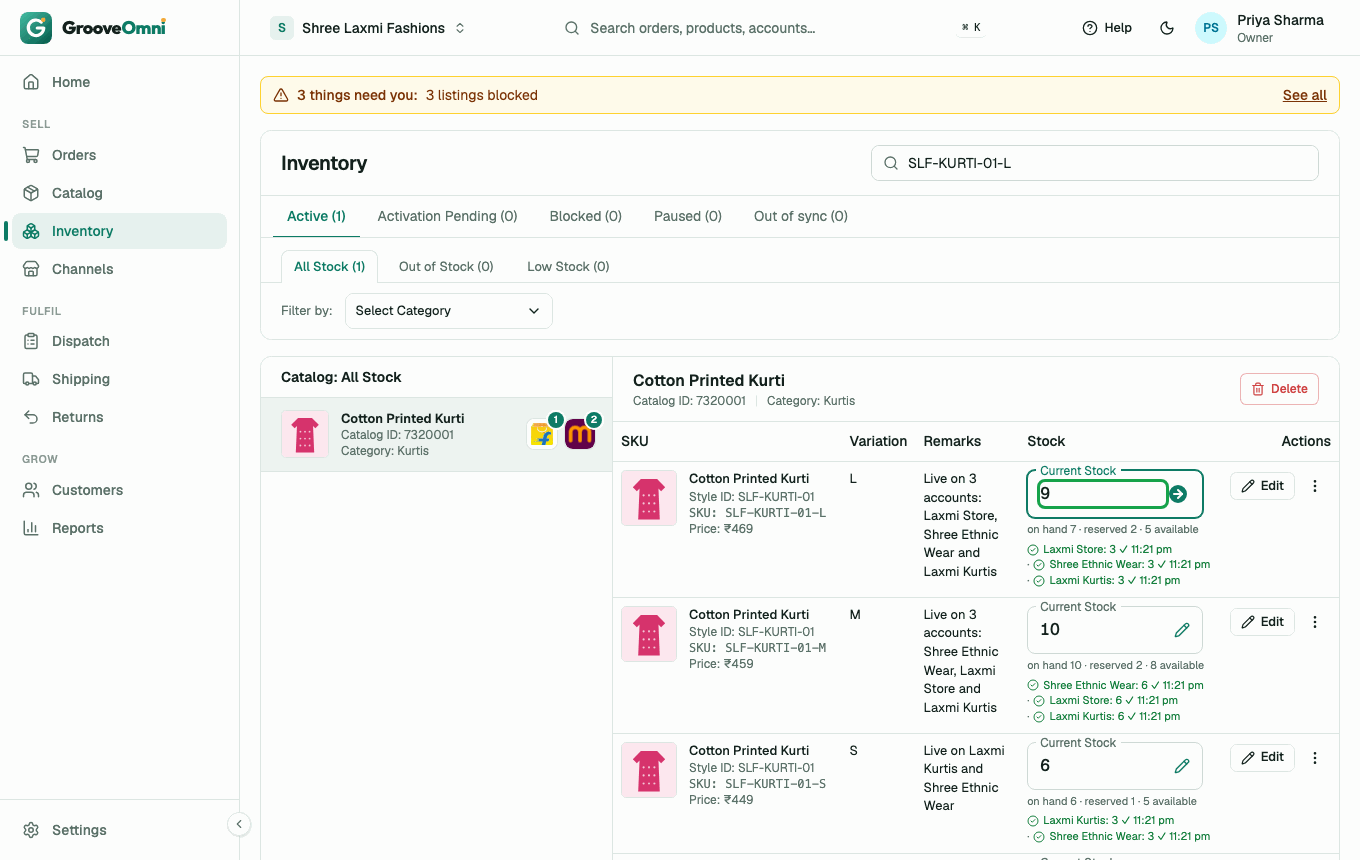 Click the pencil in Current Stock, type the new number and press Enter.
Step 4 — Watch every account take it
Under the box, each account gets its own line:
- first "Laxmi Kurtis: sending…",
- then "Laxmi Store: 5 ✓ 11:21 pm · Shree Ethnic Wear: 5 ✓ 11:21 pm · Laxmi Kurtis: 5 ✓ 11:21 pm" when each account has taken it. Here 9 are on hand and 2 are held for orders, so 7 are available, and each account holds back its stock buffer of 2: each is told 5.
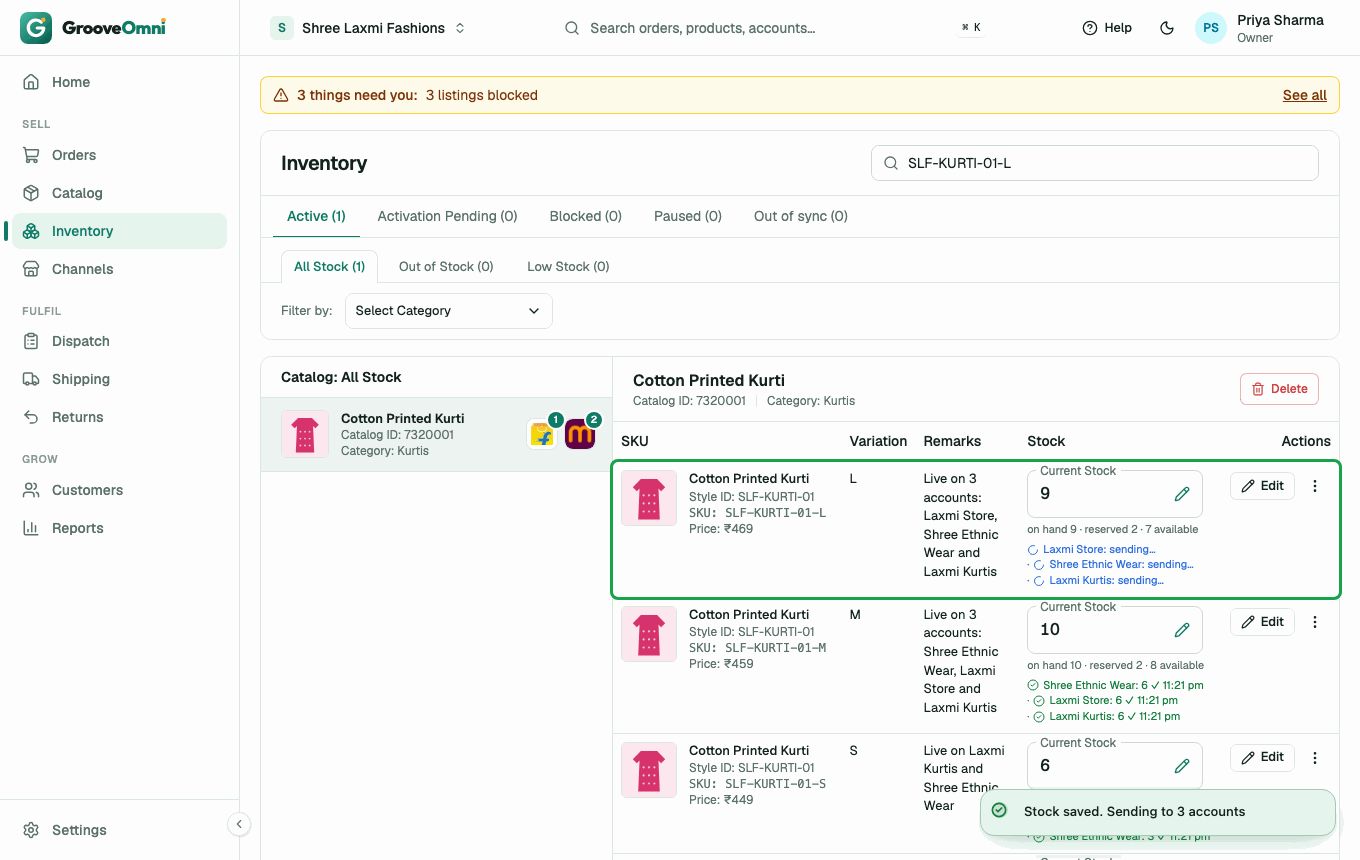 GrooveOmni sends it to every account that sells this size, within seconds.
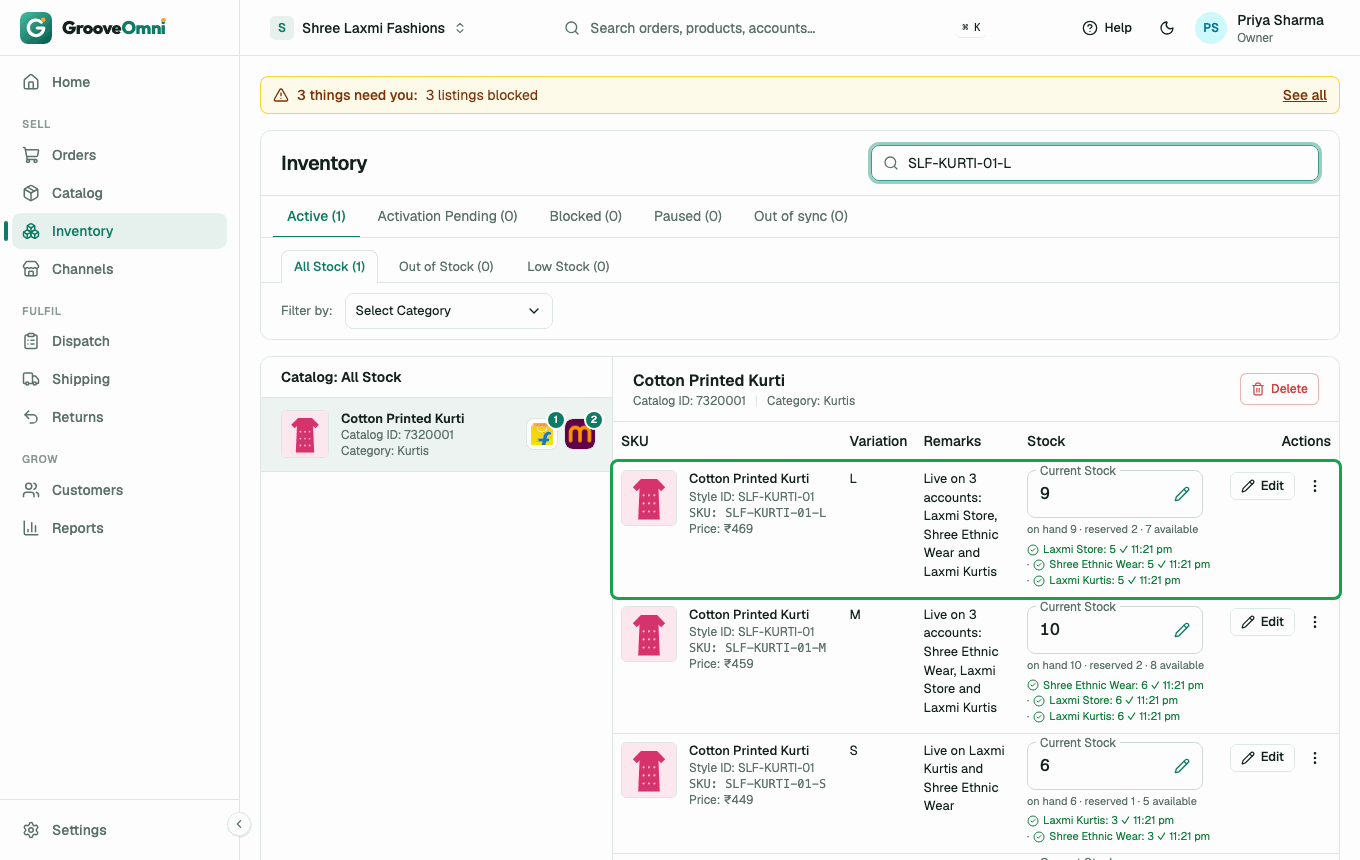 Under the box, each account gets its own line with the number it was told, a tick and the time.
Open Inventory in the Supplier Panel of each account. Both show 9 for that size.
If something goes wrong
- The line says Not sent to … or Waiting …: see Is Meesho up to date?. The line itself says what to do, with a button.
- A popup Meesho login expired appears right after you change stock: that account is logged out. Click Log in now (see Logging in and out of Meesho). The change is sent after the login.
Common questions
If I change stock once, do all my accounts get it? Yes, every account that sells that size.
How fast? Usually a few seconds. GrooveOmni waits up to 5 minutes for Meesho's answer before it shows "Waiting".
I changed the stock on Meesho's panel instead. GrooveOmni does not take Meesho's number on its own; it sends its own number at the next change. To take Meesho's number, open the product and click Sync stock. Best practice: change stock in GrooveOmni only.
Why does Current Stock show 10 but Available 9? One piece is reserved for an open order.
What's next
- Change stock, and see why it changed New stock, damaged pieces, and the history of every change.
- Stock buffer and stock cap Keep pieces back so you never oversell.
- Is Meesho up to date? What each line under the stock box means.