Your catalog after connecting
This page shows where your products are after you connect, and why one product shows two accounts.
The idea in one line: one product in GrooveOmni for each real product, its sizes as SKUs, and under each SKU the listings on every Meesho account that sells it. All those listings share one stock number.
Who can do this: Owner, Admin, Manager and Catalog editor can add, edit and merge products. Publishing to Meesho, copying catalogs, pausing on Meesho and lowering prices need Owner, Admin or Manager. Packers do not see the Catalog page; viewers can only look.
Step 1 — Open the Catalog
Click Catalog in the left menu. The Products tab shows one row per product:
| Column | What it shows |
|---|---|
| S.no and Catalog image | The row number and the product's photo. |
| Product | The title, with the style code and the category under it. |
| Marketplaces | A Meesho logo with a number, the number of accounts that sell it. Point at the logo to see the accounts, their IDs and status. |
| Stock | In stock, Out of stock or Not listed, how many are available and how many SKUs (sizes), for example "In stock · 13 available · 5 SKUs". |
| QC status | See Meesho's quality check. |
| Actions | Publish (when an account does not sell it yet) and View catalog. |
On a wide screen, Category, Created and SKUs also get columns of their own.
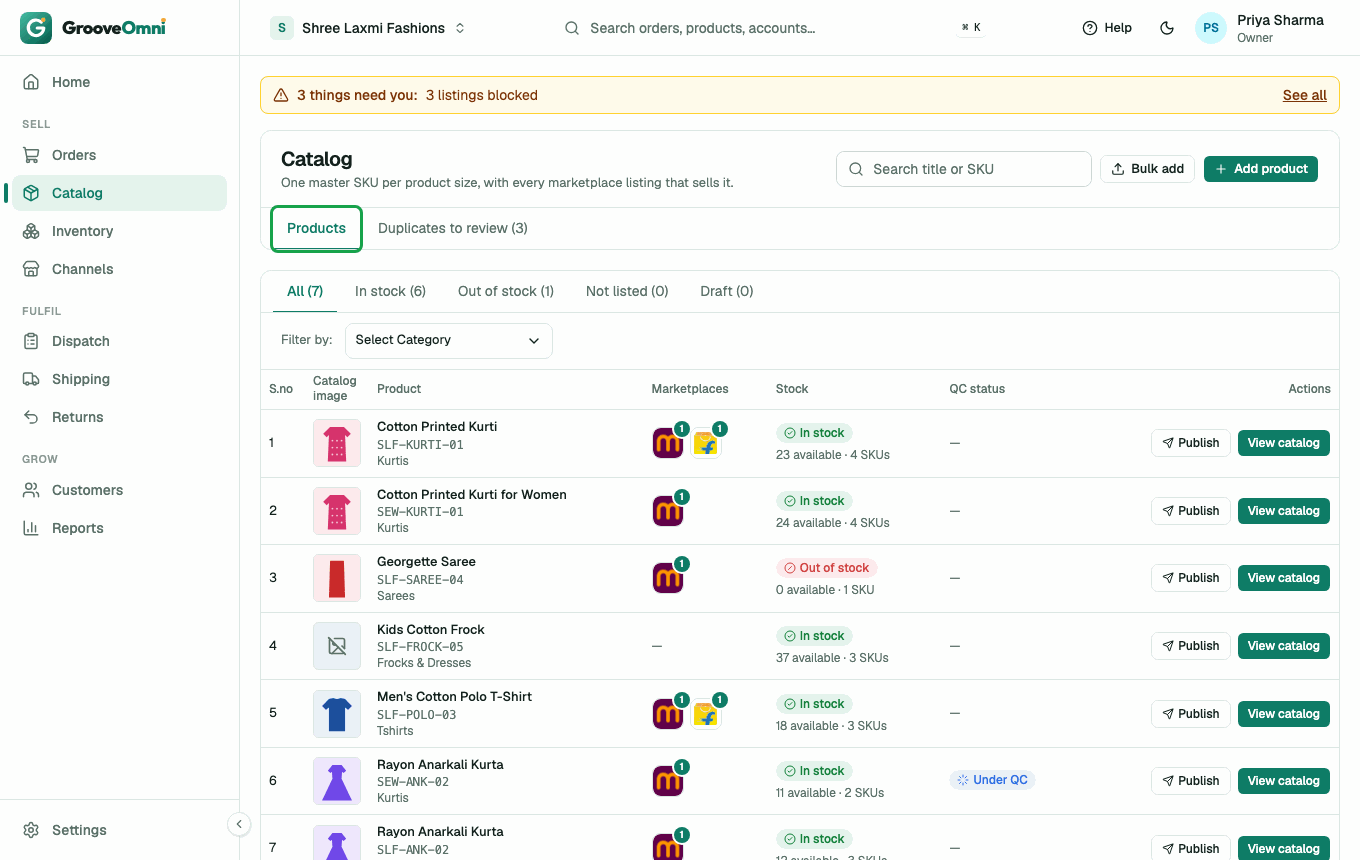 Click Catalog in the left menu. The Products tab shows one row per product, with its marketplaces, stock and QC status.
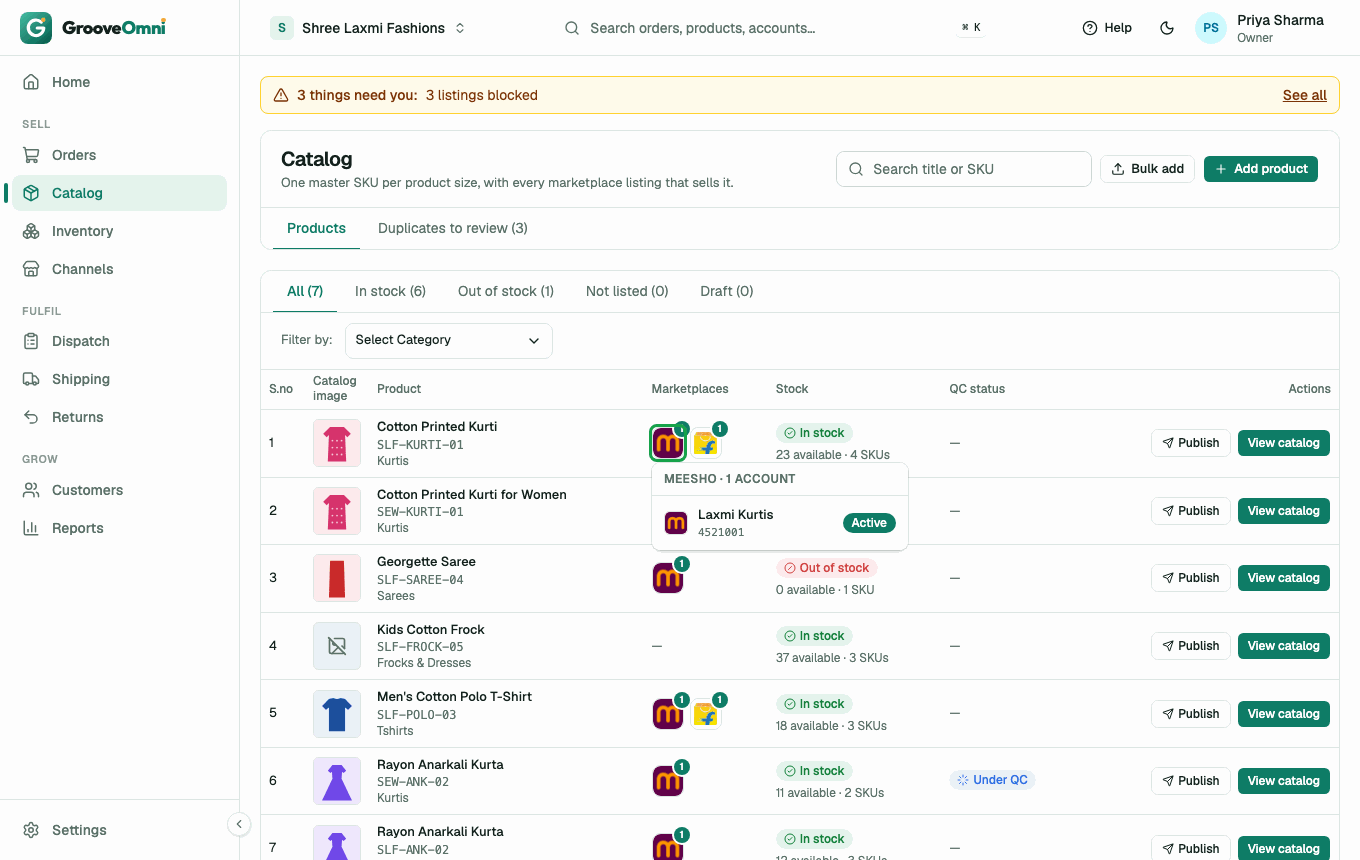 Point at a marketplace logo to see the accounts that sell the product.
Step 2 — Find a product
Use the tabs All, In stock, Out of stock, Not listed and Draft, the Select Category filter, or Search title or SKU.
Draft rows are uploads on Meesho that are not live yet. They are shown so you can see them, but they are not products until Meesho makes them live.
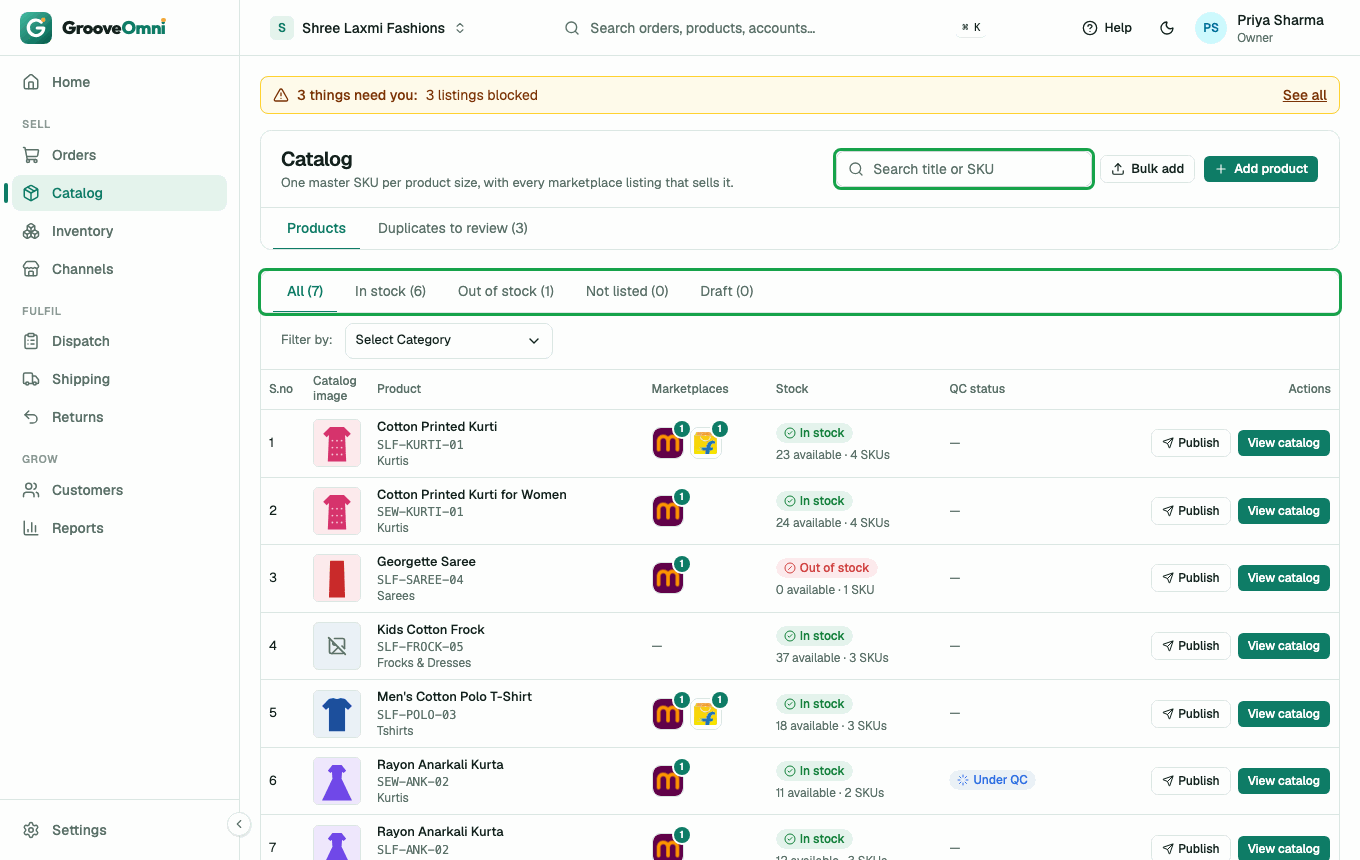 Use the tabs All, In stock, Out of stock, Not listed and Draft, the category filter, or the search box.
Step 3 — Open one product
Click View catalog. The product page shows:
- the photo, title, Style ID, Category, Created date and number of SKUs;
- the marketplace logos, the stock state and, if a marketplace does not have your latest stock, a red Out of sync badge;
- the buttons Publish to more (or Publish), Sync stock, Edit product and Delete;
- the totals On hand, Reserved (held for open orders) and Available (what can still be sold).
Below, one row per SKU (size):
| Column | What it shows |
|---|---|
| SKU | Title, Style ID, SKU code and price. |
| Variation | The size. |
| Remarks | One small tag per account that sells it, with its state when it is not live (such as "out of stock", "paused" or "blocked"), and under it one sentence: Meesho's own reason, or what to do. |
| Stock | In stock or Out of stock, "on hand · reserved", and the Current Stock box (click the pencil to change it; see One stock for every account). Under the box, one line per account says what that account has, for example "Laxmi Kurtis: shows 10". |
| Actions | Edit (the full stock window) and ⋮ with Add New Variant (a new size) and Pause (stop selling this SKU on Meesho). |
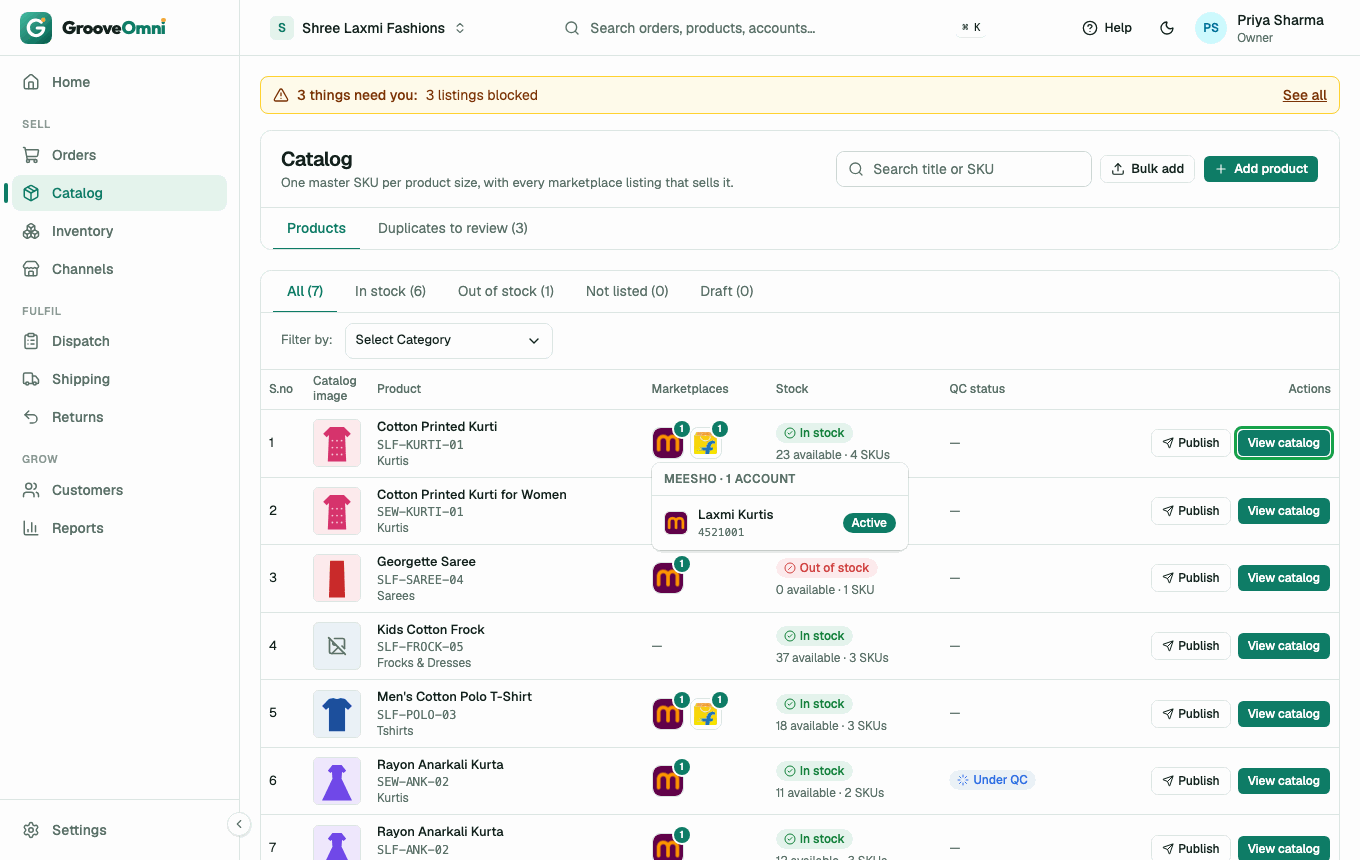 Click View catalog to open one product.
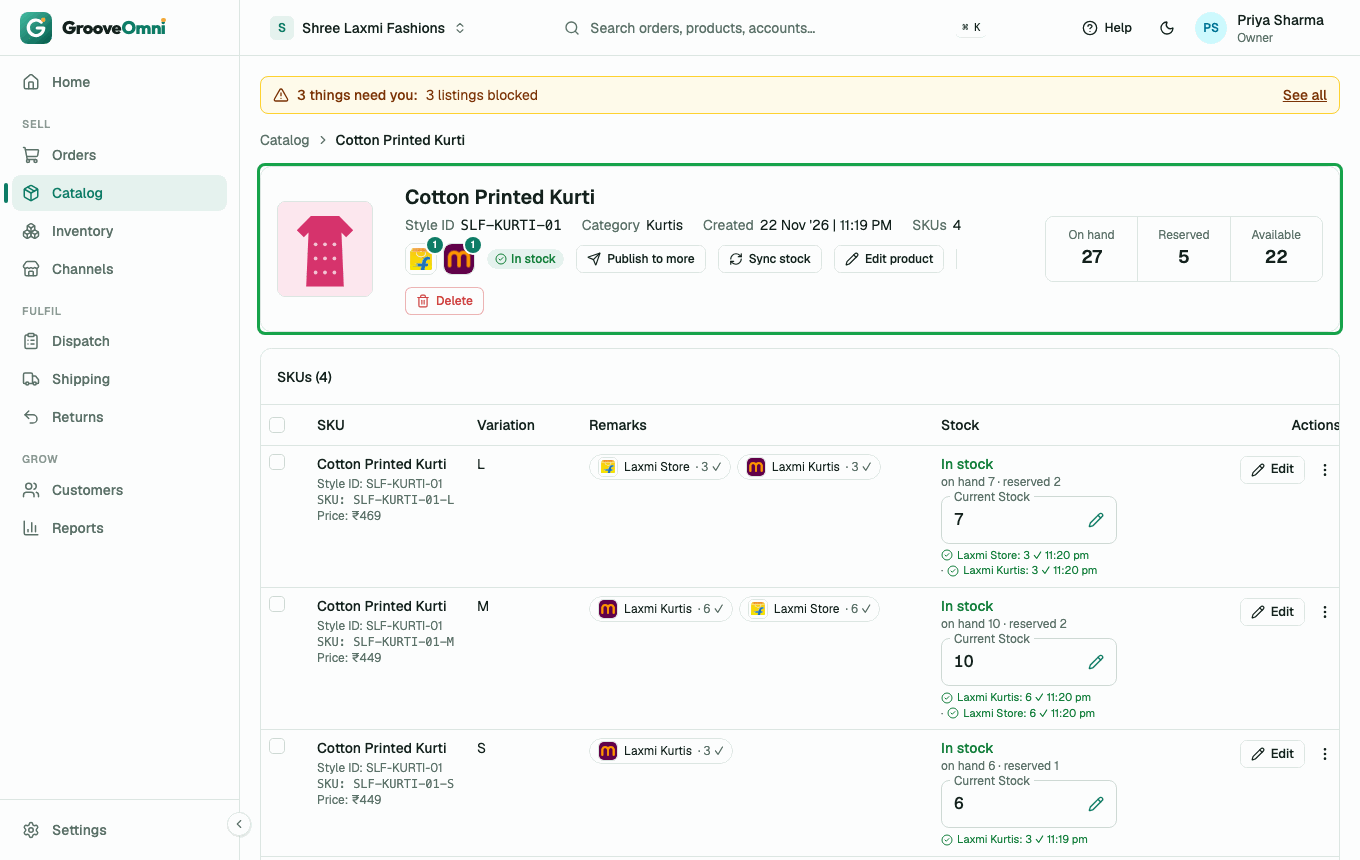 The product page: photo, style ID, category, the marketplaces, the buttons, and On hand, Reserved and Available.
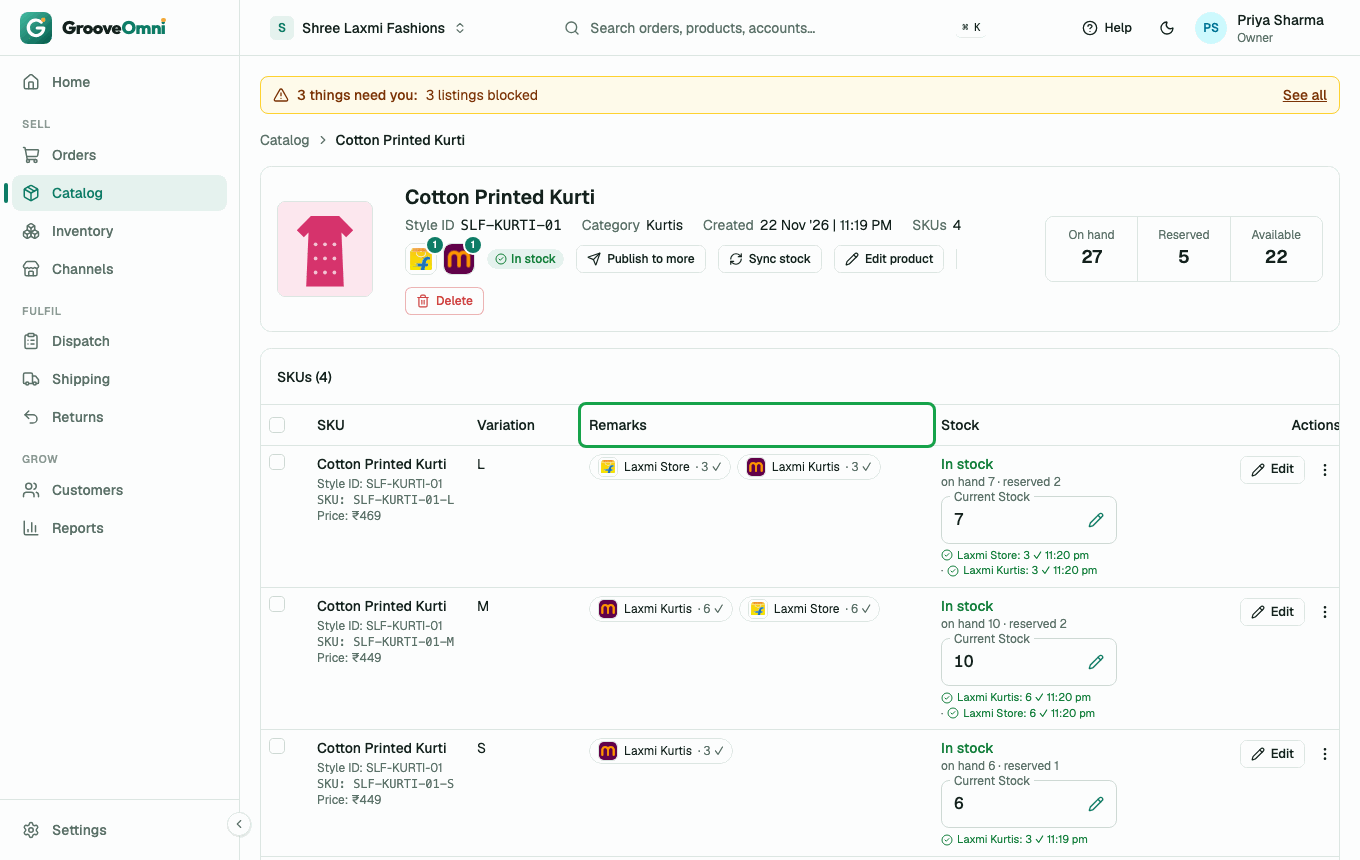 One row per size: its SKU, the accounts that sell it in Remarks, and the Current Stock box.
Why does one product show two accounts?
Because both accounts sell it. GrooveOmni joined their listings to one product, so a sale on either account takes from the same stock. That is the point of GrooveOmni: you count your pieces once.
Statuses, in Meesho's words
| You see | Meaning |
|---|---|
| Live | On sale on Meesho. |
| out of stock | Listed, but 0 available. Buyers see "Out of stock". |
| Activation Pending | Meesho accepted it and shows when it should go live; not on sale yet. |
| blocked / rejected | Meesho stopped it. Meesho's own reason is shown, for example "Product is disabled due to mismatch between Image & description…" or "Your Product is under QC. Please expect an action within 48 hours." |
| paused | Not shown to buyers on Meesho, with since when: Meesho's own day ("since 19 Nov '26"), or the first time GrooveOmni saw it paused ("seen paused since …"). |
| Not listed | In GrooveOmni only; no marketplace sells it yet. "1 listing waiting for review" means a Meesho listing may be this product: see Duplicates to review. |
Common questions
Some products are missing. Open the account and click Sync now (see What GrooveOmni did on Meesho). Every list on Meesho's Inventory comes in: All Stock, Out of Stock, Activation Pending, Paused and Blocked, even a catalog that has no size in stock. Check the Inventory tabs.
What does "Sync stock" on a product do? It reads this product's stock from Meesho and takes Meesho's number (then tells your other accounts). Use it only when Meesho has the right number and GrooveOmni does not. It works when the business has a single own or 3PL warehouse.
Can I add products without Meesho? Yes: Add product (one) or Bulk add (a CSV file, with Download template). Needed columns: style_code, title, sku_code. Rows with the same style_code become the sizes of one product.
How do I delete a product? Product page → Delete. Only a product with no stock and nothing live can be removed from GrooveOmni; you can also tick the Meesho accounts to archive it there.
What's next
- Duplicate products, and merging When two accounts sell the same product under different SKU codes.
- One stock for every account Change a number once; every account gets it.
- Publish a product to more accounts Put a product on another Meesho account.