Your business in 2 minutes
This page shows how your business is doing today, and what to look at first. It is the owner's check, every morning.
Who can do this: everyone sees Home. Billing is for the Owner and Admins.
Step 1 — Home (30 seconds)
Click Home. "Today at a glance: sales, what to pack, and what needs you."
- Pick the period: Last 7 days, Last 14 days, Last 30 days or Last 90 days.
- Read the five tiles:
- Sales, last N days: the value of orders placed, at their selling price ("Cancelled orders not counted").
- Orders, last N days, with the average order value.
- To pack now: click it to open Orders → To pack.
- Past dispatch deadline (red when above 0), with "n more due within 24 hours": click it to open the late orders on Dispatch.
- Out of stock "of N products": click it to see them in the Catalog.
- Below, the charts: Orders per day, Dispatch plan (late, today, tomorrow, later; "Open the dispatch dashboard"), Sales per day, Sales by marketplace account, Orders by stage and Stock health (in stock, out of stock, not listed). Each chart has a Table button to see the numbers.
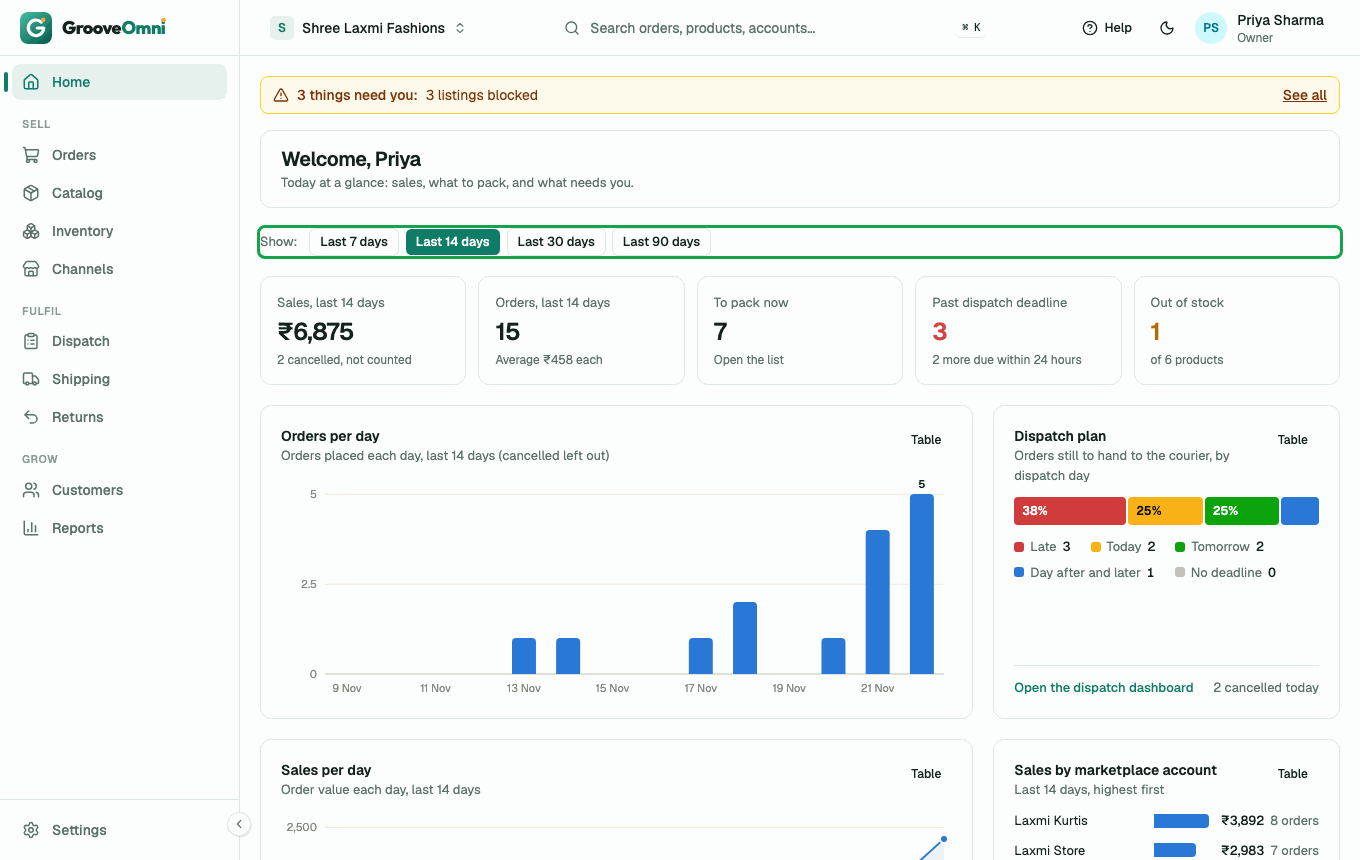 Click Home: today at a glance. Pick the period: last 7, 14, 30 or 90 days.
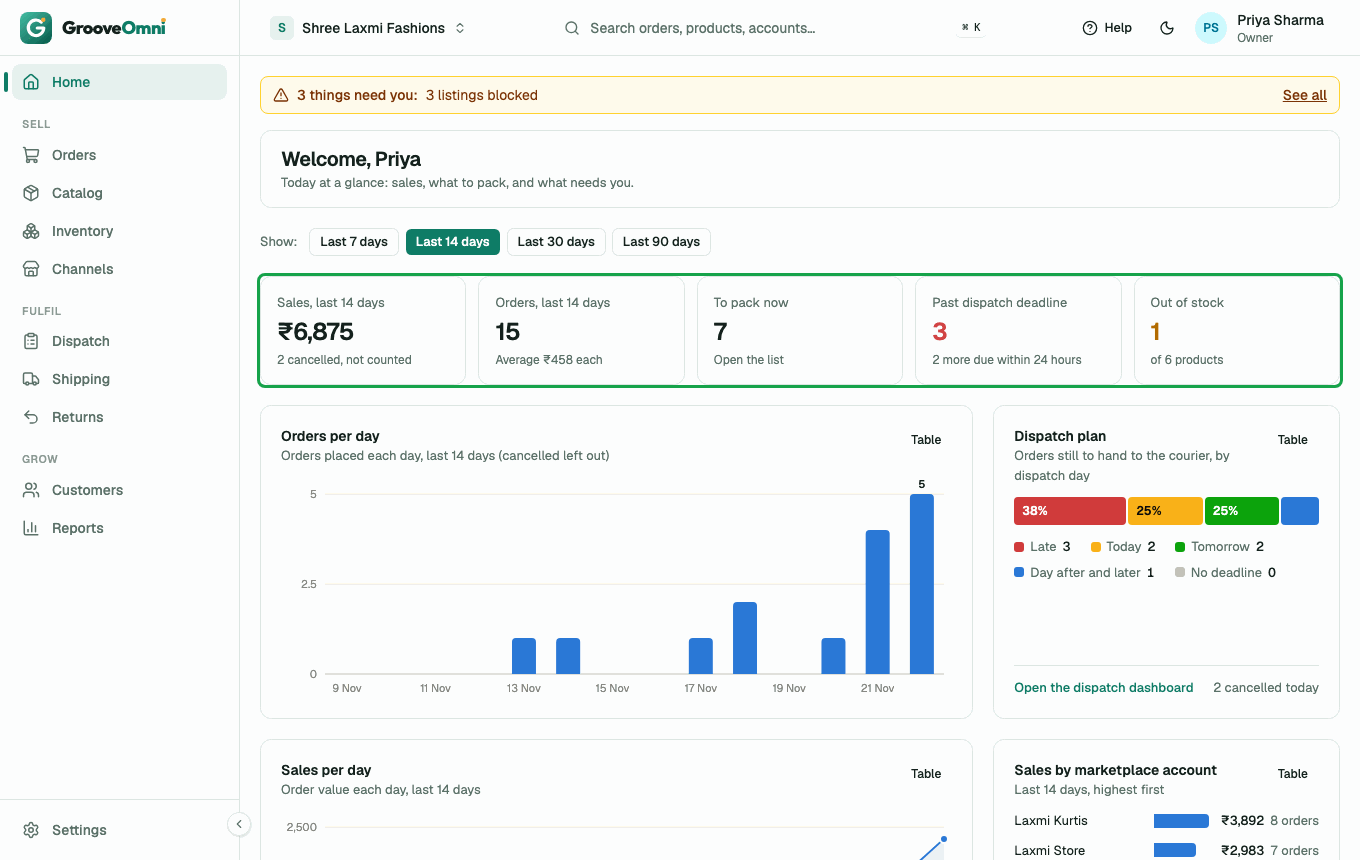 Read the five tiles: sales, orders, to pack now, past the dispatch deadline and out of stock. Click a tile to open its list.
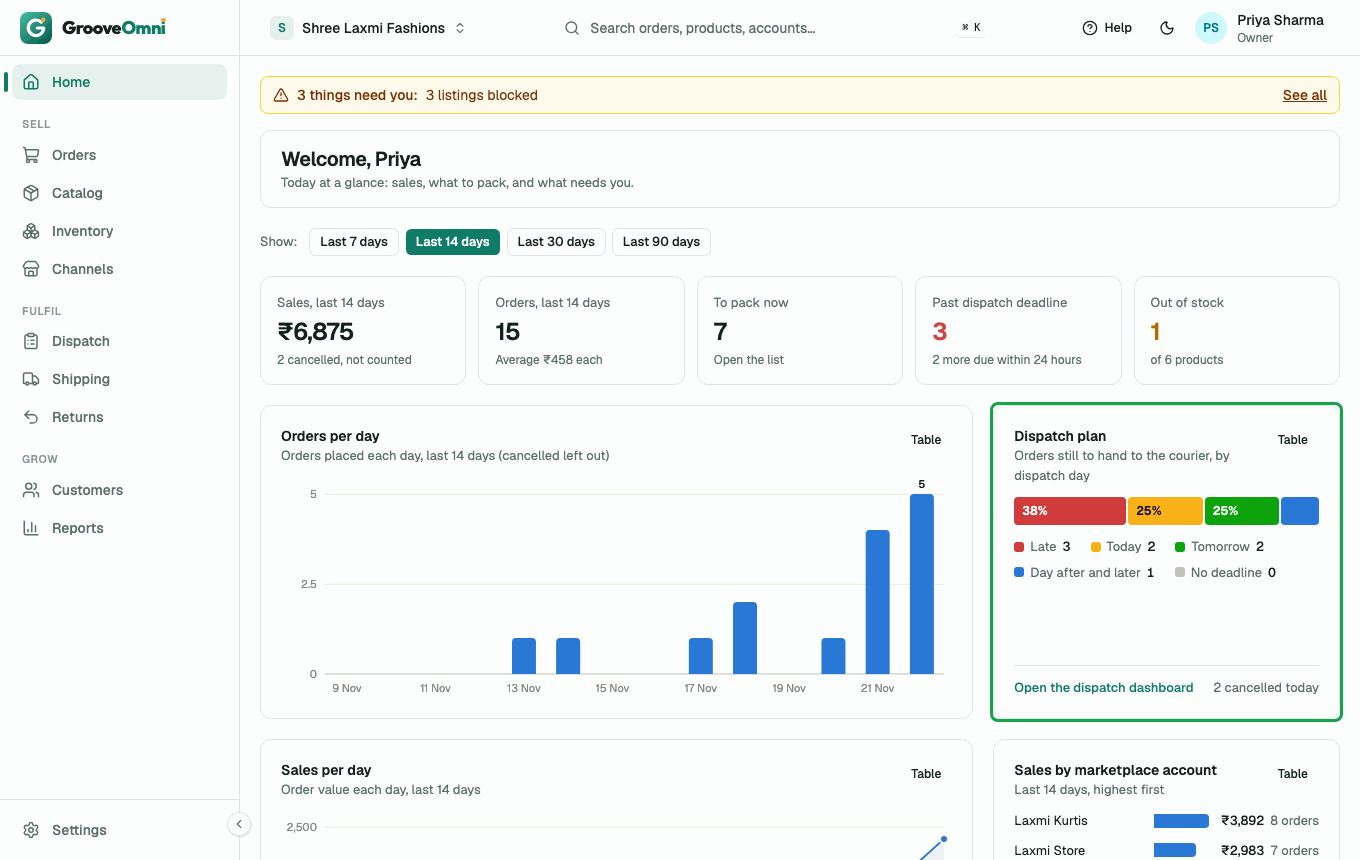 Below, the charts: orders and sales per day, the dispatch plan, sales by account, orders by stage and stock health.
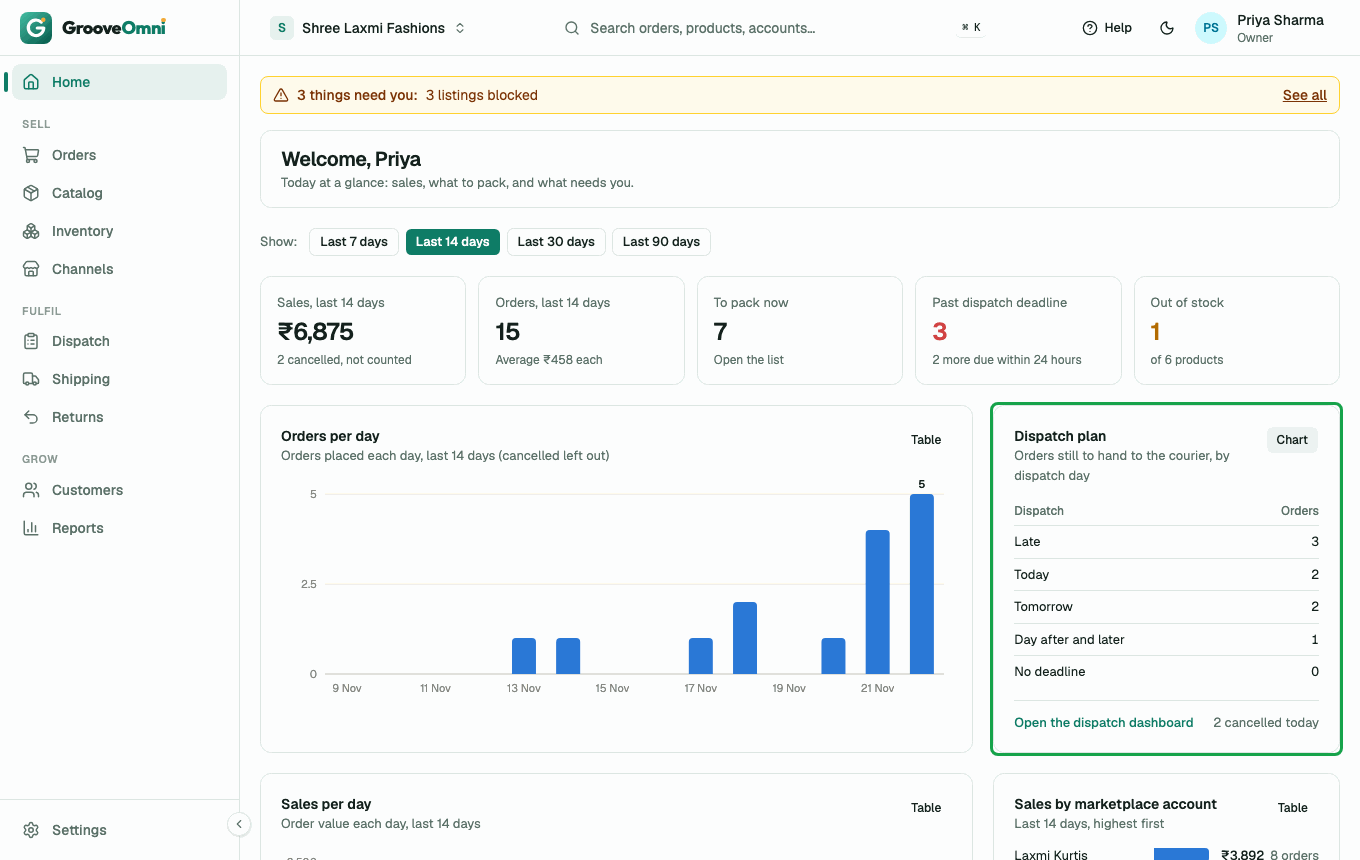 Each chart has a Table button to see the numbers.
Step 2 — The yellow bar (10 seconds)
If a yellow bar is at the top, something needs you. Click See all: see Everything that needs you, in one place.
Step 3 — Your accounts' health (30 seconds)
Channels → Meesho: one row per account.
| Column | What it shows |
|---|---|
| Connection | Syncing (good), Log in again, Browser offline or Not connected. |
| Catalog | "N listings on Meesho" (the same number as the account's Listings tab), "N waiting for review" when some wait in Duplicates to review, uploads (live, draft, need action) and "synced … ago". |
| Orders | Orders today and "last import … ago" (or "failed"). |
| Stock rules | Buffer and cap. |
| Status | Active, Paused, Off, Log in again. |
The line at the top says "n orders today · n need a new login · one catalog and one stock for all".
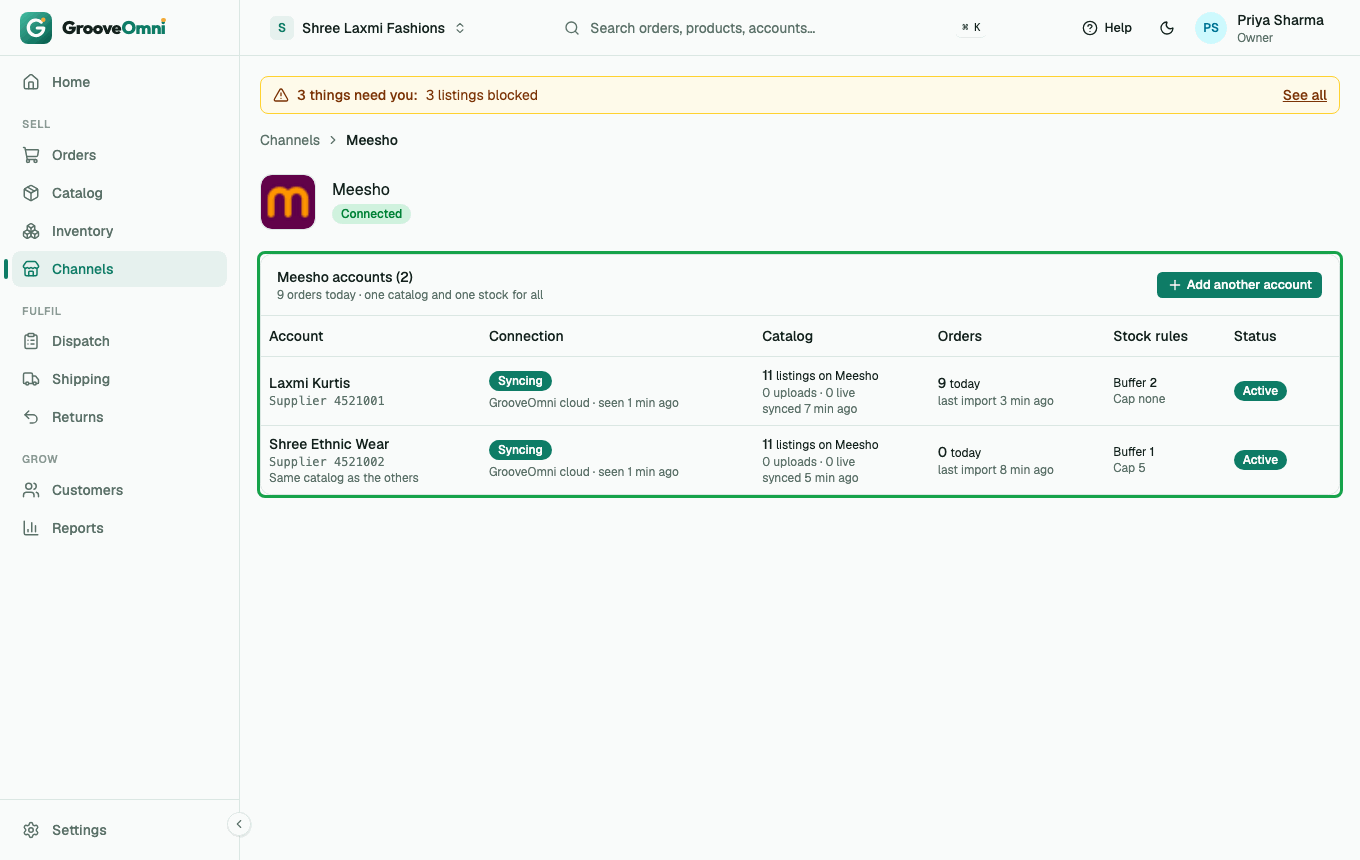 Channels → Meesho: one row per account, with its connection, catalog, orders today and stock rules.
Step 4 — Wallet and next bill (30 seconds; Owner and Admin)
Settings → Billing:
- the Wallet balance and any welcome credit;
- Next bill · <date> and whether "Your wallet covers it";
- any red or amber line (payment due, Limited mode, low balance).
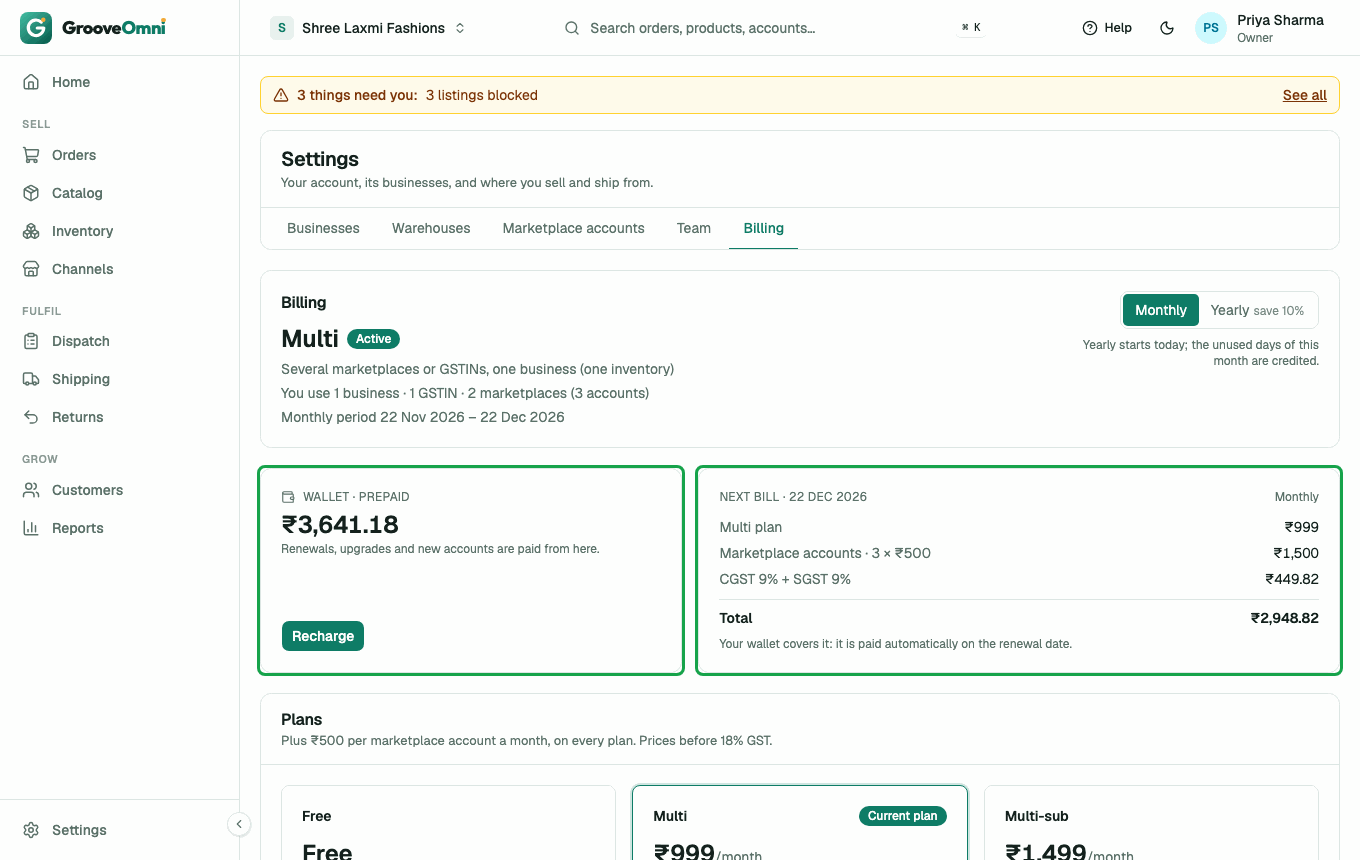 Settings → Billing: the wallet balance and the next bill, and whether your wallet covers it.
Step 5 — Deeper: Reports and Customers (when you have time)
- Reports: sales, cancellations and returns for the dates you choose (Last 7 days, Last 30 days, Last 90 days, This month, Last month, or From / To), per Marketplace account. Tiles: Sales, Orders, Units sold, Cancelled orders, Returned units (with the return rate). Charts: Sales per day, Who cancelled, Returns. The Details table By day, By account or By SKU, with Download CSV. "Marketplace payouts and fees are not in these numbers."
- Customers: Orders by state and Top cities for the last 30, 90 or 365 days, and Recent buyers with masked names. "Masked names can match different people, so GrooveOmni does not count repeat buyers." For Meesho orders there are no buyer details yet (see Orders arrive).
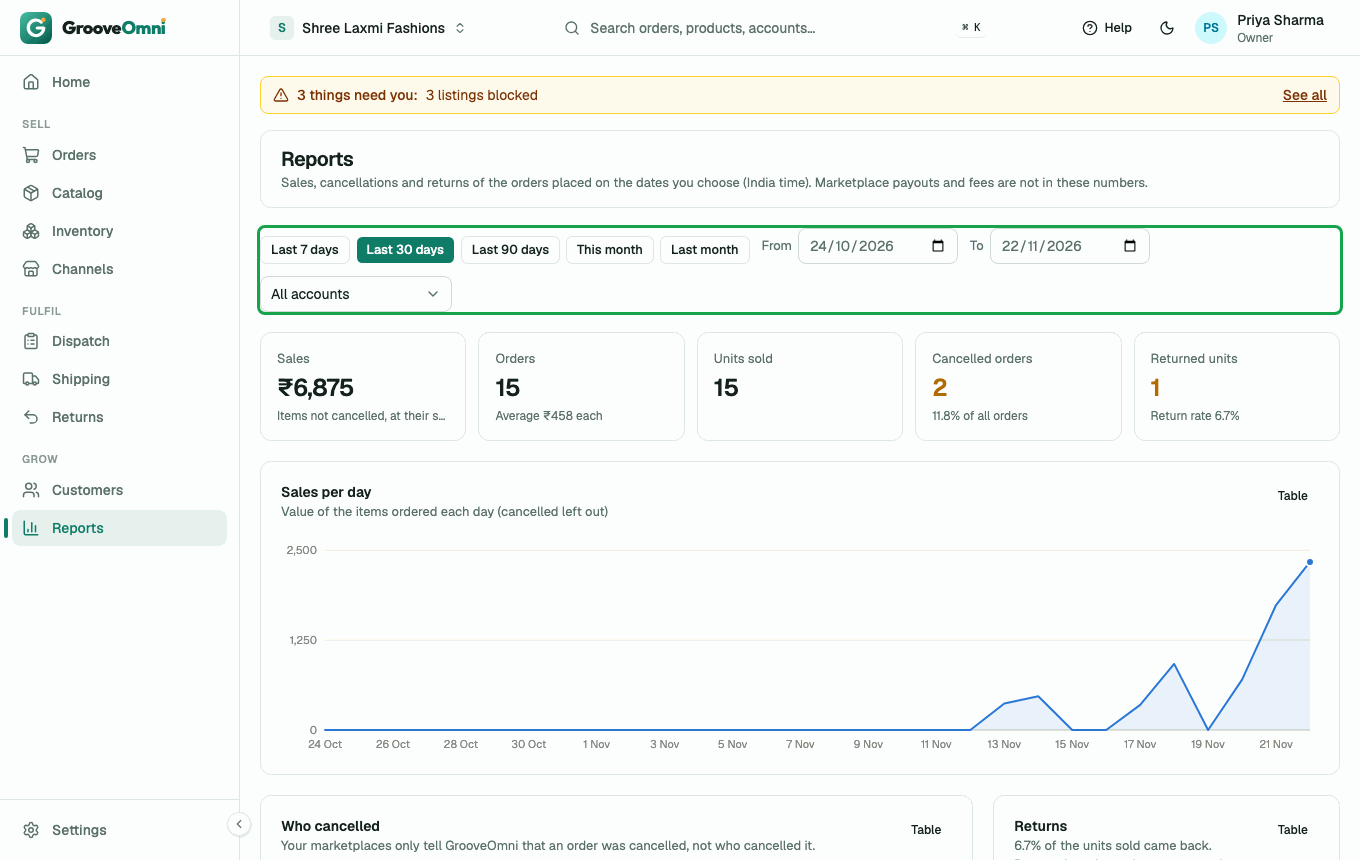 Reports: sales, orders, units, cancellations and returns for the dates you choose, with a table and Download CSV.
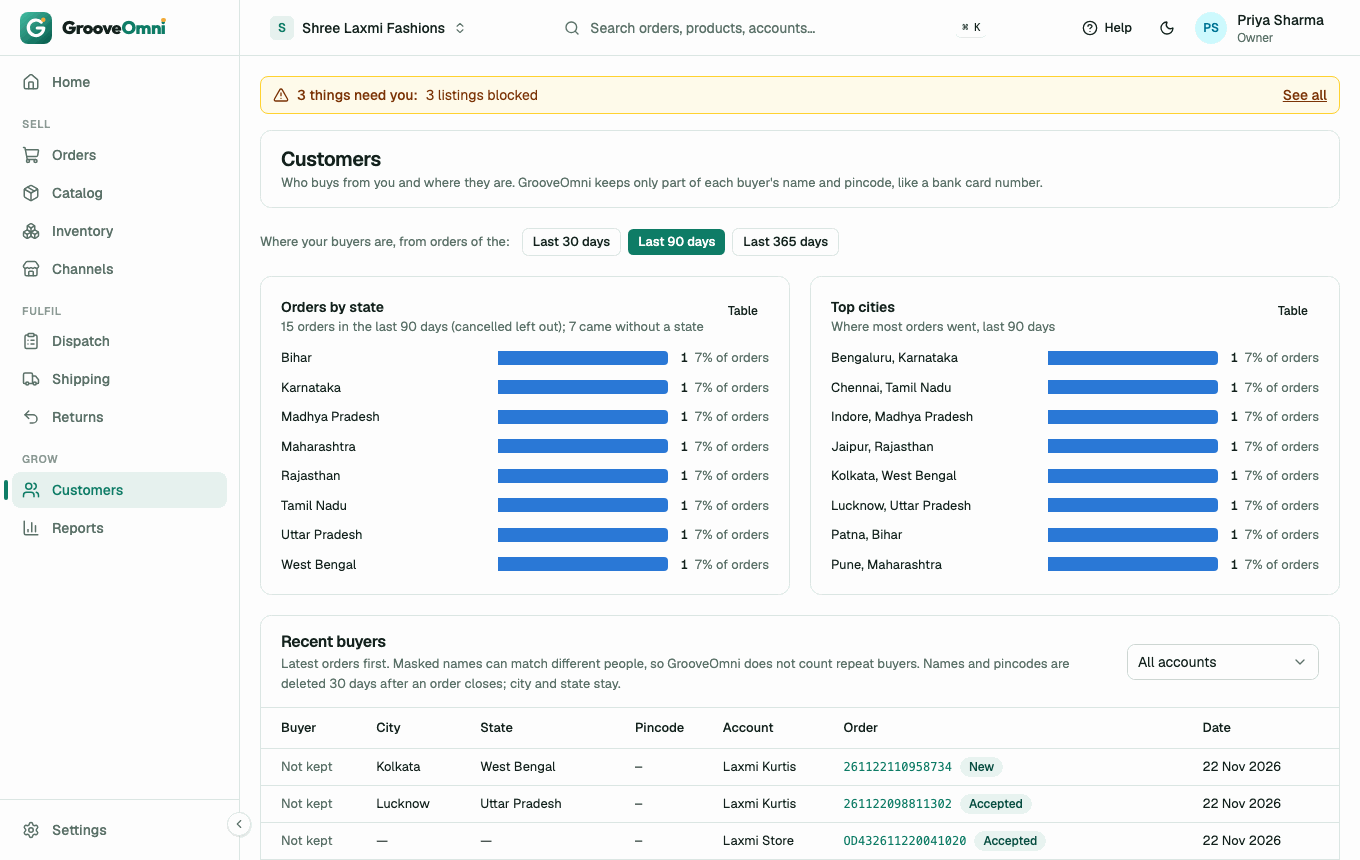 Customers: orders by state, the top cities and recent buyers, with names masked.
Common questions
Is "Sales" what Meesho pays me? No. It is the value of the items ordered, at their selling price. Meesho's payouts, commissions and settlements are coming soon.
Why does Customers show so little? Meesho's order list gives no buyer details. Customers fills up with orders from marketplaces that share the city and state.
What's next
- Everything that needs you, in one place Every problem, with what to do.
- Orders to dispatch today and tomorrow The late orders behind the red tile.
- Auto-debit from the wallet Keep the wallet ahead of the next bill.