Find your way around
This page explains what each page of GrooveOmni is for, and what to check every day.
Who can do this: everyone. Some pages are hidden for some roles (see What each role can do).
Step 1 — Get to know the top bar
From left to right:
- The business switcher (your business name with up and down arrows): choose which business you work in, if you have more than one. Add a business is here for owners and admins.
- Search orders, products, accounts…: find anything by order number, SKU, product title or account name. Shortcut: Ctrl K (⌘ K on a Mac).
- Help: how to reach GrooveOmni, and Report a problem. See Getting help.
- The moon or sun button: dark or light screen.
- Your name: My account, Settings, Billing, Manage team and Log out.
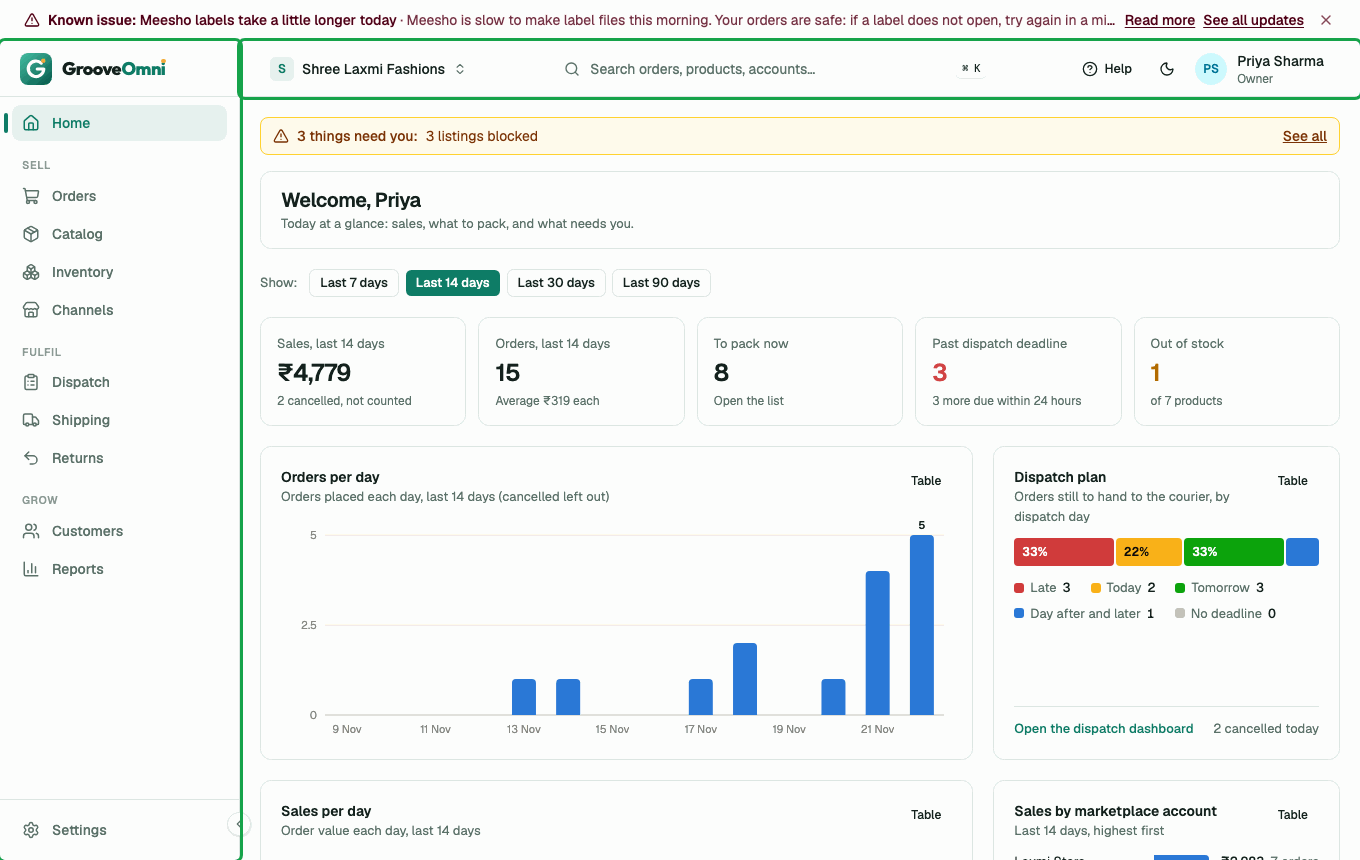 Home is where you land. The top bar, the left menu and the yellow “needs you” bar are on every page.
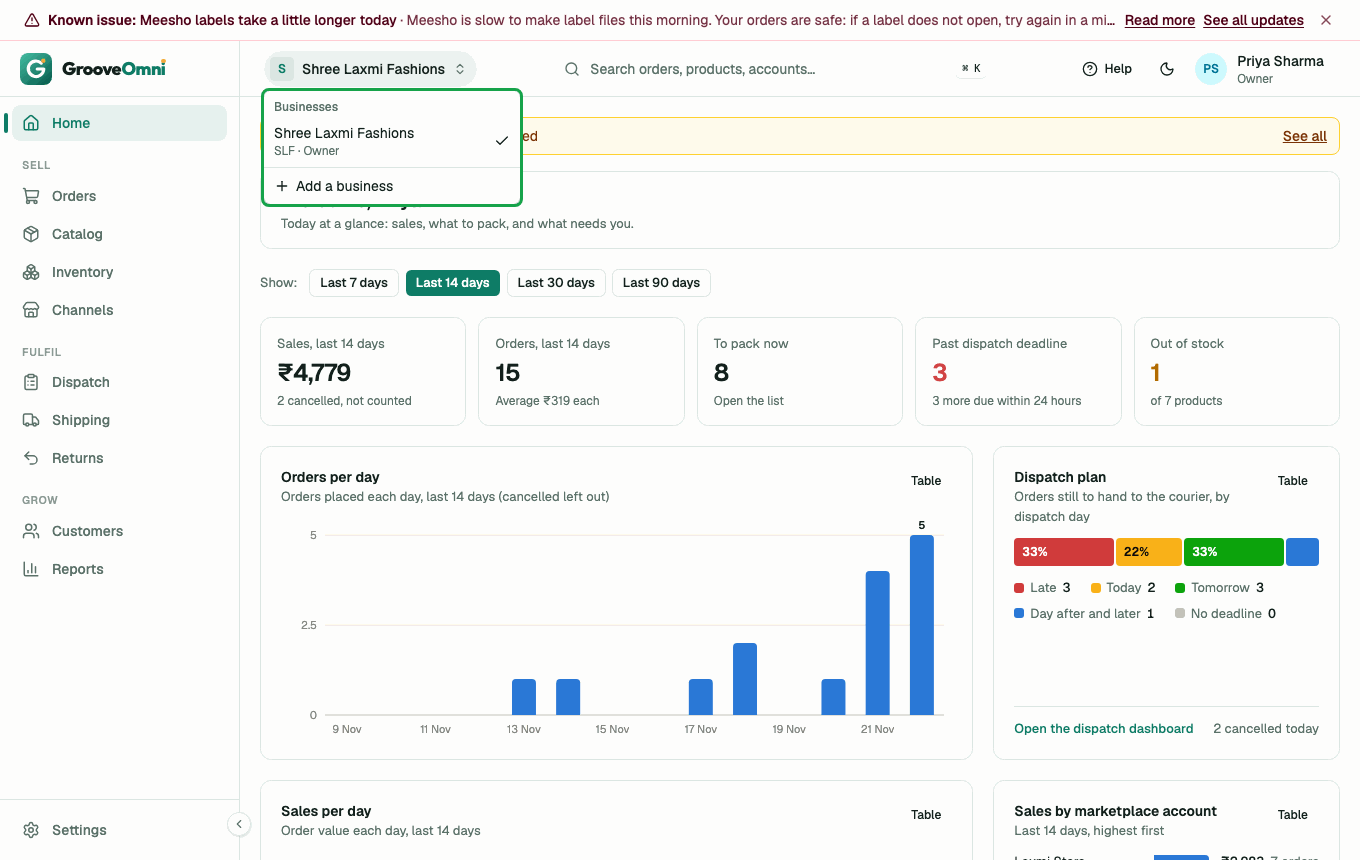 The business switcher: choose which business you work in. Owners and admins also find Add a business here.
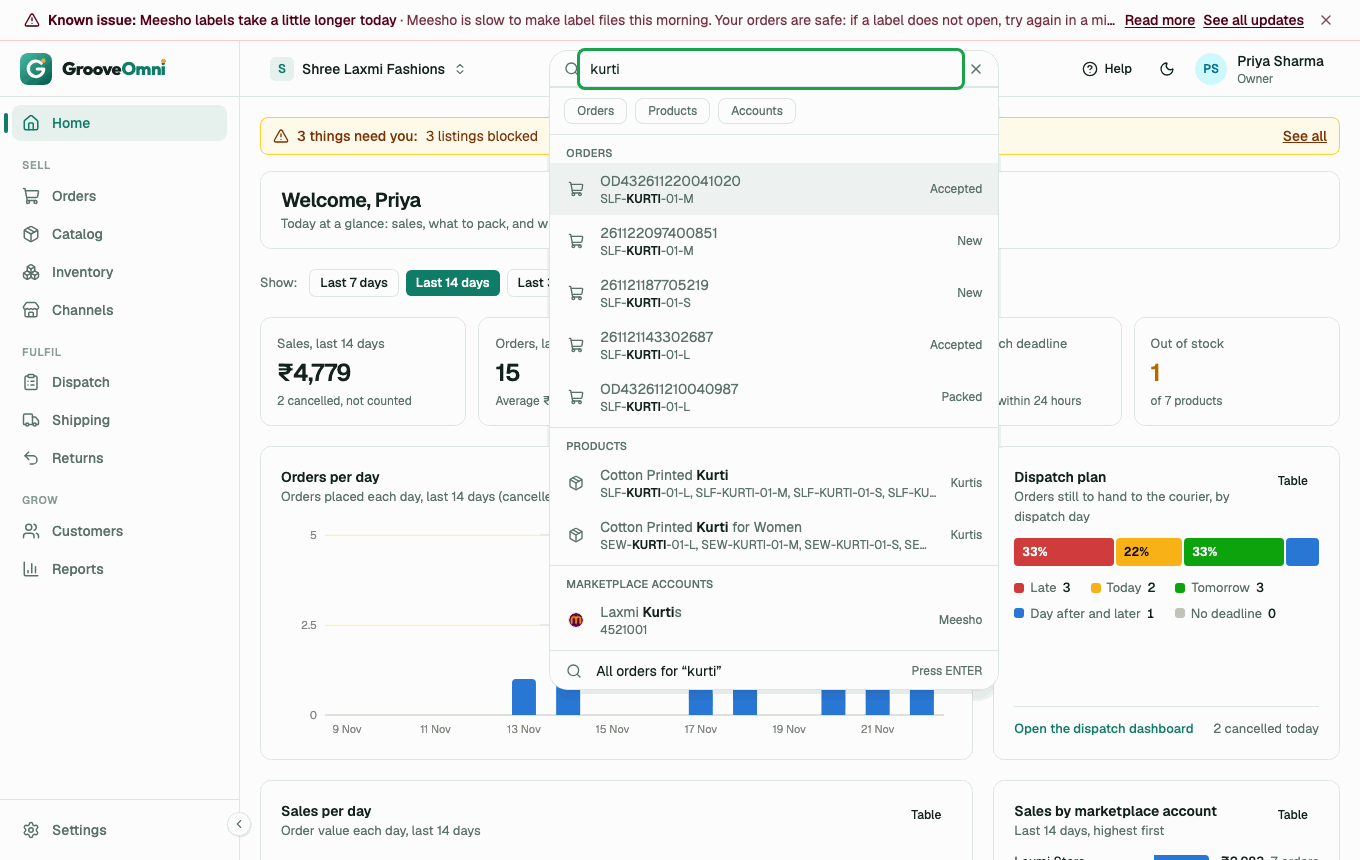 Search orders, products and accounts from any page (Ctrl K, or ⌘ K on a Mac).
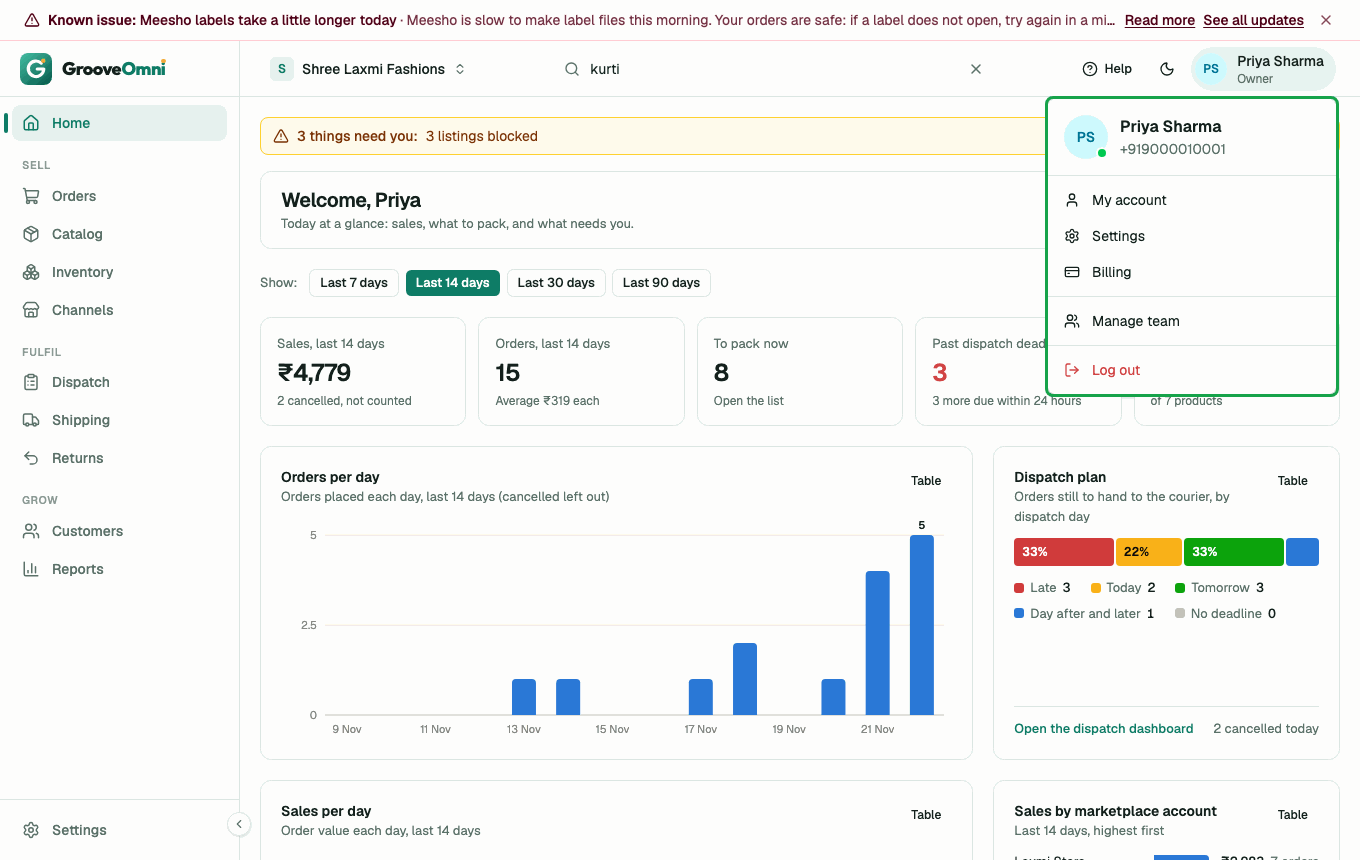 Your name, at the top right: My account, Settings, Billing, Manage team and Log out.
Step 2 — Use the left menu
| Menu item | What it holds |
|---|---|
| Home | Today at a glance: sales, orders, what to pack, what is late, what is out of stock. See Your business in 2 minutes. |
| Orders | Every order from every account, in one list, by stage. See Orders arrive. |
| Catalog | Your products: one product per real product, its sizes as SKUs, and the accounts that sell it. See Your catalog. |
| Inventory | Stock per size, with the same tabs as Meesho (Active, Activation Pending, Blocked, Paused) plus Out of sync. See One stock for every account. |
| Channels | Your marketplace accounts: connect, log in again, sync. See Add another Meesho account. |
| Dispatch | What to pack today, tomorrow and later, what is late, and the pick list. See Orders to dispatch today and tomorrow. |
| Shipping | Every parcel, by stage, with tracking. See Shipping and tracking. |
| Returns | Returns to receive and check. See Returns. |
| Customers | Where your buyers are (states and cities) and recent buyers, with names masked. See Your business in 2 minutes. |
| Reports | Sales, cancellations and returns for the dates you choose, with a CSV download. See Your business in 2 minutes. |
| Settings (bottom) | Businesses and GSTINs, Warehouses, Marketplace accounts, Team, Billing. |
The left menu can be made narrow with the small arrow on its edge (or Ctrl B). On a phone it opens from the menu button at the top left.
Step 3 — Watch the yellow bar: "needs you"
When something needs you, a yellow bar appears above every page, for example "9 things need you: 9 listings blocked" or "1 account logged out". Click See all (or Needs you (n)) to open the Needs you page, where every problem has one sentence on what happened and a button to fix it. See Everything that needs you, in one place.
A thin coloured strip at the very top is an update from GrooveOmni (a known issue, a fix or news). You can close it with its ×. All updates are on Help → See all updates.
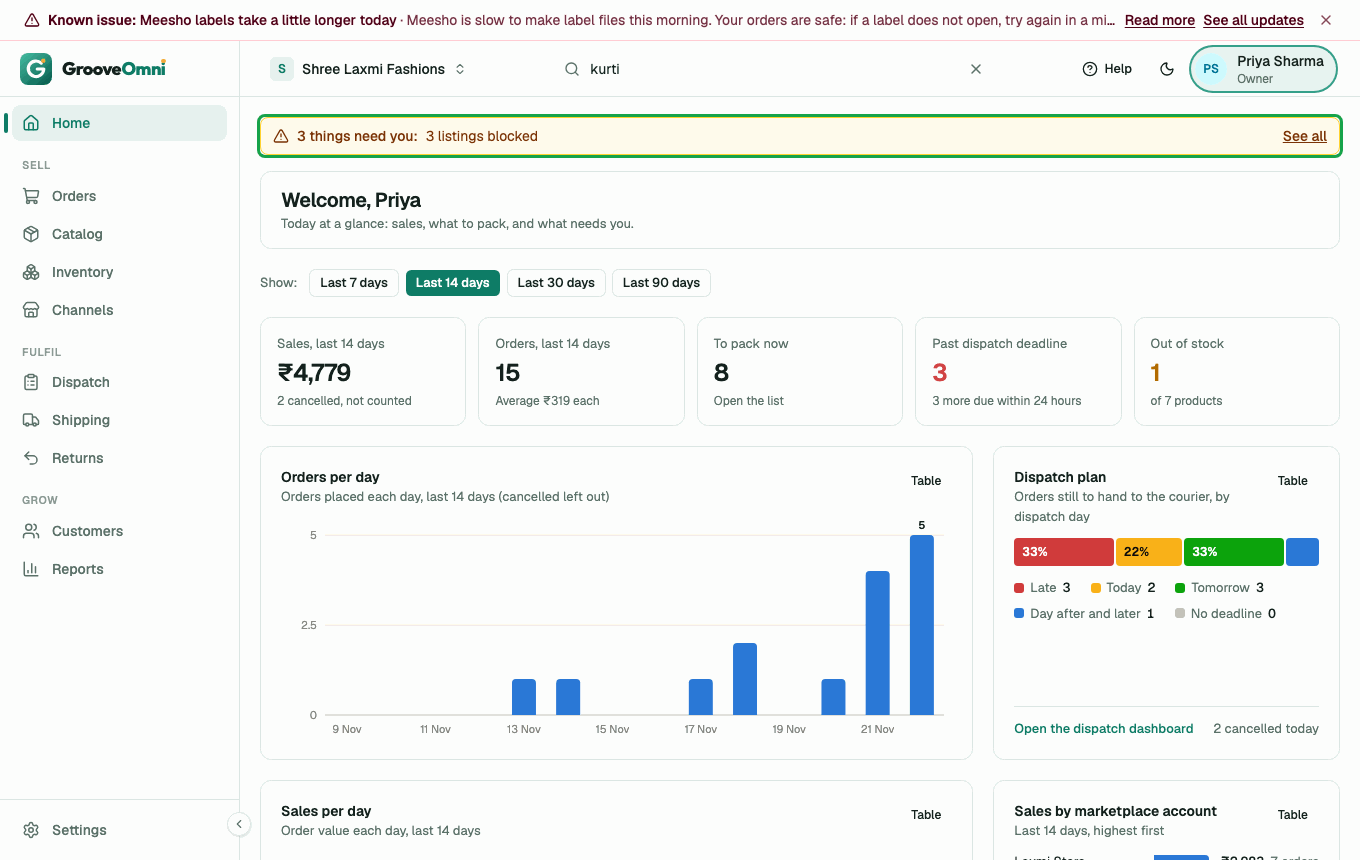 The yellow bar says when something needs you. Click See all to open the Needs you page.
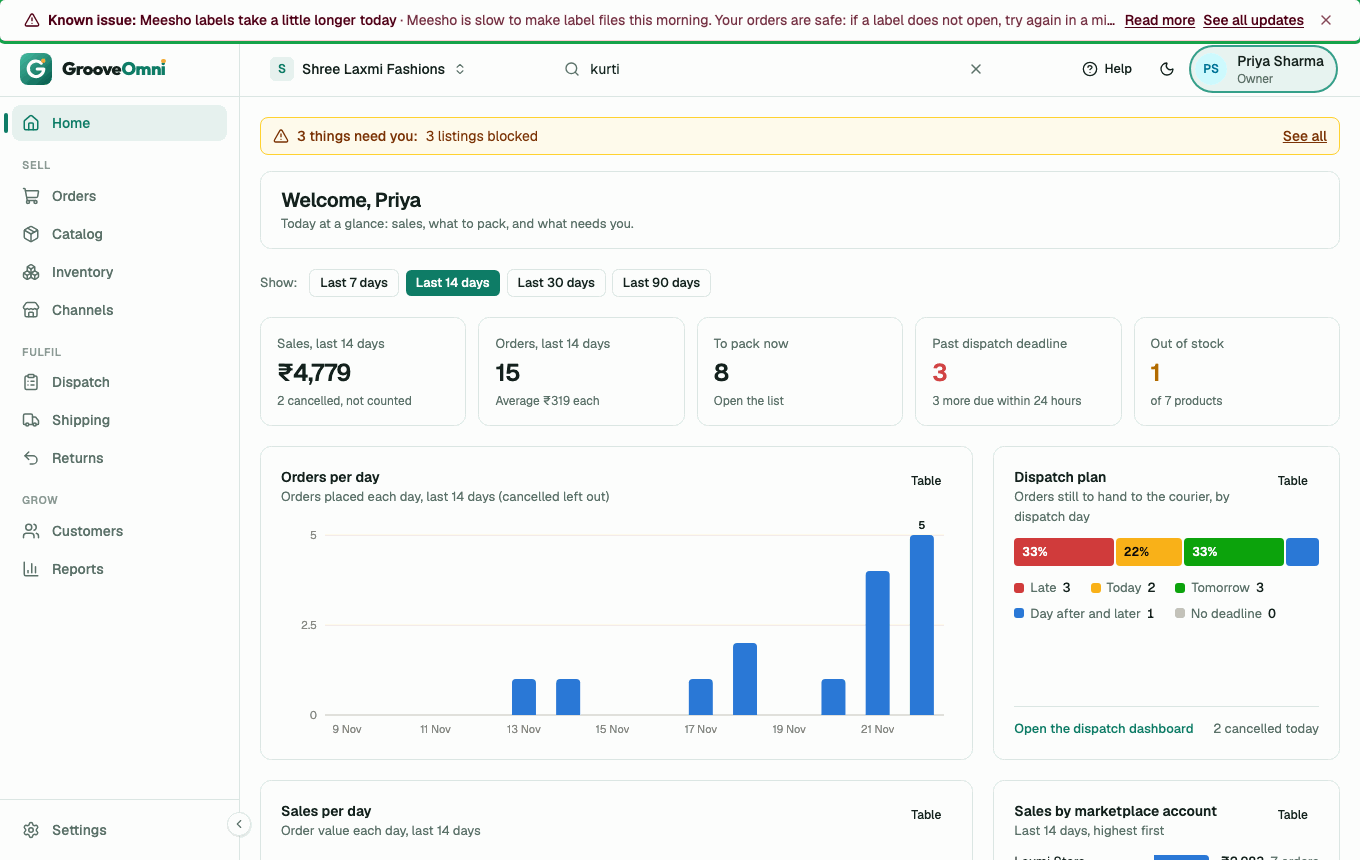 The thin strip at the very top is an update from GrooveOmni. Close it with its ×.
What to check every day
- Home: the yellow bar, To pack now and Past dispatch deadline.
- Dispatch: pack the Late and Today orders first, using the pick list.
- Orders → To pack: accept new Meesho orders (see Accept or cancel a Meesho order).
- Needs you: log in again if an account was logged out; fix blocked listings.
- Once a week: Settings → Billing, to check that the wallet covers your next bill.
Common questions
I cannot see Settings, Catalog or Channels. Your role does not include them. A Packer sees Home, Orders, Inventory, Dispatch and Returns only. Ask the owner if you need more.
Are Customers and Reports working? Yes. For Meesho orders they show little buyer detail, because Meesho's order list gives GrooveOmni no buyer names or addresses (see Orders arrive). Meesho payouts, commissions and settlements are coming soon; they are not in Reports yet.
What's next
- Your catalog after connecting Where your products are, and how one product joins every account's listing.
- Orders arrive Every order from every account, in one list.
- Getting help How to reach us, and how to report a problem.