Duplicate products: how GrooveOmni finds them, and merging
This page explains why GrooveOmni thinks two products are the same, whether it merges on its own, and what happens to your stock when you merge.
Who can do this: Owner, Admin, Manager, Catalog editor.
Why duplicates happen
When two accounts sell the same kurti under different SKU codes (for example SLF-KURTI-01-S on Laxmi Kurtis and
SEW-KURTI-01-S on Shree Ethnic Wear), GrooveOmni cannot be sure they are the same, so each becomes its own product with its
own stock. You decide whether to join them.
How GrooveOmni finds them
- It compares only products in the same category that share a real title word or the same SKU core. Common words ("new", "set", "combo", sizes) and words that appear in more than half of your products ("kurti" in a kurti shop) do not count.
- It scores each pair on title (45%), SKU (25%), sizes (15%) and price (15%).
- Pairs scoring 55% or more are shown, best first. Each product shows at most its best 3 matches.
- Nothing is merged without you.
Step 1 — Open Duplicates to review
Go to Catalog → Duplicates to review (n).
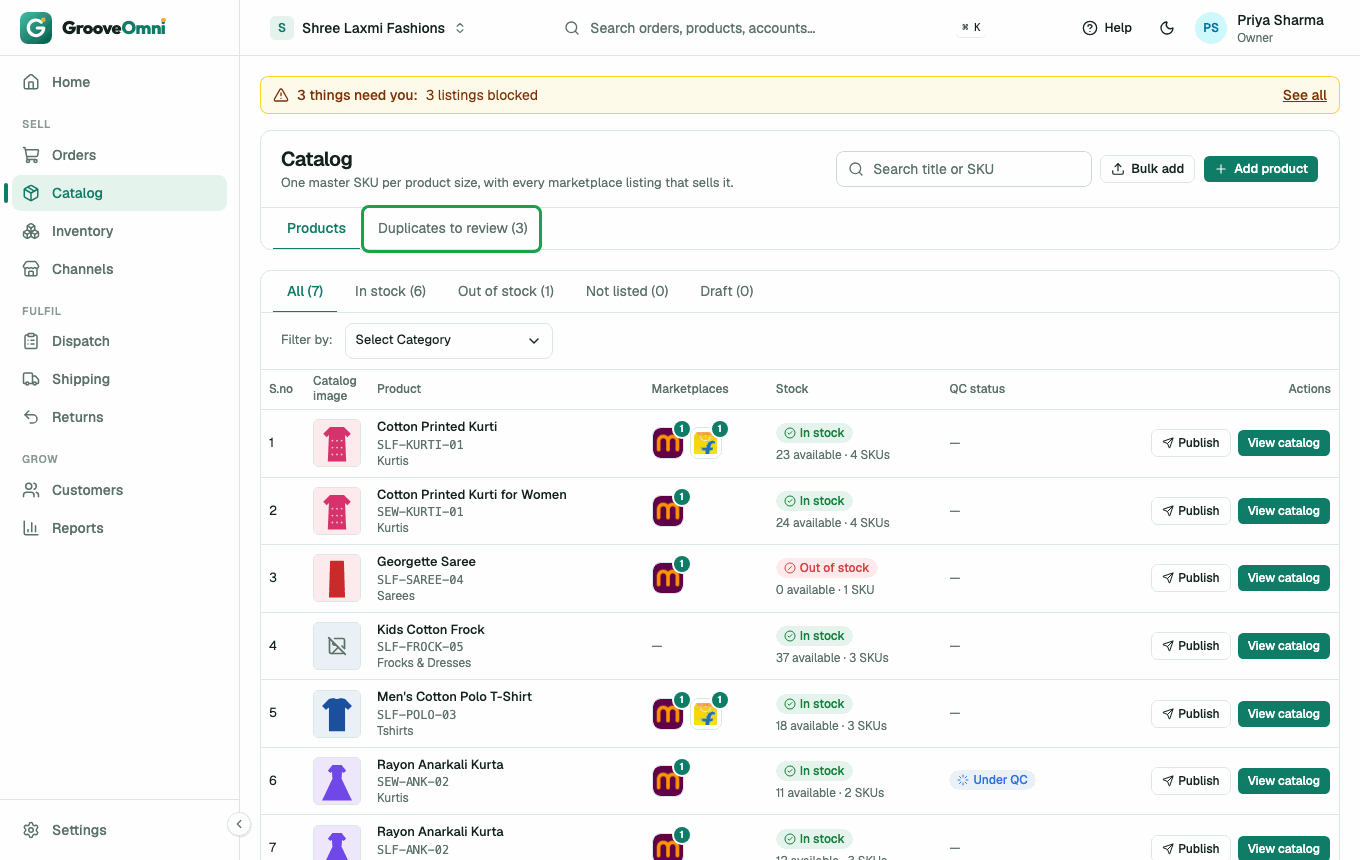 Go to Catalog → Duplicates to review. The number says how many wait for you.
Step 2 — Decide on the same SKU codes
Same SKU code: an imported listing has the same SKU code as a product you already have. Click Same product (one stock number for both) or Different product (it gets its own SKU). A catalog you published from GrooveOmni to that account is joined to its product by itself and does not wait here.
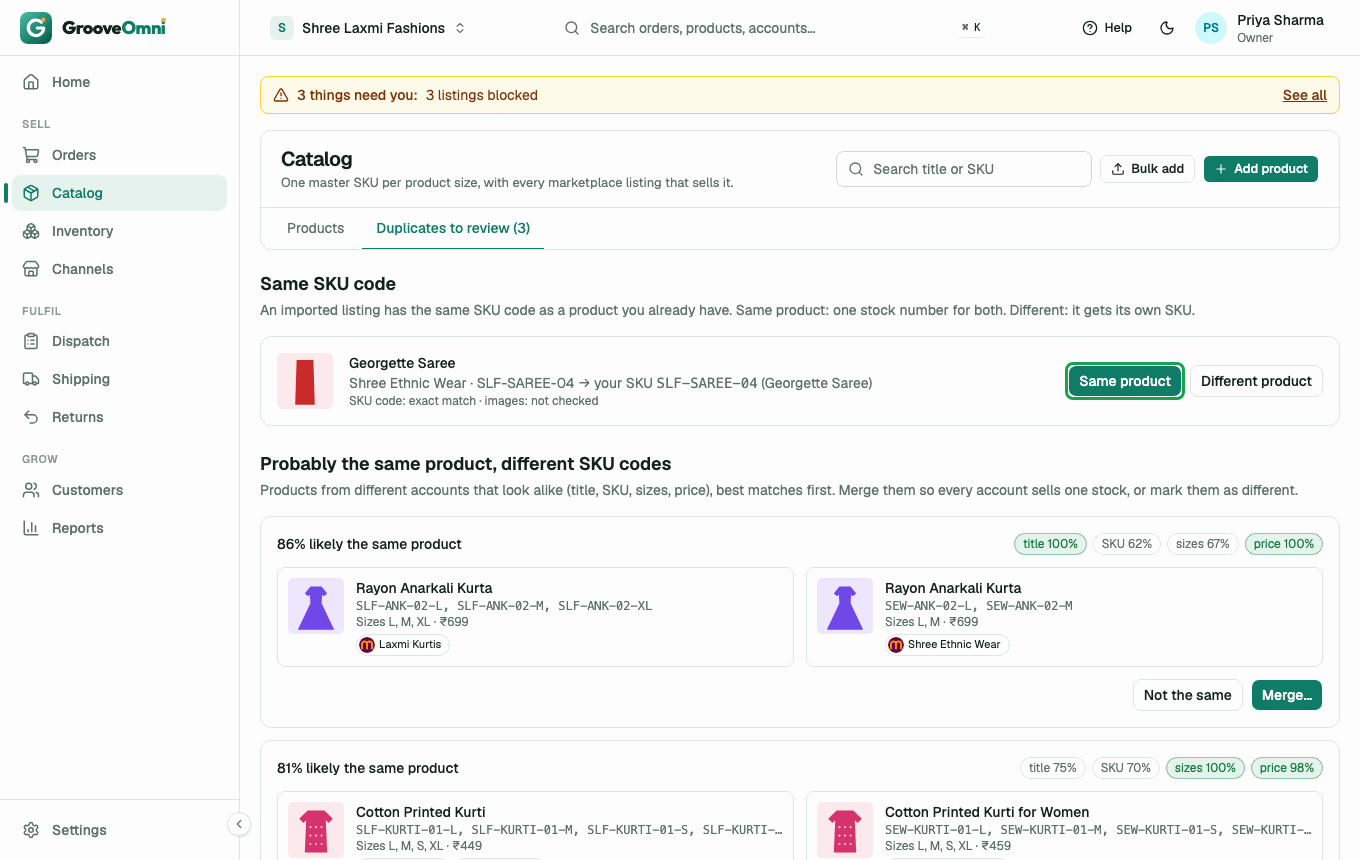 Same SKU code: a listing has the same SKU code as one of your products. Click Same product to share one stock.
Step 3 — Look at the likely matches
Probably the same product, different SKU codes: each card says, for example, "62% likely the same product", with the score for title, SKU, sizes and price, and the two products side by side (photo, SKUs, sizes, price, account).
Click Not the same if they are different. That pair never comes back.
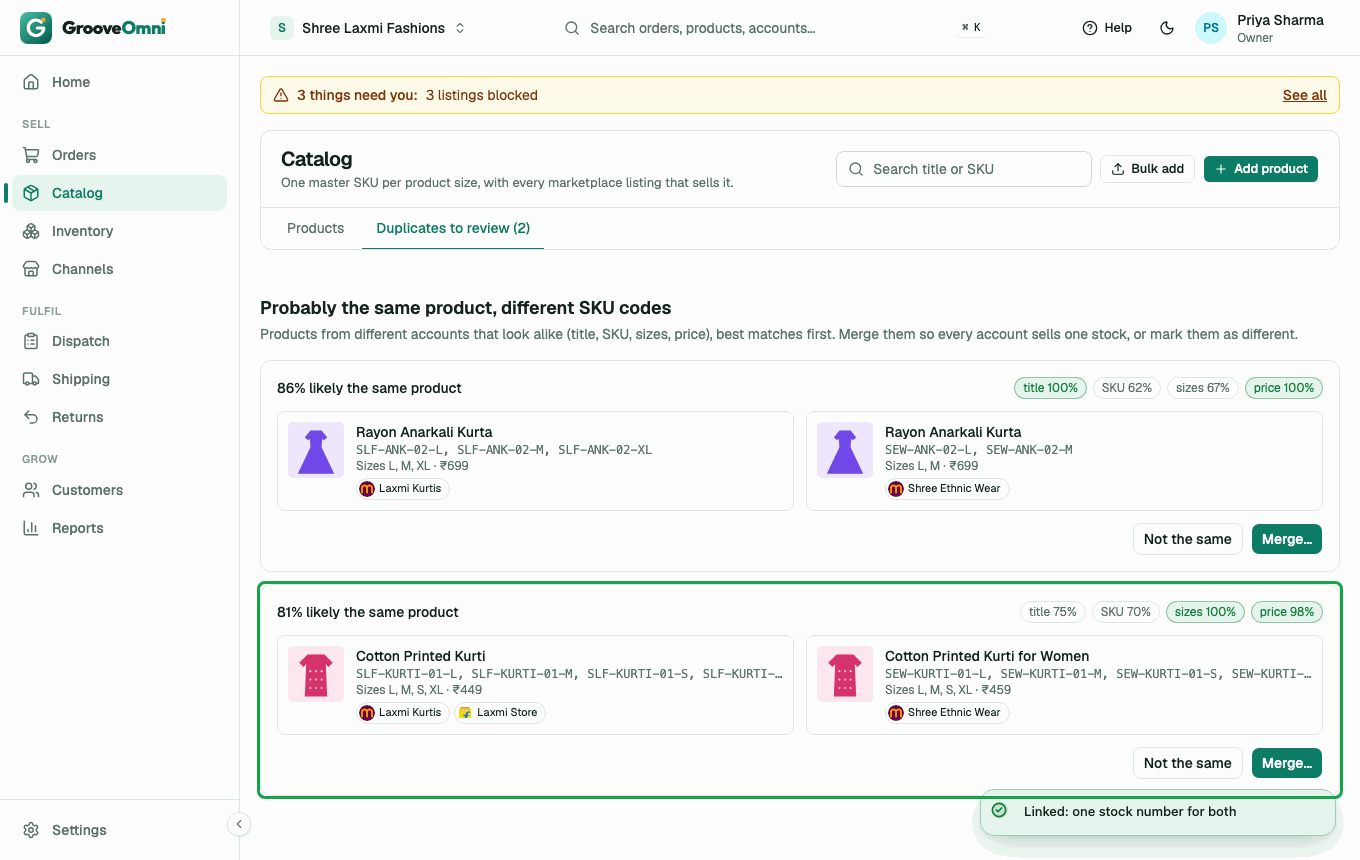 Probably the same product: each card shows how likely they are the same, with the score for title, SKU, sizes and price.
Step 4 — Merge the pair
Click Merge… if they are the same. The window Merge into one product shows:
| Part of the window | What you choose |
|---|---|
| Choose what the merged product keeps | For each detail that differs (title, brand, price, MRP…), pick the side to keep. Or "Nothing differs between the two products". |
| Preview: the merged product | Every size, its SKU ("+ … joins it"), price, MRP and the stock after the merge. |
| Keep this product | Which of the two stays. |
| Stock | Keep the kept product's count (usual: every account was counting the same pieces) or Add both counts (each account had its own separate pieces). |
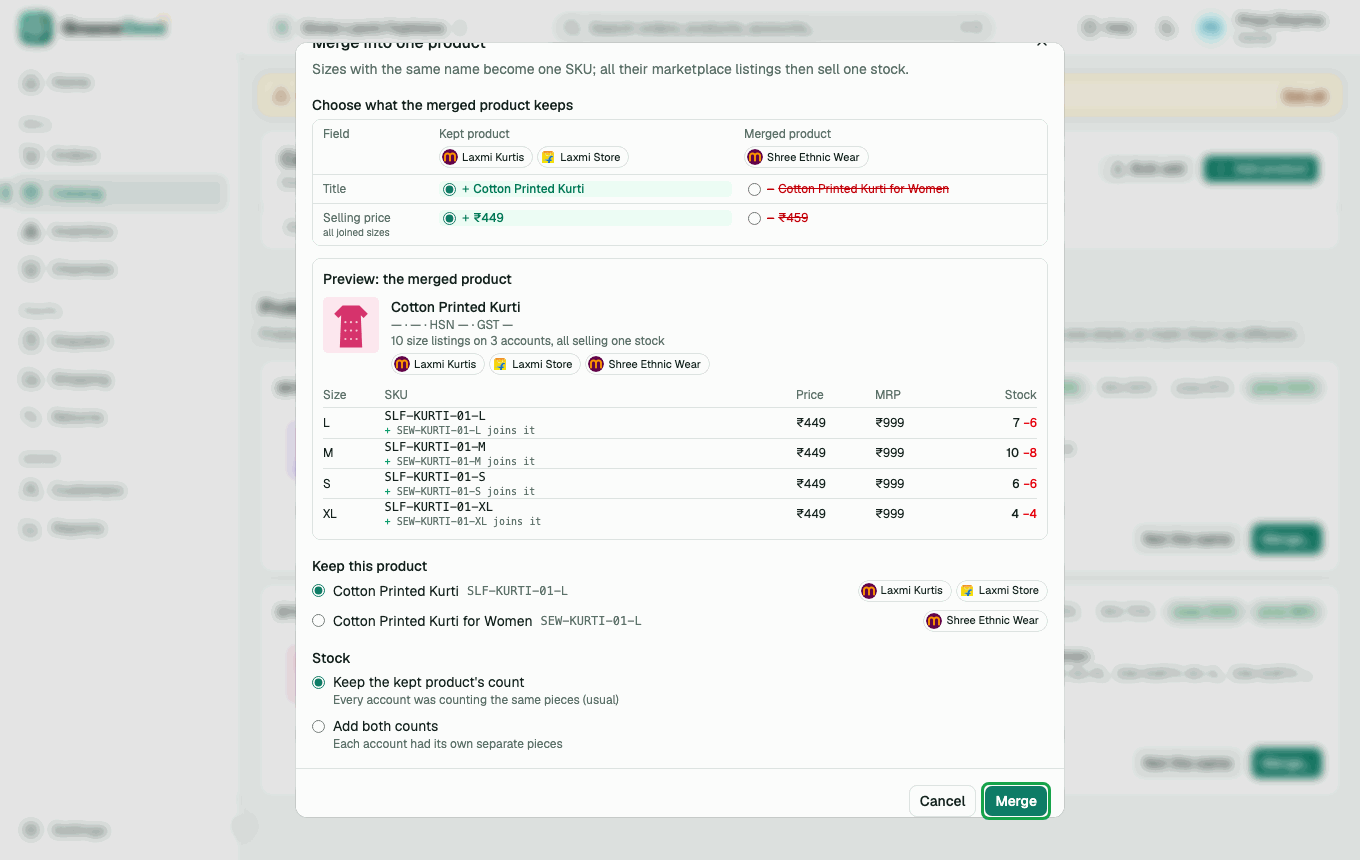 Choose what the merged product keeps, check the preview, pick the product to keep and how to count the stock, then click Merge.
Step 5 — Confirm
Click Merge. You see "Merged: all accounts now sell one stock". GrooveOmni sends the new number to every account.
They come as one group: click Merge all…, tick the ones to include, choose the one to keep and how to count the stock, then Merge n.
After the merge, open each account's Inventory on Meesho. Both show the same stock for that size.
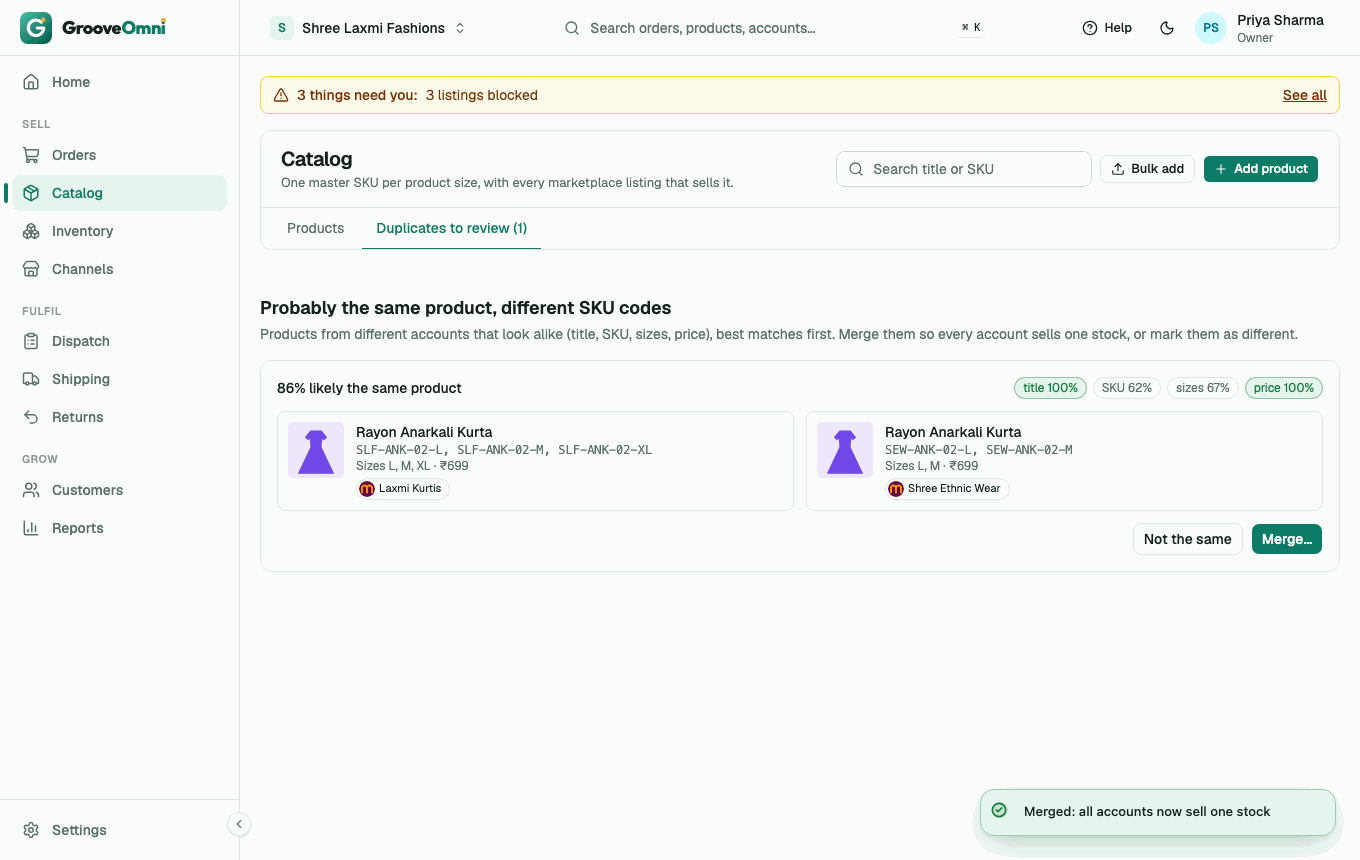 You see “Merged: all accounts now sell one stock”. GrooveOmni sends the new number to every account.
Common questions
Will GrooveOmni merge on its own? Only one case: identical SKU codes, on an account where link identical SKUs without review is on (see Account settings). Everything else waits for you.
What happens to my stock? You choose: keep one count, or add both. The preview shows the number before you click Merge.
I merged by mistake. Open the product, click the listing tag in Remarks and choose Separate into its own product (see Merge by hand).
What's next
- Merge by hand from the catalog screen Join or split a listing yourself.
- One stock for every account What every account is told after a merge.
- Account settings Link identical SKUs without review.