Out of stock, low stock and 0 stock
This page explains what happens when you sell your last piece, whether Meesho stops showing it, and how to bring it back.
Who can do this: changing stock: Owner, Admin, Manager, Catalog editor and Packer. Restock on Meesho: Owner, Admin, Manager.
Where to look
- Inventory → Active, with the same sub-tabs as Meesho: All Stock, Out of Stock and Low Stock.
- Catalog → Out of stock, and the Out of stock tile on Home.
Step 1 — Know what happens at 0
When you sell your last piece, or set stock to 0:
- GrooveOmni's stock for that size becomes 0 and it sends 0 to every account that sells it.
- The Stock column says "Out of stock · Buyers cannot order it. Add stock to bring it back." and the account's tag in Remarks reads "out of stock".
- On Meesho's panel: the SKU moves to Inventory → Active → Out of Stock.
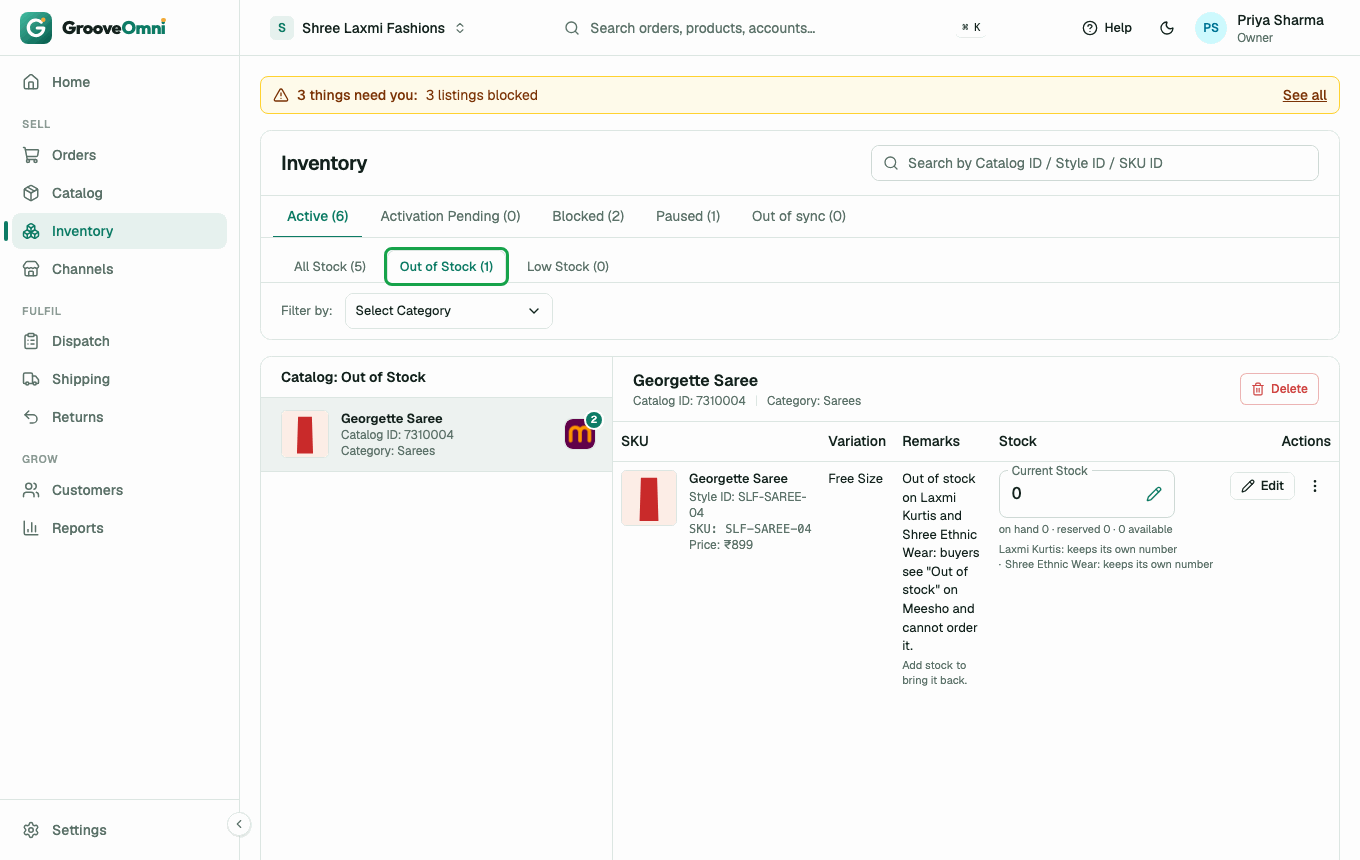 Inventory → Active → Out of Stock lists the sizes with 0 available, as Meesho’s own tab does.
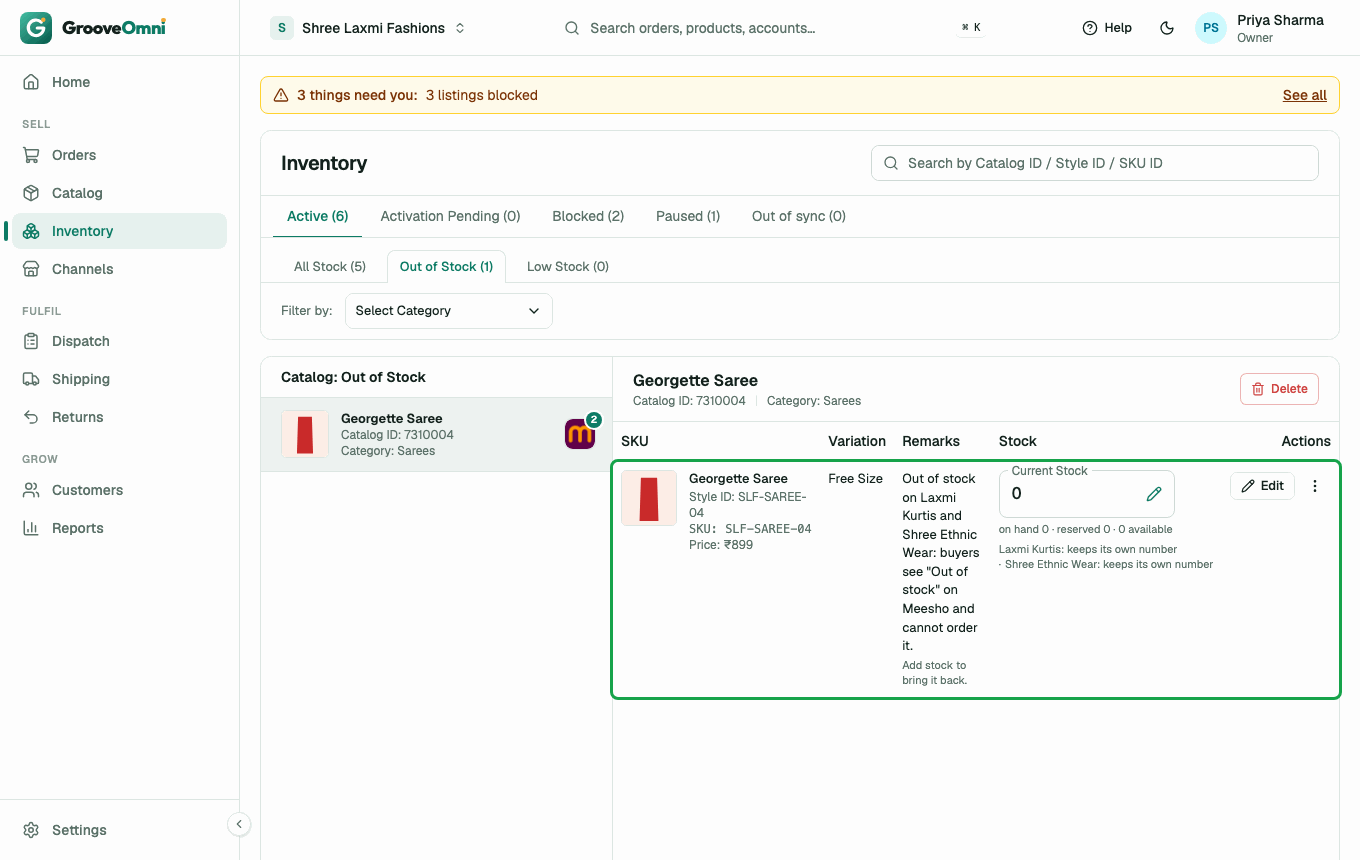 The Stock column says “Out of stock · Buyers cannot order it. Add stock to bring it back.”
Step 2 — Bring it back
- In Inventory (or on the product page), click the pencil in Current Stock, type the new number and press Enter (or the arrow).
- GrooveOmni sends it within seconds. The line under the box shows "<account>: sending…", then "<account>: 3 ✓ 11:21 pm": 5 typed, less the account's stock buffer of 2.
- On Meesho's panel: the SKU is back in All Stock, live.
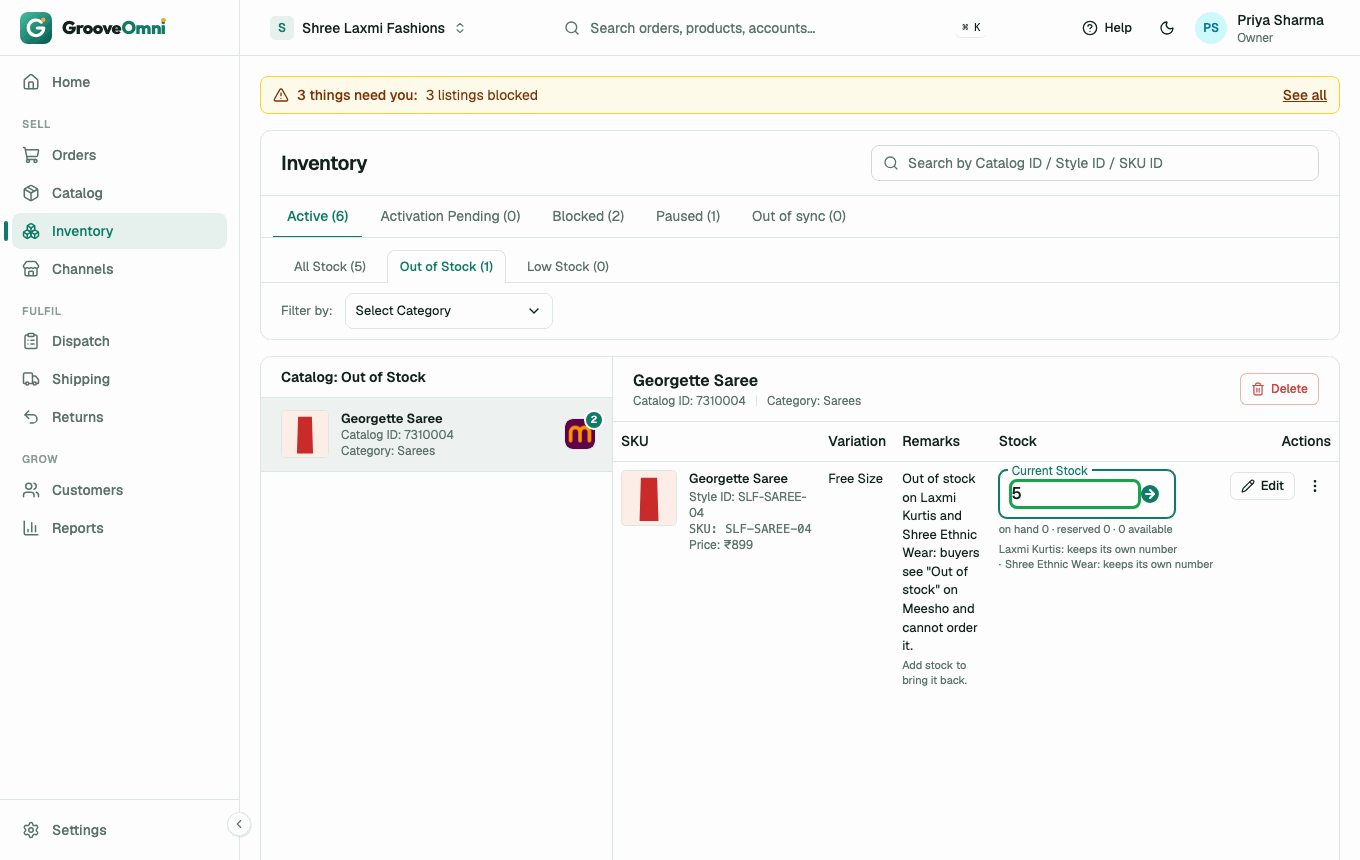 To bring it back, click the pencil in Current Stock, type the new number and press Enter.
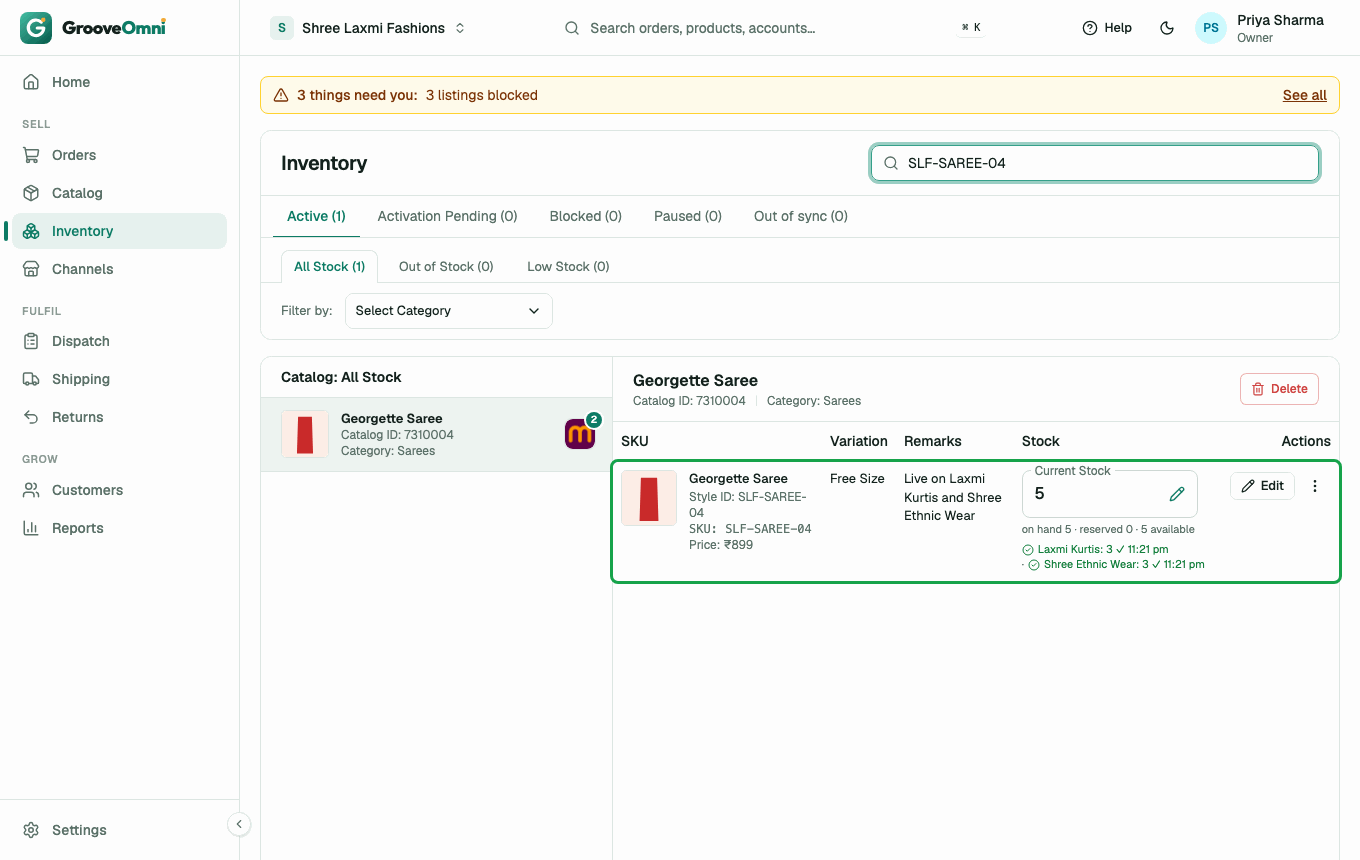 GrooveOmni sends it within seconds: the line under the box shows each account’s number with a tick and the time.
Step 3 — Sell a paused listing again
- Inventory → Paused lists SKUs Meesho is not showing to buyers: "Paused on <account>: buyers cannot see it on Meesho. Add stock to sell it again." (or "the stock was set to 0, so Meesho hides it from buyers"), with since when: "(since 19 Nov '26)" when Meesho gives the day.
- To sell again, type a stock above 0 in Current Stock. If Meesho still shows it as paused, open the account's Listings tab, tick the SKU and click Restock (see Account settings).
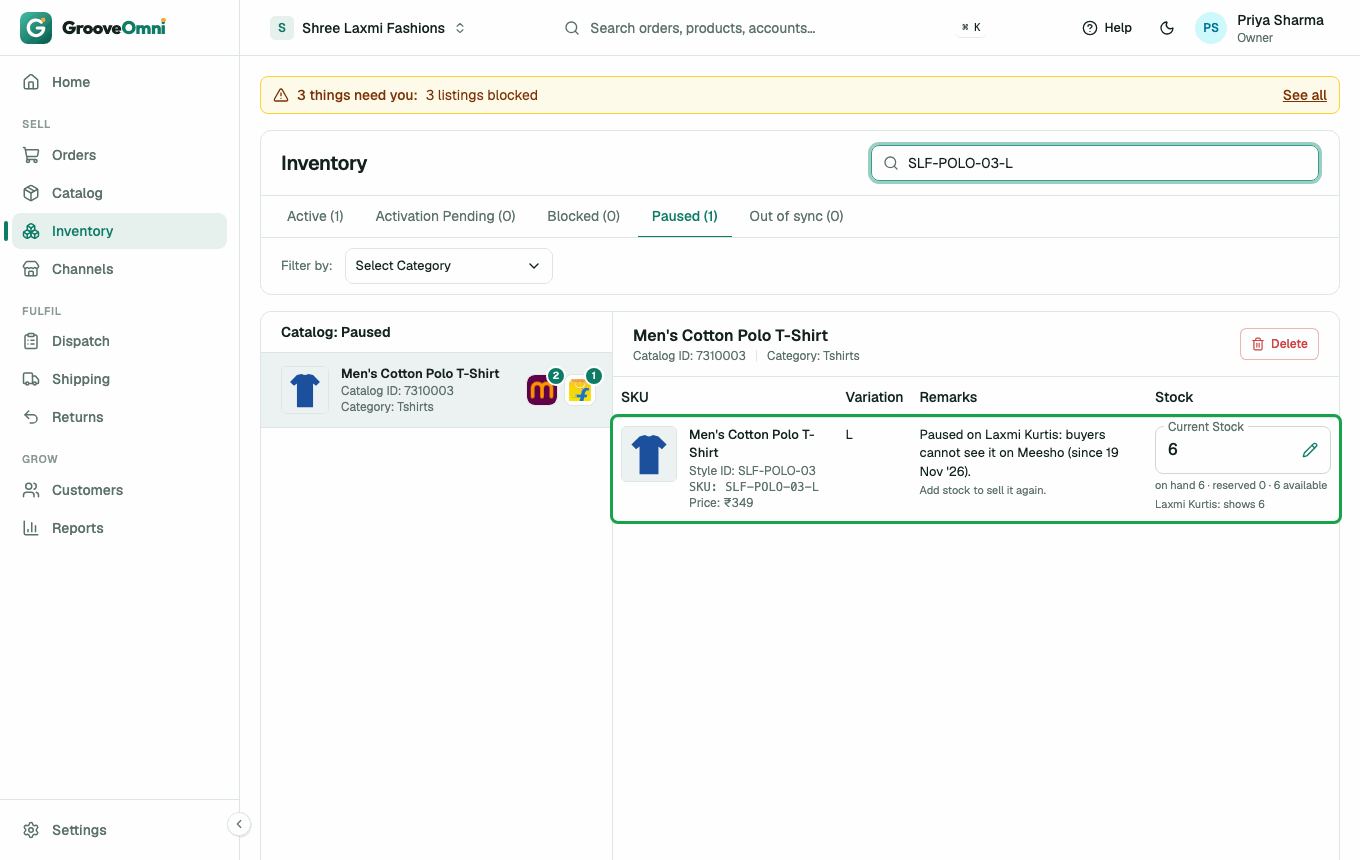 Inventory → Paused lists the sizes Meesho is not showing to buyers, with what to do.
Low stock
The Low Stock tab lists sizes at or below a reorder level. Setting a reorder level is not on GrooveOmni's screens yet, so this tab is usually empty for now.
Common questions
Does Meesho stop showing a product at 0? Buyers see it as out of stock and cannot order it.
I typed 0 by mistake. Type the right number. It is sent within seconds.
A SKU still shows Meesho's own number. If GrooveOmni has never had a count for a SKU, it leaves Meesho's number alone ("keeps its own number") until you type one, so it never wipes out a live listing by accident.
What's next
- One stock for every account The Current Stock box, and the line per account under it.
- Is Meesho up to date? What each stock line means, and what to do.
- Problems in your catalog Blocked and paused listings on Needs you.