Upgrade and downgrade
This page explains what happens when you add a GSTIN or a business, whether you lose money when you move up, and when moving down starts.
Who can do this: Owner, Admin.
When you add a second GSTIN, marketplace or business
GrooveOmni stops and shows Upgrade to Multi (or Upgrade to Multi-sub): "Your Free plan does not cover another GSTIN. Upgrade first, then add it again." It shows exactly what the upgrade costs now. Click Upgrade to Multi (or Recharge ₹… to upgrade if the wallet is short), then add the GSTIN, marketplace or business again. Not now cancels.
Step 1 — Upgrade from the Plans box
- Settings → Billing → Plans: click Upgrade to Multi (or Upgrade to Multi-sub).
- Read: "Starts today, paid from your wallet. The unused days of your current period are credited, and the new plan is billed from today."
- The summary reads top to bottom: the plan for the new period (for example "Multi plan, monthly" with its dates) and the marketplace accounts, then Welcome credit (if you still have some), Before GST, GST 18% and Paid now. Below: Back to your wallet for the unused days of your current period, and Wallet after (or To recharge). For example Multi-sub: ₹1,499 − ₹500 welcome credit = ₹999, GST ₹179.82, paid now ₹1,178.82.
- Click Pay ₹… from wallet (or Recharge ₹… and upgrade).
An upgrade starts a new billing period today, so your billing date moves to today. You do not lose money: the unused days of the old period come back to the wallet (if you had paid them) or the unpaid bill is cancelled.
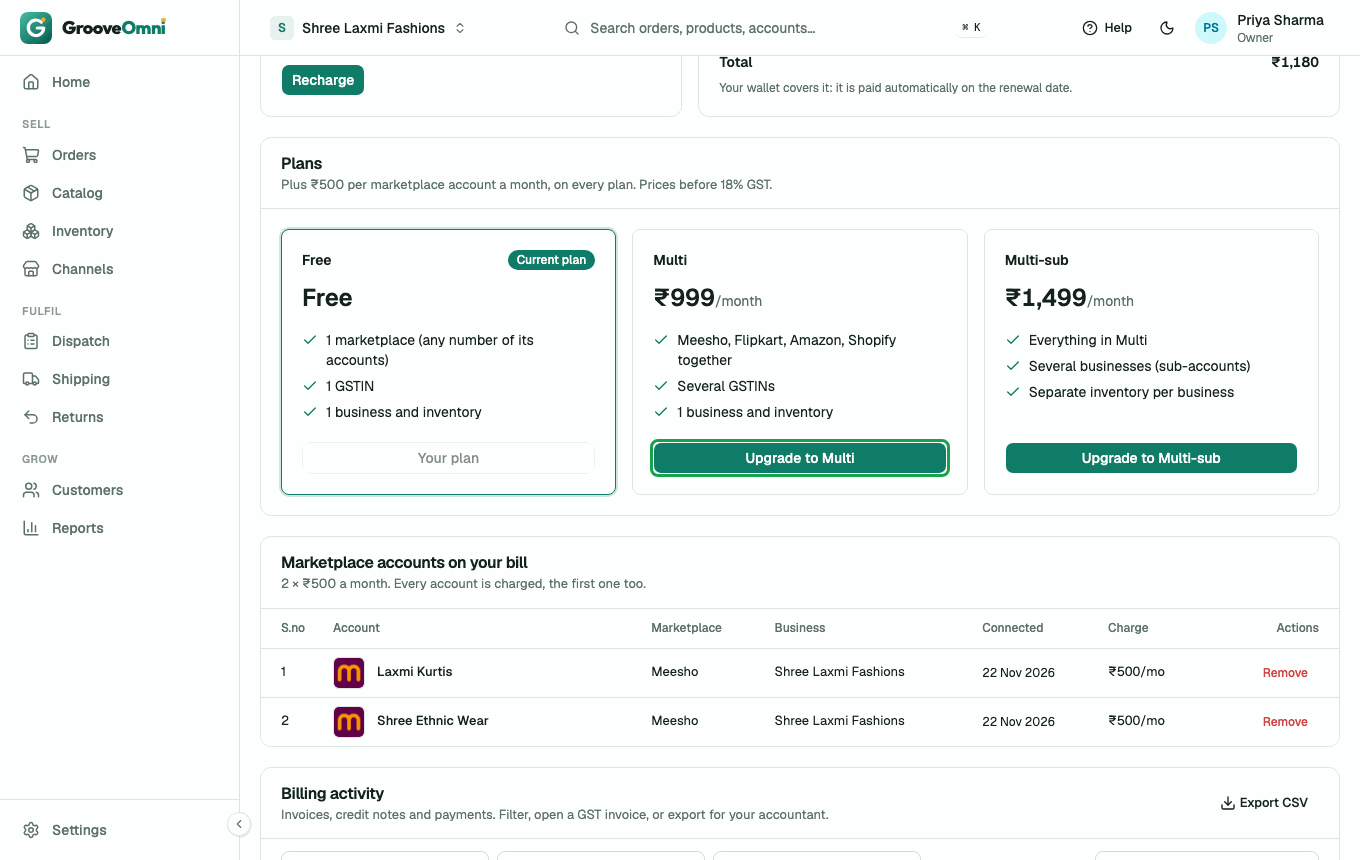 Go to Settings → Billing → Plans and click Upgrade to Multi.
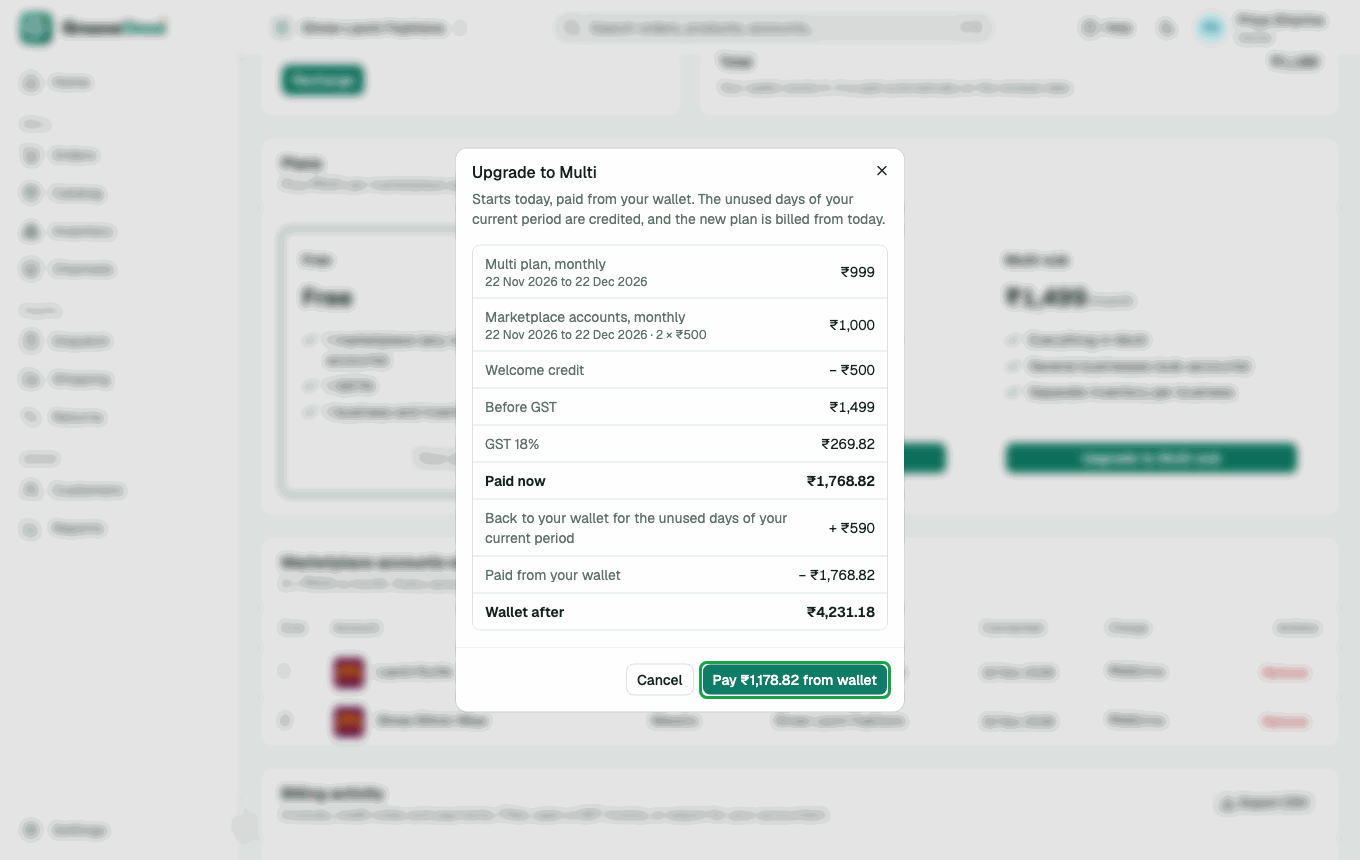 Read what the upgrade costs now and what comes back for the unused days, then click Pay ₹… from wallet.
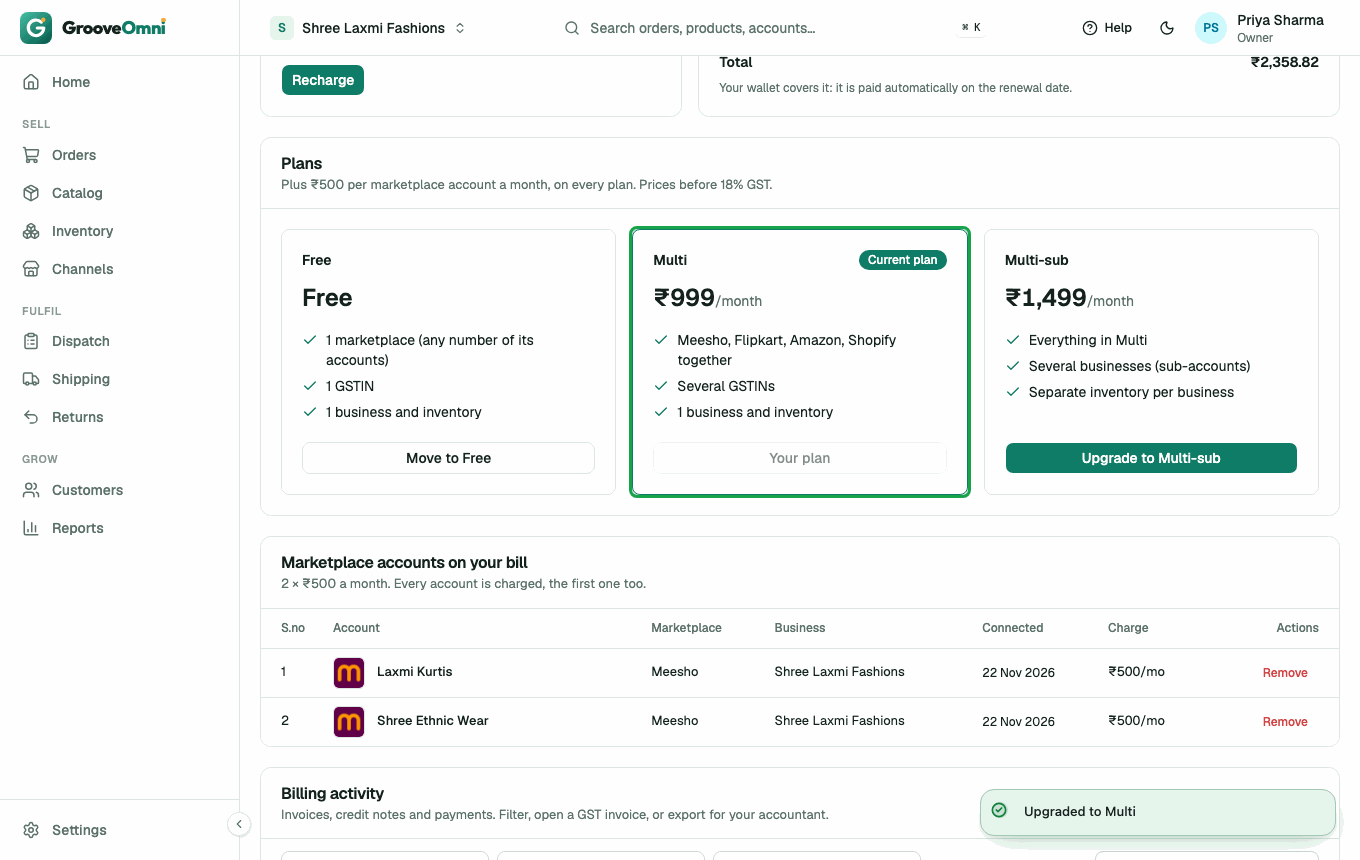 Multi is now your current plan. It starts today, and your billing date moves to today.
Step 2 — Downgrade
- Settings → Billing → Plans: click Move to Free (or Move to Multi).
- Read: "Starts when this period ends on <date>. Nothing is refunded for the rest of this period." Click Confirm.
- The top box shows Moves to Free on <date>.
- Changed your mind? Click Stay on Multi on your current plan card.
Otherwise GrooveOmni says, for example, "To move to Free, first …" and what to remove (a GSTIN, a marketplace or a business).
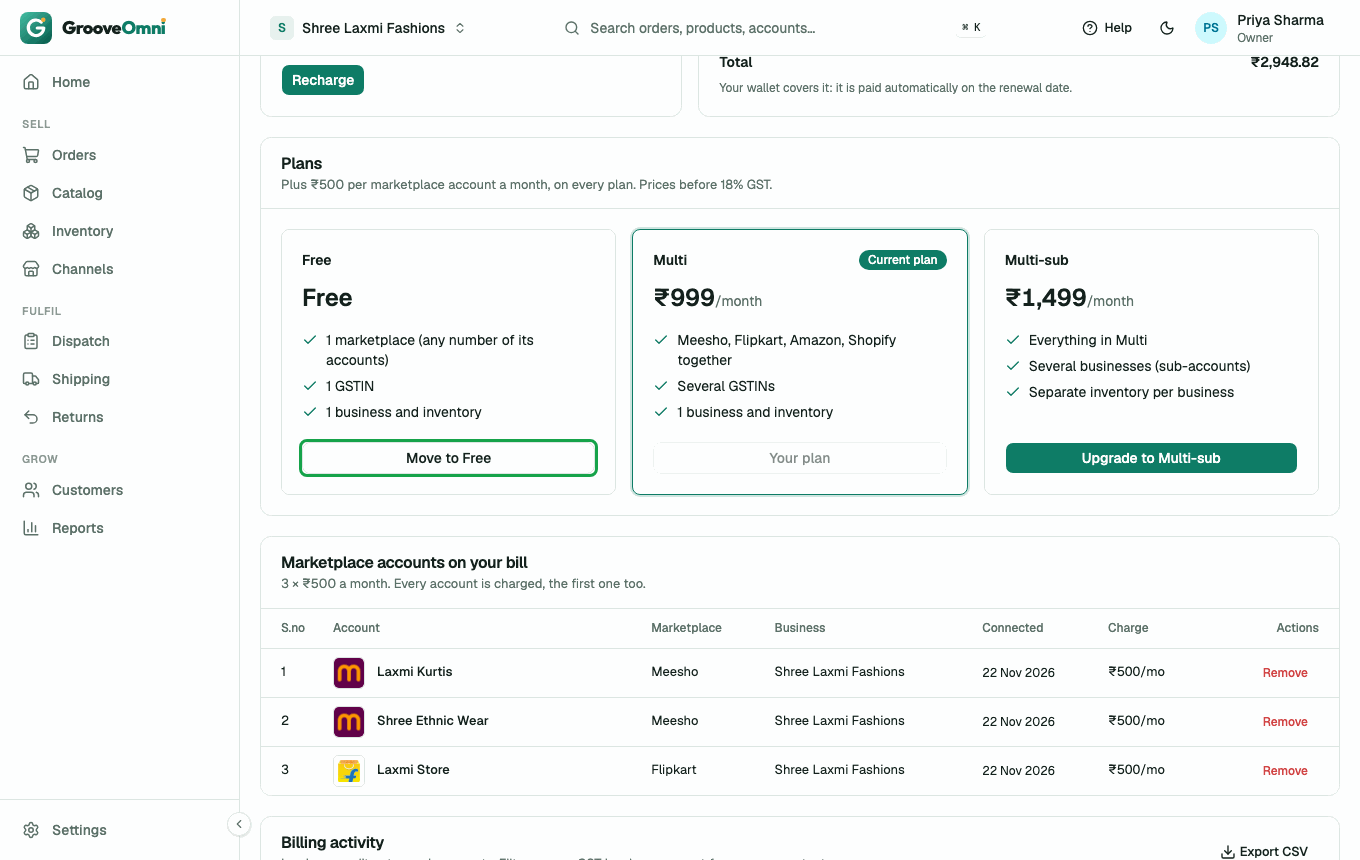 To move down, click Move to Free (or Move to Multi) on the smaller plan.
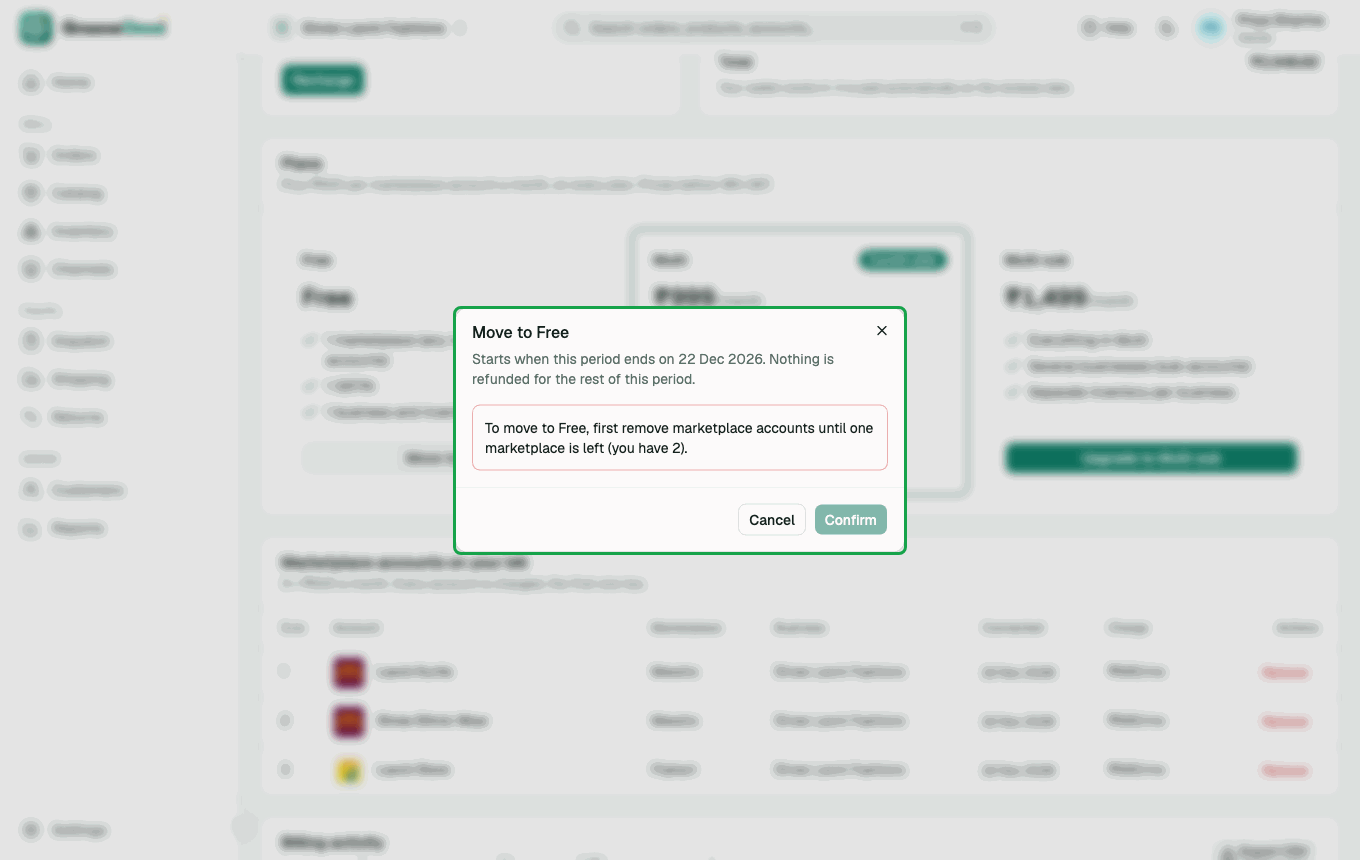 Moving down starts when this period ends, and GrooveOmni says what you would have to remove first.
Step 3 — Switch between monthly and yearly
- Monthly → yearly: click Yearly in the top box. "A yearly period starts today and runs until <date>. It is paid now from your wallet." The unused days of this month are credited. Click Pay ₹… from wallet and switch (or Recharge ₹… and switch).
- Yearly → monthly: click Monthly. "Monthly billing starts when your paid year ends on <date>. Nothing is charged now and nothing is refunded." Click Confirm.
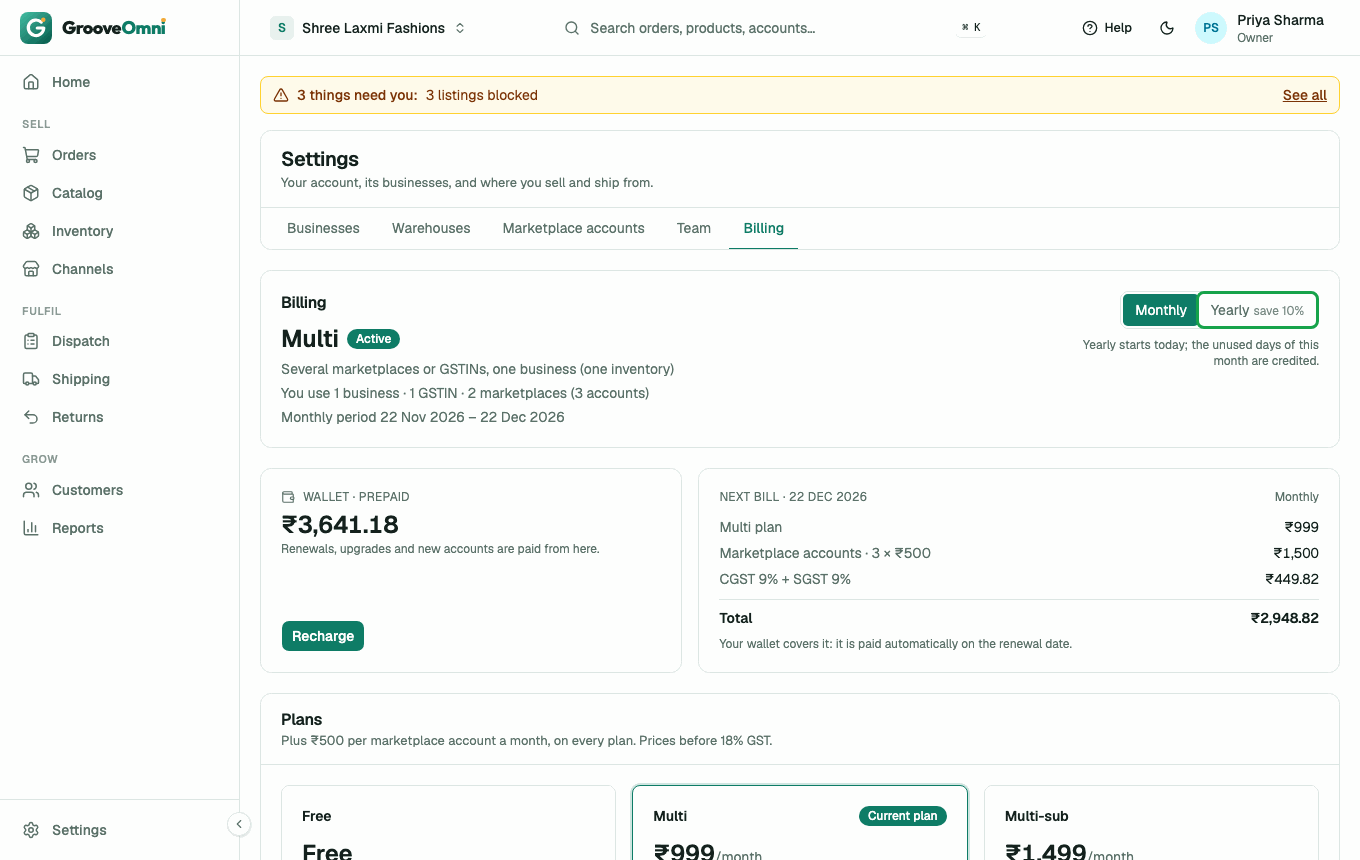 To pay yearly (10% off the plan), click Yearly in the top box.
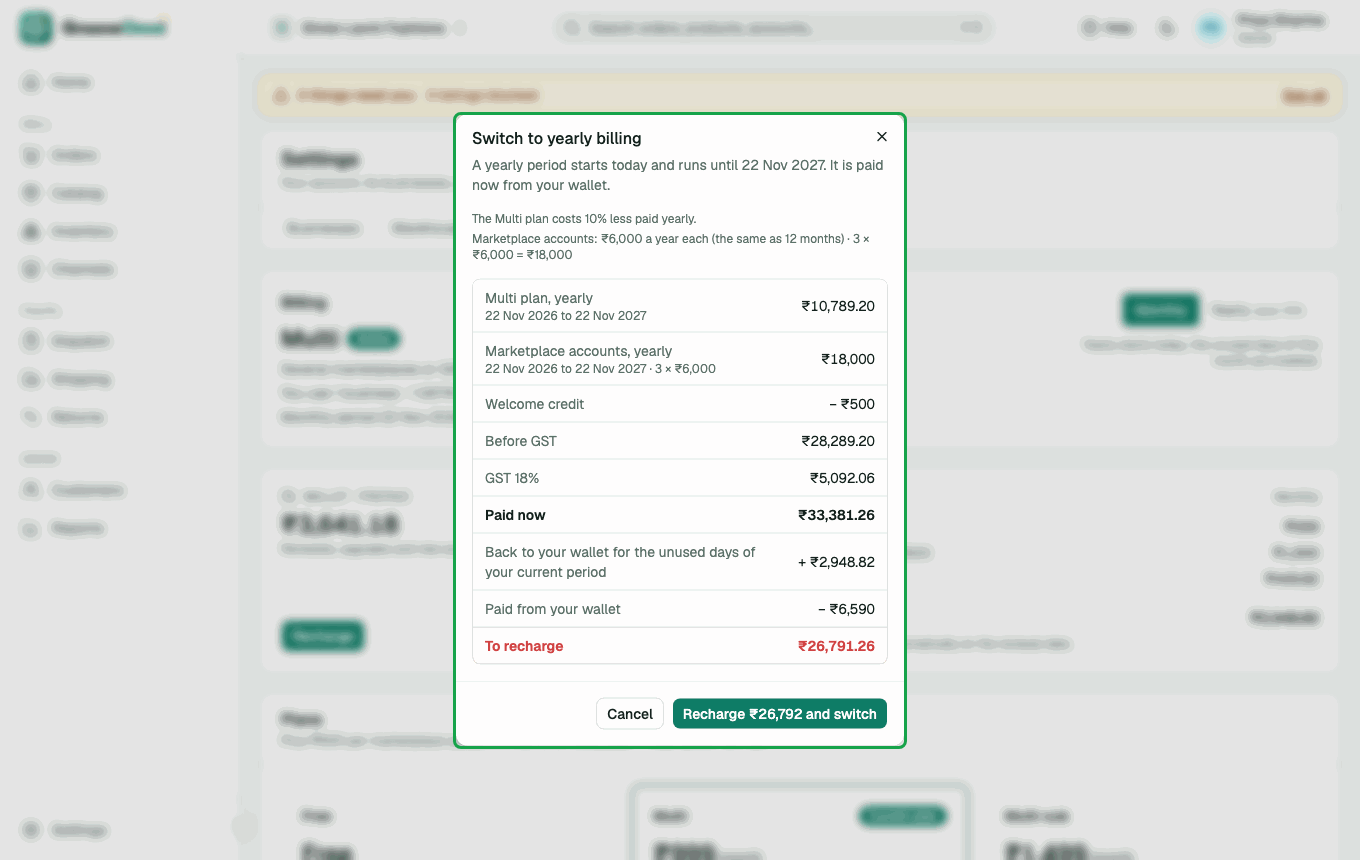 A yearly period starts today and is paid now from your wallet; the unused days of this month are credited.
Common questions
Do I lose money when I move up? No. The unused part of the old period is credited.
When does moving down start? At the end of the current period. Nothing is refunded for the rest of it.
What's next
- Your plan, and why you are on it The prices and examples for every plan.
- More than one business or GSTIN Two GSTINs or two businesses: which one you need.
- Invoices and GST Credit notes for the unused days.