Auto-debit from the wallet
This page answers whether you have to pay every month by hand, what happens if the wallet is empty, and whether your stock stops syncing.
Who can do this: Owner, Admin.
How it works
- On your renewal date, GrooveOmni issues the invoice and pays it from the wallet automatically, if the wallet covers the whole amount including GST. There is no switch to turn on: the wallet always pays.
- New accounts, upgrades and a switch to yearly are also paid from the wallet at once.
Step 1 — Watch the next bill
The Next bill · <date> card in Settings → Billing shows the plan, the accounts (for example "Marketplace accounts · 3 × ₹500"), any welcome credit, GST and the Total. Under it:
- "Your wallet covers it: it is paid automatically on the renewal date." Nothing to do.
- "Your wallet is ₹… short for this bill. Recharge before <date>; after that you have 3 days before Limited mode."
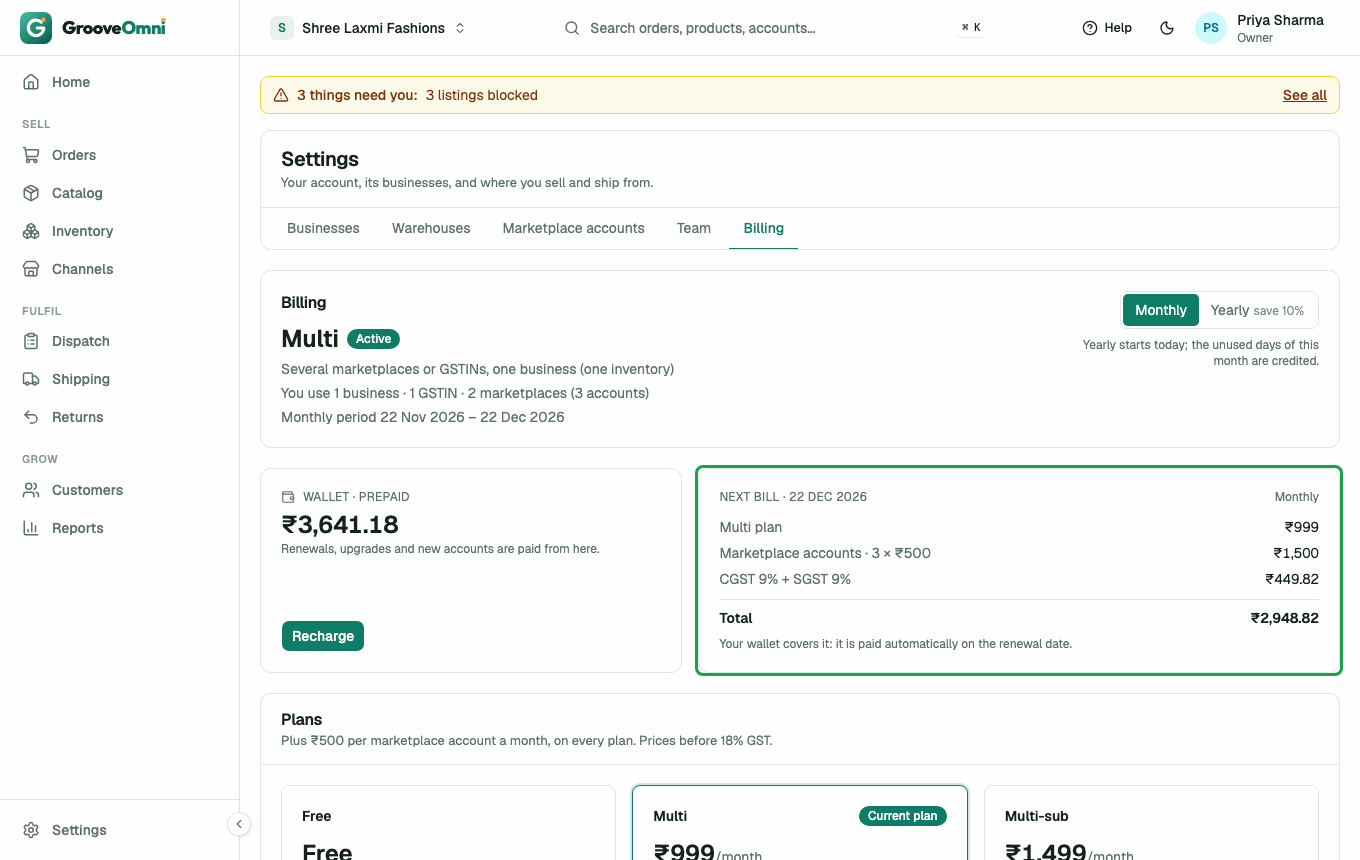 The Next bill card shows the plan, the accounts, GST and the total, and whether your wallet covers it.
Step 2 — Act on the warnings when the wallet is short
- 7 days before renewal: an amber line, "Low balance: your renewal of ₹… on <date> needs ₹… more in the wallet", with a Recharge ₹… button.
- On the renewal date, if the wallet cannot pay: the status is Payment due. "Your bill of ₹… could not be paid from the wallet. Recharge by <date> to avoid Limited mode." You have 3 days. The same message is on Needs you.
- After 3 days: Limited mode. "₹… is unpaid. Orders and stock keep syncing, but uploads, catalog changes, new accounts and upgrades are paused until you recharge."
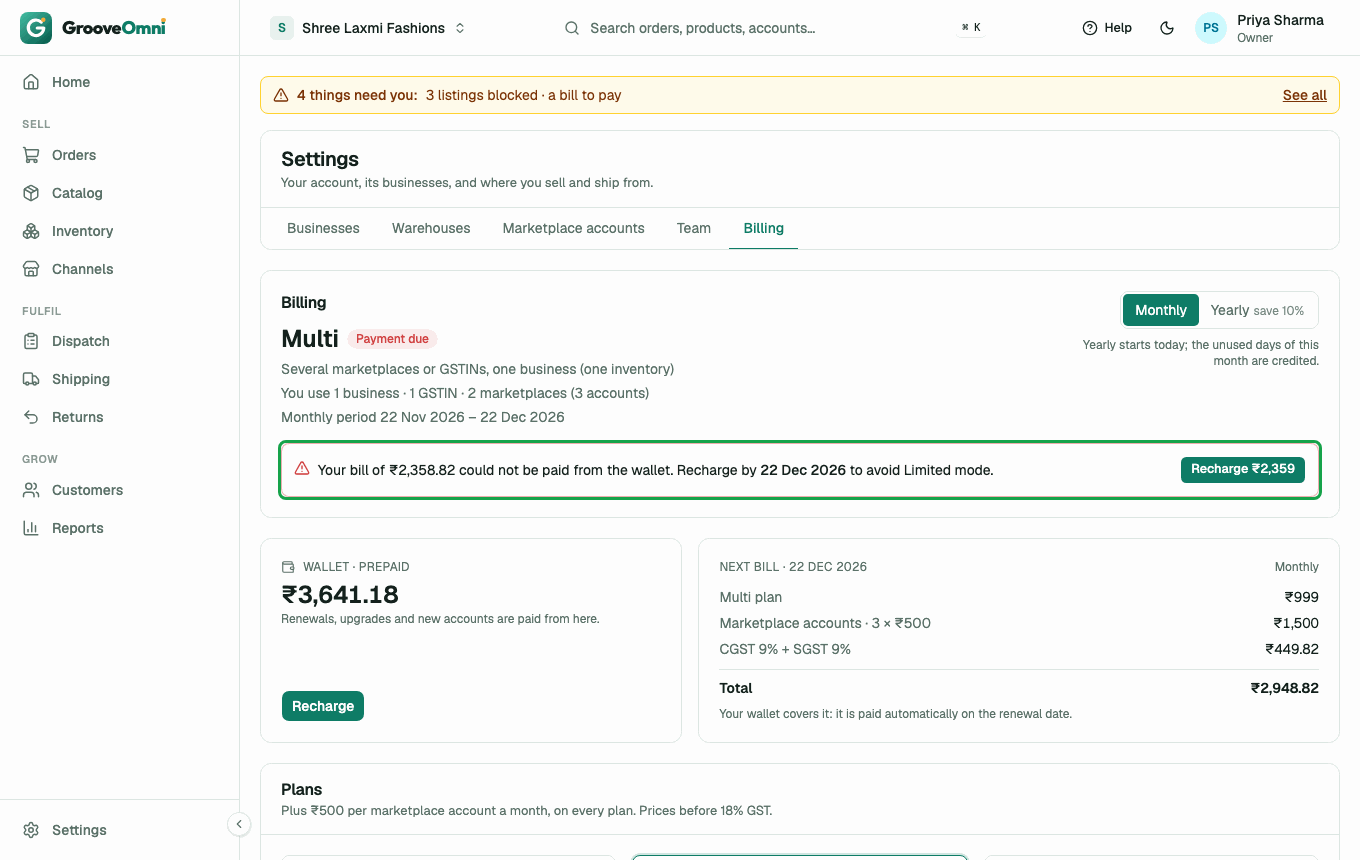 Payment due: the wallet could not pay the bill on the renewal date. Recharge within 3 days to avoid Limited mode.
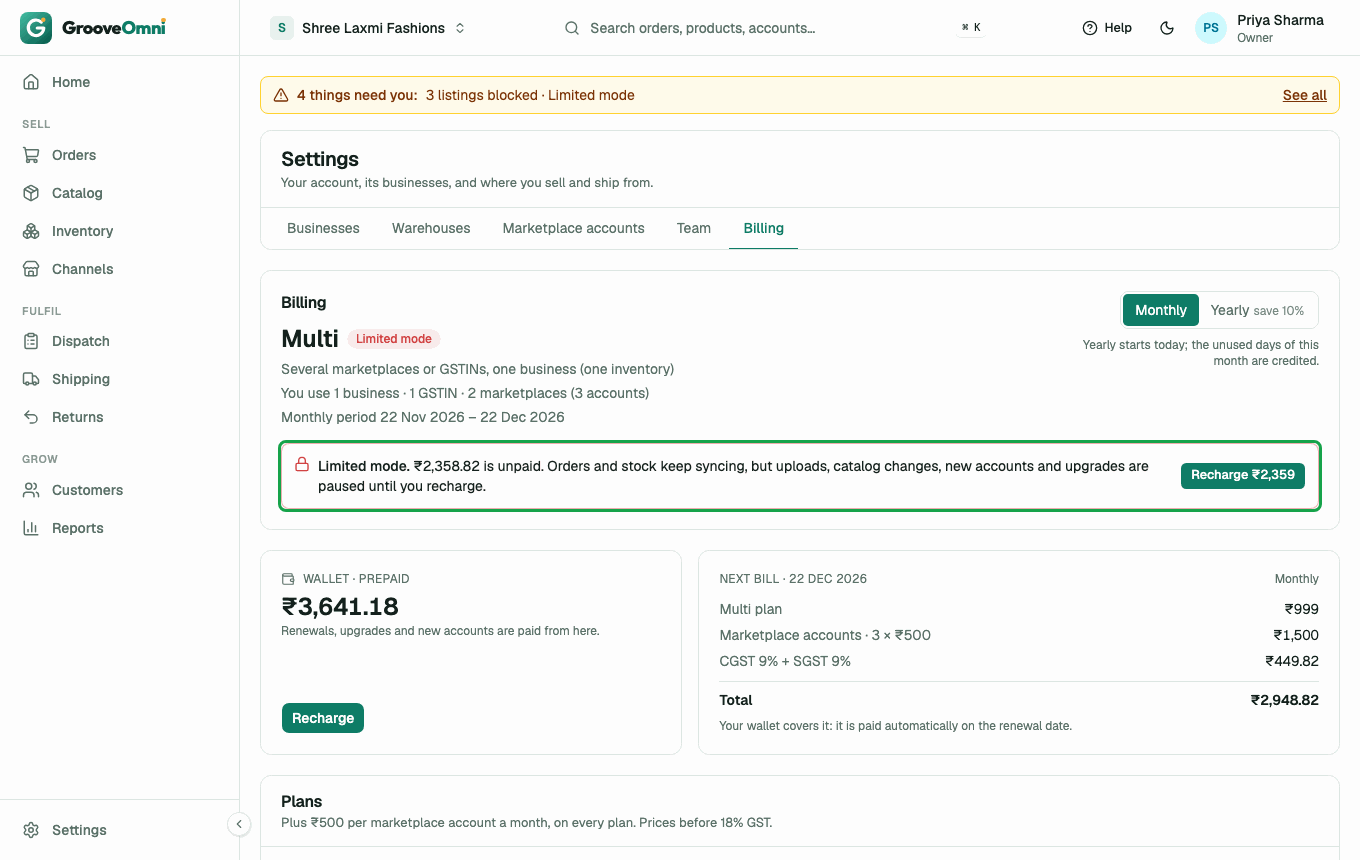 Limited mode: orders and stock keep syncing, but uploads, new accounts and upgrades wait until you recharge.
- Keeps working: order import, stock sending to Meesho, accepting orders, packing and dispatch, returns, stock changes. Your listings stay correct, so you never oversell.
- Waits for a recharge: adding new products, connecting new marketplace accounts, publishing new catalogs to Meesho, copying catalogs between accounts, and upgrades.
Step 3 — Get back to normal
- Click Recharge ₹… in the red message (or on Needs you → Billing).
- Pay (see Recharge the wallet). The amount due is paid from the wallet at once and the status goes back to Active.
- If there is already money in the wallet but not enough for everything, a Pay ₹… from wallet button pays what it can.
Common questions
Do I have to pay every month by hand? No. Keep enough in the wallet and every renewal is paid automatically.
Will my stock stop syncing if I do not pay? No. Stock and orders keep syncing in every case.
Can I pay one invoice by itself? Yes: in Billing activity, a due invoice has Pay (from the wallet) and, when online payment is on, Pay online.
What's next
- Recharge the wallet Online, UPI or bank transfer.
- Upgrade and downgrade Move between plans, and monthly or yearly.
- Everything that needs you, in one place Where billing problems show up for the Owner and Admins.