Invoices and GST
This page answers whether you get a GST invoice, on which company's GSTIN, whether you can claim the GST, and where to download it.
Who can do this: Owner, Admin.
Step 1 — Add your GSTIN to the business
Add your GSTIN to the business first (Settings → Businesses → Add GSTIN, see Sign up and set up your business).
Step 2 — Choose who the invoices are made out to
-
Go to Settings → Billing and scroll to Billing details.
-
Fill in:
Field What to enter GSTIN to bill The GSTIN (legal entity) the invoices should name, or No GSTIN (bill to my name only). Billing email Where invoices and reminders go; it can differ from your login. Billing address Use the address registered with your GSTIN. -
Click Save. The line below says "Invoices are made out to <legal name>, <state>."
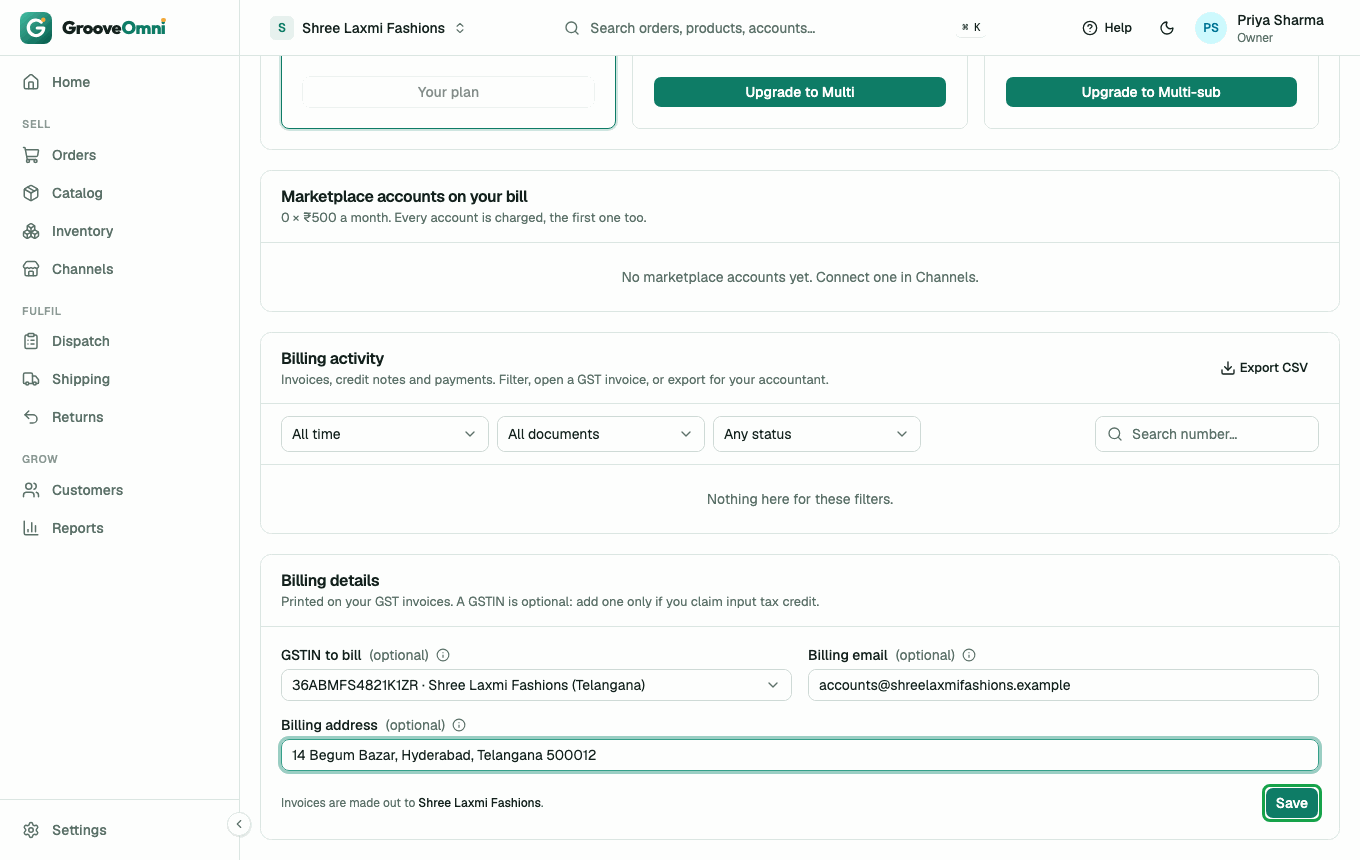 In Settings → Billing → Billing details, pick the GSTIN to bill, fill in the billing email and address, and click Save.
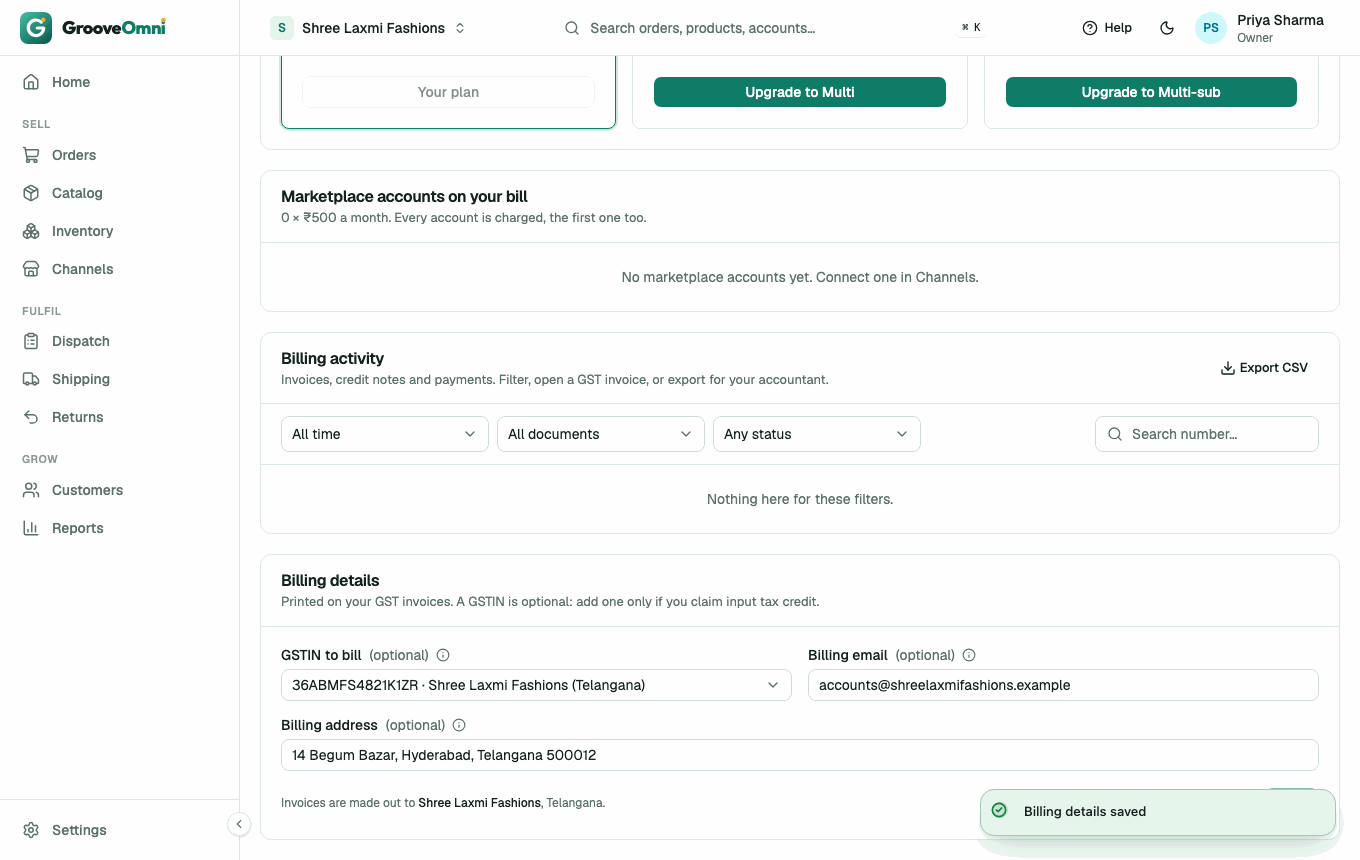 The line under the form says who your invoices are made out to.
Each invoice keeps the details it was issued with.
Step 3 — Open, print or download an invoice
- In Settings → Billing, scroll to Billing activity.
- Find the invoice (filter by Document type: Invoices, or search its number).
- Click View. The tax invoice opens on its own page:
- From: Groove Innovations Private Limited, T-Hub, Hyderabad, Telangana, with its GSTIN (36AALCG2231P1ZA).
- Tax invoice number (like
GO/26-27/000001), date and status (Paid, Due). - Bill to: your legal name, address and GSTIN (or "Not provided (unregistered)").
- Place of supply: your state.
- The lines: the plan, each marketplace account, with the SAC code and the period; the welcome credit as a minus line when used.
- Taxable value, then CGST 9% + SGST 9% if your state is Telangana, or IGST 18% for every other state.
- Total, and Paid from wallet.
- Click Print / Download PDF. In the print window choose "Save as PDF" to keep a file.
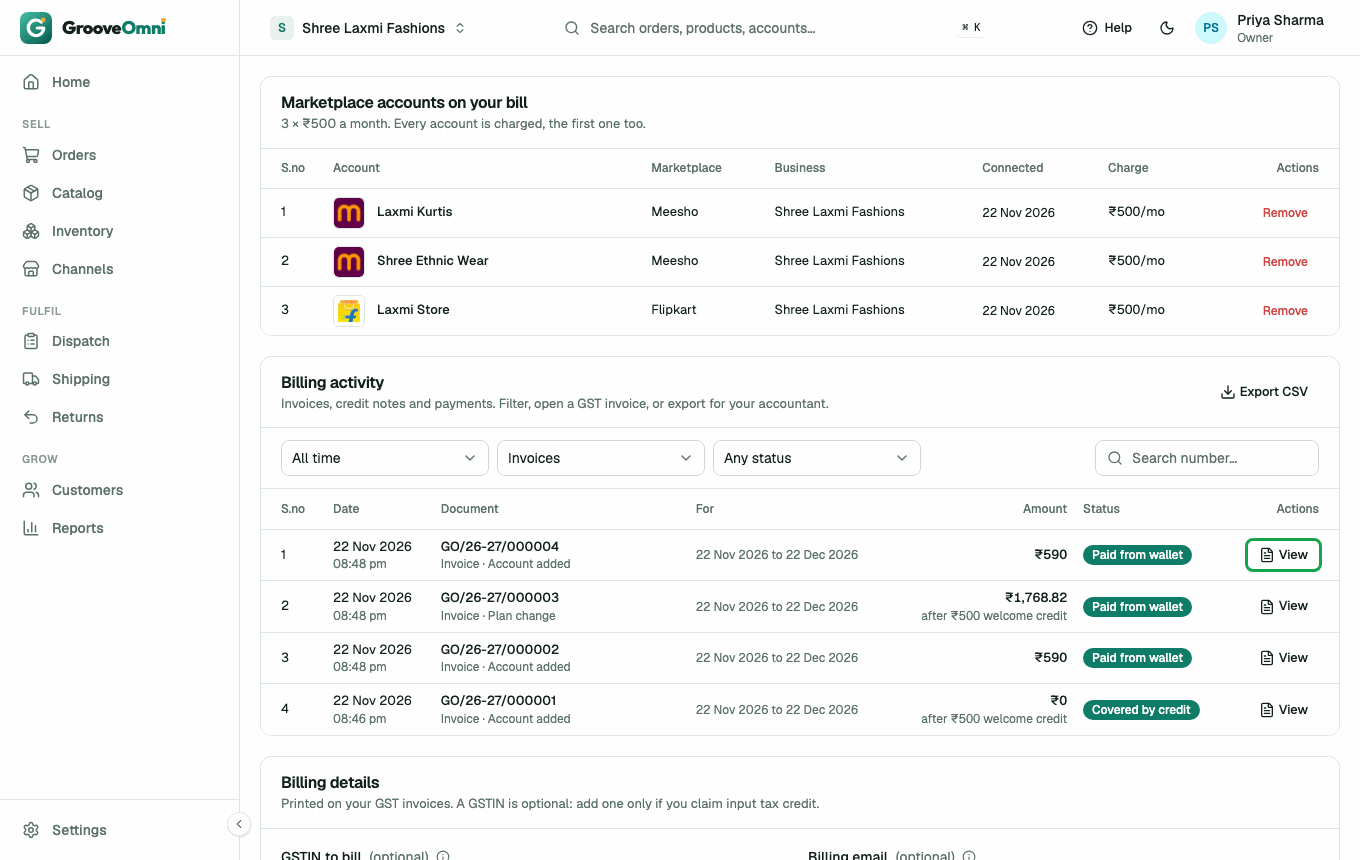 In Billing activity, filter by Document type: Invoices. Click View on an invoice.
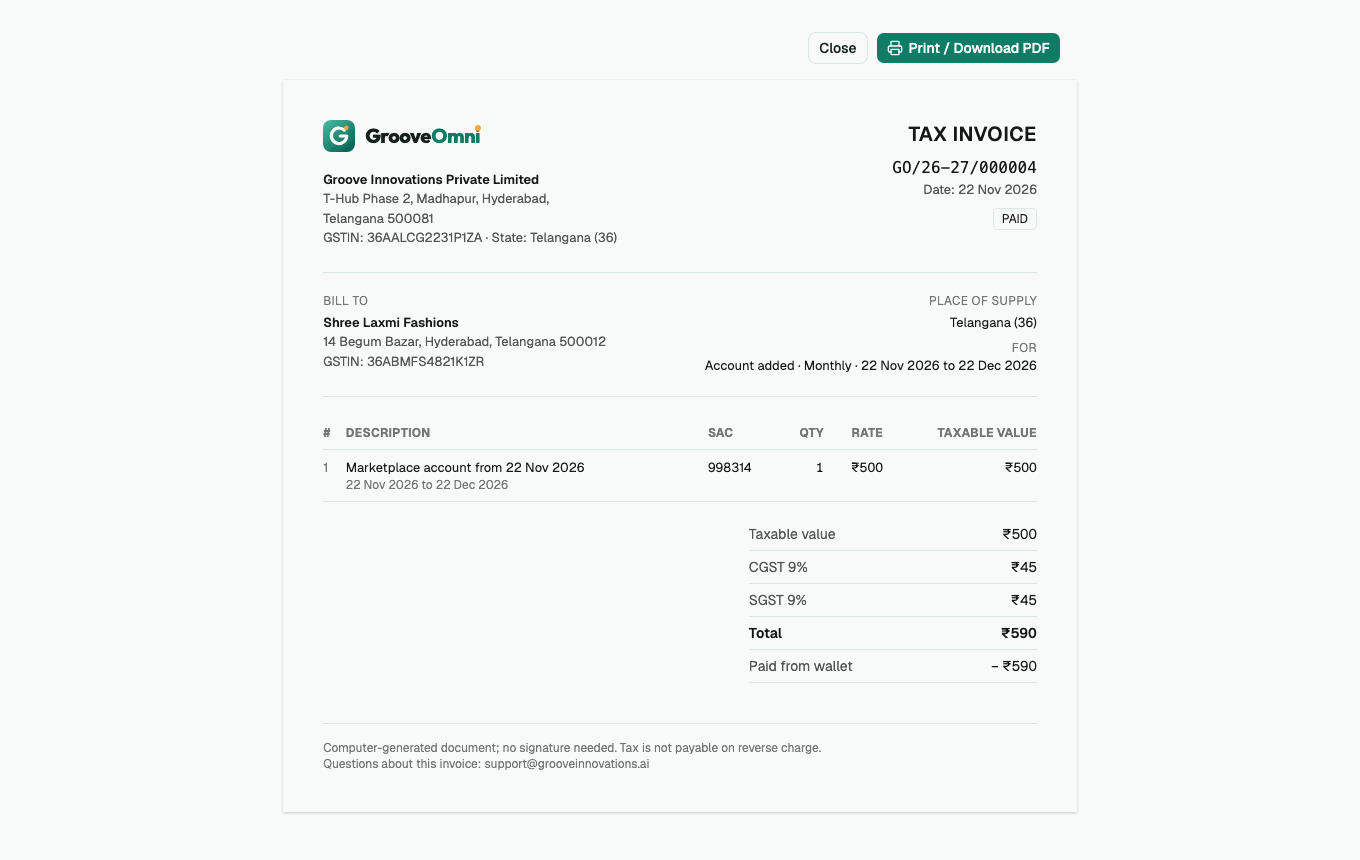 The tax invoice opens on its own page: from Groove Innovations with its GSTIN, billed to your GSTIN.
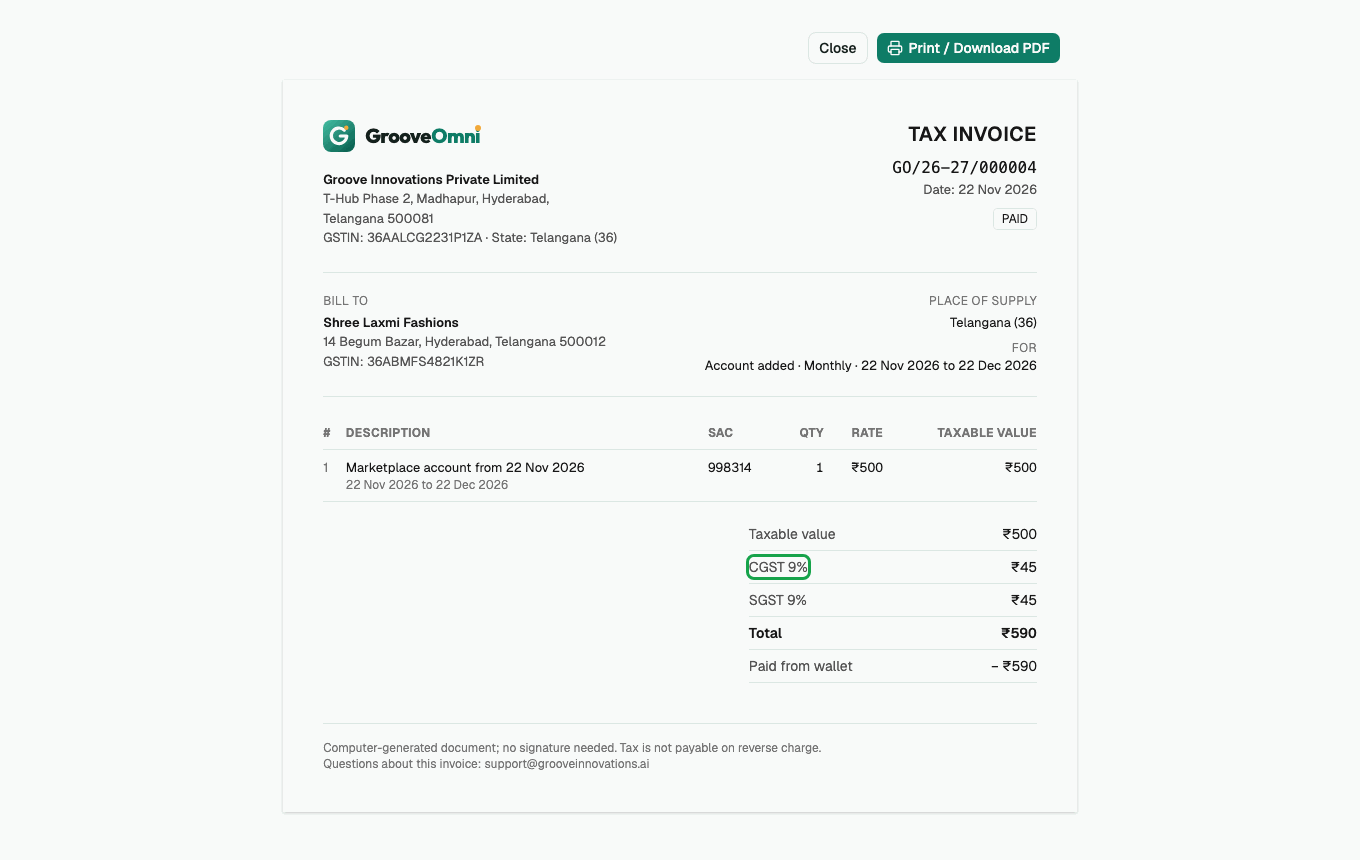 Below the lines: the taxable value, CGST 9% + SGST 9% (Telangana) or IGST 18%, the total and what the wallet paid.
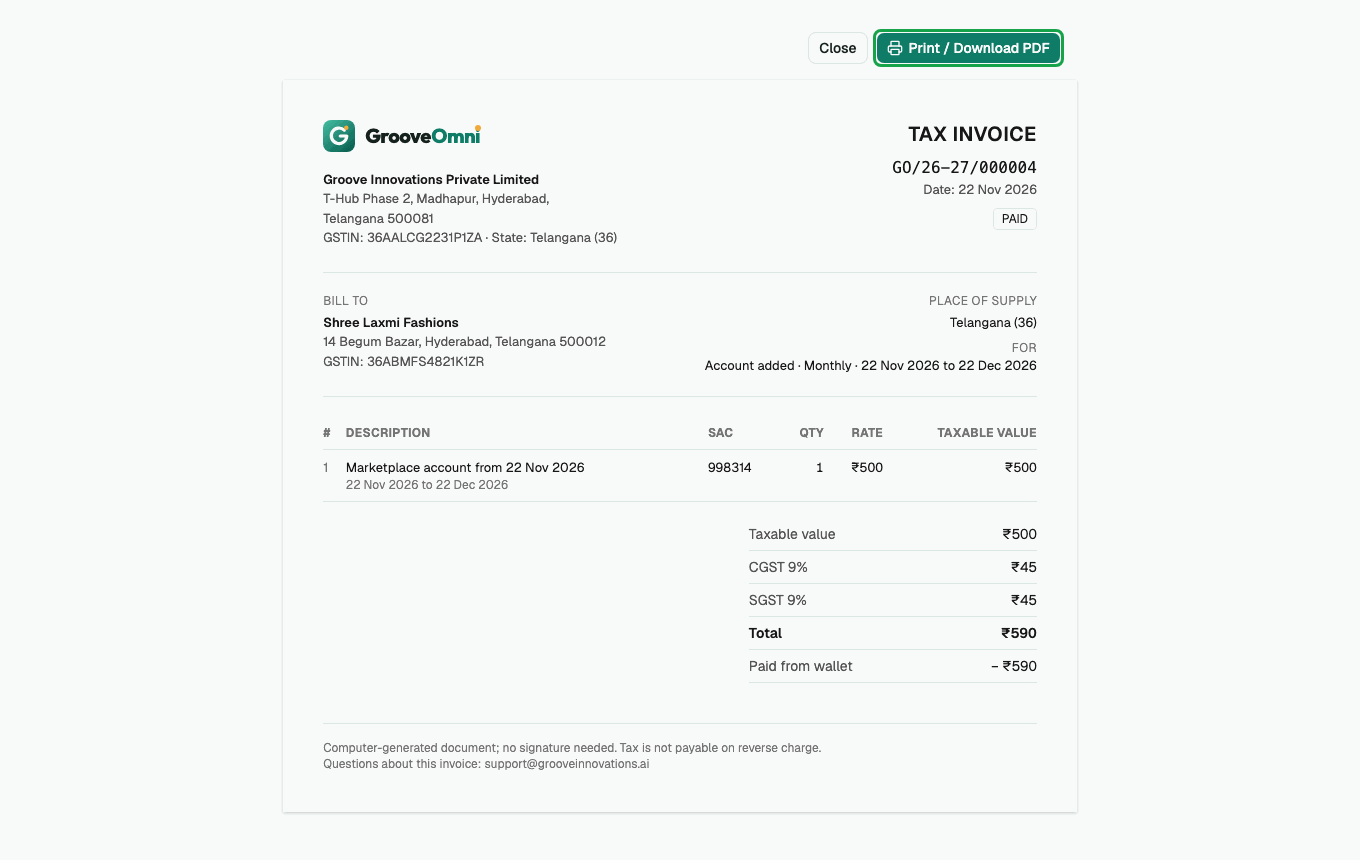 Click Print / Download PDF and choose Save as PDF to keep a file.
Credit notes
An issued invoice is never deleted. When something is cancelled or reduced (for example an upgrade replaces the rest
of your month), GrooveOmni issues a credit note (CN/26-27/…) against the invoice. Money it gives back goes to your
wallet. Credit notes are in Billing activity too, with View.
Common questions
Can I claim the GST? Yes, as input tax credit, when the invoice is made out to your GSTIN. Choose the GSTIN in Billing details first.
I have two GSTINs. Which one is billed? The one you pick in GSTIN to bill. Only one at a time.
Why IGST and not CGST + SGST? Groove Innovations is registered in Telangana. A customer in another state is charged IGST 18%; inside Telangana, CGST 9% + SGST 9%.
The invoice needs a signature? No. It is computer-generated; no signature is needed.
What's next
- Every rupee accounted for The full statement, and a CSV for your accountant.
- Auto-debit from the wallet How each renewal is invoiced and paid.
- More than one business or GSTIN A second GSTIN, and what it costs.