Recharge the wallet
This page shows how to add money to your wallet, which payment methods there are, and how long the money takes to show.
Who can do this: Owner, Admin.
Step 1 — Open the wallet
Go to Settings → Billing. The Wallet · prepaid card shows your balance and any welcome credit left.
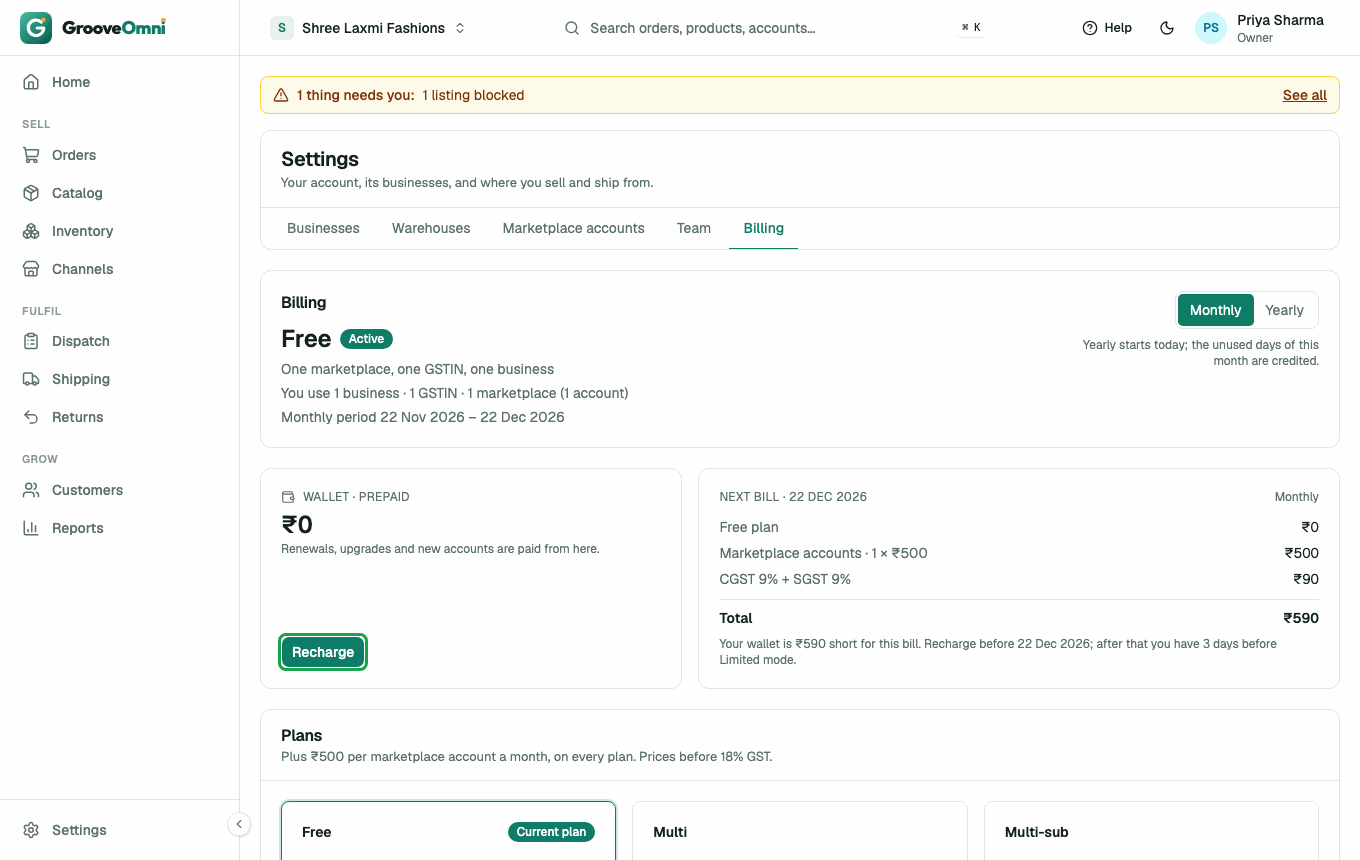 Go to Settings → Billing. The Wallet card shows your balance. Click Recharge.
Step 2 — Click Recharge
Click Recharge (or any Recharge ₹… button GrooveOmni shows you when something needs money).
Step 3 — Pick an amount
In Recharge wallet, pick an amount: GrooveOmni suggests what is needed (Due now, Next bill), or pick ₹500, ₹1,000, ₹2,000 or ₹5,000, or type your own in Amount (₹). The minimum is ₹500.
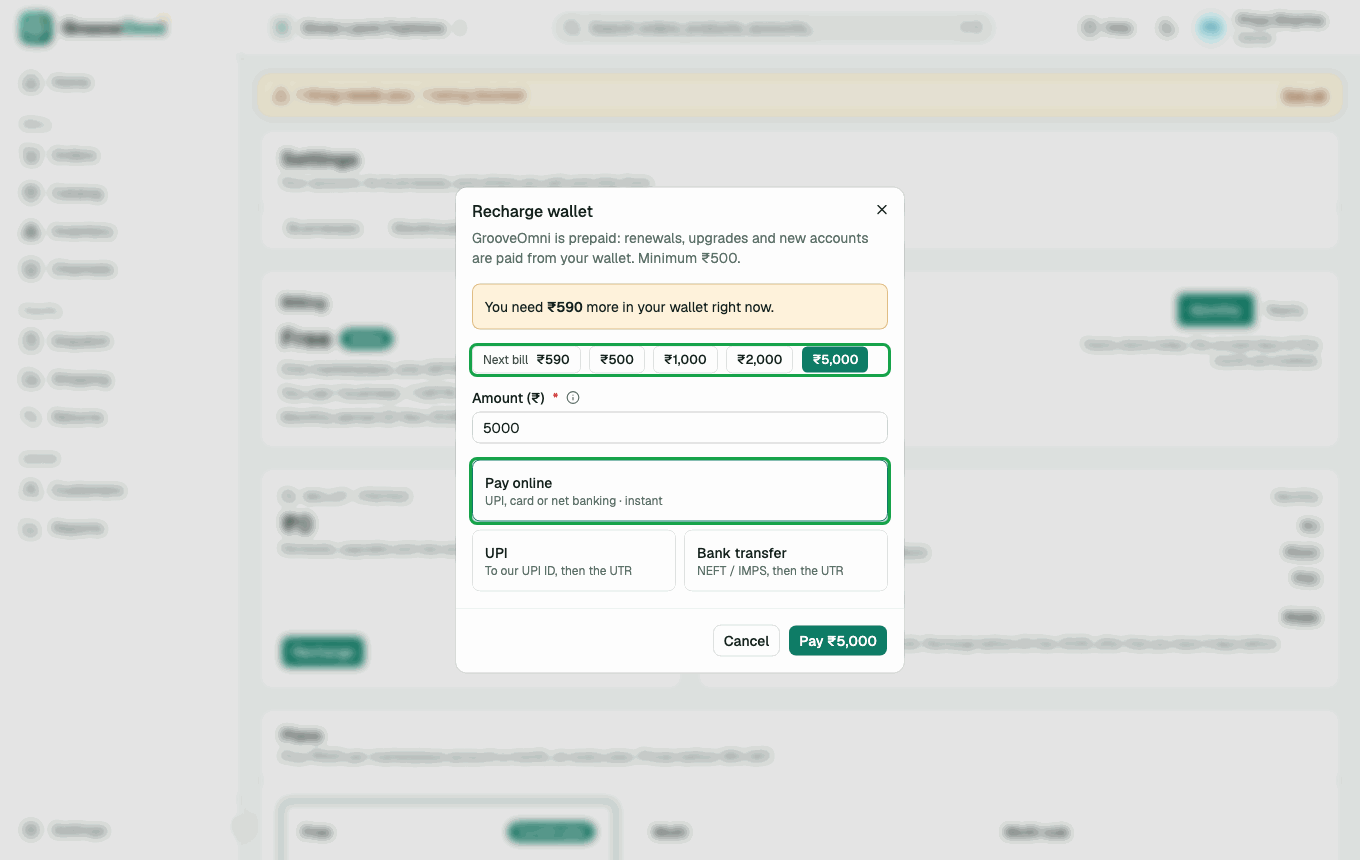 Pick an amount or type your own (at least ₹500), and choose Pay online for an instant top-up.
Step 4 — Choose how to pay
Pay online (instant)
Shown as Pay online ("UPI, card or net banking · instant") when online payment is switched on for your account.
- Click Pay ₹…. A secure Razorpay window opens. Pay with UPI, card or net banking.
- You see "₹… added to your wallet" and the new balance. Anything that was due is paid from it at once.
- If your bank is still confirming (common with UPI), the screen says "processing" and updates by itself, usually within a minute. You can close it.
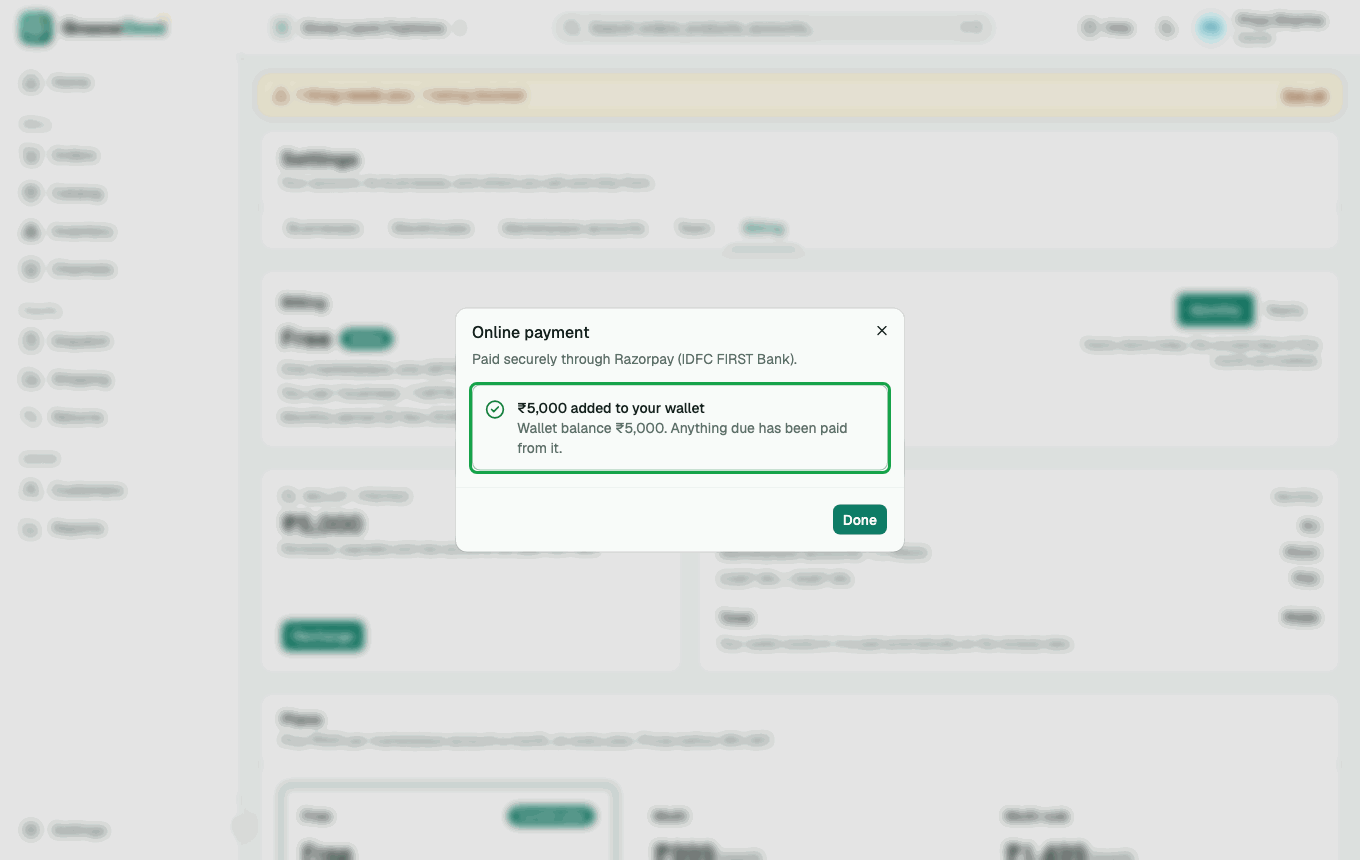 After you pay with UPI, card or net banking, the money is added to your wallet at once.
UPI or bank transfer (checked by GrooveOmni)
-
Choose UPI or Bank transfer and click Continue.
-
The Pay and confirm screen shows the amount, a reference to write in the payment note (click it to copy), and GrooveOmni's UPI ID or bank details. On a phone, Open UPI app fills everything in for you.
-
Pay from your UPI app or bank.
-
Back in GrooveOmni, fill in:
Field What to enter UTR / transaction ID The 12-digit UPI reference in your UPI app, or the UTR on your bank's confirmation. Payment screenshot Optional. PNG, JPG, WEBP or PDF, up to 2 MB. -
Click I've paid. You see Payment submitted: "We match the UTR with our bank statement and add the money to your wallet, usually within a few working hours."
-
The wallet card shows the payment as checking UTR … until GrooveOmni staff confirm it. Then the balance goes up, and anything due is paid from it.
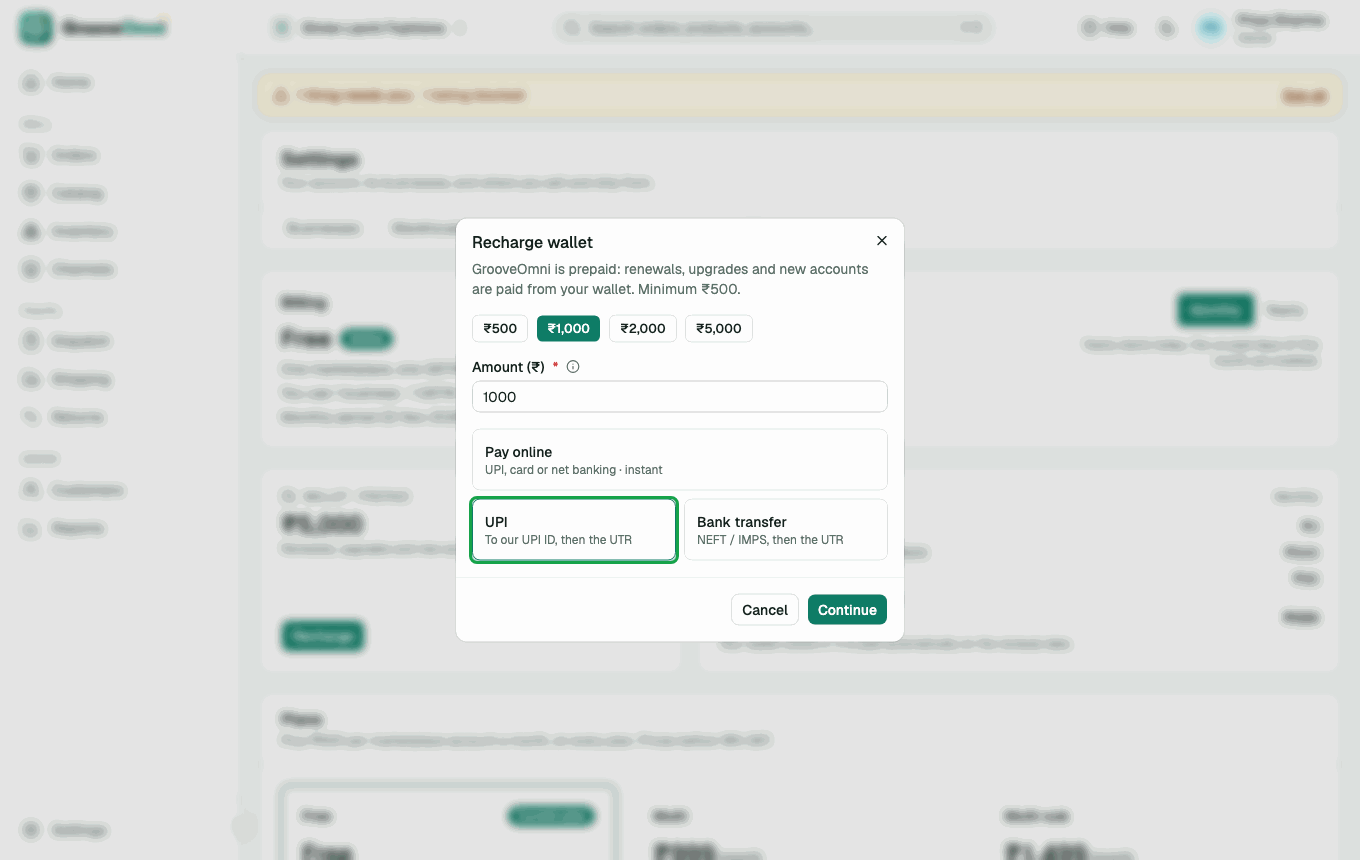 To pay by UPI or bank transfer instead, choose UPI or Bank transfer and click Continue.
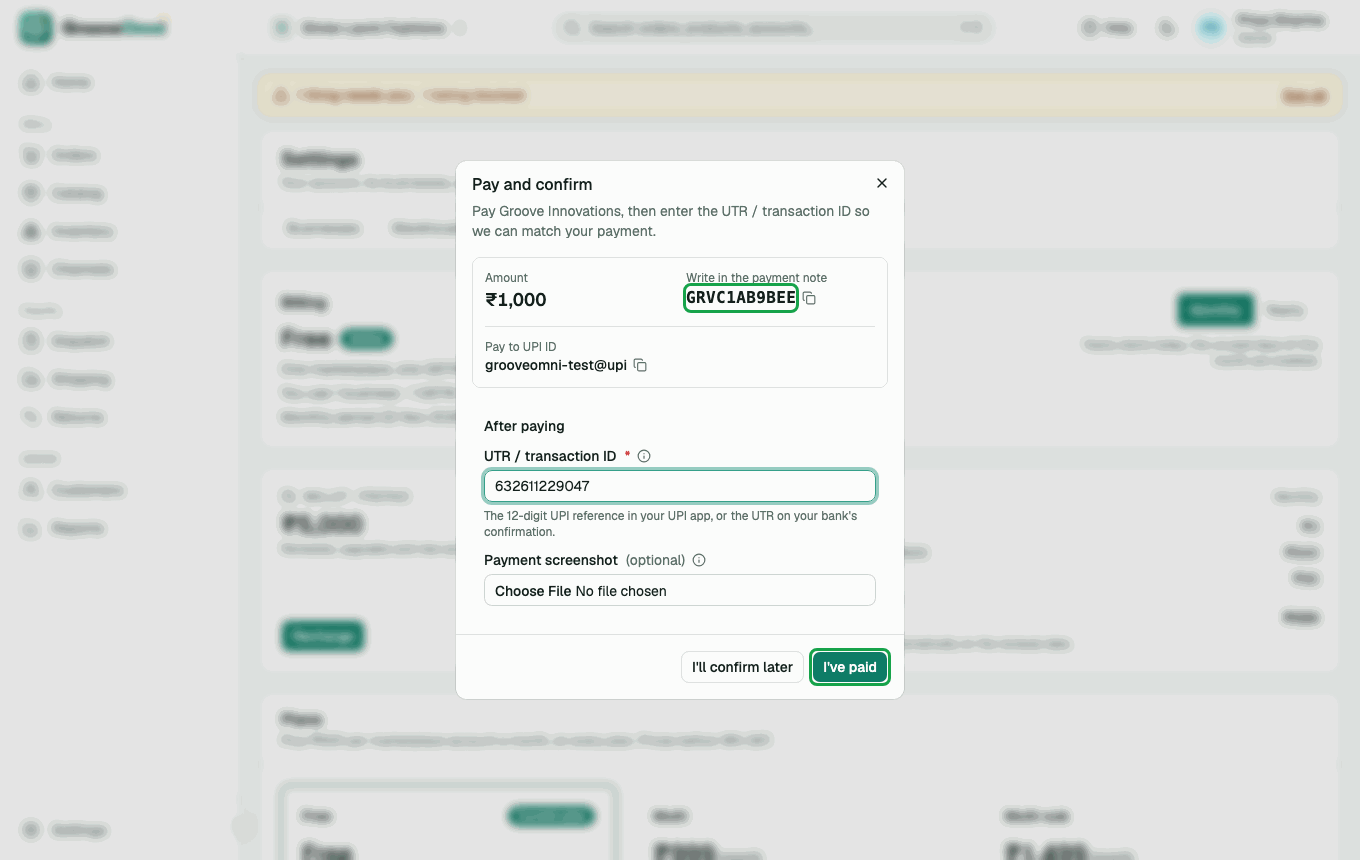 Pay from your UPI app with the reference in the note, then type the 12-digit UTR and click I’ve paid.
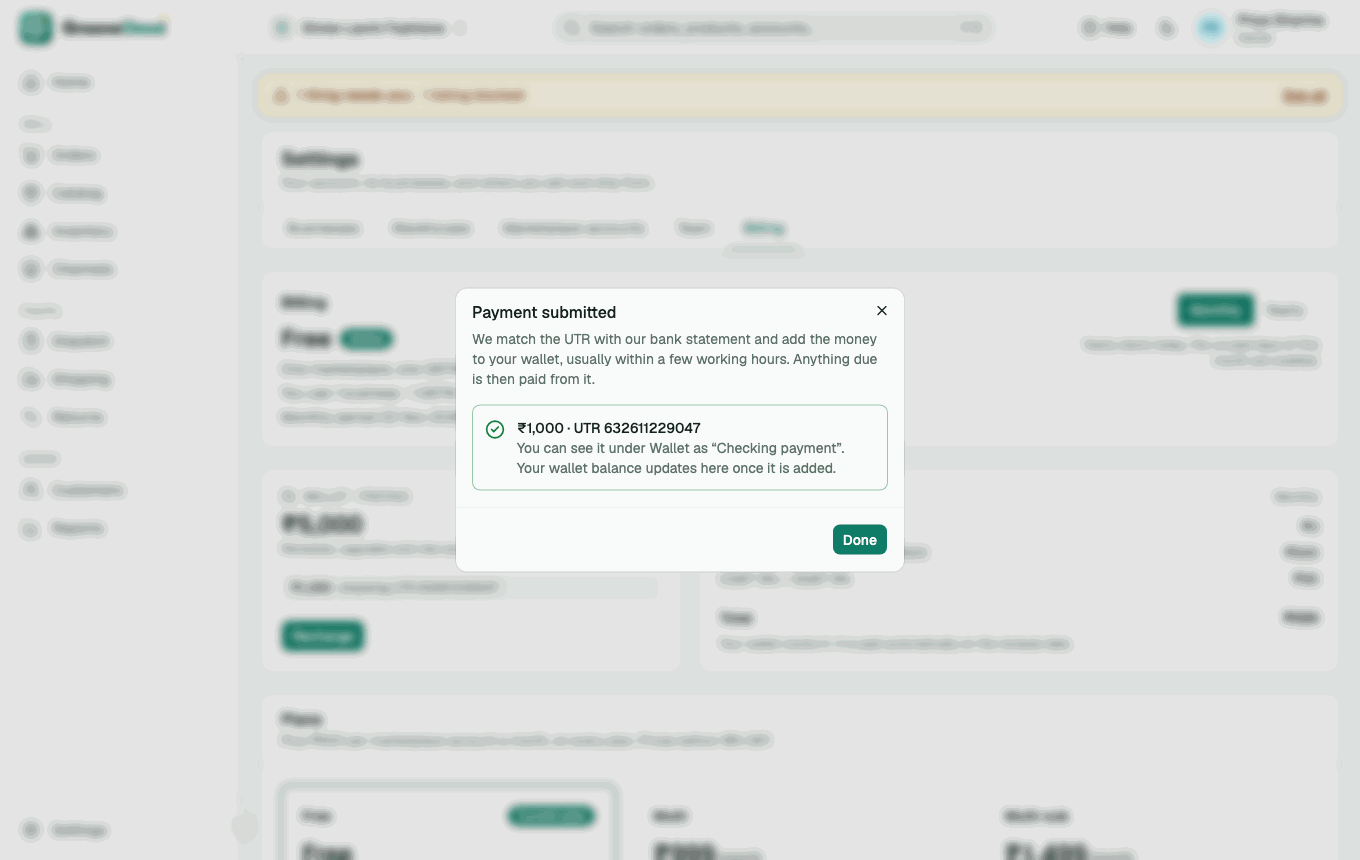 GrooveOmni matches the UTR with its bank statement and adds the money, usually within a few working hours.
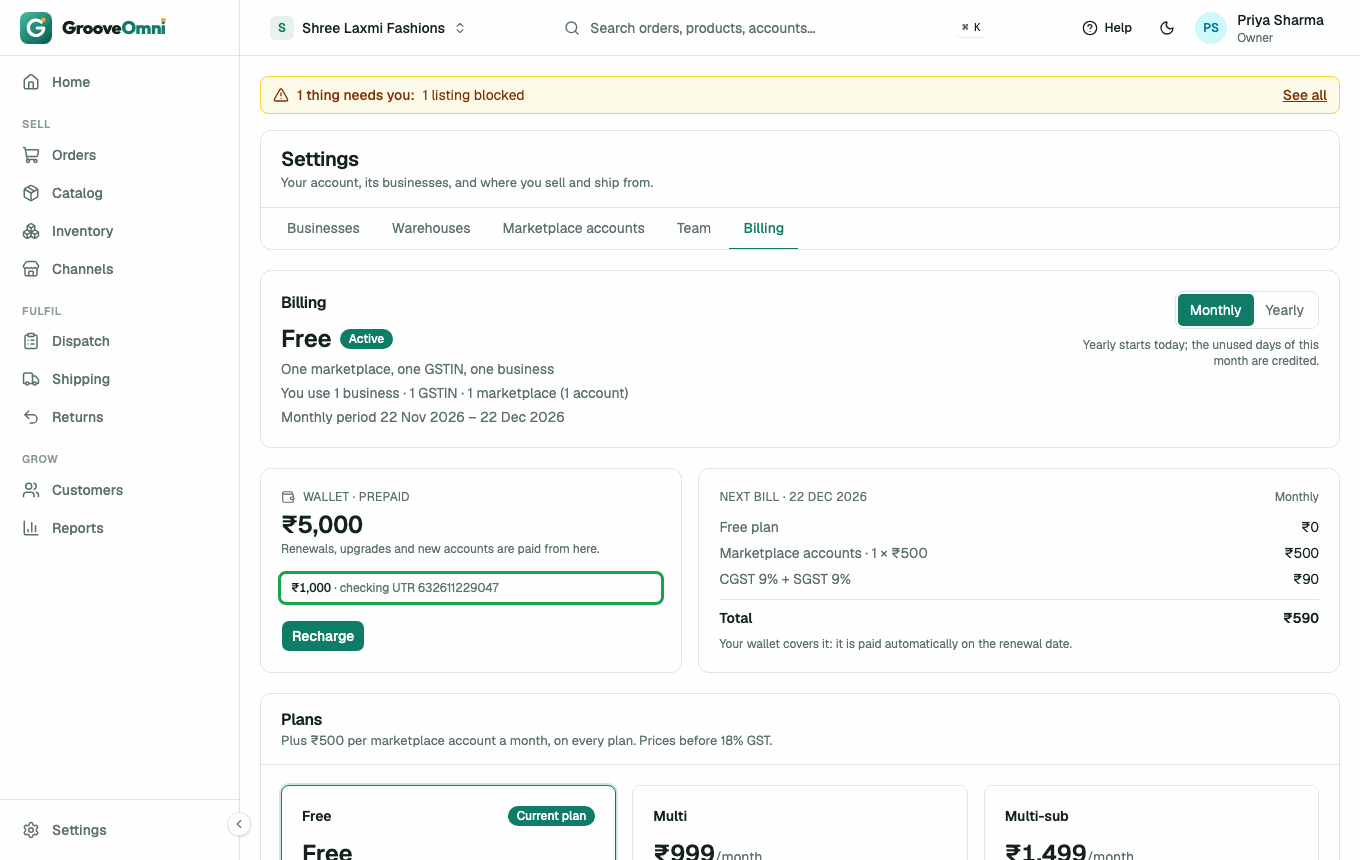 Until then, the wallet card shows the payment as “checking UTR”.
Click I'll confirm later, then later click I have paid next to the payment on the wallet card.
If something goes wrong
- "not confirmed: <reason>" on the wallet card: GrooveOmni could not match your UTR. Read the reason, click Send UTR again and enter the correct UTR.
- "The payment did not go through" (online): nothing was charged. Click Try again, or pay by UPI.
- "Payment not completed. Nothing was charged.": you closed the Razorpay window. Start again.
- "being checked by our team" (online): Razorpay took the money but it needs a quick check. Your wallet is topped up once it is confirmed. If it takes more than one working day, message support with the amount and date.
Common questions
How long until the money shows? Online: at once (UPI sometimes takes a minute). UPI or bank transfer: when GrooveOmni staff confirm it, usually within a few working hours, Monday to Friday, 9 AM to 5 PM.
Is there a maximum? ₹2,00,000 per recharge.
Can I get my wallet money back? Ask support. A refund to your bank shows in Billing activity as a Refund row.
What's next
- Auto-debit from the wallet Every renewal is paid from the wallet by itself.
- Invoices and GST Who the invoices are made out to, and where to download them.
- Every rupee accounted for Every invoice, credit note and payment, with a CSV for your accountant.