Account settings
This page shows the settings each marketplace account has: how to keep a few pieces back, and how to make one account sell less than you have.
Who can do this: Owner, Admin, Manager can change them. Everyone else can read them.
Step 1 — Open the account's Settings tab
Open the account (Channels → Meesho → account name, or Settings → Marketplace accounts → Manage), then click the Settings tab.
Step 2 — Fill in the Account settings box
| Field | What it does |
|---|---|
| Name | How you and your team recognise this account in GrooveOmni. Buyers never see it. |
| Most shown per listing | The stock cap. No listing on this account shows more than this number. Leave it empty for no cap. |
| Stock buffer | The buffer. Pieces held back on every listing of this account. With 10 in stock and a buffer of 2, Meesho is told 8. |
| SKU prefix | Up to 6 letters or digits put in front of the SKUs GrooveOmni creates on this account when you copy a catalog to it. |
| GSTIN | The GST registration this account sells under (add GSTINs in Settings → Businesses first). |
| This account lists the same catalog as my other accounts (link identical SKUs without review) | A tick box. When it is on, a listing with exactly the same SKU code as a product you already have is joined to it at once, so both share one stock. When it is off, GrooveOmni asks you first, in Catalog → Duplicates to review (except for a catalog you published from GrooveOmni to this account: it joins its product by itself). |
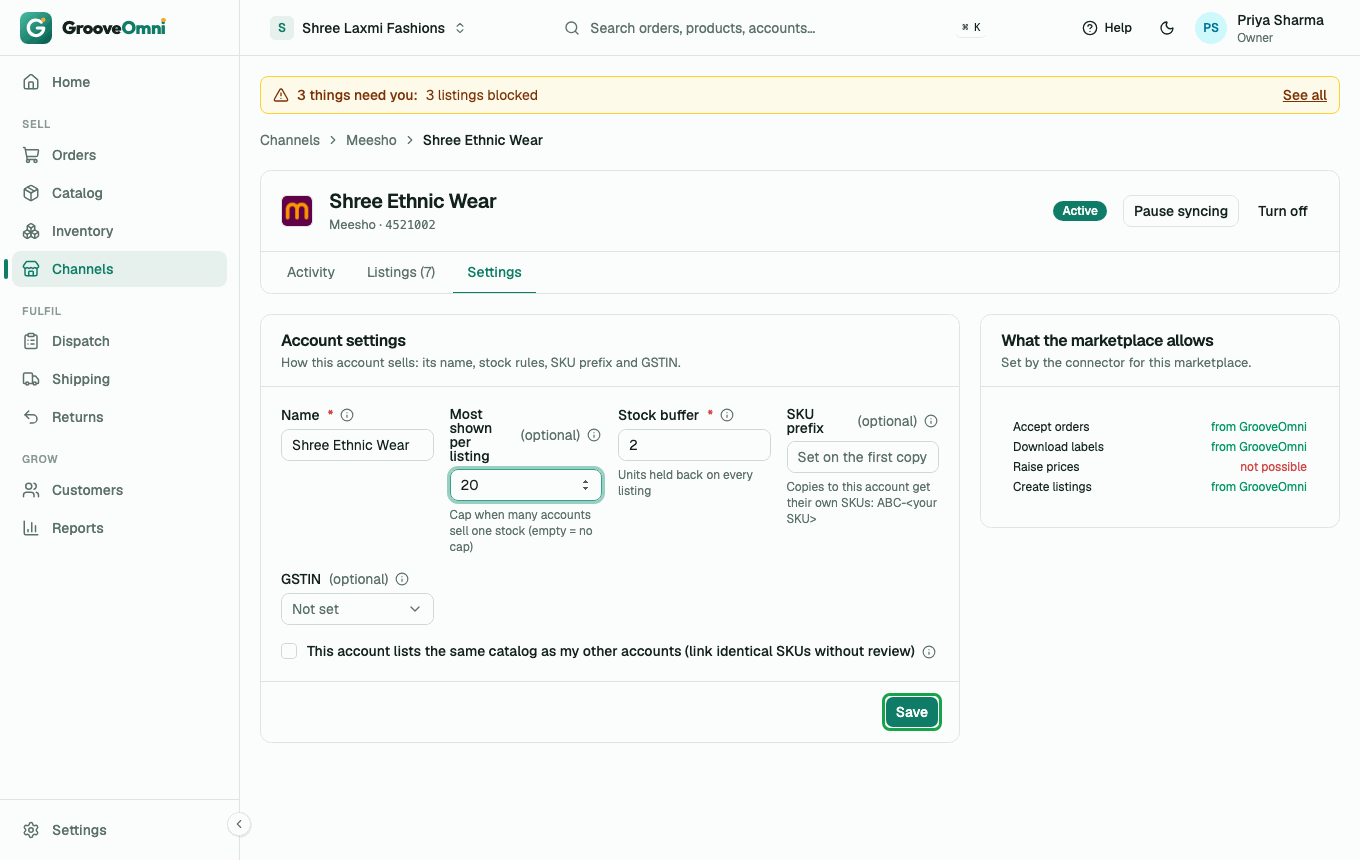 Open the account and click the Settings tab: its name, stock cap, stock buffer, SKU prefix and GSTIN. Click Save.
Step 3 — Save
Click Save. You see "Account saved".
The box What the marketplace allows on the right lists what GrooveOmni can do on this marketplace: accept orders, download labels, raise prices (Meesho: not possible) and create listings.
More on buffer and cap, with examples: Stock buffer and stock cap.
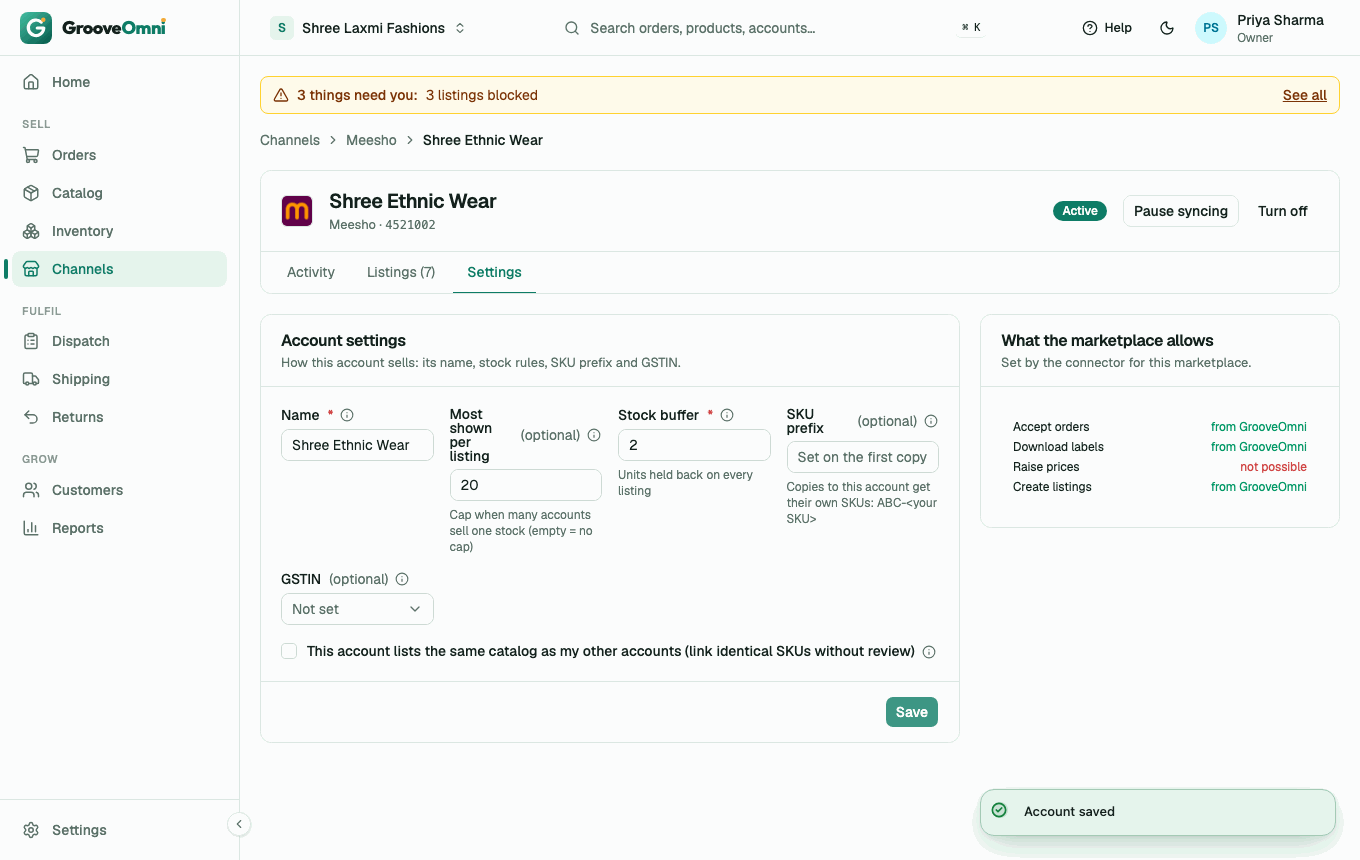 You see “Account saved”. On the right, What the marketplace allows lists what GrooveOmni can do on Meesho.
The Listings tab
The Listings tab shows this account's Meesho catalogs and SKUs exactly as Meesho has them, with filters for Catalog and Status. Tick SKUs to:
- Lower price: Meesho only allows lowering a price from the panel. GrooveOmni asks Meesho for your payout at the new price first. Raising a price again needs a Meesho support ticket.
- Pause: stop selling those SKUs on this account.
- Restock: put paused SKUs back on sale with the number you type.
These need the account to be logged in.
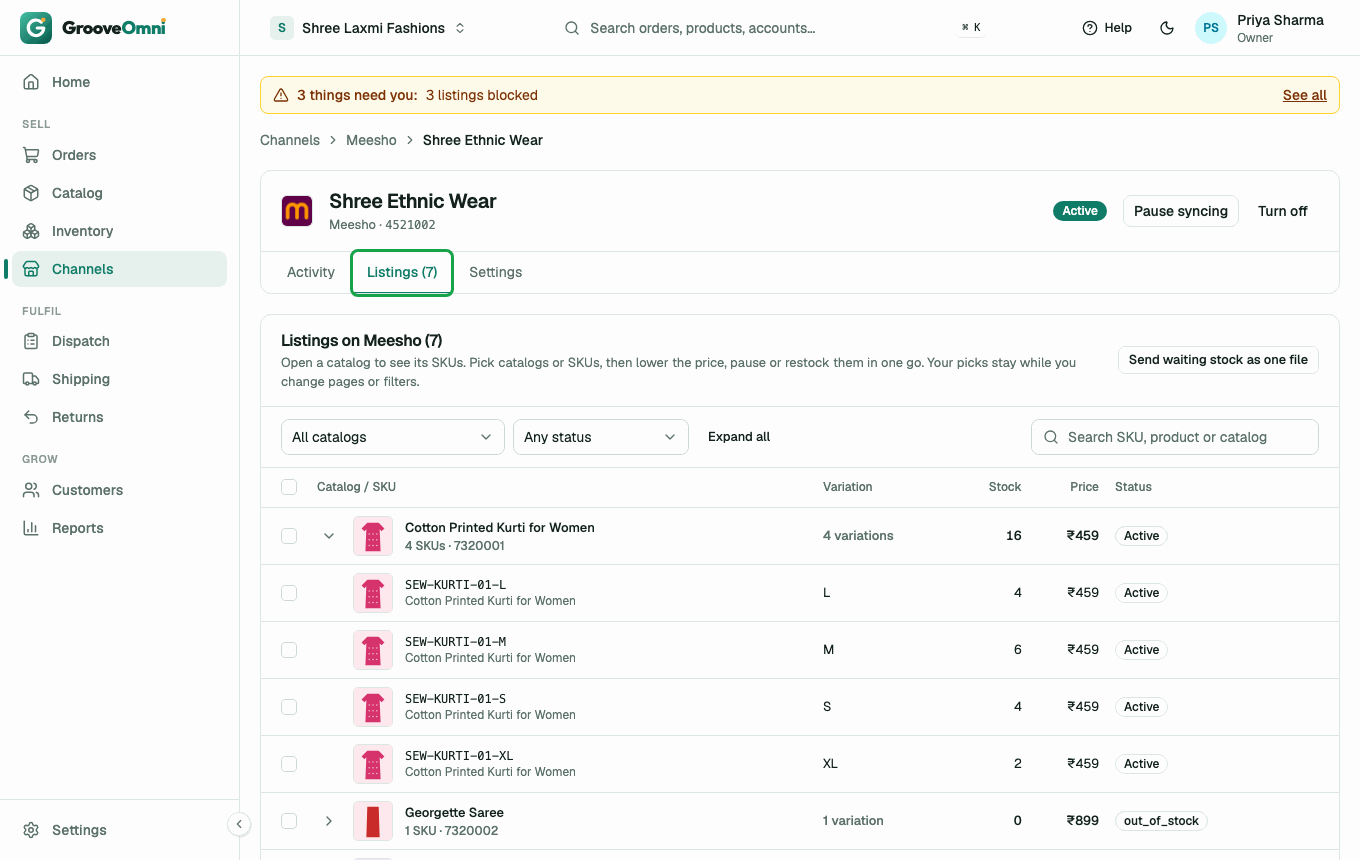 The Listings tab shows this account’s catalogs and SKUs as Meesho has them, with filters for Catalog and Status.
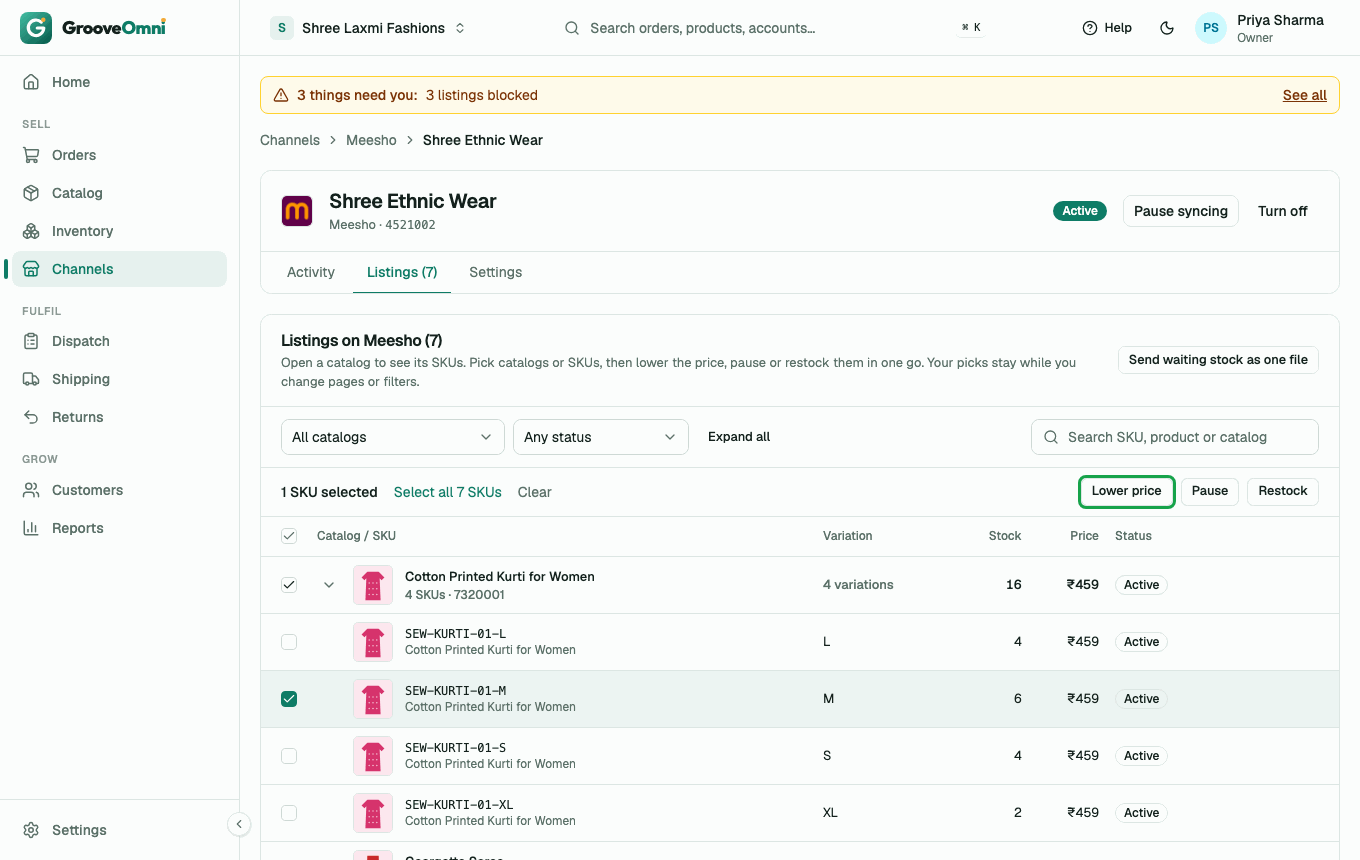 Tick SKUs to Lower price, Pause or Restock them on Meesho.
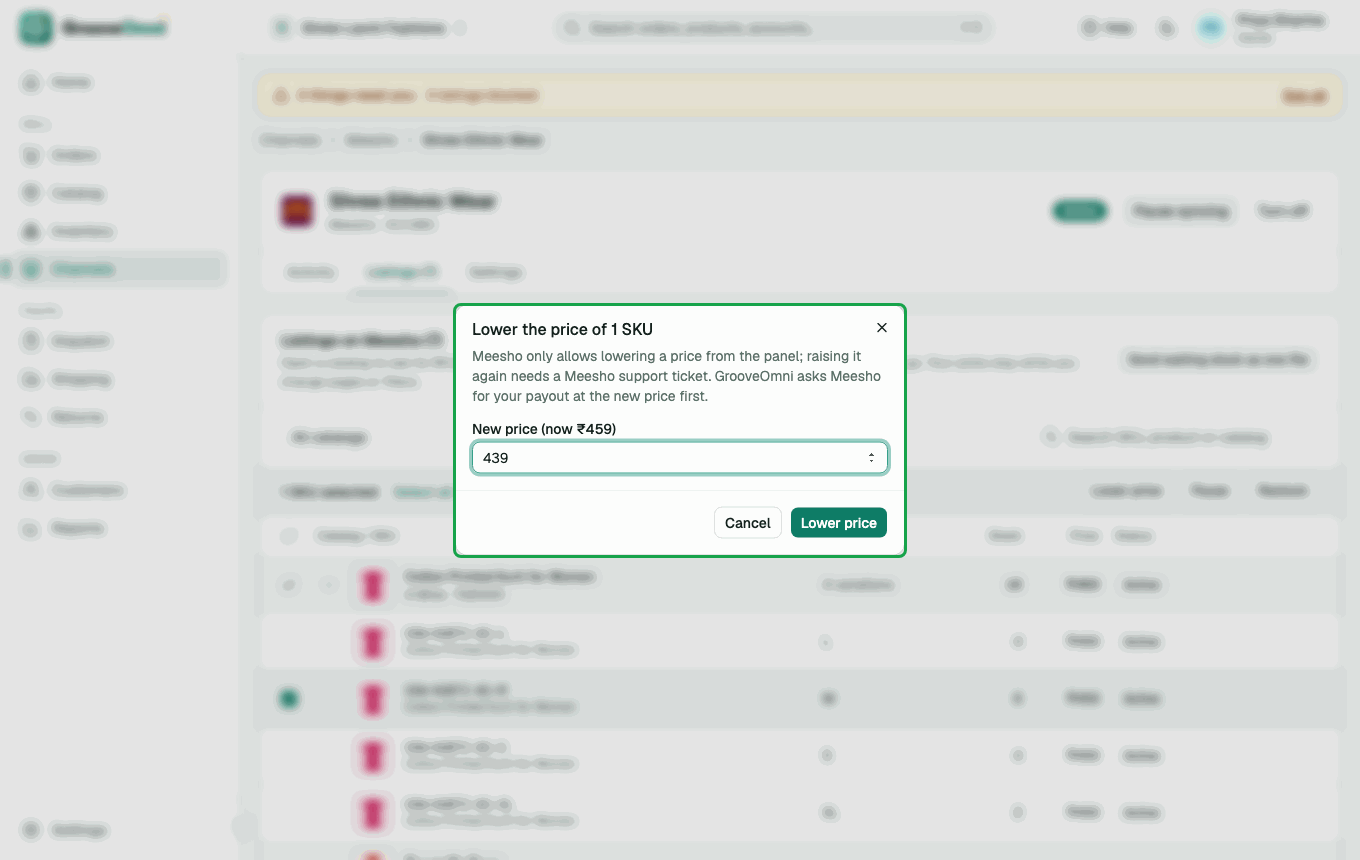 Meesho only lets you lower a price. GrooveOmni first asks Meesho what you will be paid at the new price.
Meesho only allows lowering a price from the panel. Check the payout GrooveOmni shows before you lower one.
Common questions
Should I use a buffer? If you sell the same pieces on several accounts, a buffer of 1 or 2 protects you from two buyers ordering the last piece at the same moment.
What is the difference between buffer and cap? The buffer holds pieces back ("show 2 less than I have"). The cap sets a ceiling ("never show more than 20"). See Stock buffer and stock cap.
What's next
- What GrooveOmni did on Meesho Did your change reach Meesho? The account log says.
- Stock buffer and stock cap Examples of what each account shows.
- Duplicate products, and merging What happens when identical SKUs are not linked automatically.