Stock buffer and stock cap
This page shows how to keep 2 pieces back so you never oversell. Both settings are set per account.
Who can do this: Owner, Admin, Manager (on the account's Settings tab, see Account settings).
What each setting does
| Setting | What it does | Example with 10 available |
|---|---|---|
| Stock buffer | Holds back this many pieces on every listing of the account. | Buffer 2: Meesho shows 8. |
| Most shown per listing (cap) | No listing on the account shows more than this. Empty means no cap. | Cap 5: Meesho shows 5. |
| Both | The buffer first, then the cap. | Buffer 2 and cap 5: Meesho shows 5. |
With only 1 available and a buffer of 2, that account shows 0: the last piece is kept for your other accounts or for safety.
Step 1 — Open the account's Settings tab
Channels → Meesho → account name → Settings tab.
Step 2 — Type the buffer and the cap
Type the Stock buffer and, if you want, Most shown per listing.
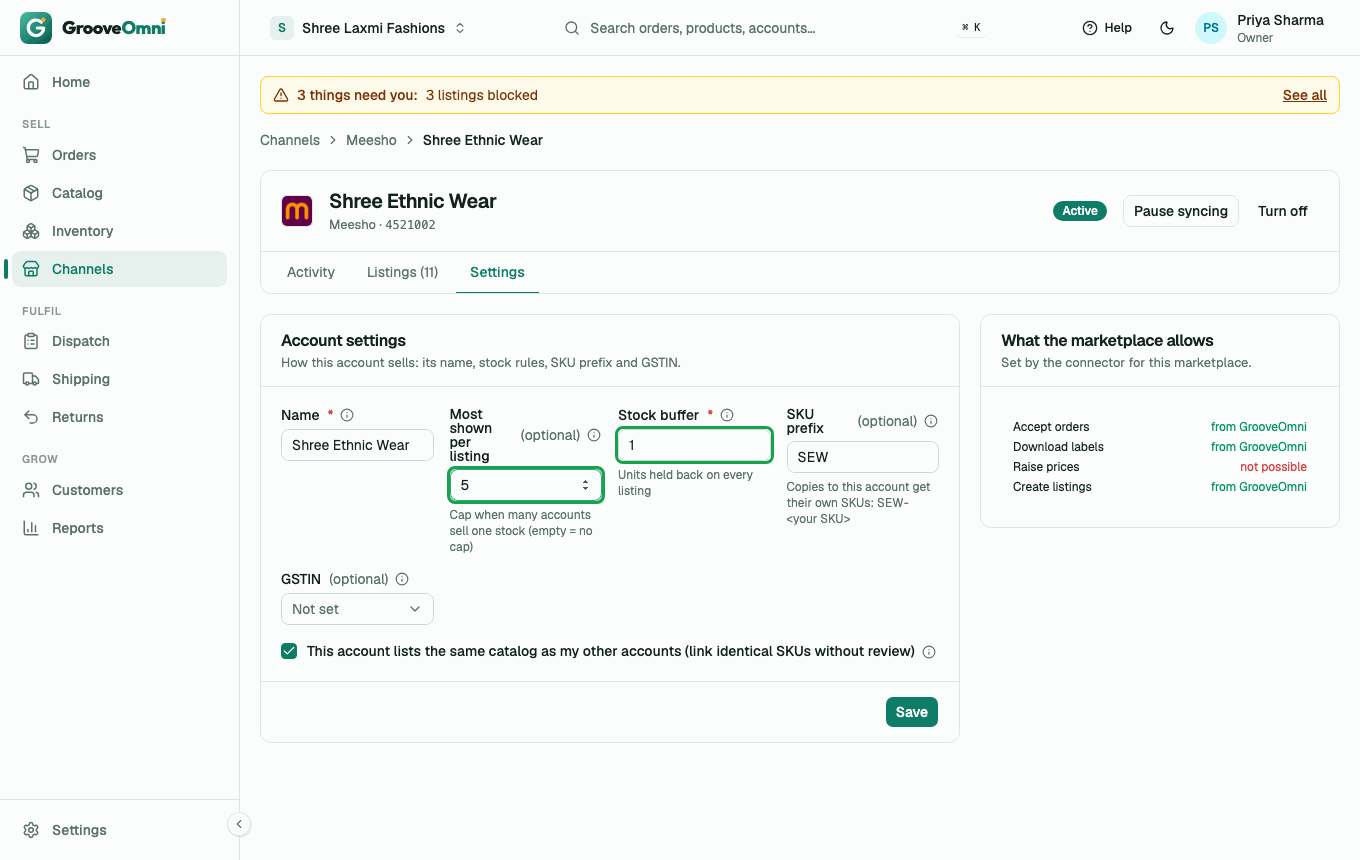 Open the account’s Settings tab. Type the Stock buffer and, if you want, Most shown per listing. Click Save.
Step 3 — Save
Click Save. GrooveOmni uses the new rule at the next stock send.
With 10 in GrooveOmni and a buffer of 2, the account's Inventory on Meesho shows 8.
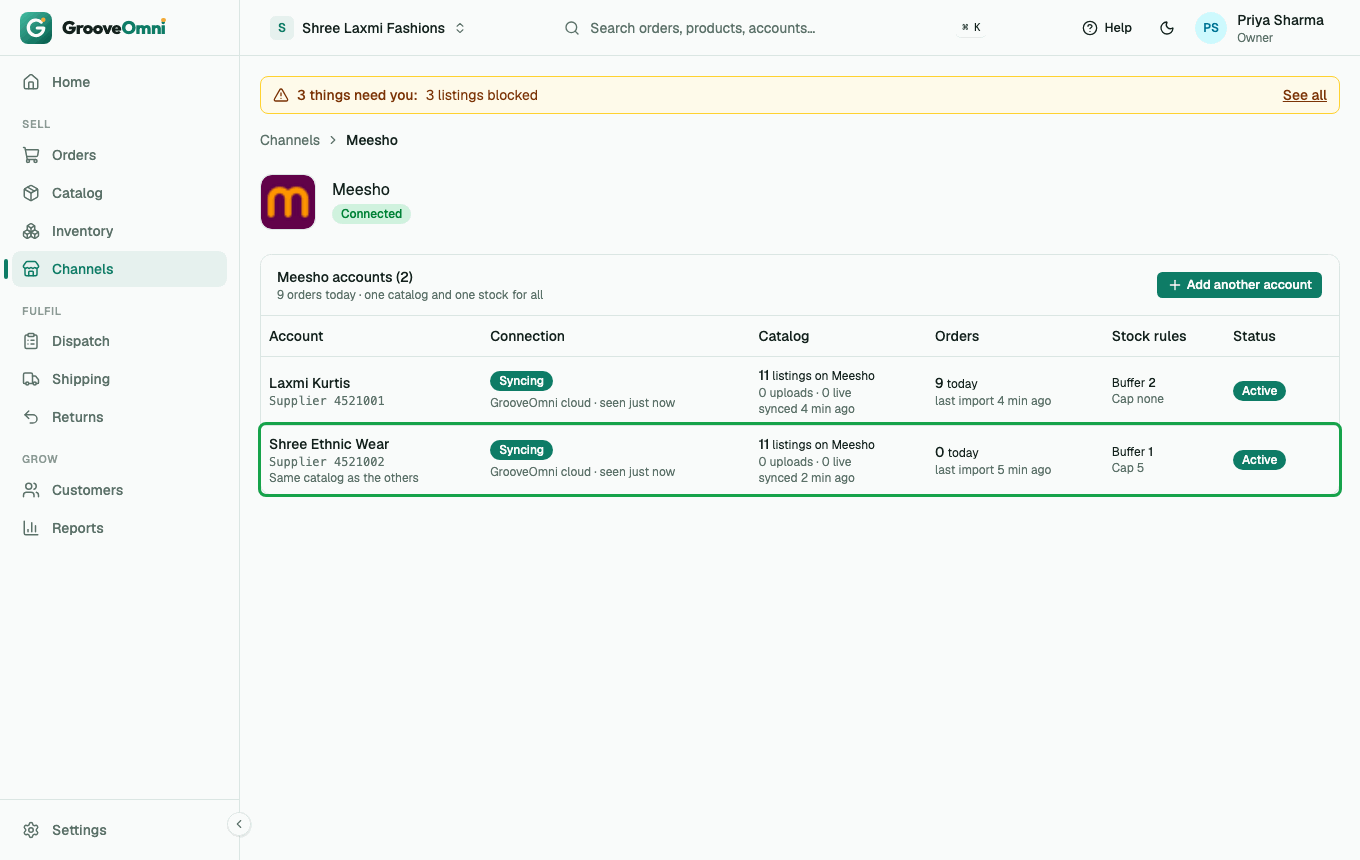 Channels → Meesho shows each account’s stock rules: its buffer and its cap.
Common questions
Why use a cap? When 10 or 15 accounts sell the same pieces, a cap stops every account from showing all your stock at once.
Does the buffer change my stock in GrooveOmni? No. It changes only what that account is told.
What's next
- Is Meesho up to date? Check that each account has your latest number.
- One stock for every account How one change reaches every account.
- Account settings Every setting an account has.