Logging in and out of Meesho
This page answers whether you have to log in every day, what to do if Meesho logs you out, and whether you can still use Meesho's panel yourself.
Who can do this: Owner, Admin, Manager can log in again. Everyone sees the warning.
How GrooveOmni stays logged in
You log in once. Meesho's session is kept, encrypted, in GrooveOmni's cloud browser. Your password is never stored, and only you can type Meesho's OTP. You do not need to log in every day: the session lasts until Meesho ends it.
Step 1 — See the warning when Meesho logs an account out
Meesho ends sessions from time to time. GrooveOmni tells you at once with a popup: Meesho login expired. "<account> is logged out of Meesho, so orders, stock and prices are not syncing. Log in again to continue."
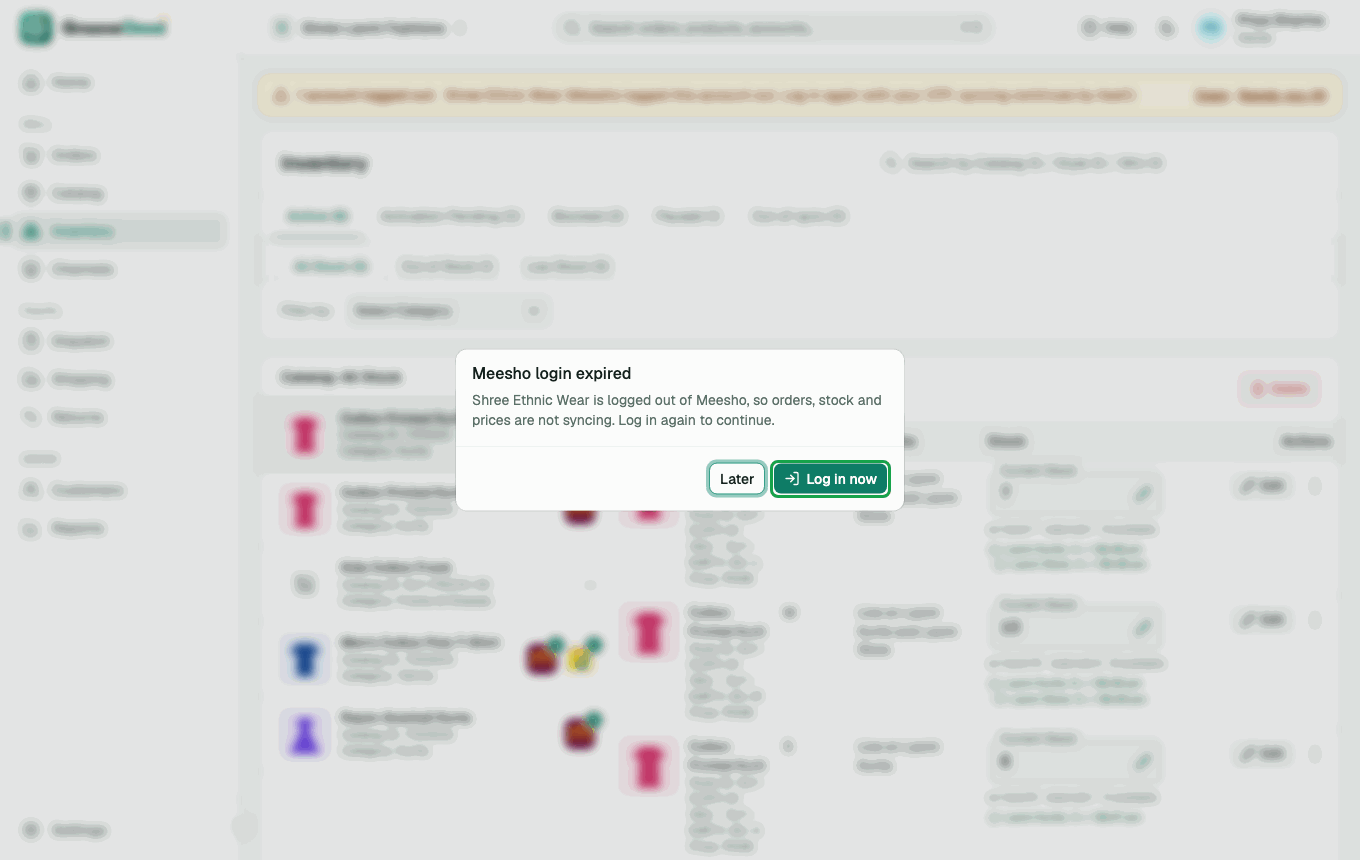 When Meesho logs an account out, GrooveOmni tells you at once. Click Log in now, or Later.
Step 2 — Log in now, or later
Click Log in now, and log in with the phone number and OTP, as the first time.
Or click Later. A yellow bar stays at the top: "1 account logged out: …", with Open and Needs you.
You can also log in again from:
- Channels → Meesho: the account's Connection says Log in again; click the red Log in again button.
- Needs you → Marketplace accounts: click Log in.
- The account page, Activity tab, GrooveOmni cloud card: Log in again.
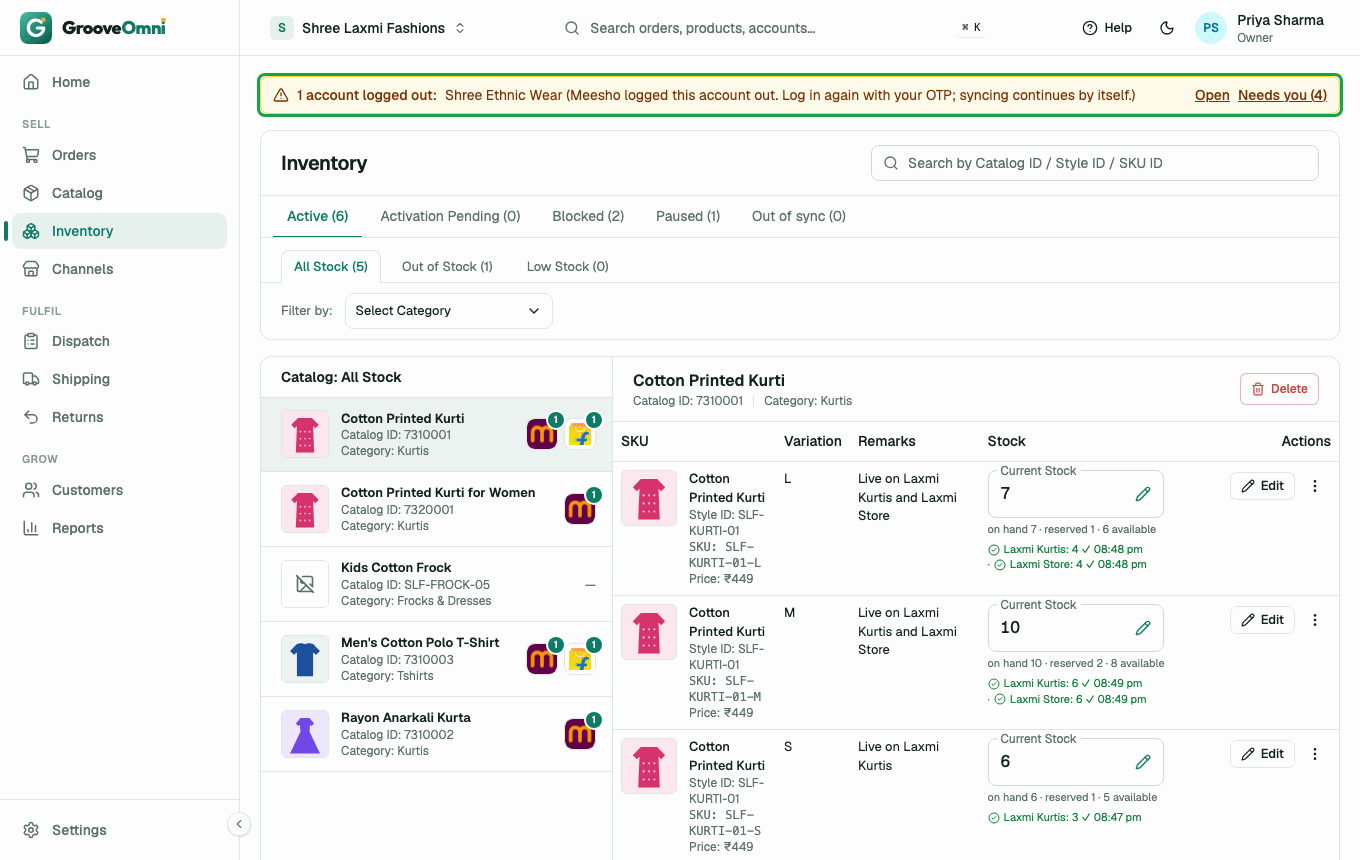 After Later, a yellow bar stays at the top until you log in again.
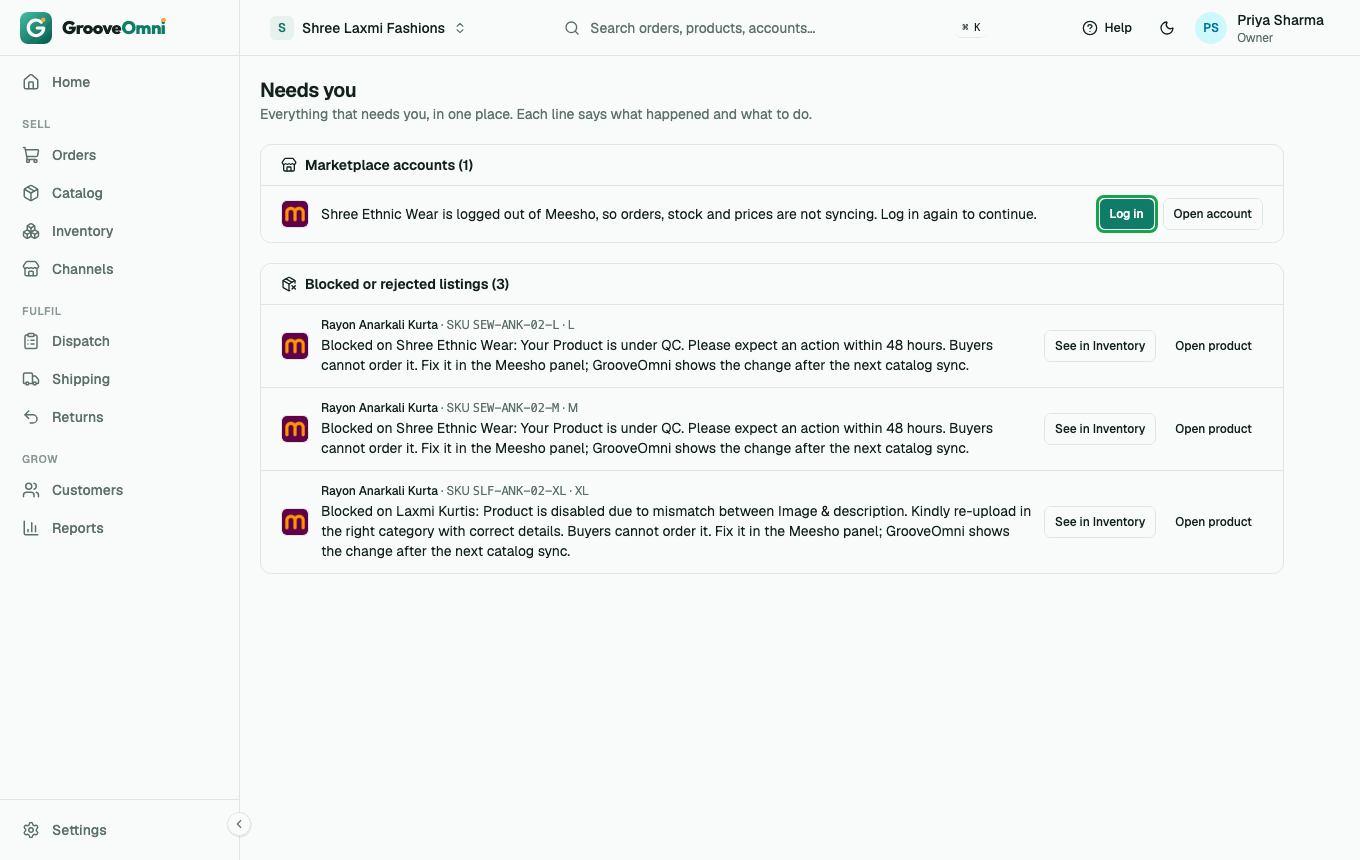 Needs you → Marketplace accounts: click Log in.
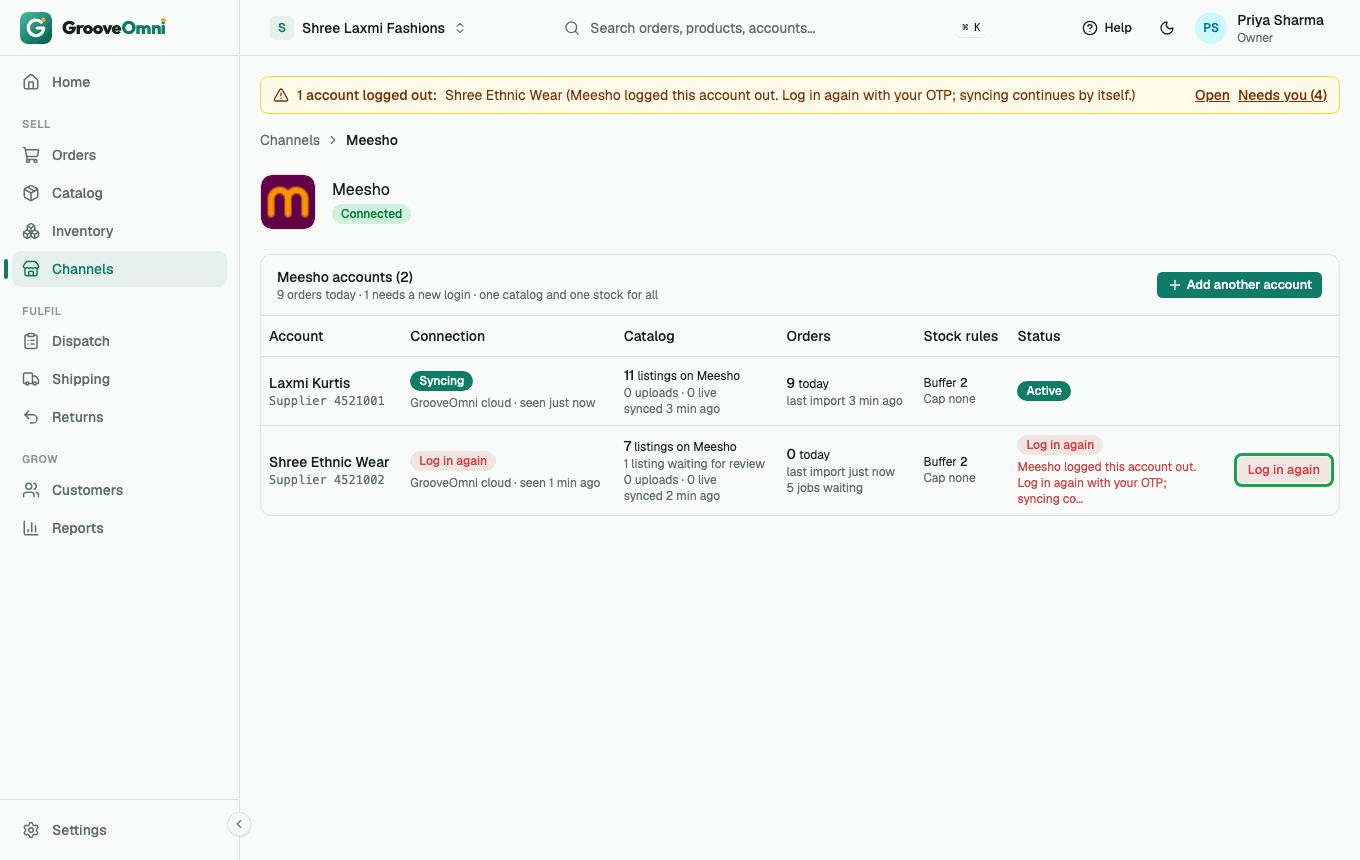 Or in Channels → Meesho, where the account’s Connection says Log in again.
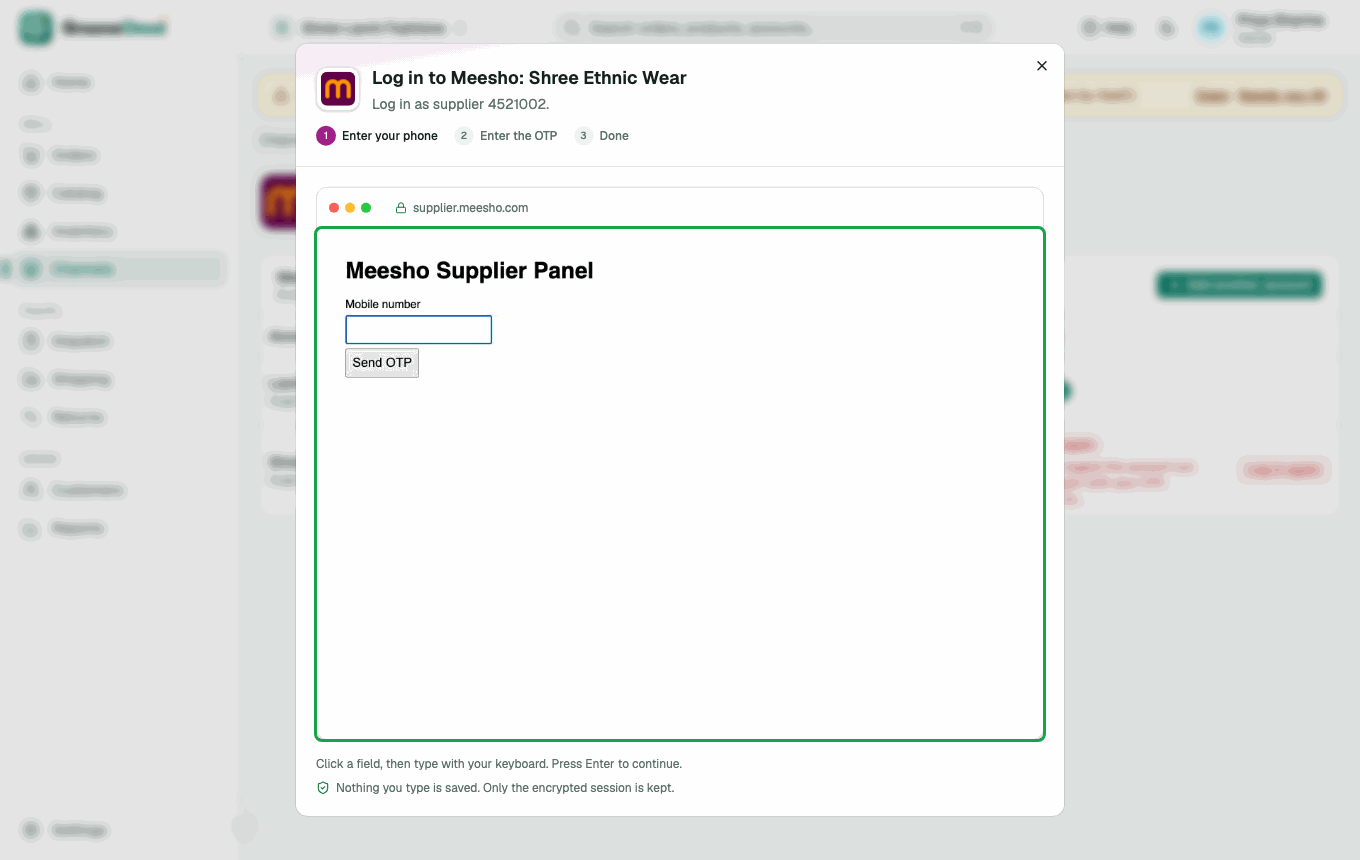 Log in with the account’s phone number and Meesho’s OTP, as the first time.
Step 3 — Let GrooveOmni catch up
After you log in, GrooveOmni imports the catalog and orders again, and sends the stock changes that were waiting. The yellow bar goes away.
Stock changes wait and are sent after the login. Orders that came in meanwhile are imported at the first sync after the login.
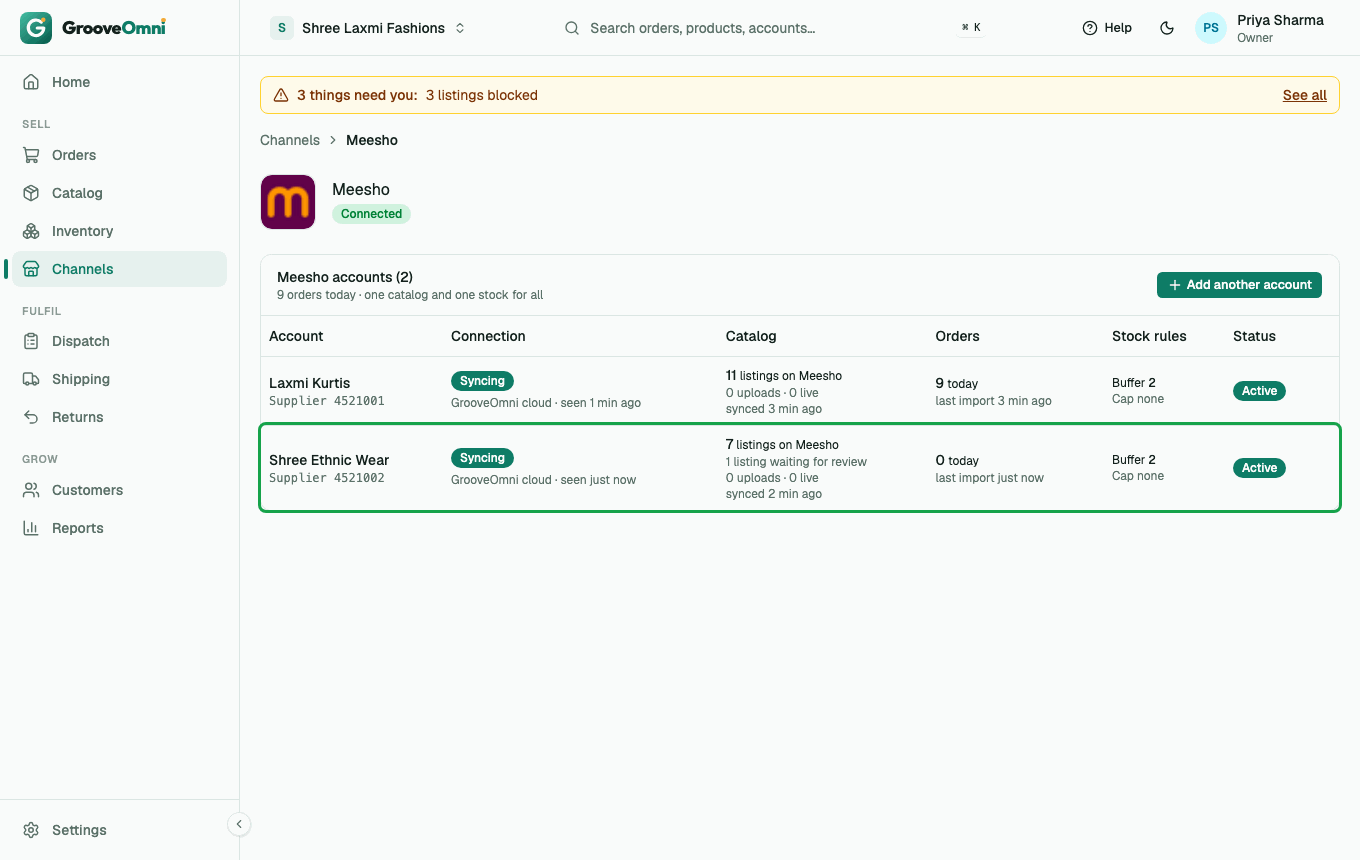 GrooveOmni imports again and sends the stock changes that were waiting. The yellow bar goes away.
Using Meesho's own panel at the same time
You can keep using Meesho's Supplier Panel on your phone or computer, as before. GrooveOmni picks up what you change there at its next sync. If Meesho ever ends GrooveOmni's session (for example when Meesho asks every device to log in again), you see the popup above: log in again and carry on.
Disconnect: delete the saved session yourself
- Open the account (Channels → Meesho → account name). The Activity tab opens.
- In the GrooveOmni cloud card, click Disconnect.
- Read "GrooveOmni deletes the saved Meesho session. Orders and stock stop syncing for this account until you log in again. Your catalog stays." and click Disconnect.
To stop paying for it, use Remove (see Pause, switch off, remove and restore an account).
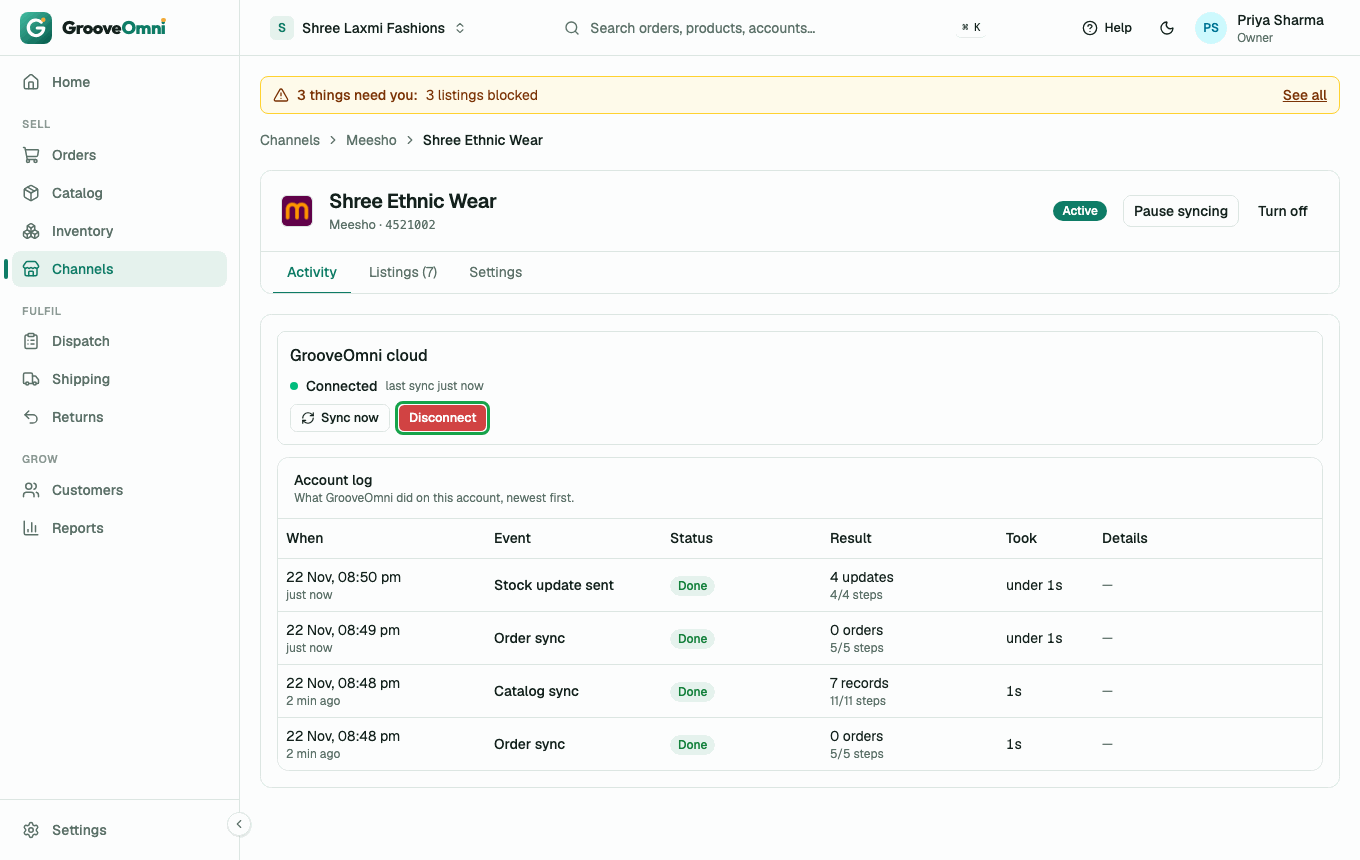 To delete the saved session yourself, open the account: the GrooveOmni cloud card has Disconnect.
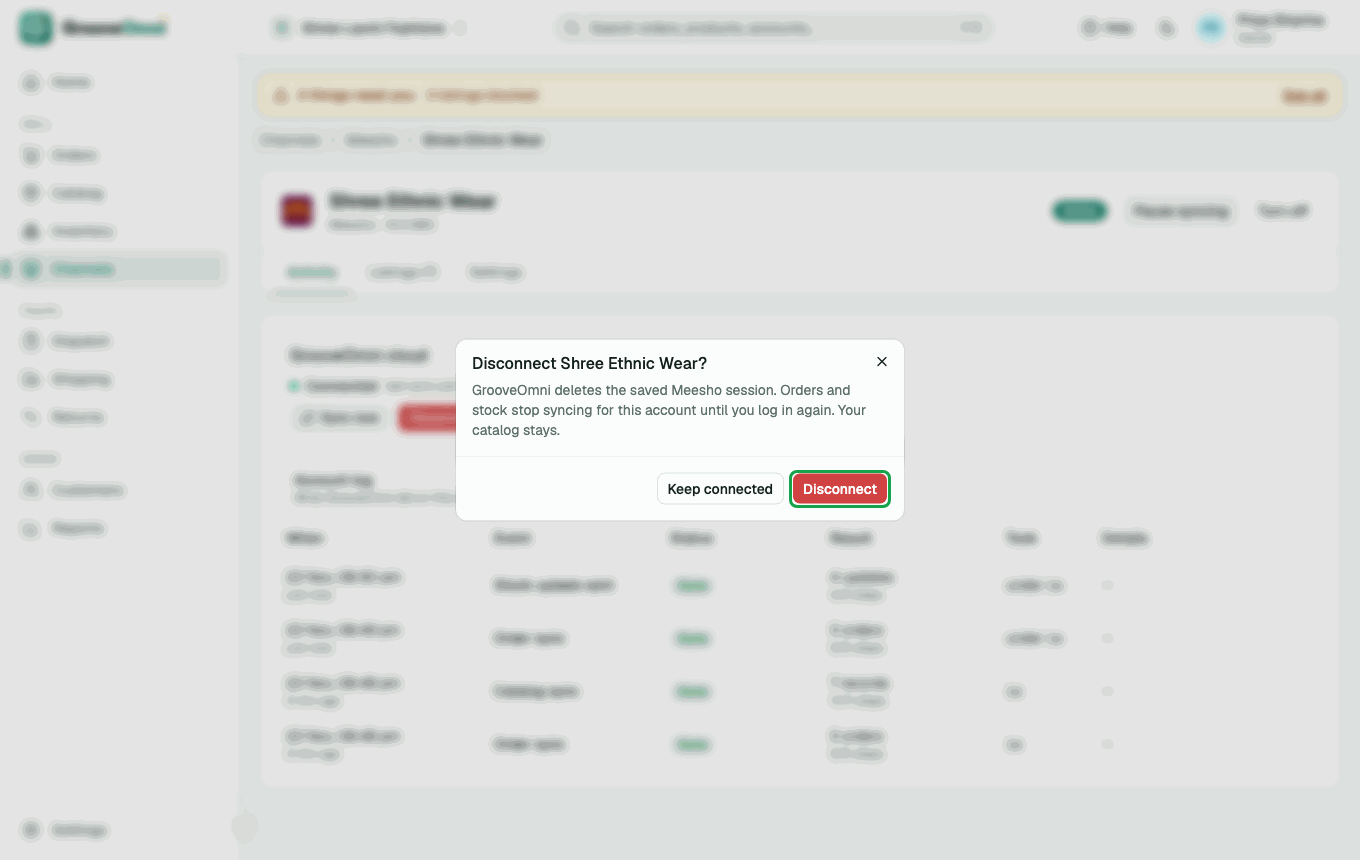 Read what Disconnect does: orders and stock stop syncing until you log in again; your catalog stays.
If something goes wrong
- The popup comes back right after logging in: Meesho refused the session. Wait a minute and log in again. If it keeps happening, use Help → Report a problem and choose the account.
- "Browser offline" in the Connection column: GrooveOmni's cloud browser for that account is restarting. It comes back by itself; if it has not after an hour, open the account and click Sync now.
- "A different supplier": you typed another account's phone number. Click Start again.
Common questions
Do I have to log in every day? No. Only when Meesho ends the session.
Does GrooveOmni know my Meesho password? No. Meesho logs in with your phone and OTP; GrooveOmni keeps only the session.
Can my staff log in again for me? A Manager can. Packers, catalog editors and viewers cannot.
What's next
- Pause, switch off, remove and restore an account Stop GrooveOmni for one account, and what it does to your bill.
- What GrooveOmni did on Meesho The account log: every sync, stock update and error.
- Keep your accounts safe Never share Meesho's OTP, and give each person their own login.