Pause, switch off, remove and restore an account
This page shows how to stop GrooveOmni for one account, what happens to stock while it is paused, and whether your bill goes down.
Who can do this: Pause, Turn off, Resume: Owner, Admin, Manager. Remove and Undo: Owner, Admin.
The four choices
| Choice | What happens | Your bill |
|---|---|---|
| Pause syncing | Nothing is sent to Meesho and no orders are imported for this account. Stock changes wait. | No change: the account is still billed. |
| Turn off | The same as paused. Use it for longer breaks, so your team can tell the two apart. | No change. |
| Resume | Syncing starts again. GrooveOmni sends this account the current stock of everything it lists. | No change. |
| Remove | Syncing stops at once. The account leaves your bill at the end of the current billing period. | Goes down from the next bill. No refund for the current period. |
Step 1 — Pause, turn off or resume an account
- Open the account: Channels → Meesho → the account name.
- At the top right, click Pause syncing or Turn off. To start again, click Resume.
While an account is paused or off, the stock line under each SKU says, for example, "Waiting: Shree Ethnic Wear is paused. Resume it to send." and the SKU appears in Inventory → Out of sync.
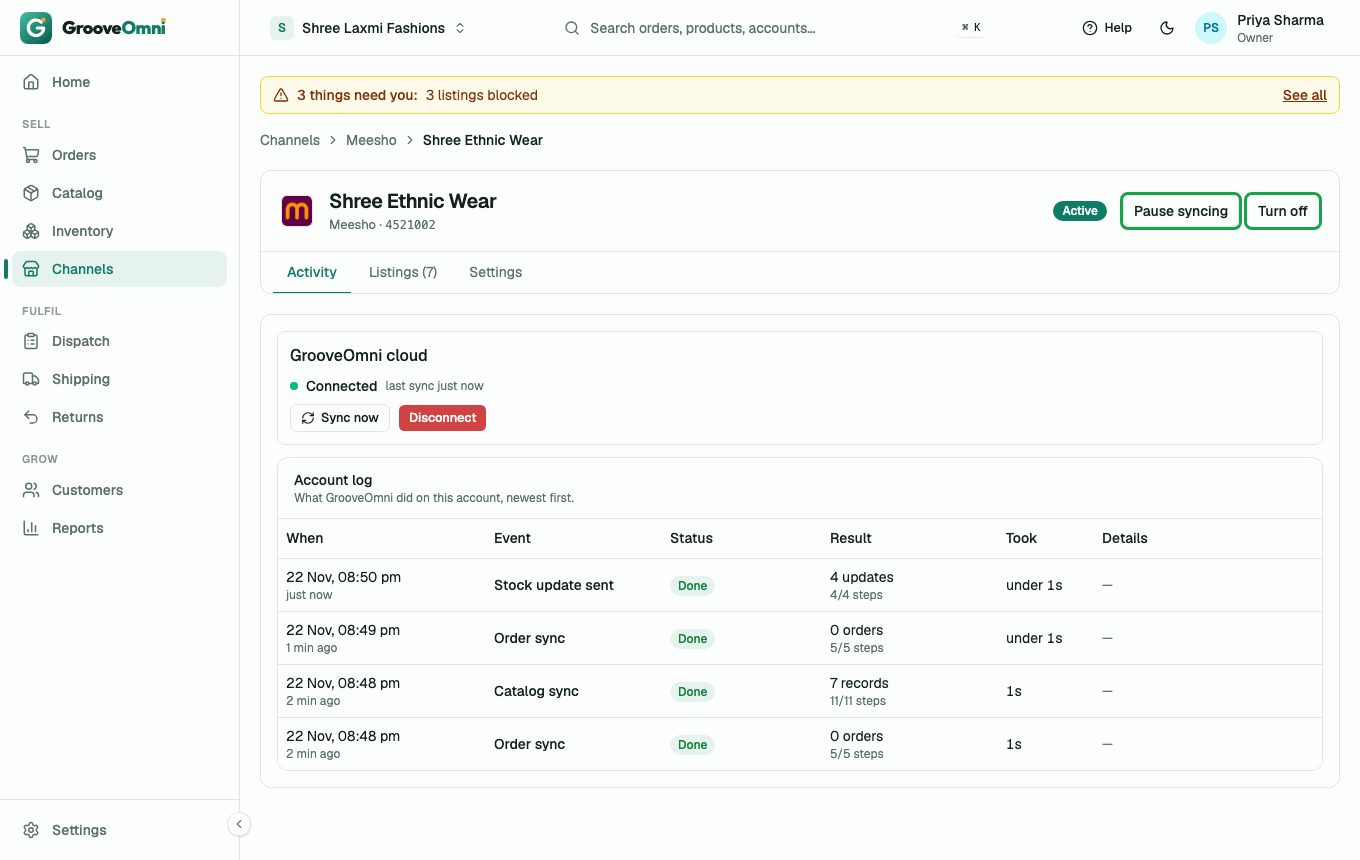 Open the account (Channels → Meesho → the account name). At the top right: Pause syncing and Turn off.
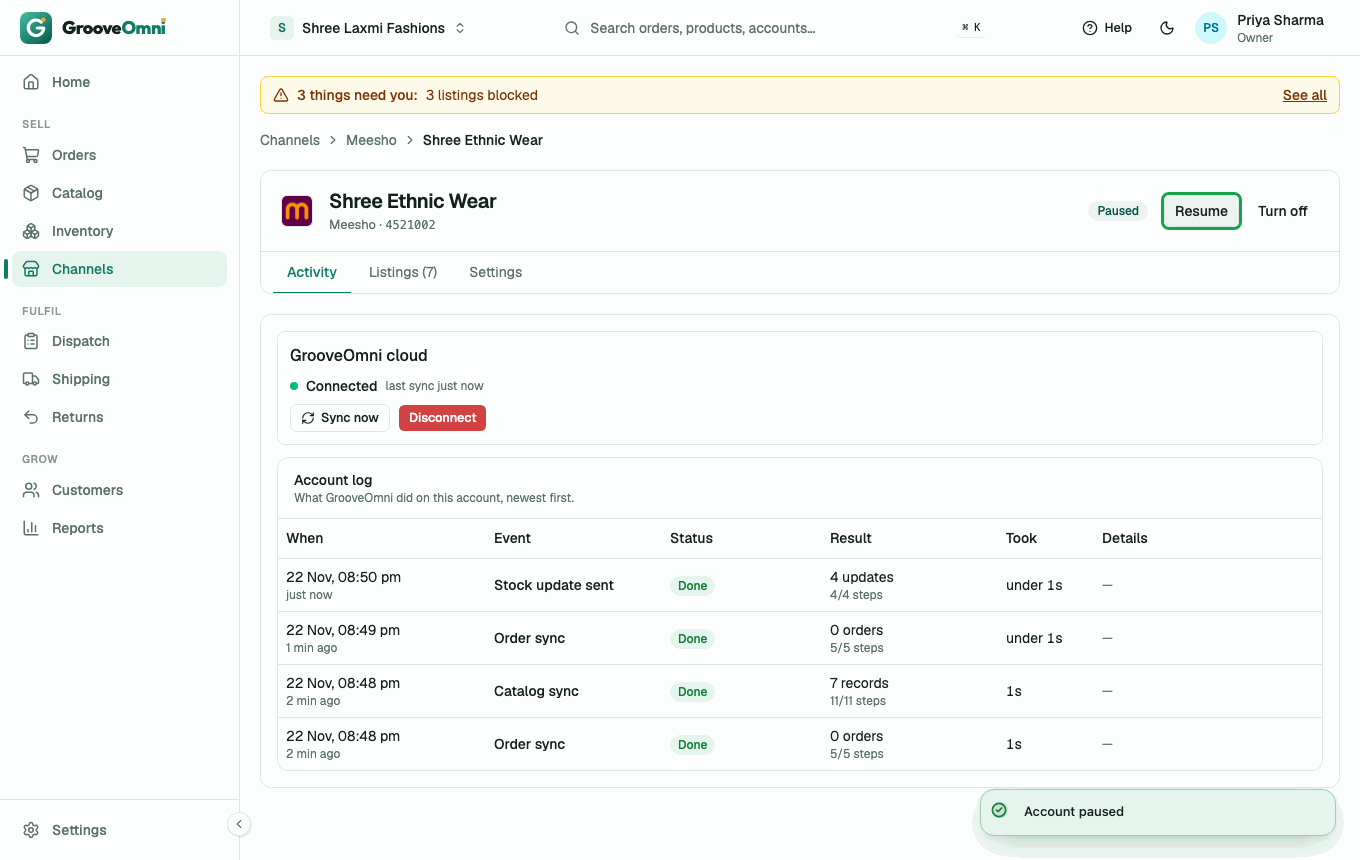 The account is paused: nothing is sent to Meesho and no orders come in. Click Resume to start again.
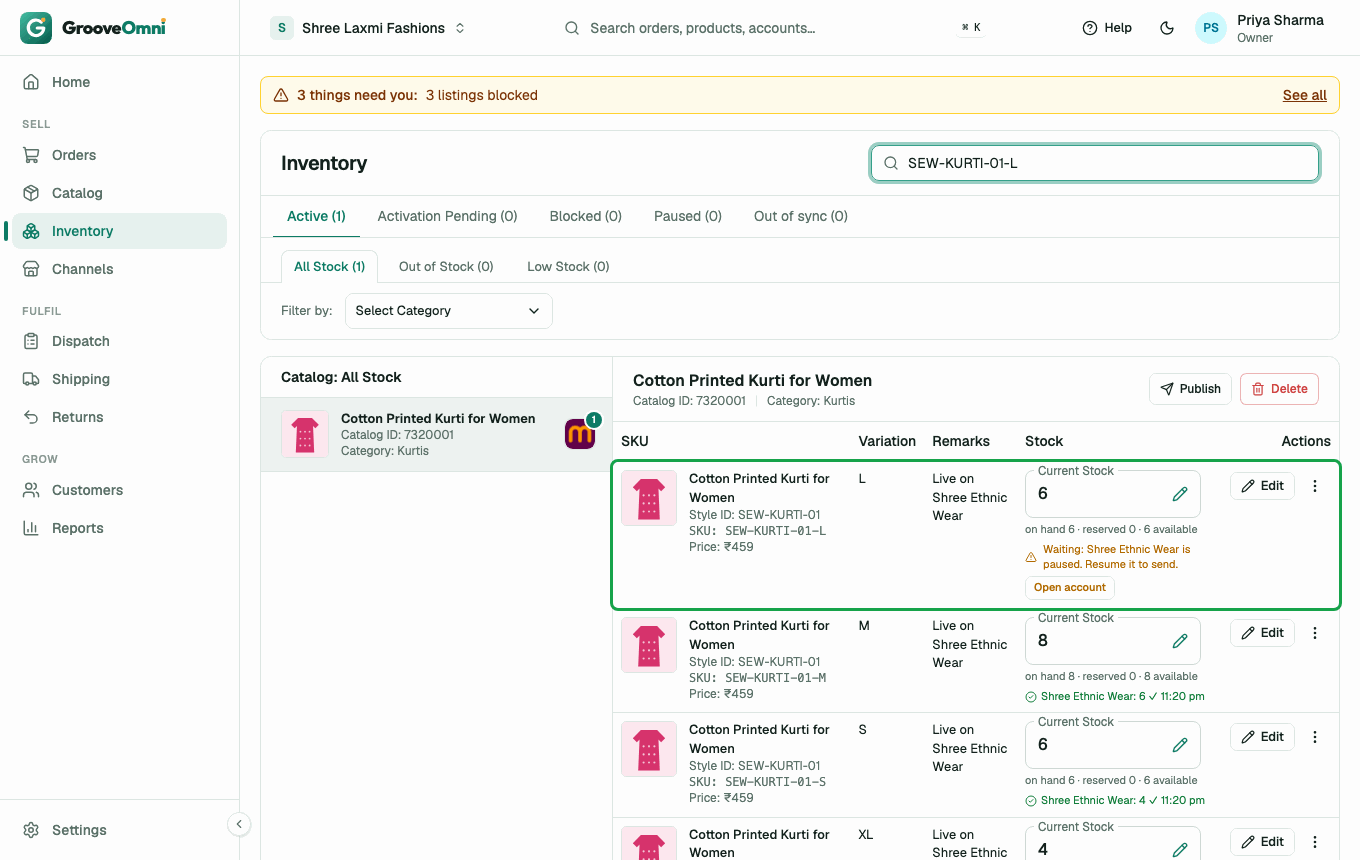 While it is paused, the stock line says the change waits for you to resume the account.
Step 2 — Remove an account from your bill
- Go to Settings → Billing and scroll to Marketplace accounts on your bill.
- In the account's row, click Remove.
- Read the box: "GrooveOmni stops syncing orders and stock for this account straight away. It stays on your bill until <date> (no refund), and your next bill goes from ₹… to about ₹…. You can undo this until then."
- Click Remove account. The row now shows Billing ends <date>.
Your products stay in GrooveOmni's catalog.
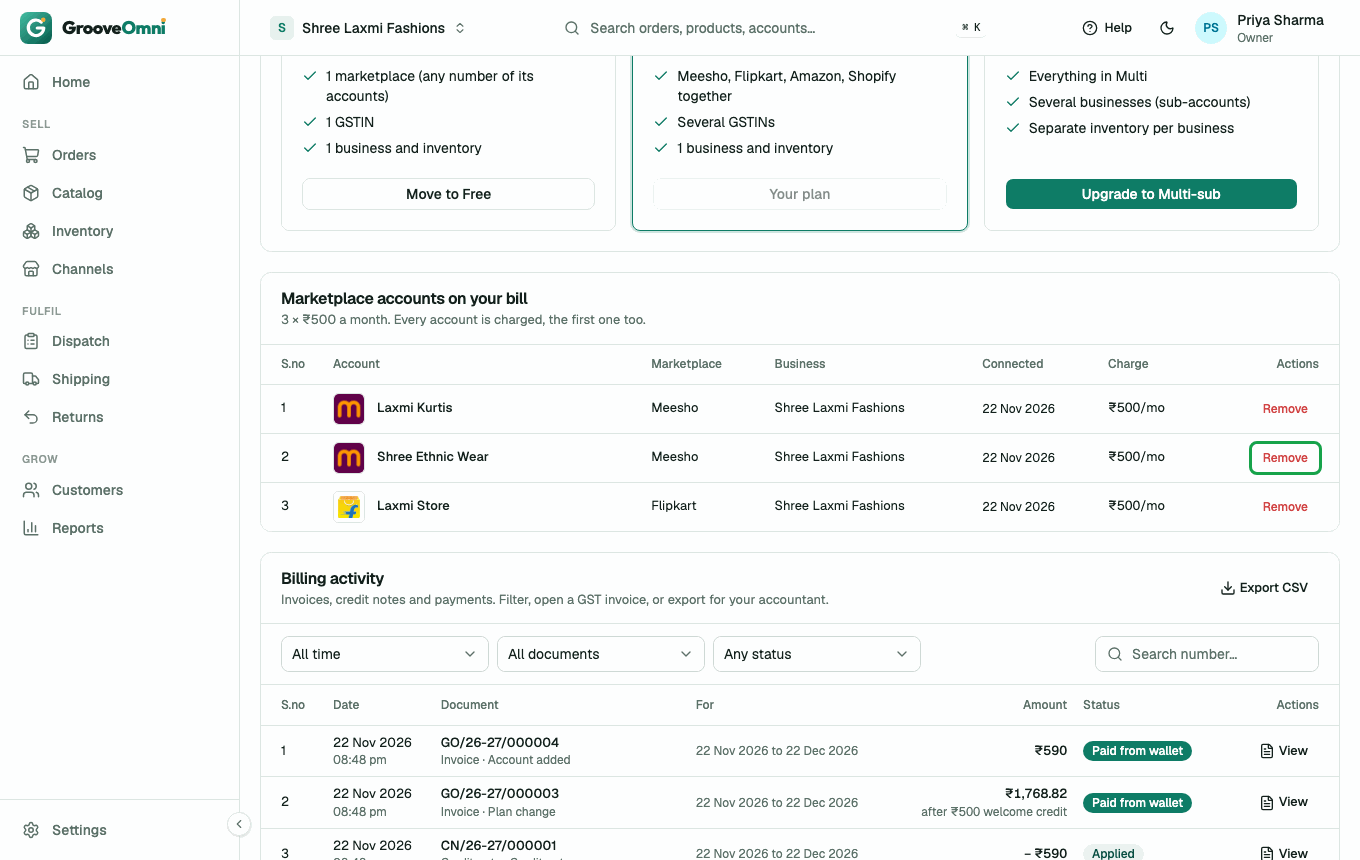 To stop paying for an account, go to Settings → Billing → Marketplace accounts on your bill and click Remove.
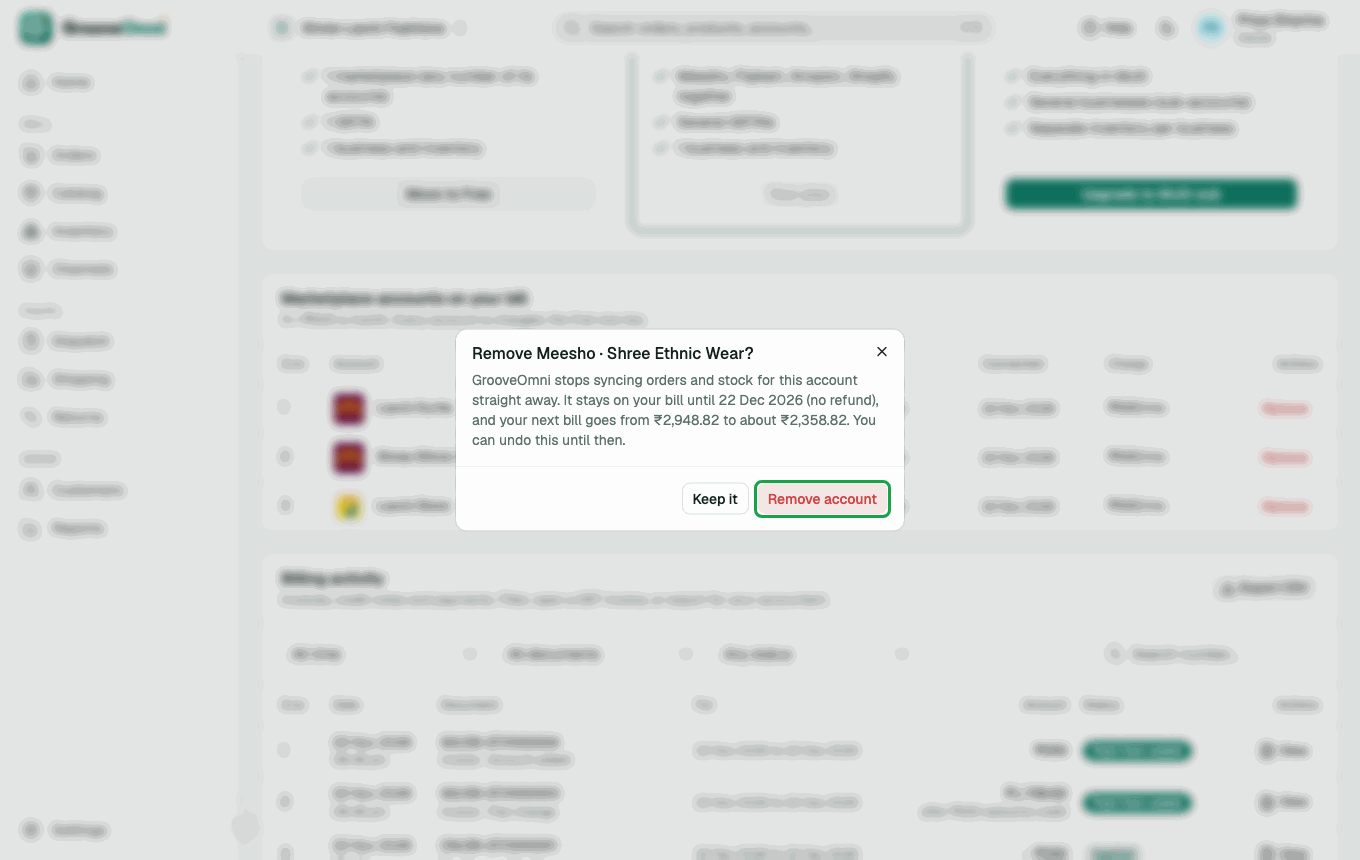 Read when its billing ends and what your next bill becomes, then click Remove account.
Step 3 — Restore a removed account
- In the same billing period: in Marketplace accounts on your bill, click Undo in the account's row. There is no new charge.
- After the period has ended: connect the account again from Channels → Meesho → Add another account. It is charged from that day, like a new account (see Add another Meesho account).
See also How your accounts change the bill for the bill before and after.
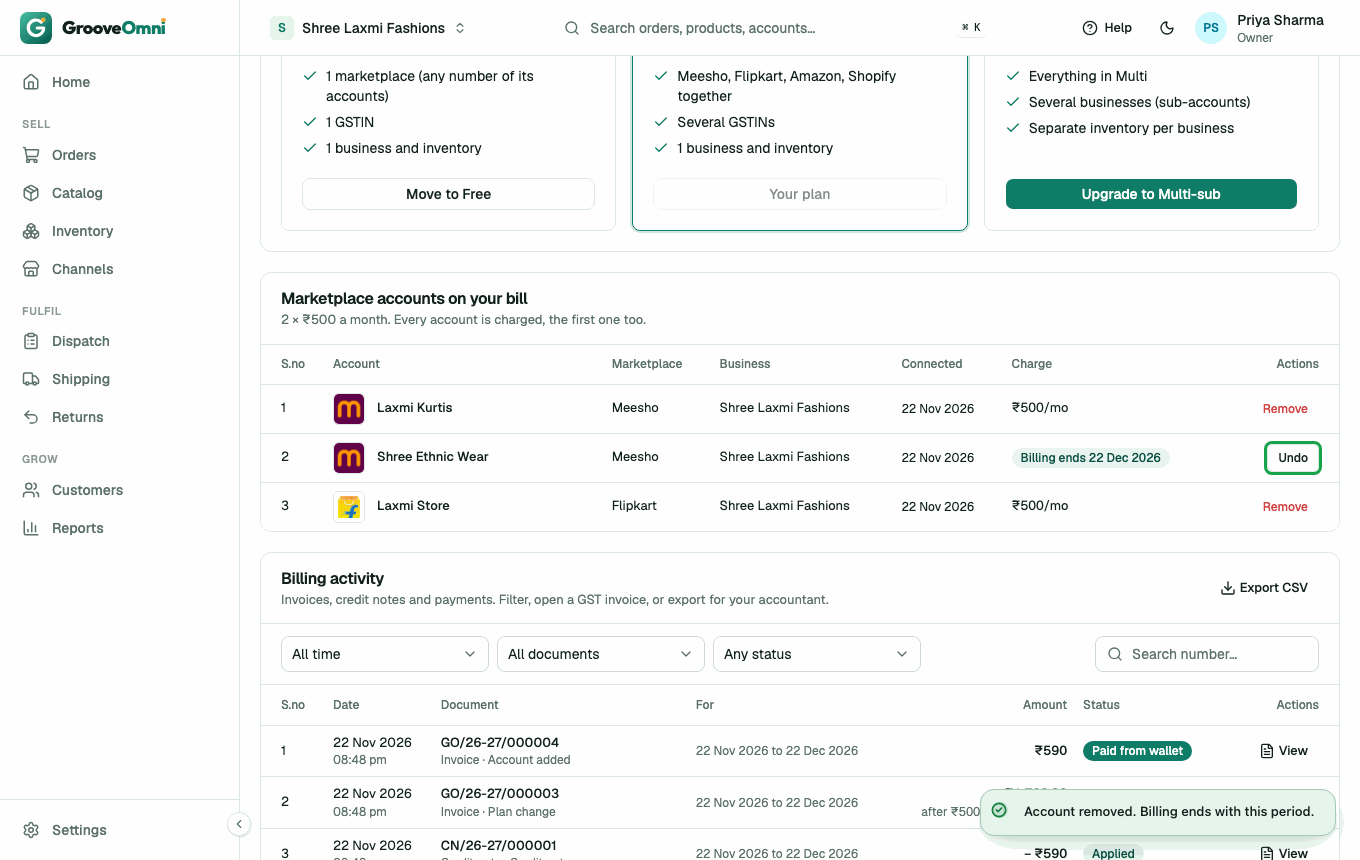 The row shows Billing ends and the date. Until then, Undo brings the account back at no charge.
Common questions
What happens to stock while an account is paused? Your stock in GrooveOmni keeps changing as usual (orders on other accounts, your own changes). Meesho keeps showing the last number GrooveOmni sent. When you resume, GrooveOmni sends the current number.
Do orders still come in while paused? Not into GrooveOmni. Buyers can still order on Meesho if the listing is live there. Those orders come into GrooveOmni after you resume.
Is there a difference between Paused and Off? Today they behave the same. Both stop syncing and both are still billed.
Does Remove delete my Meesho account? No. It only stops GrooveOmni working with it. Your Meesho account is untouched.
What's next
- Account settings Keep a few pieces back, or cap what one account shows.
- How your accounts change the bill What you pay when you add or remove an account mid-period.
- Is Meesho up to date? The stock lines that show a paused account is waiting.