Change a role or remove someone
This page shows how to change or end someone's access when they change jobs or leave.
Who can do this: Owner, Admin. Only the Owner can make someone an Admin.
Step 1 — Find the person
Settings → Team. Find the person (tabs All, Active, Invited, or Search name or contact).
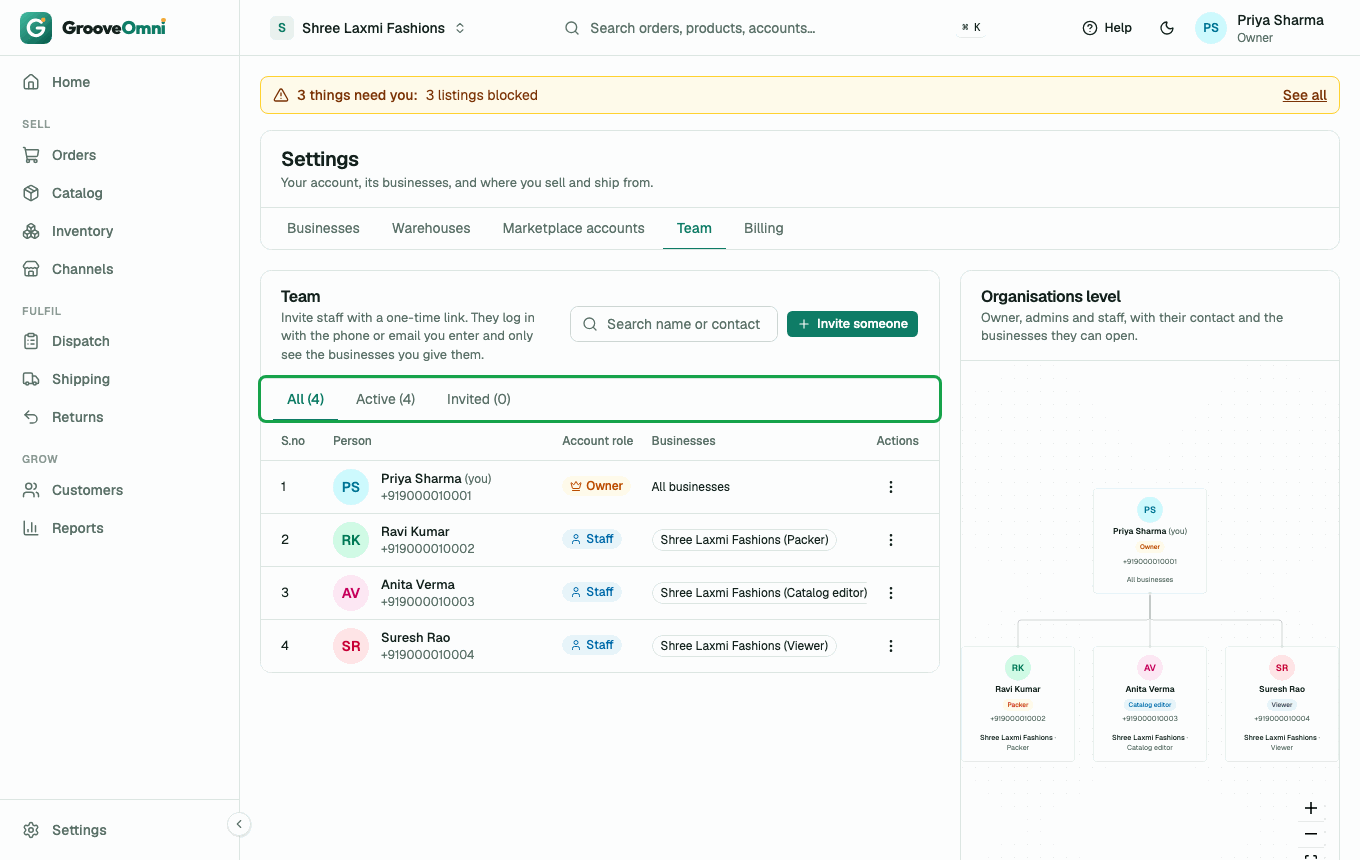 Settings → Team. Find the person with the tabs All, Active and Invited, or the search box.
Step 2 — Change their access
- Click ⋮ → Access.
- Change the Account role or the role per business.
- Click Save access. You see "Access saved".
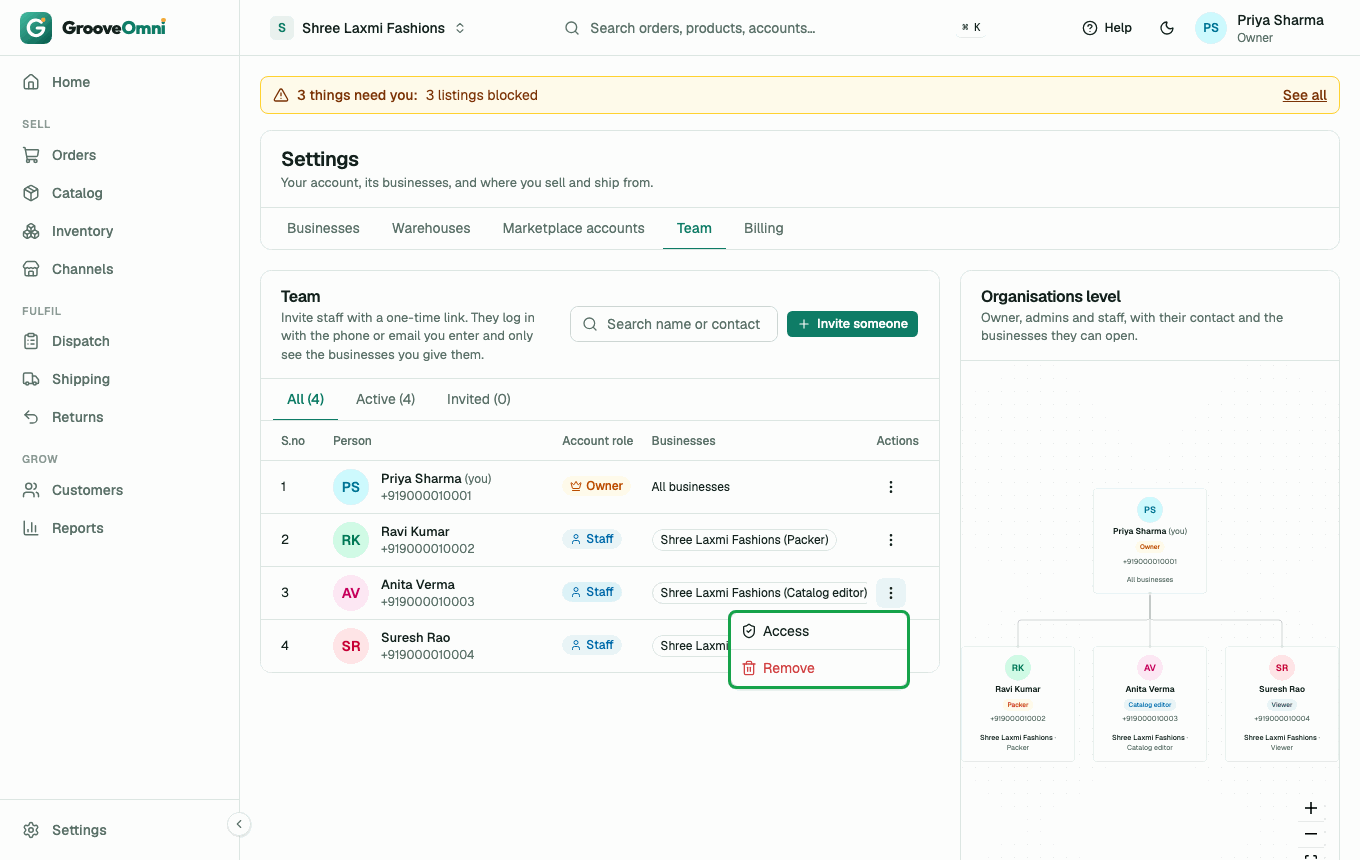 Click ⋮ in their row: Access changes their role; Remove takes them off the team.
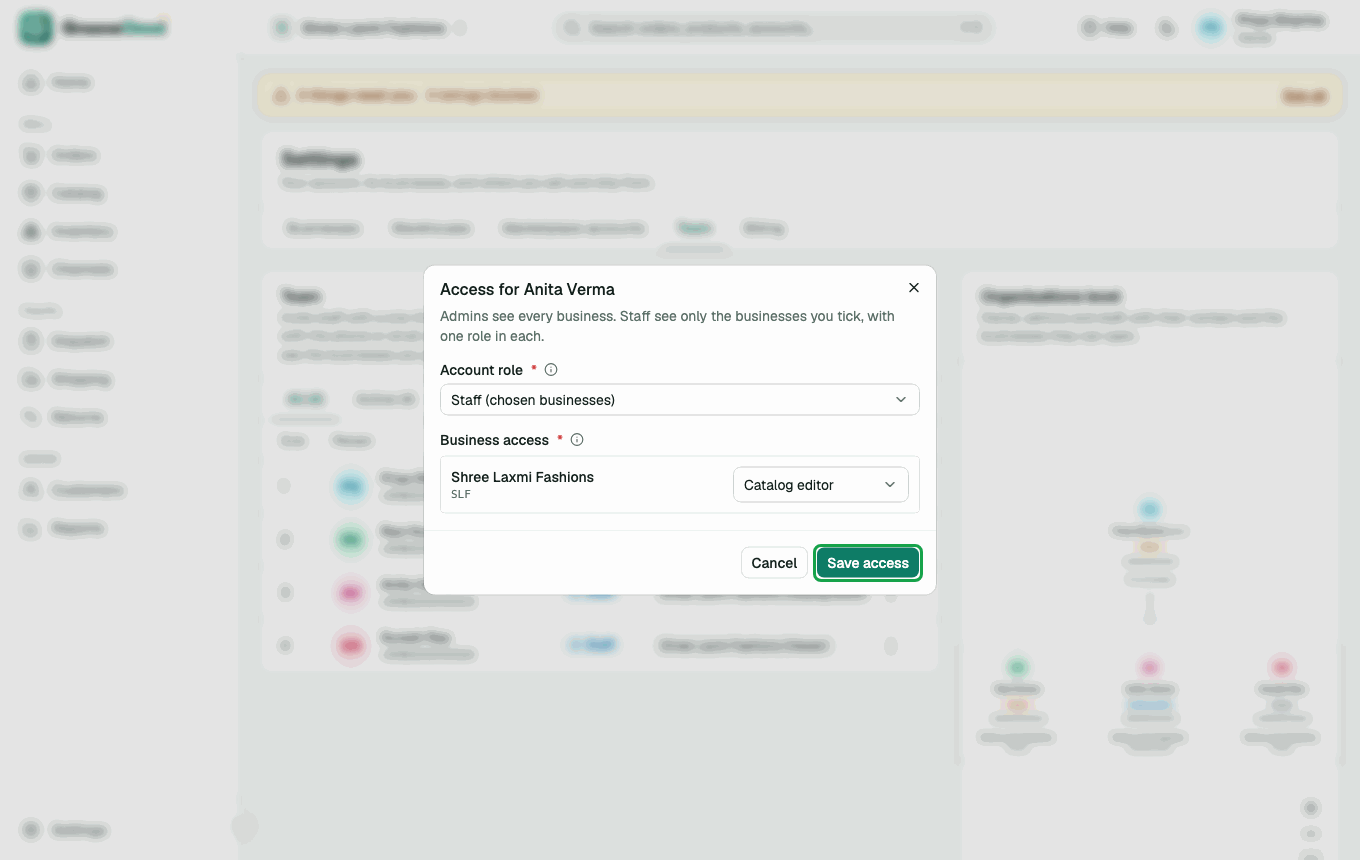 Change the account role or the role in each business, then click Save access. It applies at once and ends their open sessions.
Step 3 — Or remove them
- Settings → Team, click ⋮ → Remove in their row.
- Confirm "Remove <name> from the team?". You see "Removed from the team".
The change takes effect immediately: all of the person's open sessions end, on every device. They log in again and see only what the new role allows (or nothing, if removed).
Invites not accepted yet
- ⋮ → New link: a fresh link to share.
- ⋮ → Cancel invite: the link stops working.
The org chart Organisations level on the right shows who is who: owner on top, then admins, managers and the rest.
Common questions
Can I remove the owner? No. The owner cannot be changed or removed.
Does removing someone delete what they did? No. Orders, stock changes and products stay.
What's next
- What each role can do Pick the smallest role someone needs.
- Keep your accounts safe Remove people who leave at once.
- More than one business or GSTIN Give access per business.