Several warehouses
This page shows how to keep stock separately in two godowns, and which warehouse sells to which account.
Who can do this: Owner, Admin, Manager.
Step 1 — Add a warehouse
Go to Settings → Warehouses and click Add warehouse.
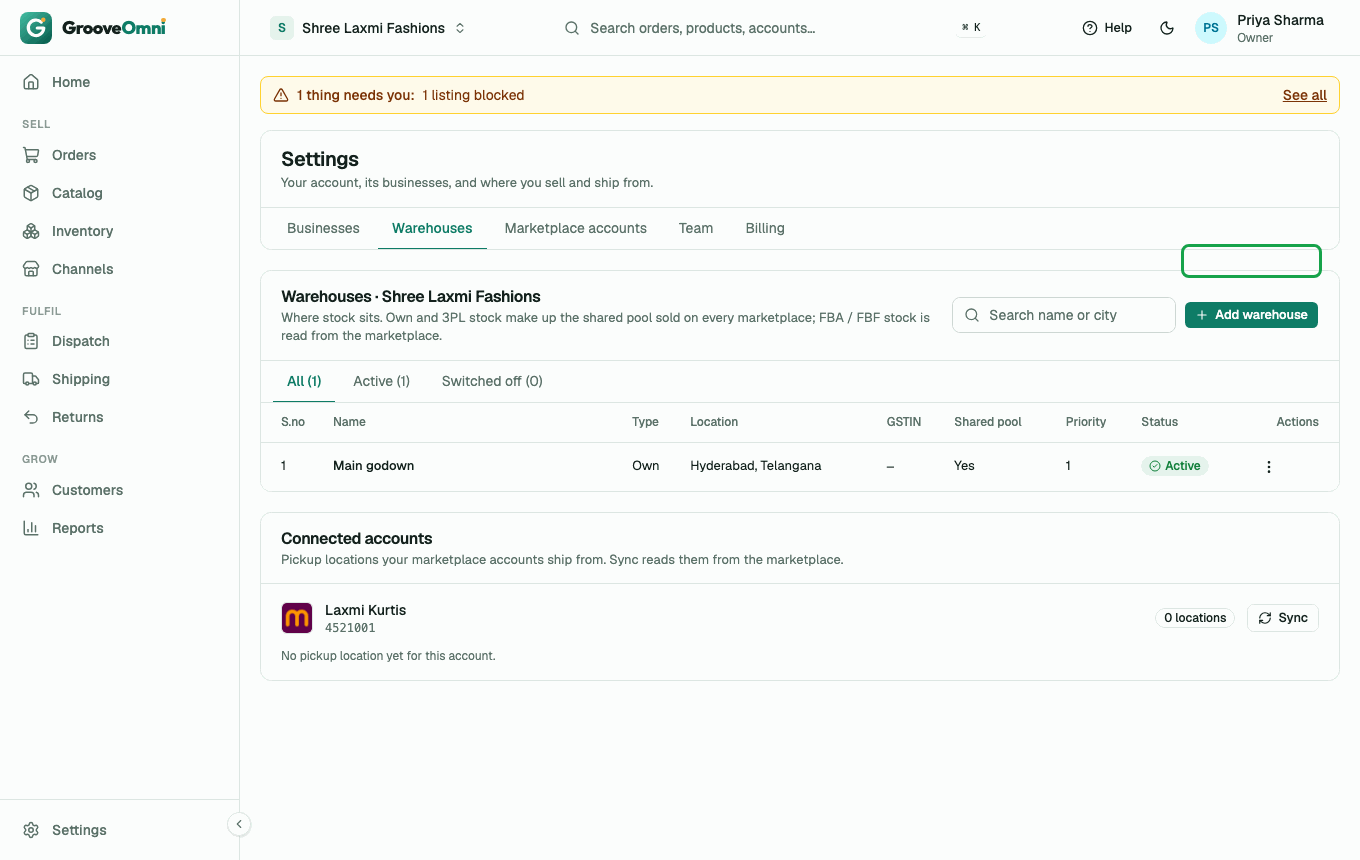 Go to Settings → Warehouses and click Add warehouse.
Step 2 — Fill in the basics
| Field | What to enter |
|---|---|
| Warehouse name | A name your team knows, for example "Main godown" or "Surat 3PL". |
| Type | Own (a place you run), 3PL (stock kept by a logistics partner; give the 3PL company) or Marketplace (FBA / FBF stock held by the marketplace). |
Choose Own, 3PL or Marketplace carefully.
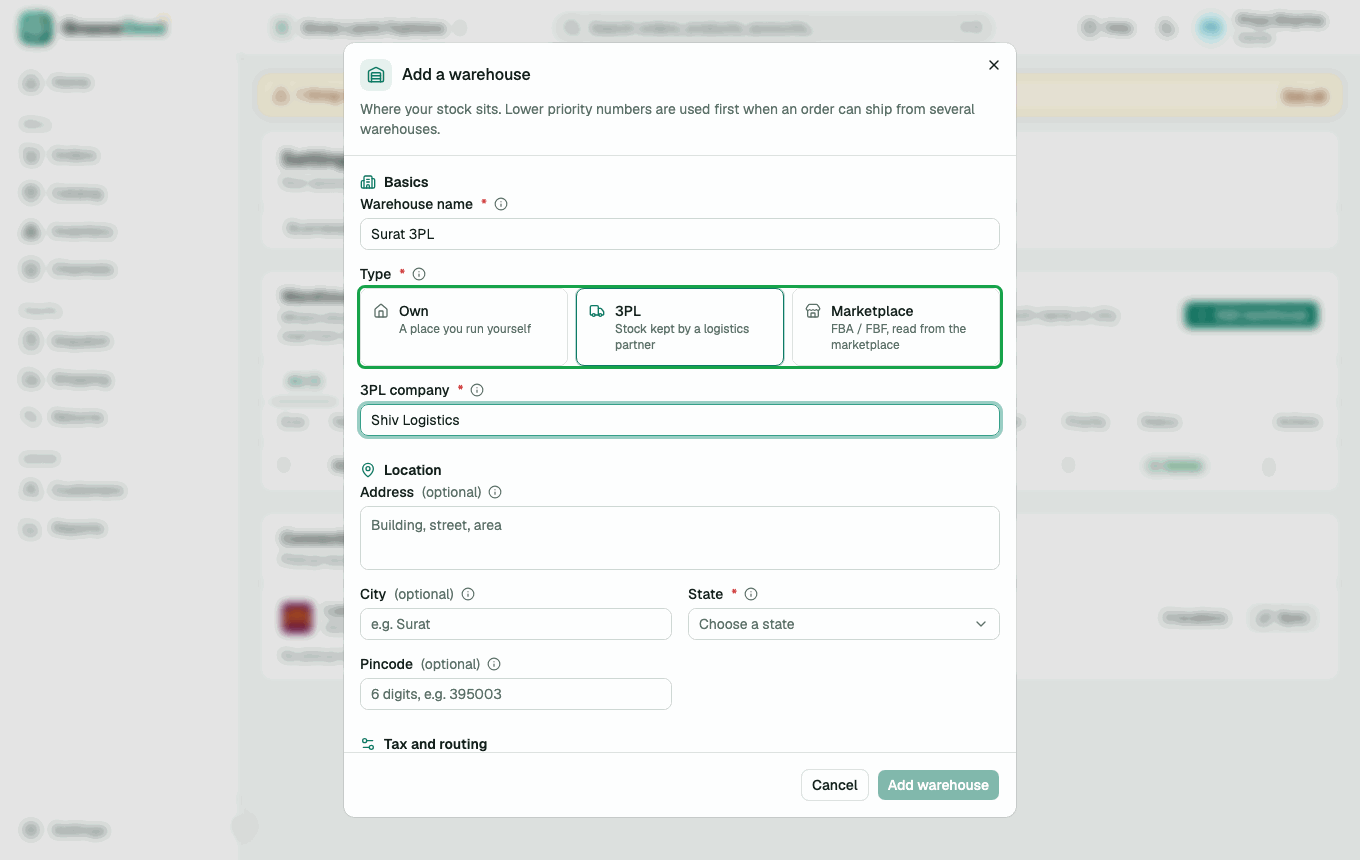 Give the warehouse a name your team knows and choose its type. For a 3PL, also give the 3PL company.
Step 3 — Fill in the location
| Field | What to enter |
|---|---|
| Address | The warehouse address. |
| City | Required. |
| State | Required. |
| Pincode | The pincode. |
Step 4 — Fill in tax and routing
| Field | What it does |
|---|---|
| GSTIN this place is registered under | If you pick a GSTIN from another state, GrooveOmni warns: "This GSTIN is registered in another state. Use the GSTIN of the state this warehouse is in." |
| Routing priority | When an order can ship from several warehouses, the lowest number is used first. Use 1 for your main warehouse. |
| Uses bin locations | Tick to track stock by shelf or bin. |
Click Add warehouse.
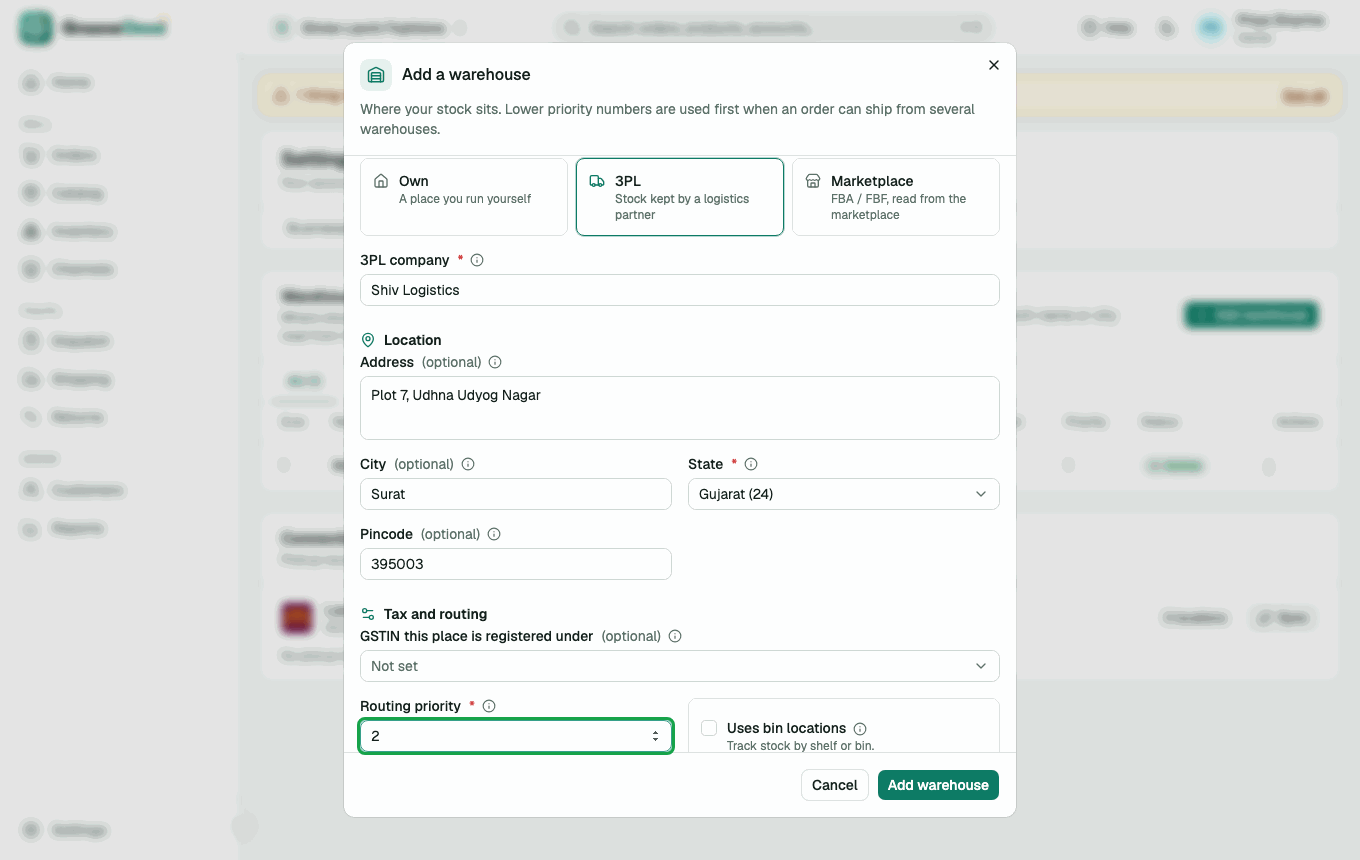 Fill in the address, city, state and pincode. The routing priority decides which warehouse an order takes stock from first.
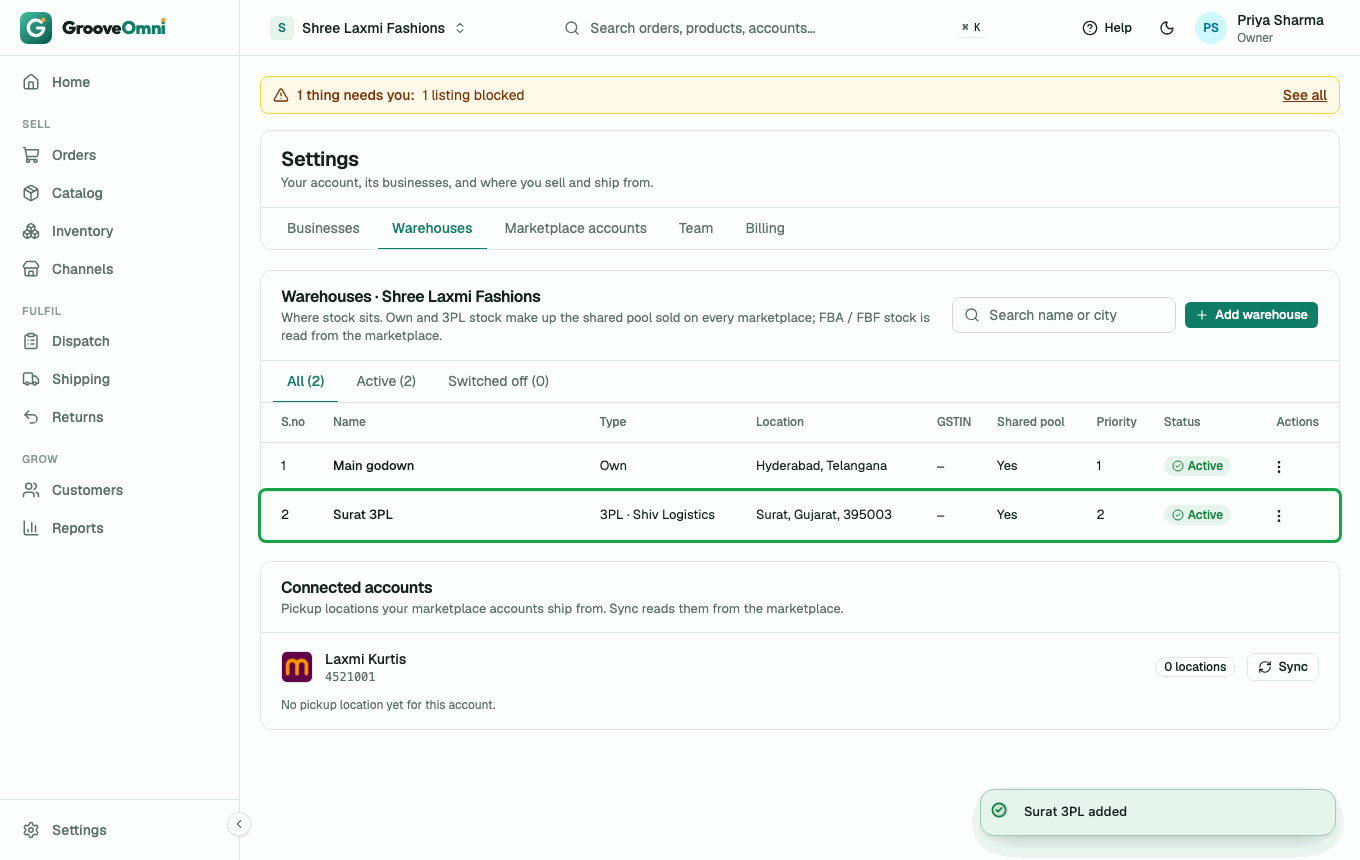 Both warehouses are listed. Own and 3PL stock together make up the stock you sell on every account.
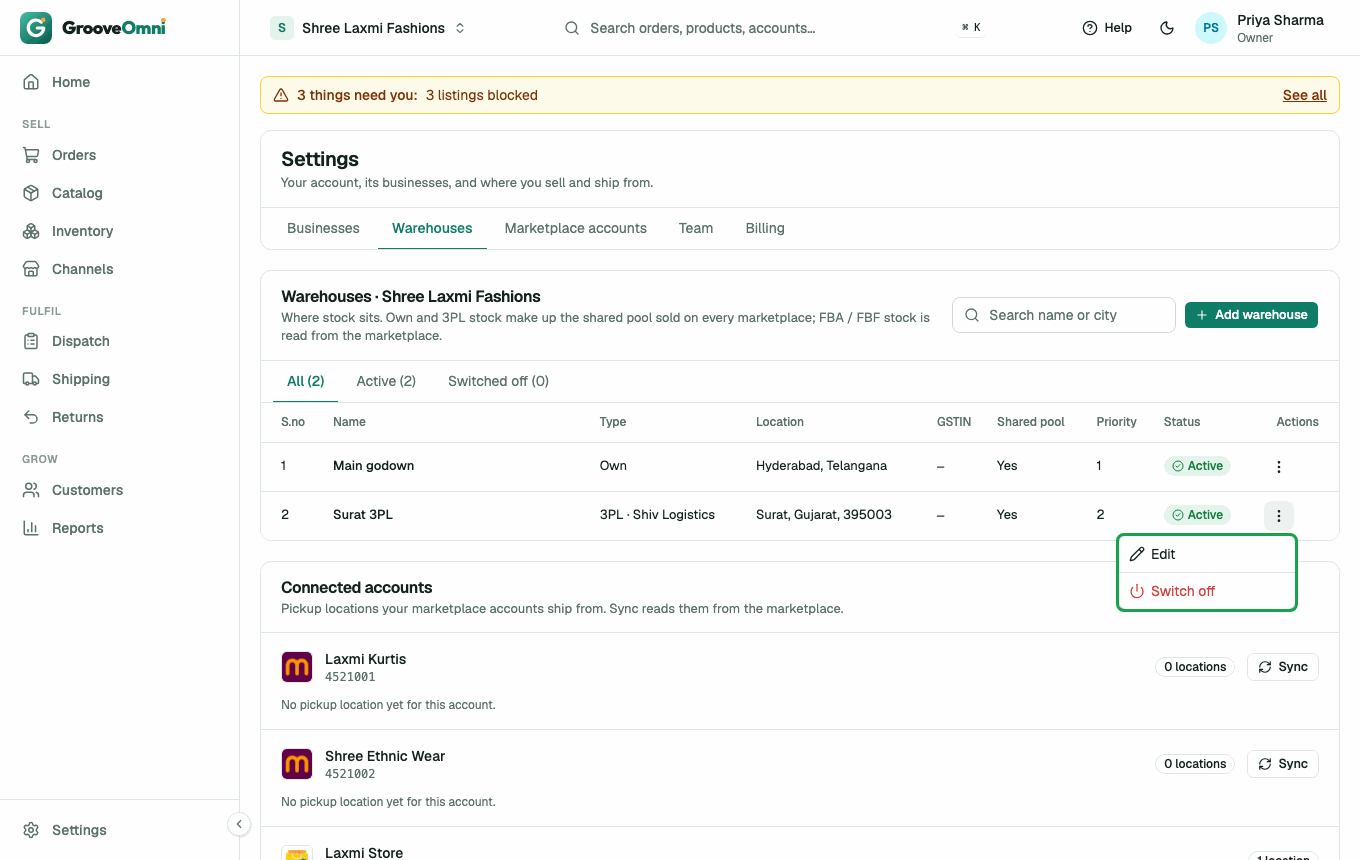 The ⋮ menu of a warehouse: Edit changes its details; Switch off stops using it (Switch on brings it back).
To stop using a warehouse: ⋮ → Switch off (and Switch on to use it again). ⋮ → Edit changes the details.
Step 5 — See stock per warehouse
- In Inventory (or on the product page), click Edit on a size.
- The stock window shows each warehouse: "on hand · reserved · damaged · available".
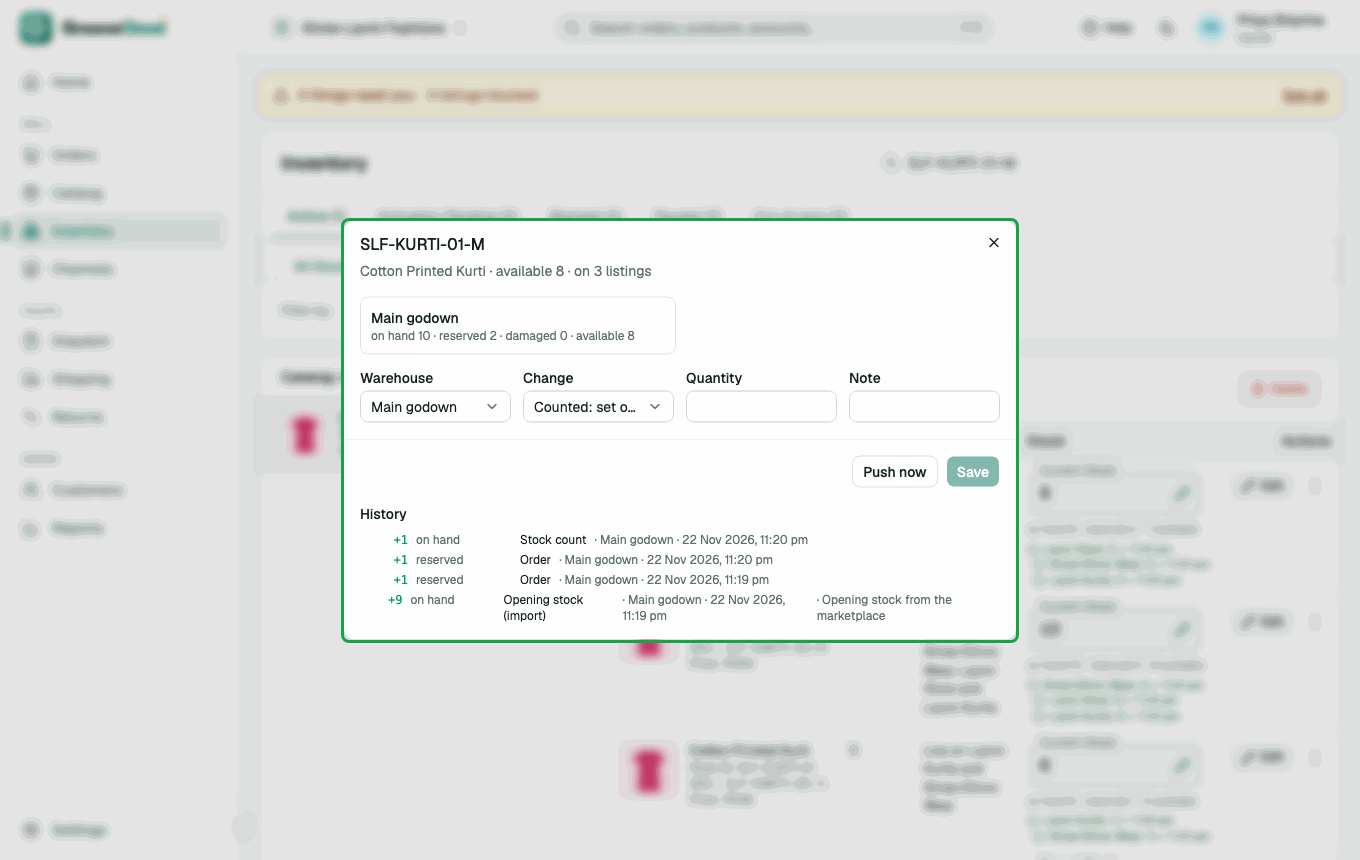 In Inventory, click Edit on a size: the stock window shows each warehouse’s on hand, reserved, damaged and available.
Which warehouse sells to which account
- Own and 3PL warehouses together form your shared pool. Their available stock is added up and offered on every account.
- A new Meesho account's opening stock goes into the warehouse you chose when you connected it.
- When an order comes in, GrooveOmni holds the pieces in the warehouse with the lowest routing priority number that has them.
- Below the list, Connected accounts shows each account's Meesho pickup address, for example "Hyderabad, Telangana 500032". GrooveOmni keeps only the city, state and pincode. Click Sync to read it from Meesho again.
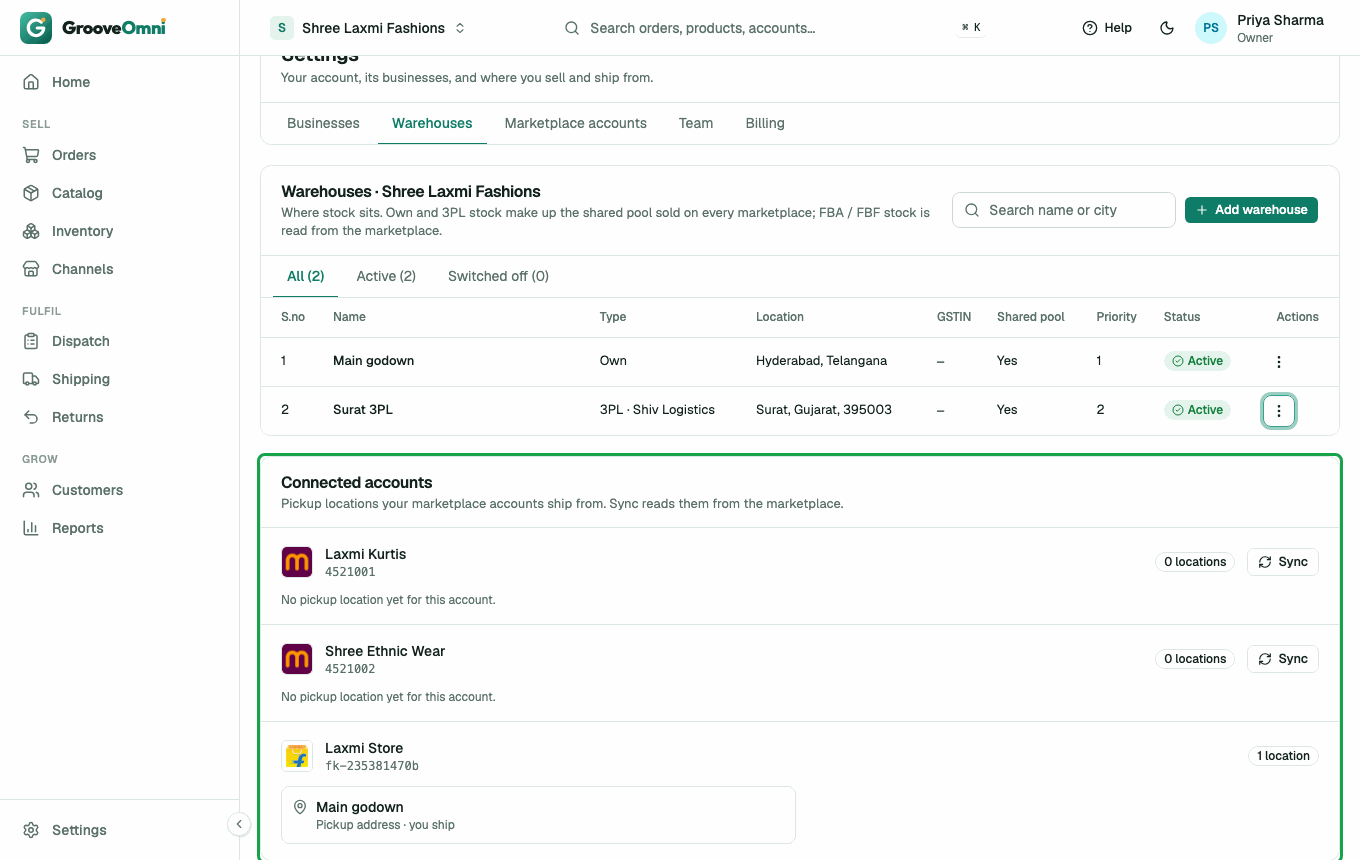 Below the list, Connected accounts shows each account’s Meesho pickup address (city, state and pincode).
Linking one Meesho pickup address to one warehouse, so that an account sells only that warehouse's stock, is not on the screen yet. Today every account sells the shared pool.
Common questions
Can I keep stock separately? Yes, per warehouse. All own and 3PL warehouses are sold together on your accounts.
A warehouse called "Main stock" appeared. GrooveOmni made it for a business without a warehouse. It says "Made by GrooveOmni: check its state and city". Click ⋮ → Edit and fix the state and city.
I have two businesses. Each business has its own warehouses and stock (see More than one business or GSTIN).
What's next
- Change stock, and see why it changed Record stock per warehouse.
- What orders do to your stock Which warehouse holds the pieces for an order.
- More than one business or GSTIN When each business needs its own stock.