Change stock, and see why it changed
This page shows how to record stock you received or damaged pieces you found, and how to see who changed your stock.
Who can do this: Owner, Admin, Manager, Catalog editor and Packer. Viewers can only look.
Step 1 — Open the stock window
In Inventory (or on the product page), click Edit next to the size. The window shows the SKU, "available · on n listing(s)" and each warehouse's numbers.
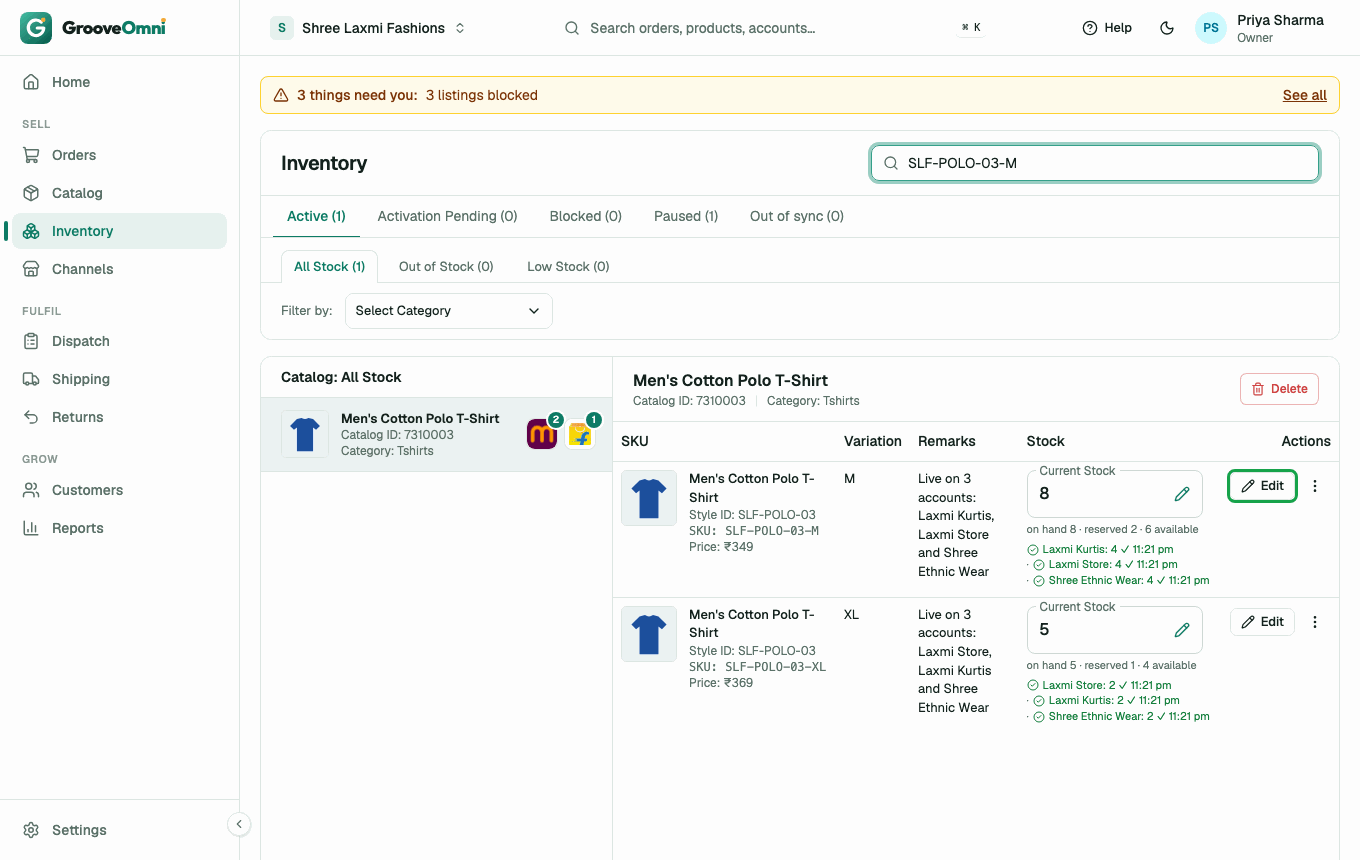 In Inventory (or on the product page), click Edit next to the size.
Step 2 — Record the change
| Field | What to choose or enter |
|---|---|
| Warehouse | The warehouse the change is in. |
| Change | Counted: set on hand to (you counted the shelf); Add (new stock received); Remove (pieces taken out); Mark damaged (moved out of sale, kept as damaged). |
| Quantity | How many pieces. |
| Note | If useful: "Received from Surat supplier", "Found torn"; write your name if several people change stock. |
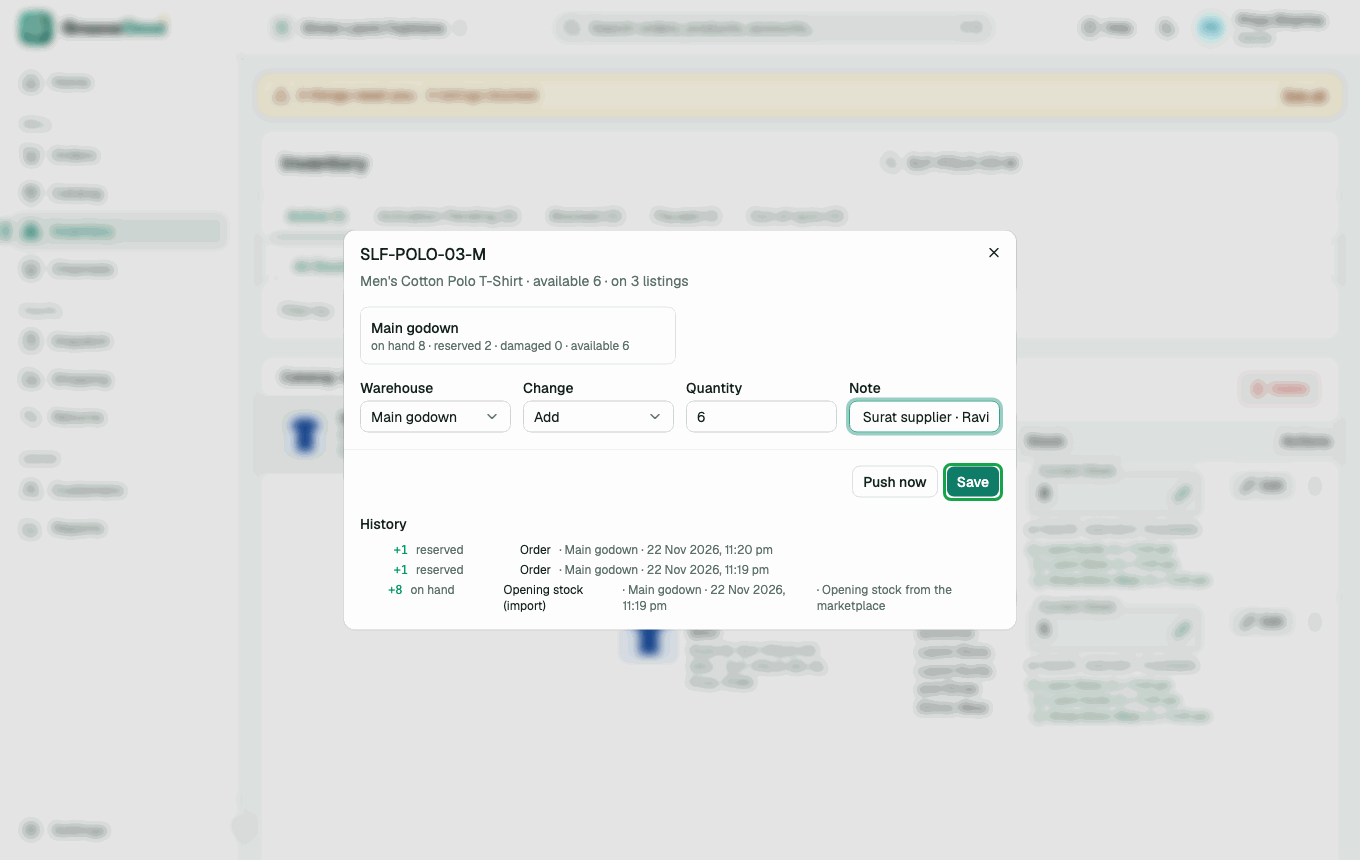 Choose the warehouse and the change (Counted, Add, Remove or Mark damaged), type the quantity and a note, then click Save.
Step 3 — Save
Click Save. You see "Stock saved. Sending to 2 accounts" (or just "Stock saved" when no marketplace sells this size yet). Push now sends the current number again without changing it ("Nothing to send" when the size is not listed anywhere).
On the product page, tick the sizes, type a Qty and click Add, Remove or Set to.
Step 4 — See why it changed
The same window has a History: every change, newest first, with:
- the amount (+5, −1);
- what changed (on hand, reserved, damaged);
- the reason: Opening stock (import), Stock count, Adjustment, Marked damaged, Order, Order cancelled, Return, Goods received, Transfer in, Transfer out;
- the warehouse, the date and time, and your note.
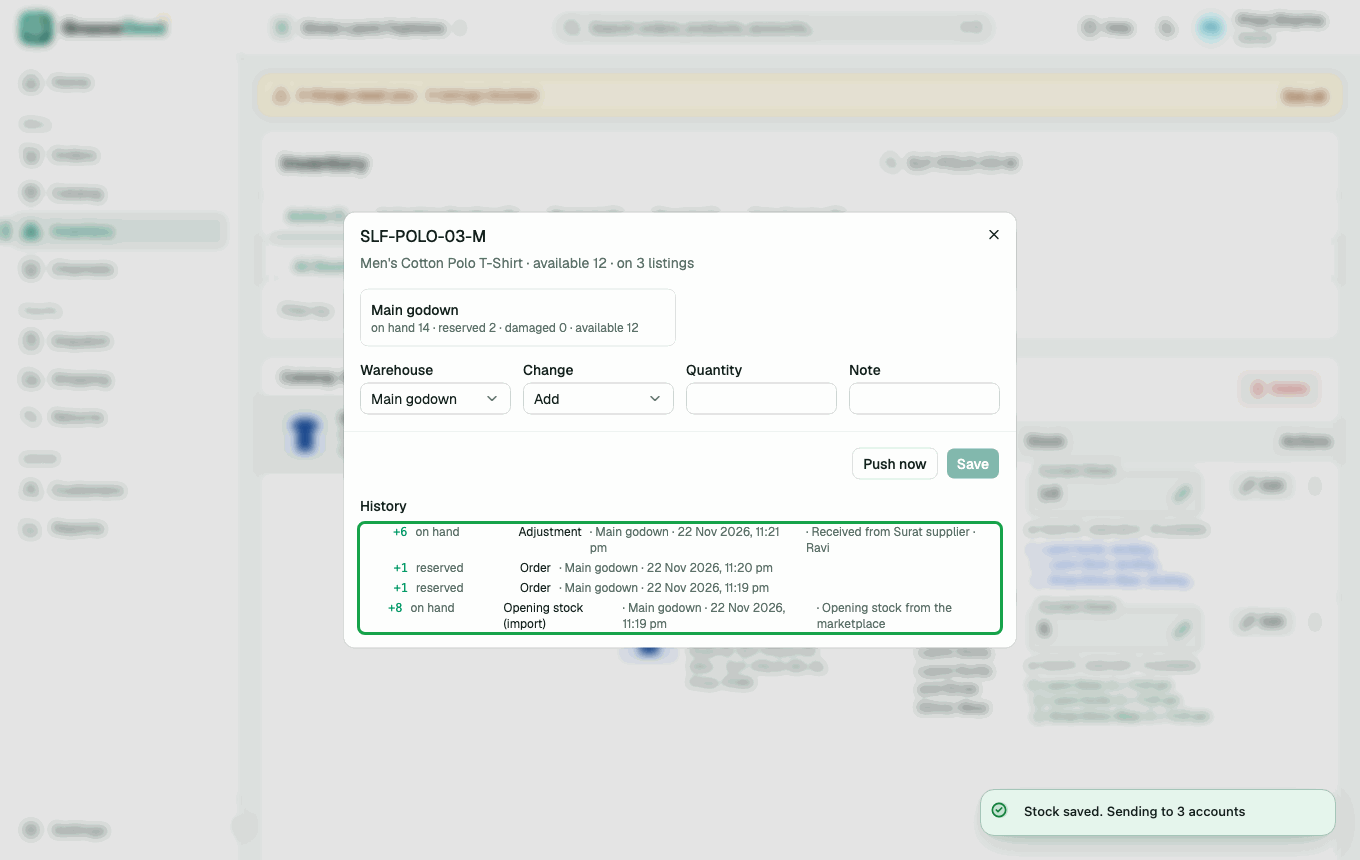 The same window has the History: every change, newest first, with the amount, the reason, the warehouse, the time and your note.
Common questions
Who changed my stock? The history shows what, when, where and why, but not yet the person. Ask your team to write their name in the Note.
Do orders change the history? Yes: an order holds pieces (reserved), a cancellation frees them, and a dispatch takes them out of on hand. See What orders do to your stock.
What's next
- Stock buffer and stock cap Keep pieces back on an account.
- What orders do to your stock Reserved, available and on hand through an order's life.
- Returns Put a good return back on sale.